如何卸载 Dell Data Protection Secure Lifecycle
Zusammenfassung: 按照这些分步说明,了解如何从 Windows 或 Mac 计算机卸载 Dell Data Protection Secure Lifecycle。
Dieser Artikel gilt für
Dieser Artikel gilt nicht für
Dieser Artikel ist nicht an ein bestimmtes Produkt gebunden.
In diesem Artikel werden nicht alle Produktversionen aufgeführt.
Weisungen
注:
- 自 2018 年 11 月起,Dell Data Protection | Secure Lifecycle 已停售。戴尔不再更新本产品及其文章。有关详细信息,请参阅 Dell Data Security 产品生命周期(结束支持和停售)政策。如果您对其他文章有任何疑问,请联系您的销售团队或联系 endpointsecurity@dell.com。
- 请参阅端点安全性,了解有关当前产品的其他信息。
可能需要从端点卸载 Dell Data Protection | Secure Lifecycle,以完成以下任务:
- 修复许可差异
- 对产品进行故障排除
- 解决操作系统不兼容性
受影响的产品:
- Dell Data Protection | Secure Lifecycle
受影响的版本:
- 1.0
受影响的操作系统:
- Windows
- Mac
Windows 和 Mac 的卸载过程不同。单击相应的操作系统,查看卸载 Dell Data Protection | Secure Lifecycle 的步骤。
Windows
在执行这些步骤之前,必须先下载 Dell Data Protection | Secure Lifecycle 安装程序。
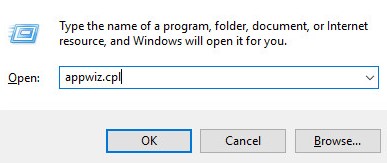
- 右键单击 Windows 的“开始”菜单,然后单击运行。
- 在“运行”UI中,键入
appwiz.cpl然后按 OK。这将打开“程序和功能”。
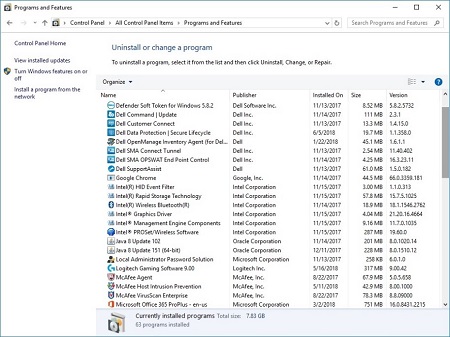
- 双击 Dell Data Protection | Secure Lifecycle。
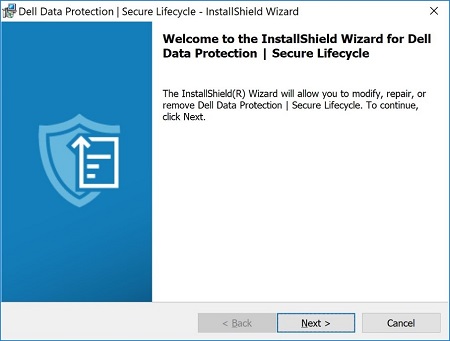
- 单击“Next”继续。
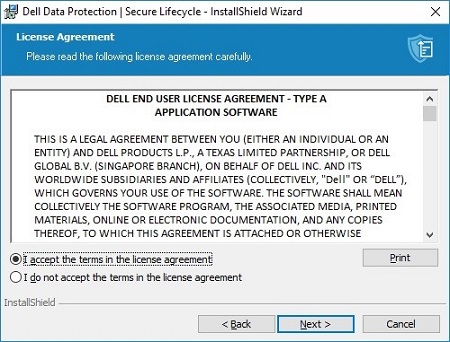
- 接受许可协议中的条款,然后单击 Next。
- 选择 Remove,然后单击 Next。
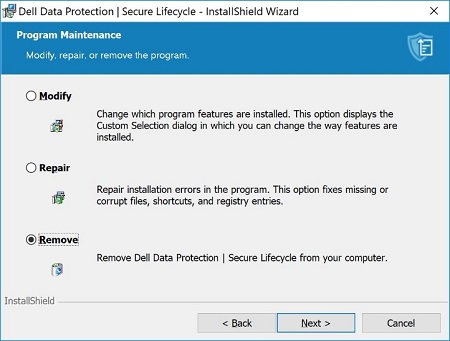
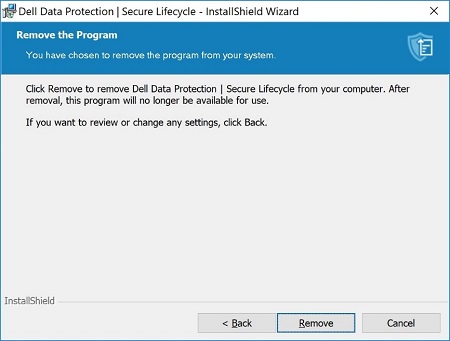
- 单击删除。
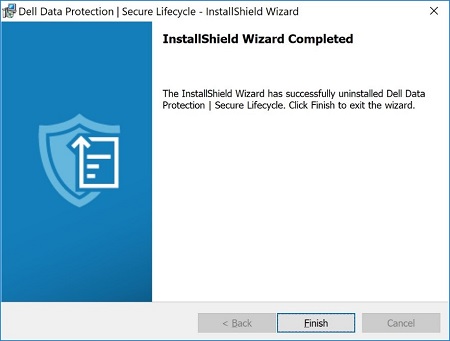
- 删除后,单击 Finish 关闭 UI。
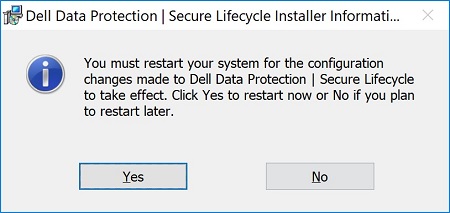
- 单击 Yes 重新启动计算机。
Mac
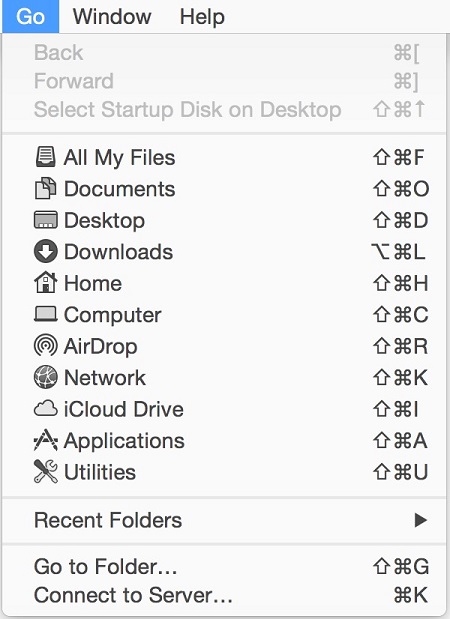
- 从 Apple 菜单中,单击 Go,然后选择 Applications。
- 在应用程序列表中找到 Secure Lifecycle 图标。

- 将 Secure Lifecycle 图标拖到回收站图标。

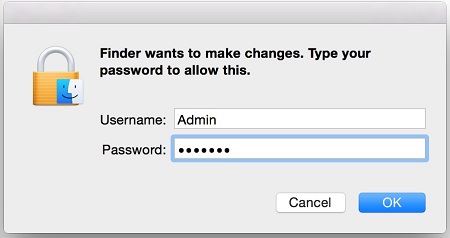
- 输入管理帐户的凭据,然后按 OK。
Weitere Informationen
Videos
Betroffene Produkte
Dell Data GuardianArtikeleigenschaften
Artikelnummer: 000123295
Artikeltyp: How To
Zuletzt geändert: 05 Aug. 2026
Version: 17
Antworten auf Ihre Fragen erhalten Sie von anderen Dell NutzerInnen
Support Services
Prüfen Sie, ob Ihr Gerät durch Support Services abgedeckt ist.