How to Identify the CrowdStrike Falcon Sensor Version
Zusammenfassung: Learn to identify the CrowdStrike Falcon Sensor version for issue solutions, process changes, or system requirements. Follow the steps for Windows, Mac, or Linux.
Dieser Artikel gilt für
Dieser Artikel gilt nicht für
Dieser Artikel ist nicht an ein bestimmtes Produkt gebunden.
In diesem Artikel werden nicht alle Produktversionen aufgeführt.
Symptome
Knowing the CrowdStrike Falcon Sensor version allows you to:
- Identify known issues
- Understand process changes
- Understand system requirements
Affected Products:
- CrowdStrike Falcon Sensor
Affected Operating Systems:
- Windows
- Mac
- Linux
Ursache
Not applicable
Lösung
For instructions about how to identify the CrowdStrike Falcon Sensor version, click on Windows, Mac, or Linux.
Note:
- The CrowdStrike Falcon Sensor must be installed before identifying the version. For information about the installation process, reference How to Install CrowdStrike Falcon Sensor.
- For more information about checking the CrowdStrike Falcon Sensor, reference https://supportportal.crowdstrike.com/s/article/Checking-Falcon-Sensor-Version-Locally
.
Windows
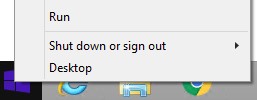
- Right-click the Windows start menu, and then click Run.
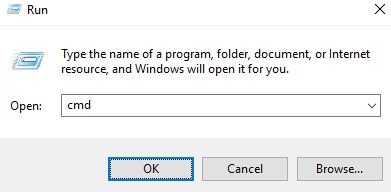
- In the Run UI, type
cmd, and then press OK.
- In Command Prompt, type
"C:\Program Files\CrowdStrike\CSSensorSettings.exe" –versionand then press Enter.

- Record the Version. In the example, 7.04.17605.0 is the Version.

Note: The Version of your sensor may differ from the above screenshot.
Mac
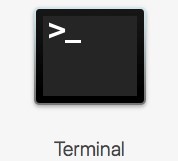
- Locate and then double-click Terminal.
- In Terminal, type
sysctl cs.versionand then press Enter.

- Record the version. In the example, the version is 4.18.8013.0.

Note: The Version of your sensor may differ from the above screenshot.
Linux
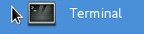
- On the targeted endpoint, open Terminal.
- In Terminal, type
sudo /opt/CrowdStrike/falconctl -g --versionand then press Enter.

- Populate the sudo account Password and then press Enter.
- Record the version. In the example, 4.20.6602.0 is the version.

Note: The Version of your sensor may differ from the above screenshot.
To contact support, reference Dell Data Security International Support Phone Numbers.
Go to TechDirect to generate a technical support request online.
For additional insights and resources, join the Dell Security Community Forum.
Betroffene Produkte
CrowdStrikeArtikeleigenschaften
Artikelnummer: 000126120
Artikeltyp: Solution
Zuletzt geändert: 26 Jan. 2024
Version: 21
Antworten auf Ihre Fragen erhalten Sie von anderen Dell NutzerInnen
Support Services
Prüfen Sie, ob Ihr Gerät durch Support Services abgedeckt ist.