Software Version Help
Zusammenfassung: This document provides the step by step instructions for maintaining code compliance to ensure your products are using the most reliable and proven software for stability, security and other enhancements. ...
Dieser Artikel gilt für
Dieser Artikel gilt nicht für
Dieser Artikel ist nicht an ein bestimmtes Produkt gebunden.
In diesem Artikel werden nicht alle Produktversionen aufgeführt.
Weisungen
Software Version where applicable can provide the personalized guidance for keeping the code version(s) of server, storage, and networking products are using the most reliable and proven software for stability, security and other enhancements. To view the personalized software version, both the product identifier: service tag or serial number, and your support account are required. To fully benefit from this personalized software version, the product's installed software version(s) will need to be stored in Dell's software version record.
- How to view my products personalized software version?
- What are the software version health states?
- How to update Dell's software version record with the product's installed software version(s)?
- What product models support personalized software version status?
Question: How to view my products personalized software version?
Answer:
- Utilize the product identifier: service tag or serial number on Dell.com/support site to view your server, storage, or networking product support page.
- Sign in with your corporate support account.
- View the product's software version summary health status in Overview (Figure 1).
- View the product's software version details in Drivers & Downloads (Figure 2).
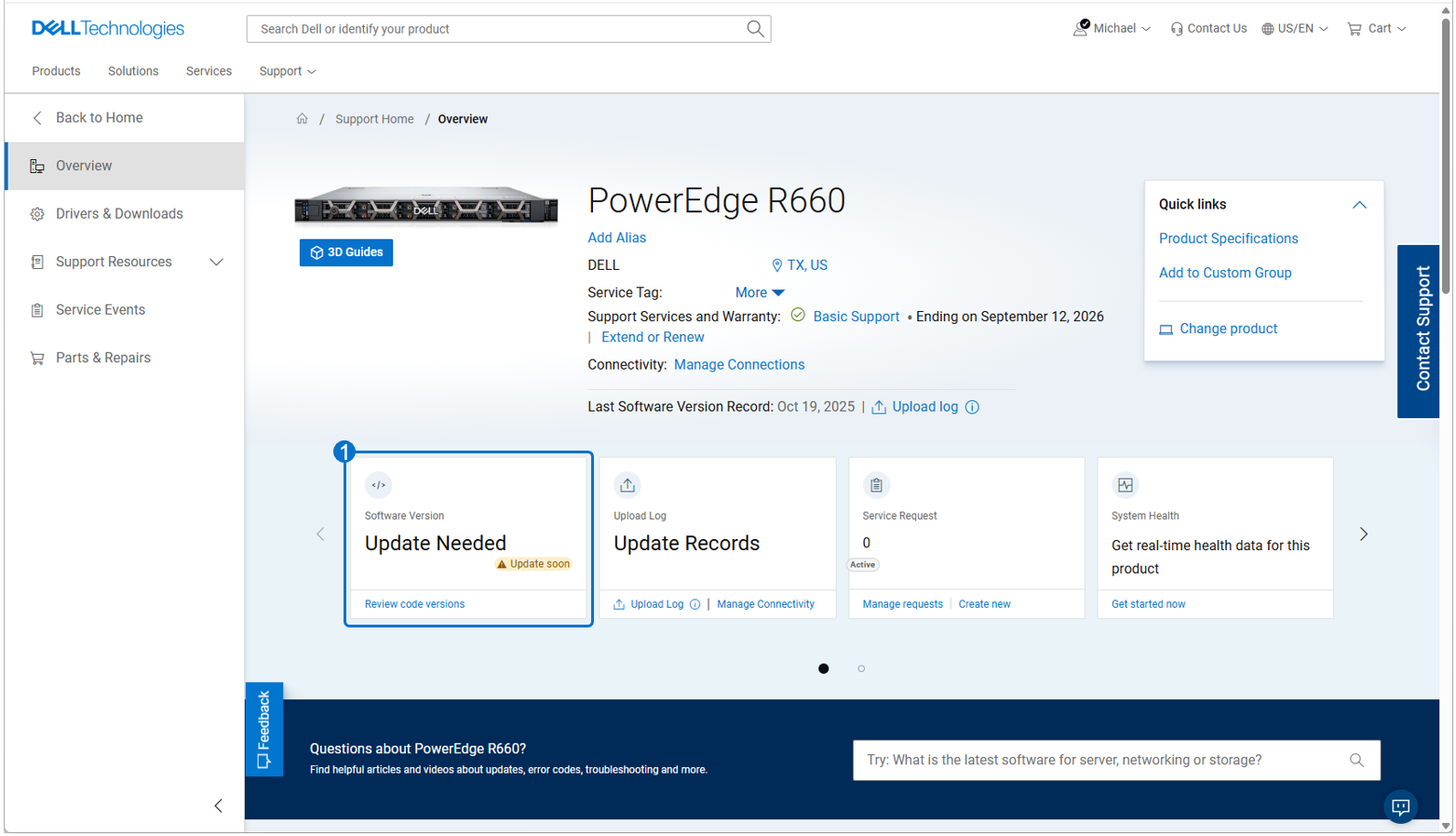
Figure 1: Software version summary health status
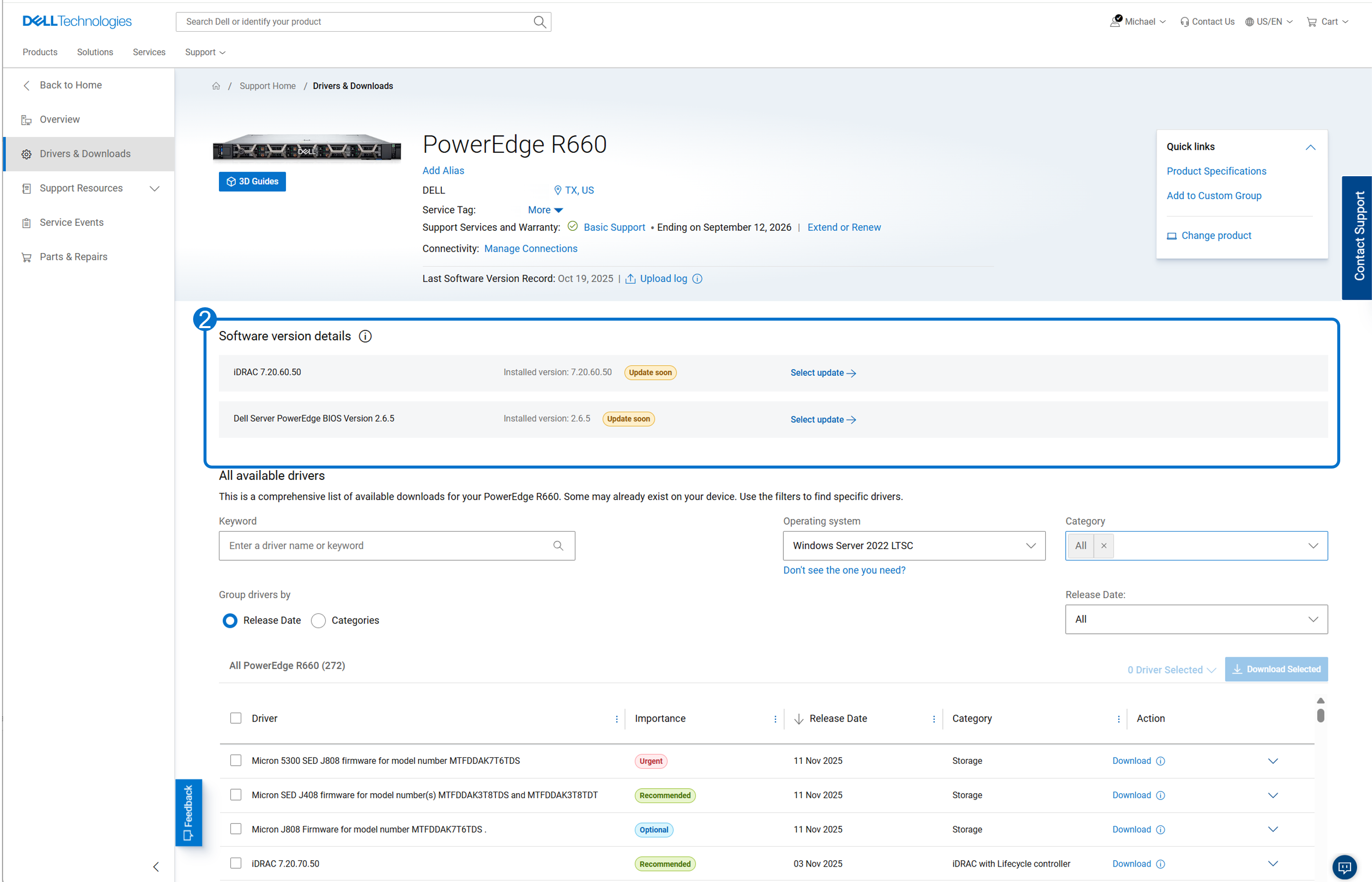
Figure 2: Software version details
Question: What are the software version health states?
Answer: The software version status is determined by using Dell's software version record of the installed code version(s) for your product compared to the respective software version minimum, recommended, and latest version guidance.
| Software version details | Description | Software version summary | Compliance (if applicable) |
|---|---|---|---|
| Out-of-date (Red) |
The installed software version is below the minimum version guidance. Update the product's software version as soon as possible. |
If one or more installed software version is out-of-date; the overview software version will be Update Needed: Out-of-date | Out of compliance |
| Update Soon (Yellow) |
The installed software version is below the recommended version and at or above the minimum version guidance. Plan to update the product's software version in a future update cycle. |
If one or more installed software version is update soon; the overview software version will be Update Needed: Update soon | In compliance |
| This product has up-to-date code versions, but driver updates may be available for optimal performance. | All the installed software version(s) is at or above recommended version. | All the installed software version(s) is at or above recommended version; the overview software version will be Driver version: Check for Updates | In compliance |
| Installed version x.y.z (Last reported, please review) |
The installed software version is unable to be compared to the software version guidance to determine software version health status. |
If one or more installed software version is unable to be compared; the overview software version will be Check for Updates: Review code versions. Please review the product's installed software version and compare to the software version minimum, recommended, and latest guidance to determine health status. |
Unable to determine |
| Unable to determine |
The software versions status is unable to be determined. This may be due to the following:
|
If one or more software version status is unable to be determined; the overview software version will be Keep software up to date to ensure the health and security of your asset. Please review the product's installed software version and compare to the software version minimum, recommended, and latest guidance to determine health status. |
Unable to determine |
Question: How to update Dell's software version record with the product's installed software version(s)?
Answer: The product's installed software version(s) are stored in Dell's software version record. There are multiple methods to keep Dell's software version record up to date with your product's installed software version(s).
- Connectivity: Connect the product via Secure Connect Gateway, OpenManage Enterprise Services plugin, or directly to enable automated installed software version transfer. This is the preferred method to enable automated updates.
- Uploading the product log: Log upload is available for some product models as shown in Figure 3 or through the virtual assistant. Dell's software version record will be updated based on the uploaded product log's installed software version if analyzed successfully.
- Contacting Dell support: As part of a Dell support contact, the installed software version record can be updated.
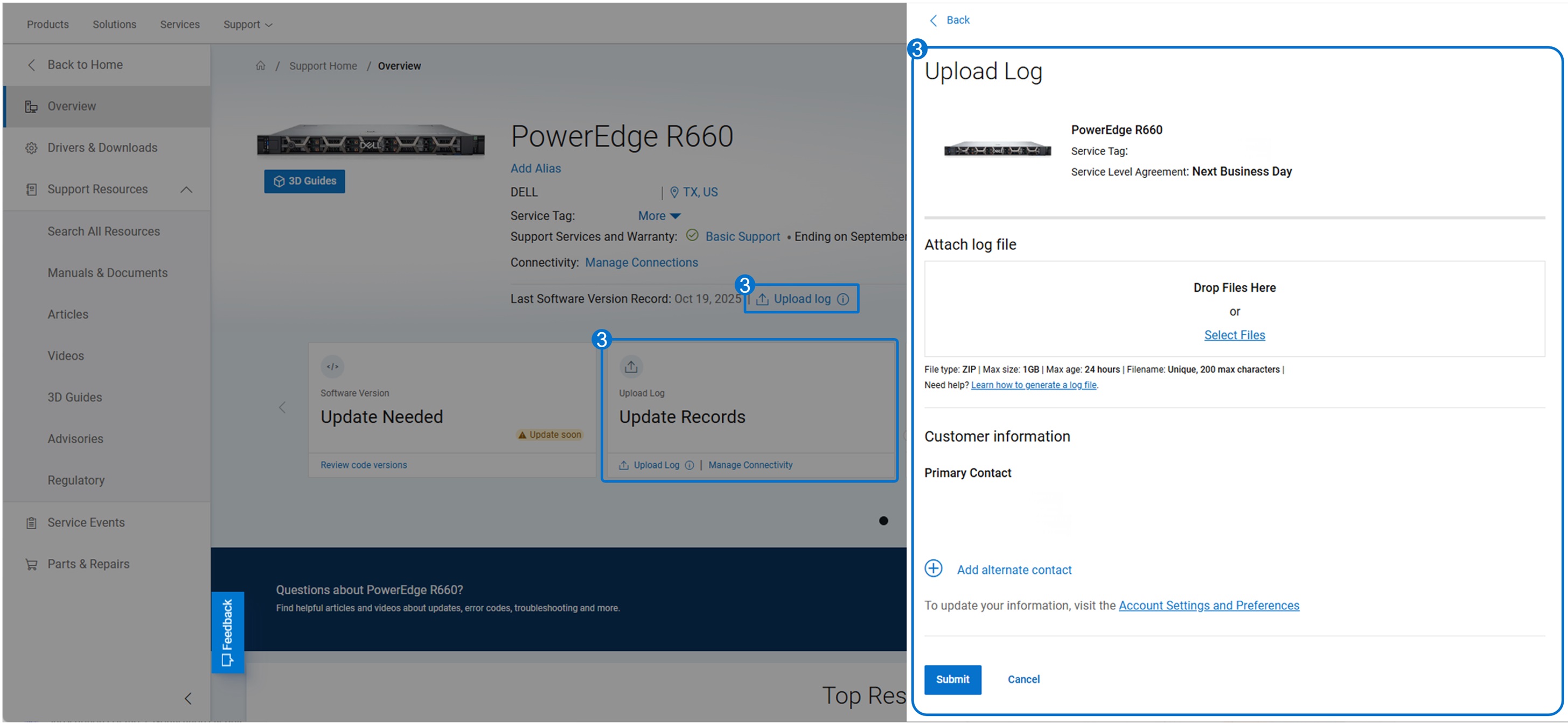
Figure 3: Software version upload log
Question: What product models support personalized software version status?
Answer: Most PowerEdge 14th generation and new server models (see PowerEdge: Servers by generation) and PowerStore Q, T, and X storage product models are now able to view the product’s personalized software version including software version health status, the minimum, recommended, and latest code versions. Additionally, many of the PowerEdge 14th generation and newer servers have the ability to update Dell’s software version record with the product’s installed software version; see Figure 3.
Artikeleigenschaften
Artikelnummer: 000353545
Artikeltyp: How To
Zuletzt geändert: 05 Dez. 2025
Version: 4
Antworten auf Ihre Fragen erhalten Sie von anderen Dell NutzerInnen
Support Services
Prüfen Sie, ob Ihr Gerät durch Support Services abgedeckt ist.