NetWorker: gstclreport fails with "JAVA_HOME to a valid JRE location"
Zusammenfassung: The NetWorker Management Console (NMC) "Reports" gstclreport command fails. The error provided is "JAVA_HOME to a valid JRE location"
Dieser Artikel gilt für
Dieser Artikel gilt nicht für
Dieser Artikel ist nicht an ein bestimmtes Produkt gebunden.
In diesem Artikel werden nicht alle Produktversionen aufgeführt.
Symptome
NetWorker Management Console (NMC) "Reports" are generated from command-line using the gstclreport command on the NMC server.
The command reports that JAVA_HOME is not set:
Linux example:
[root@lnx-srvr02 bin]# ./gstclreport
% JAVA_HOME is not set.
% Java Runtime Environment 8  or higher is required to run this script.
% Please read comments at the top of gstclreport file to set
% JAVA_HOME to a valid JRE location.
Windows example:
PS C:\Program Files\EMC NetWorker\Management\GST\bin> .\gstclreport.bat
Your current JAVA_HOME is

Java Runtime Environment Version 8 or higher is required to run this script.
Please read comments at the top of gstclreport.bat file to set
JAVA_HOME to a valid JRE location.
Ursache
The gstclreport command relies on Java. The Java path is called in the command using variable JAVA_HOME. If it is not defined in the gstclreport file, or as an environment variable, gstclreport returns "JAVA_HOME is not set"
Lösung
Linux NMC Server:
Identify what Java platform that you are using for NetWorker. The preferred platform is the NetWorker Runtime Environment (NRE).
- If NRE is installed, you have
/opt/nre/java/latestwhich links to the latest version of Java used by your NRE version. - If you are using Oracle Java Runtime Environment (JRE), identify the java installation path
rpm -qa | grep "jre\|jdk"ordpkg -l | grep -Ei "jdk|jre|java"readlink -f $(which java)
Use one of the following options. Choose your preferred option.
Option One. Define JAVA_HOME in the gstclreport file:
- Use a text editor to modify the
gstclreportfile:
vi /opt/lgtonmc/bin/gstclreport
- Add the JAVA_HOME variable defining the path to your java installation:
NOTE: There is a comment near the top of the file regarding the JAVA_HOME variable, you can add the variable beneath the comment.
# For example: JAVA_HOME=/usr/java/jre8
JAVA_HOME=/opt/nre/java/latest
- Save the file.
Option Two. Create an environment variable on the OS:
- Create a dedicated Java environment file
vi /etc/profile.d/java.sh
- At the end of the file, add the JAVA_HOME variable specifying your java installation:
JAVA_HOME=/opt/nre/java/latest
export JAVA_HOME
PATH=$JAVA_HOME/bin:$PATH
export PATH
- Save the file.
- Apply the changes.
source /etc/profile.d/java.sh
- Verify the changes:
echo $JAVA_HOME
which java
After performing either of the above options, the gstclreport command should now return the Java environment and function correctly.
Windows NMC Server:
Identify what Java platform that you are using for NetWorker. The preferred platform is the NetWorker Runtime Environment (NRE).
- The default NRE installation path is "
C:\Program Files\NRE\java." This folder contains a different Java version folder depending on the NRE version installed. - If you are using Oracle Java Runtime Environment (JRE), the Java installation path is defined in the Java Control Panel:
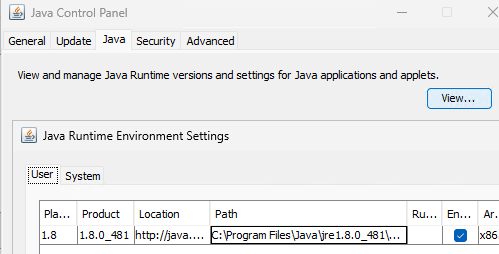
Use one of the following options. Choose your preferred option.
Option One. Define JAVA_HOME in the gstclreport.bat file:
- Use a text editor to modify
gstclreport.bat. The default location is "C:\Program Files\EMC NetWorker\Management\GST\bin." If you installed the NMC in another location, thegstclreport.batfile is in thebinfolder of your NMC install path. - Add the JAVA_HOME variable defining the path to your java installation:
NOTE: There is a comment near the top of the file regarding the JAVA_HOME variable, you can add the variable beneath the comment.
REM For example: SET JAVA_HOME=C:\Program Files\Java\jre8
SET JAVA_HOME="C:\Program Files\NRE\java\jre1.8.0_471"
- Save the file.
Option Two. Create an environment variable on the OS:
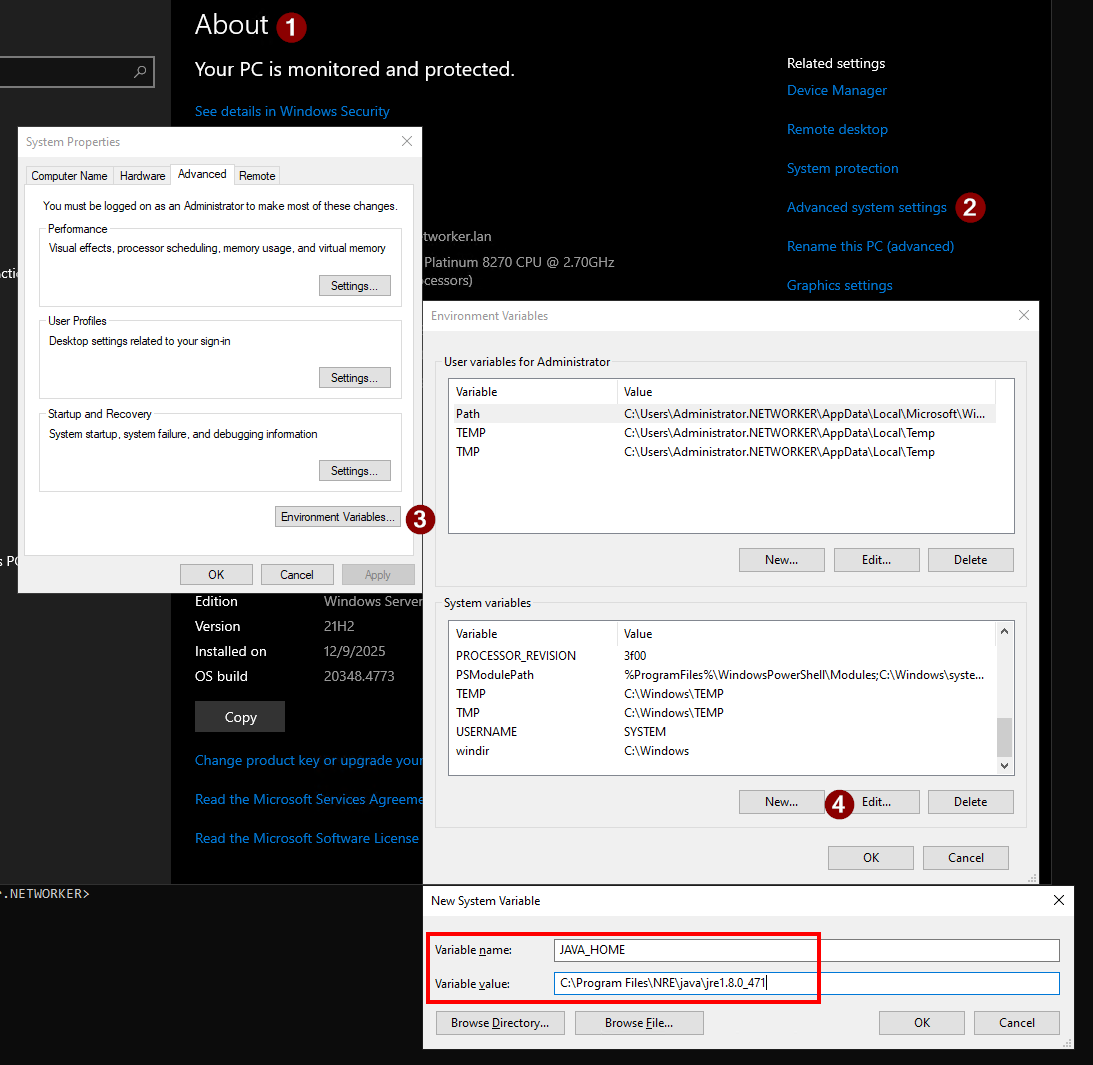
- From the Windows search bar, search About and click the About option.
- From the "About" window, click Advanced System Settings on the right-side of the window.
- From the "System Properties" window, click Environment Variables in the Configuration tab.
- Under "System Variables," click New and create an environment variable for JAVA_HOME, specifying the path to your Java folder:
- Click OK to save the variable.
- Click OK to close out of the Environment Variable settings.
- Open a new elevated PowerShell prompt and change-directory (
cd) to the NMCbindirectory.
cd "C:\Program Files\EMC NetWorker\Management\GST\bin"
After performing either of the above options, the gstclreport.bat command should now return the Java environment and function correctly.
WARNING: You must update the
gstclreport.bat file or environment variable after updating NRE or java. Once NRE or Java is updated, a new Java version folder is created and the variable setting is no longer be correct.
Weitere Informationen
nve:/opt/lgtonmc/bin # ./gstclreport
java version "17.0.17" 2025-10-21 LTS
Java(TM) SE Runtime Environment (build 17.0.17+8-LTS-360)
Java HotSpot(TM) 64-Bit Server VM (build 17.0.17+8-LTS-360, mixed mode, sharing)
java version "17.0.17" 2025-10-21 LTS
Java(TM) SE Runtime Environment (build 17.0.17+8-LTS-360)
Java HotSpot(TM) 64-Bit Server VM (build 17.0.17+8-LTS-360, mixed mode, sharing)
usage: gstclreport [-h] -r reportname -u username
     [-C parameters] [-P password] [-a chartselector]
     [-c charttype] [-f filename] [-n fontfamily]
     [-o orientation] [-v viewtype] [-x exporttype]
where:
    -h                          Print this help message
    -r  reportname      The name of the report to run, or full path name like "/Reports/Users/User List"
    -u  username        Log into GST server with given name
    -C  parameters      The parameters will vary based on reportname.
    -P  password        Log into GST server with given password
    -a  chartselector   The set of Y axis to display in a chart
    -c  charttype       The chart type [bar | pie | plot | "stacking bar"]
    -f  filename        The name of the export file
    -n  fontfamily      A font family to override the default(COURIERNEW). Please note if invalid
    -o  orientation     The orientation [portrait | landscape]
    -v  viewtype        The view type [table | chart]
    -x  exporttype      The type of export [ pdf | postscript | html | csv | print]
Betroffene Produkte
NetWorkerProdukte
NetWorker Family, NetWorker Management ConsoleArtikeleigenschaften
Artikelnummer: 000430081
Artikeltyp: Solution
Zuletzt geändert: 19 Feb. 2026
Version: 4
Antworten auf Ihre Fragen erhalten Sie von anderen Dell NutzerInnen
Support Services
Prüfen Sie, ob Ihr Gerät durch Support Services abgedeckt ist.