PowerFlex: Detecting Critical NVDIMM Issues
Zusammenfassung: Due to unarmed (persistent write-disabled) NVDIMMs that prevented a save operation when the nodes were shut down, triggered by low-voltage on Battery Backup Unit (BBU) at boot time, PowerFlex SDS processes configured with fine granularity storage pools utilizing /dev/dax* devices, may be at risk of losing the contents of the /dev/dax* devices during the next power cycle. This will cause associated storage devices to enter an unrecoverable error state, which may result in a DU/DL situation, depending on the number of affected SDS hosts (nodes) and fault set configuration. ...
Dieser Artikel gilt für
Dieser Artikel gilt nicht für
Dieser Artikel ist nicht an ein bestimmtes Produkt gebunden.
In diesem Artikel werden nicht alle Produktversionen aufgeführt.
Symptome
Scenario
A PowerEdge server will boot the OS even in cases where the backup battery responsible for copying the NVDIMM contents to persistent media on power outage, aka “vaulting”, does not have enough charge. In this situation, the relevant NVDIMMs are considered “not armed”, and their contents will not be copied to persistent media on power outage. In spite of this, the /dev/dax* devices remain writable, and the PowerFlex SDS service, once started, will use them normally without being aware of the risk of data loss.
Symptoms
   "dimms":[
    {
      "dev":"nmem1",
      "id":"802c-0f-2146-32aa2cce",
      "handle":4097,
      "phys_id":4376,
      "flag_failed_arm":true,
      "health":{
        "health_state":"critical",
        "temperature_celsius":35.0,
        "alarm_temperature":false,
        "alarm_controller_temperature":false,
        "alarm_spares":false,
        "life_used_percentage":5
      }


  "dimms":[
    {
      "dev":"nmem1",
      "id":"802c-0f-2047-2b85f81e",
      "handle":4097,
      "phys_id":4376,
      "flag_failed_save":true,
      "flag_failed_arm":true,
      "health":{
        "health_state":"ok",
        "temperature_celsius":33.0,
        "alarm_temperature":false,
        "alarm_controller_temperature":false,
        "alarm_spares":false,
        "life_used_percentage":5
      }
    },
The ndctl utility gives a clear output about the state of NVDIMMs and associated DAX devices. The tools provided with this document use ndctl.
Impact
PowerFlex systems configured with fine granularity storage pools that utilize /dev/dax* devices, are at risk of losing the contents of the /dev/dax* devices on the next server power cycle, even a planned one.
|
System Impact |
Risk |
Severity |
|
Only 1 node in the storage pool is impacted |
Degraded system |
medium |
|
Multiple nodes in the same fault set are impacted |
DU/DL |
high |
|
More than 1 storage node\SDS in the storage pool is impacted in a system without fault sets |
DU/DL |
immediate |
|
Multiple storage nodes\SDSs in multiple fault sets are impacted |
DU/DL |
immediate |
Ursache
The NVDIMM backup battery is discharged or faulty, preventing the DIMMs from being armed for vaulting. The OS and SDS service do not block usage of /dev/dax devices in this state
Lösung
This article provides 3 approaches to scan for critical NVDIMM issues in a PowerFlex system and to determine whether the system is at risk.
Note: This article applies to storage nodes only, and cannot be used for VMWare HCI deployments.
All scripts are uploaded to a zip file to this article and can be downloaded from this link NVDIMM Detection Scripts
Approach 1 (Recommended): Running an ndctl query on all SDS nodes in a live system
Note: This approach requires the “ndctl” utility to be installed on the SDS hosts.
The script analyze_ndctl.sh and its companion analyze_ndctl.py can be used to run an “ndctl list -vvv” query in parallel on all SDS nodes of a PowerFlex environment, and to analyze the results. Internally, analyze_ndctl.sh performs the parallel query by running background ssh commands to the relevant nodes, and then calls analyze_ndctl.py to analyze the results, so the user needs only to call analyze_ndctl.sh
Note: Both utilities should be placed in the same directory and given execute permissions, and that user has permission to run the command.
The analyze_ndctl.sh script may be executed in one of the following two modes:
Mode 1 (Recommended): The script will query the MDM for the SDS host details and then connect to these hosts in parallel to run the ndctl query.
Mode 2: The script will receive a “hosts file” from the user specifying the login details of the SDS nodes.
Usage
analyze-ndctl_.sh [options]
Options
-f <hosts_file>
An argument that specifies the path to a hosts file. The
a
file contains a list of per-host line records, each with one or two fields in the following format:
<HOST_FRIENDLY_NAME> <HOST_IP_OR_RESOLVABLE_NAME>
HOST_FRIENDLY_NAME - will be used when presenting the output. This field can be omitted, and if it is then HOST_IP_OR_RESOLVABLE_NAME will be used as the friendly name.
HOST_IP_OR_RESOLVABLE_NAME - Will be used to reach the host via ssh.
Examples of legal hosts file lines:
SDS_0x12345 root@mymachine
suspicious_sds user2@1.2.3.4
42.42.42.42
-m <mdm_machine_ip>
The IP of the primary MDM machine. The script will use ssh to run a CLI query on this machine.
-u <mdm_machine_user>
The Linux account to use for the SSH connection to the MDM machine. This is not the MDM username. The default value is ${USER}
-p <parallelism>
An optional argument that specifies the number of parallel ssh connections to maintain.
Note: If any ssh connection will require a password to be entered, this value must be set to 1. Not setting the value to 1 in this case will cause the query to fail on all the hosts that require password.
-r
If set, this argument causes the script to keep the outputs directory at the end of the run.
If neither “-f” nor “-m” are specified, the script will assume that it runs on the MDM host and will try to call the MDM cli directly without using ssh.
Also, scripts assumes access to all SDS nodes.
Note: This assumes prior login was made to the system.
See “The output of approaches 1 and 2” section for information about how to interpret the output.
Approach 2: Analyzing ndctl queries in get_info archives
The check_nvdimm_health_in_getinfos.py script can be used to analyze PowerFlex "get_info" archives and detect NVDIMM issues. It does so by parsing the output file of the “ndtl list -vvv” command located in every such get_info archive.
Usage
check_int_nvdimm_health_in_getinfos_en_US_1.py [options] [path [path…]]
The script accepts zero or more path arguments, each specifying either a zipfile containing get_info tar archives, or a directory containing get_info tar archives.
Options
The script supports a single optional argument.
-t <PATH>
--tmpdir <PATH>
Specifies the temporary directory to use instead of the default /tmp , where extracted files will be stored.
Usually, there is no need to set this argument.
During its execution, the script will iterate over all folders/zipfiles paths specified and consider every get_info tarfile found therein. The script will print descriptive log messages to stdout and append them to a logfile named check_nvdimm_health_in_getinfos.log in the script’s zip file. At the end of execution, the script will log a summary of the results.
See “The output of approaches 1 and 2” section for information about how to interpret the output.
The output of approaches 1 and 2
Regardless of the chosen approach (analyze_ndctl.sh or check_nvdimm_health_in_getinfos.py), when the relevant tool finishes its work, a summary is displayed as in the example below.
2025-12-11 11:50:54,876 - INFO -
2025-12-11 11:50:54,876 - INFO - --------------------
2025-12-11 11:50:54,876 - INFO - NVDIMM CHECK SUMMARY
2025-12-11 11:50:54,876 - INFO - --------------------
2025-12-11 11:50:54,876 - INFO -
2025-12-11 11:50:54,877 - INFO - Hosts without errors
2025-12-11 11:50:54,877 - INFO - ====================
2025-12-11 11:50:54,877 - INFO - SDS 5d227d890000002d get_info ./pfcml103d03s14-getInfoDump.tgz IPs 169.254.1.2,10.255.198.79,10.255.193.144,10.255.204.79,10.255.195.144,10.\
255.205.79:
2025-12-11 11:50:54,877 - INFO - Wrote /data/bugs/PFSLDF-962/test/hosts_ok
2025-12-11 11:50:54,877 - INFO -
2025-12-11 11:50:54,877 - INFO – HOSTS WITH ERRORS
2025-12-11 11:50:54,877 - INFO - =================
2025-12-11 11:50:54,877 - INFO - SDS 5d227d8500000029 get_info ./bad.tgz IPs 169.254.1.2,10.255.198.47,10.255.193.124,10.255.204.47,10.255.195.124,10.255.205.47:
2025-12-11 11:50:54,877 - INFO - DIMM: nmem1 ({'flag_failed_arm', 'health_state_critical'})
2025-12-11 11:50:54,877 - INFO - NAMESPACE: namespace0.0 (devdax) dax0.0 ({'flag_failed_arm', 'health_state_critical'})
2025-12-11 11:50:54,878 - INFO - Wrote /data/bugs/PFSLDF-962/test/hosts_with_errors
2025-12-11 11:50:54,878 - INFO -
2025-12-11 11:50:54,878 - INFO – Finished
The summary contains up to 3 lists of hosts: HEALTHY, UNHEALTHY and UNKNOWN. The UNHEALTHY and HEALTHY lists contain hosts on which nvdimm issues were detected or not detected accordingly. For every host in the UNHEALTHY list, details will be printed about the faulty DIMMs and DAX devices.
A host will end up in the UNKNOWN list if one of the following occurs:
- The ndctl output was not available for the host.
- The ndctl output was in an unexpected format.
- In the case of the live check with
analyze_ndctl.sh, the ndctl query failed due to permission errors, causing the “health_state” properties in the ndctl output to be set to “unknown”.
Note: UNKNOWN will be considered to be UNHEALTHY and will require contacting support to determine the exact reason by reviewing the detection script’s log file.
Summary files with SDS IDs
In addition to the summary in the script’s log, the script will also create three files in the current running directory. These files will contain the descriptive host IDs (the SDS IDs, if applicable) separated by newlines, belonging to the category stated by the file’s name. Please note that existing files will be overwritten.
The three files are as follows:
hosts_ok - This file will contain the IDs of the hosts that were determined as having no NVDIMM issues according to the ndctl report.
hosts_with_errors- This file will contain the IDs of the hosts that were determined as having issues according to the ndctl report.
hosts_unknown – This file will contain the IDs of the hosts for which the state of the NVDIMMs was not determined.
These files may be later used as input for other tools.
Approach 3: Using the SCR Assessment Tool
Note: This approach requires the “ndctl” utility to be installed on the SDS hosts.
Below you will find the steps necessary to download, install, and execute the SCR tool. This tool includes a “NVDIMM Assessment Check” which should be used for this NVDIMM detection.
- Download SCR from Solve:
- Unzip and use internal user guide for setup and initial launch instructions.
- powerflex-scr-release-4_7_2-user's guide*
- Launch application using one of the following files:
- ScrApplication.bat (Windows)
- ScrApplication.sh (Linux)
- After the application launches, the browser should load automatically. If you close the browser or it doesn’t launch you can access SCR from https://localhost:8989
- A Profile needs to be created first. Profiles are the parent definition of a grouping of components. Each profile may only contain one PowerFlex Manager 3.x or PowerFlex Manager 4.x instance. For PowerFlex Manager 3.x, it can contain multiple gateways. SCR supports the following methods to create a Profile:
- Manually create a profile
- Import from a PowerFlex Manager 3.x or PowerFlex Manager 4.x environment
- Password information is not available from any import source. Once the import is completed, you must update the passwords. This can be done by using the multi edit functionality to update one password or multiple passwords in a single component type at a time.
- For the “NVDIMM Assessment” it is important to add all the PowerFlex Nodes (SDS) resources that need to be scanned added to the Profile. The next step is to run a Collection. Collections are run by selecting components and clicking on Run Collection. For the NVDIMM Assessment you must select “PowerFlex Node” as seen below to run a collection against all the PowerFlex Nodes in your Profile.
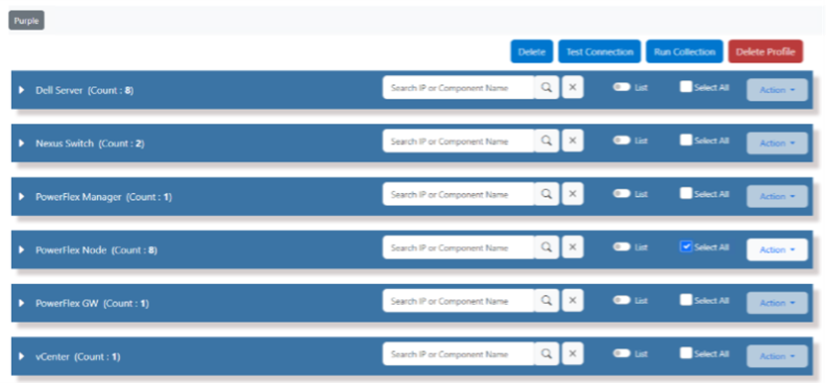
- Test Collection can be run to validate passwords. Test Collection functionality runs the same way as Run Collection.

- Run the Collection on the PowerFlex Nodes


-
- Performance for collecting multiple components will vary depending on the amount of processor cores available.
- The dashboard will auto update to display when the last collection date is completed.

- Next run the NVDIMM Assessment and verify results
- Under ‘View Results’ there is an option for ‘Assessment Details’.
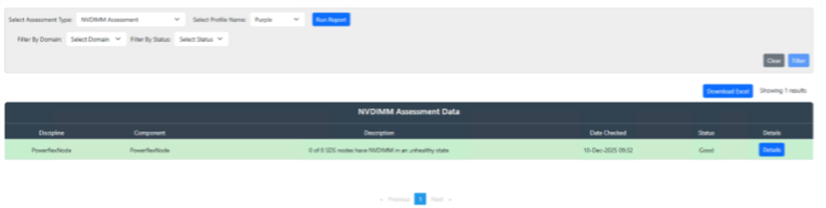
- Use the drop-down menus to select your desired Assessment, select profile, and Run Assessment.

-
- The results of the assessment will be displayed in the main window. The assessments shown are limited to collected components
-
- The Description column of the Assessment Data will show how many PowerFlex Nodes have been scanned and how many PowerFlex Nodes have unhealthy NVDIMMs. To pinpoint which PowerFlex Nodes are unhealthy hit the Details button.
- The detailed table output will highlight the following:
- GREEN – PowerFlex Node is healthy
- RED – PowerFlex Node needs further actions by Dell Support
Impacted Versions
All 3.6.x, 4.x, and 5.x version families.
Weitere Informationen
Acronyms
|
Acronym |
Full Term |
Meaning |
|
DU |
Data Unavailable |
Data exists but cannot be accessed at the moment due to failures, degraded redundancy, or temporary conditions. |
|
DL |
Data Lost |
Data is permanently lost and cannot be recovered using normal system mechanisms. |
Betroffene Produkte
PowerFlex rack, ScaleIOAnhänge
Artikeleigenschaften
Artikelnummer: 000471258
Artikeltyp: Solution
Zuletzt geändert: 01 Juli 2026
Version: 9
Antworten auf Ihre Fragen erhalten Sie von anderen Dell NutzerInnen
Support Services
Prüfen Sie, ob Ihr Gerät durch Support Services abgedeckt ist.