PowerFlex: SFTP For Automated SDC Driver Delivery For New Kernel
Zusammenfassung: EDISTRIBUTION - April 24, 2025 On July 6, 2024, the FTP service used by customers to get an updated Storage Data Client (SDC) driver matching newer kernels is being disabled. Customers are required to transition to the following Secure File Transfer Protocol (SFTP) user to retain automatic Storage Data Client (SDC) driver update capabilities. The new file transfer method uses Secure File Transfer Protocol (SFTP) and uses a key-based authentication ...
Dieser Artikel gilt für
Dieser Artikel gilt nicht für
Dieser Artikel ist nicht an ein bestimmtes Produkt gebunden.
In diesem Artikel werden nicht alle Produktversionen aufgeführt.
Weisungen
PowerFlex is decommissioning the legacy way to retrieve the Storage Data Client (SDC) driver. Customers are required to transition to Secure File Transfer Protocol (SFTP) to retain automatic Storage Data Client (SDC) driver update capabilities.
There are Three resolution options available:
- Option 1: Dell Technologies recommends updating to use the Secure File Transfer Protocol (SFTP) services to avoid any issues when patching the operating system to a newer kernel. If systems encounter these issues, contact technical support for guidance.
- Option 2: HTTPS based repo: Enabled in PowerFlex 3.6.5 DELL is adding an HTTPS repo option as a second repository alternative to FTP.
- Option 3: PowerFlex CSI Driver Using Remote SFTP Repository (Dell MFT)
Option1: Steps to update the driver_sync file on the Storage Data Client (SDC) for SFTP Repo:
- Validate that the Secure File Transfer Protocol (SFTP) contains the kernel your operating system requires.
- It is possible to use Hypertext Transfer Protocol Secure (HTTPS) when manually checking driver availability:
- SFTP: sftp://mft.dell.com
- HTTPS: https://mft.dell.com
Username: PowerFlexRepo
Password: V3Die83$BK- Download and extract the attached sftp_keys to the Storage Data Client (SDC) host, as user root, to
/etc/emc/scaleio/scini_sync. Find the file attached to the article: sftp-keys_pkb_en_US_1.tar - Change the private key file’s permissions. chmod 600 /etc/emc/scaleio/scini_sync/scini_key
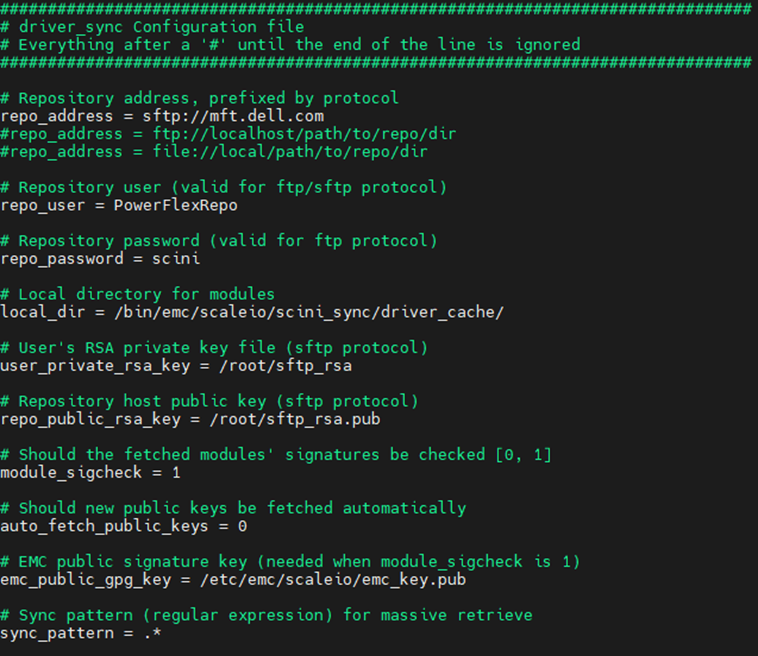
- Edit /etc/emc/scaleio/scini_sync/driver_sync.conf like in the example below:
- The repo_password line is not used with Secure File Transfer Protocol (SFTP) and can be left with the default value. Use the real password supplied above to check driver availability.
repo_address = sftp://mft.dell.com
repo_user = PowerFlexRepo
user_private_rsa_key = /etc/emc/scaleio/scini_sync/scini_key
repo_public_rsa_key = /etc/emc/scaleio/scini_sync/scini_repo_key.pub
- Restart the Storage Data Client (SDC) driver:
- Option A: Live SDC reload if no volumes are mapped: Run from the operating system command prompt:
systemctl restart scini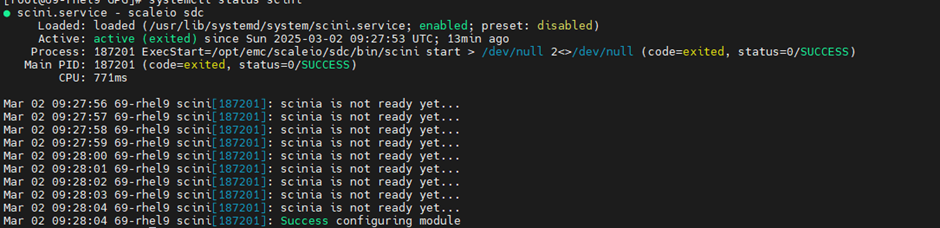
This is possible only if no volumes are in use by the operating system.
-
- Option B: to restart compute server running SDC: If needed, plan for a reboot cycle of the operating system for this setting to take effect.
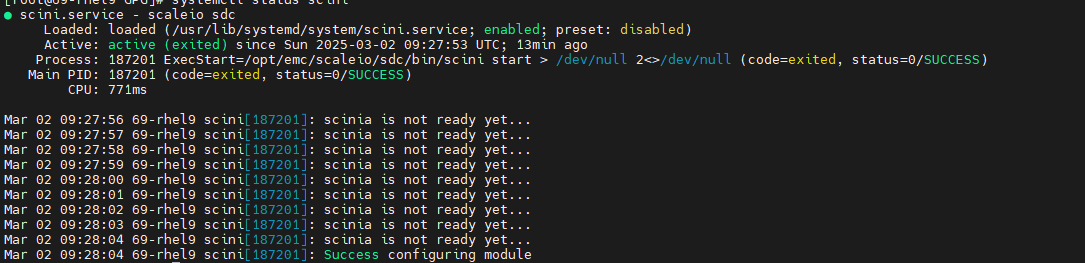
6. Check that the scini service is running:
systemctl status scini7. Once you are finished, perform an operating system update and reboot to load the new kernel. The Storage Data Client (SDC) driver sync automatically downloads the kernel object (KO) file, if available.
Instructions for container Storage Data Client (SDC)
- Validate that the Secure File Transfer Protocol (SFTP) contains the kernel your operating system requires.
-
- SFTP: sftp://mft.dell.com
- HTTPS: https://mft.dell.com
Username: PowerFlexRepo
Password: V3Die83$BK- Download and extract the attached sftp_keys to your Storage Data Client (SDC) host, as user root, to any folder on the Linux machine.
-
Rename both files from the zip to:
-
scini_key -> user_private_rsa_key -
scini_repo_key.pub -> user_public_rsa_key
-
-
Change the private key file’s permissions.
-
chmod 600 user_private_rsa_key -
chmod 600 user_public_rsa_key
-
-
When running the container of the Storage Data Client (SDC) add the following:
-e REPO_ADDRESS=sftp://mft.dell.com
-e REPO_USER=PowerFlexRepo
-v PLACE_OF_THE_KEYS:/config
Example:
podman run --rm -it --privileged -e NODENAME="$(hostname)" -e MDM="192.168.220.74,172.16.220.74" -e MODULE_SIGCHECK=0 -e REPO_ADDRESS=sftp://mft.dell.com -e REPO_USER=PowerFlexRepo -v /dev:/dev -v /etc/os-release:/host-os-release -v /etc/udev/rules.d:/rules.d -v /var/home/sio:/config -v /var/emc/scaleio:/host_drv_cfg_path amaas-eos-mw1.cec.lab.emc.com:5044/container/sdc:3.6.600.113
Option 2: Steps to update the driver_sync file on the Storage Data Client (SDC) for HTTPS Repo.
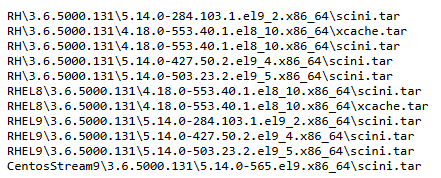
- Optional: First go to the Catalog file to validate the SDC kernel and matching SDC version file are located in this repo (The catalog is updated all the time).
Catalog link: https://powerflexsdc.dell.com/PowerFlexSdc/catalog/catalog.txt
Example of list output:
- Validate you have
/etc/emc/scaleio/scini_sync/emc_key.pubthat must exist on the OS in the relevant location.-
In case it does not exist, use LIA and the following commands to create it:
-
Download the RPM-GPG-KEY-ScaleIO from the PowerFlex software download page.
gpg --with-fingerprint /opt/emc/scaleio/lia/cfg/GPG/RPM-GPG-KEY-ScaleIO
gpg --import /opt/emc/scaleio/lia/cfg/GPG/RPM-GPG-KEY-ScaleIO
gpg --list-keys
gpg --export --armor > /etc/emc/scaleio/scini_sync/emc_key.pub
-
- Deploy\Upgrade SDC to a version with HTTPS support
-
The DELL HTTPS repo should already be configured on it, and the SDC will try to fetch the tar file from it.
This can be verified by looking into
/etc/emc/scaleio/scini_sync/driver_sync.conf
-
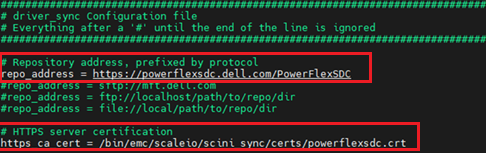
- If needed, edit /etc/emc/scaleio/scini_sync/driver_sync.conf file:
-
Add\modify:
-
|
Value |
Description |
|
repo_address |
From PowerFlex 3.6.5 added support for HTTPS repository address Default\Example: https://powerflexsdc.dell.com/PowerFlexSdc If you are using a Private HTTPS repository enter the https path of your local repository. |
|
https_ca_cert |
Location in the local OS of the DELL HTTPS repository certificate Default\Example: /bin/emc/scaleio/scini_sync/certs/powerflexscd.crt If you are using a Private HTTPS repository refer to next line in table. |
|
cert_opt |
Location in the local OS of the Customer managed HTTPS repository certificate Default\Example: /bin/emc/scaleio/scini_sync/certs/powerflexscd.crt If you are using a Private HTTPS repository copy the HTTPS certificate file to your Storage Data Client (SDC) host, as user root, to configured folder+file name on the Linux machine. |
|
file_path |
Default: This path represents the file path\name to pull from the HTTPs repo based on the variables, change if you are using a private repo with a different file path structure. Example of real valid values: Variables for OSNAME, SDC version, and Kernel version based on file path in the repository.
Example of real valid values: |
- Restart the Storage Data Client (SDC) driver:
-
-
Option A: Live SDC reload if no volumes are mapped Run from the operating system command prompt:
systemctl restart scini
-
This is possible only if no volumes are in use by the operating system.-
- Option B: to restart SDC: If needed, plan for a reboot cycle of the operating system for this setting to take effect.
-
- Check that the scini service is running:
systemctl status scini. - Open the sync log:
/bin/emc/scaleio/scini_sync/driver_sync.log

- Once you are finished, perform an operating system update and reboot to load the new kernel. The Storage Data Client (SDC) driver sync automatically downloads the kernel object (KO) file, if available.
Instructions for container Storage Data Client (SDC)
- If you are using a Private HTTPS repository copy the HTTPS certificate file to your Storage Data Client (SDC) host, as user root, to any folder on the Linux machine.
-
/bin/emc/scleio/scini_sync/certs/powerflexsdc.crt
-
- Add the following when running the container of the Storage Data Client (SDC):
-e REPO_ADDRESS=https://powerflexsdc.dell.com/PowerFlexSdc
-e file_path=%OSNAME/%SDCVER/%KERNEL/
-e https_ca_cert=/bin/emc/scaleio/scini_sync/certs/powerflexscd.crt
Or, if a private HTTP repository use:
-e cert_opt=/bin/emc/scaleio/scini_sync/certs/powerflexscd.crtExample:
podman run --rm -it --privileged -e NODENAME="$(hostname)" -e MDM="192.168.X.Y,172.16.X.Y" -e MODULE_SIGCHECK=0 -e REPO_ADDRESS=https://powerflexsdc.dell.com/PowerFlexSdc -e file_path=%OSNAME/%SDCVER/%KERNEL/scini.ko -e https_ca_cert=/bin/emc/scaleio/scini_sync/certs/powerflexscd.crt -e -v /dev:/dev -v /etc/os-release:/host-os-release -v /etc/udev/rules.d:/rules.d -v /var/home/sio:/config -v /var/emc/scaleio:/host_drv_cfg_path docker.io/dellemc/sdc:3.6.5
Validate the POD can start successfully.
Option 3: PowerFlex CSI Driver Using Remote SFTP Repository (Dell MFT)
This option applies to Kubernetes environments running the PowerFlex CSI Driver where SDC kernel modules are downloaded automatically from the Dell-hosted SFTP repository. The Dell FTP service has been replaced with an SFTP repository that uses key-based authentication.
Prerequisites- Verify that the required kernel module exists in the Dell MFT repository:
- SFTP: sftp://mft.dell.com
- HTTPS: https://mft.dell.com
Username: PowerFlexRepo
Password: V3Die83$BK
Note: The password is only used to download the sftp_keys_pkb.tar bundle from the KB. SFTP authentication uses the private key and does not use the password.
- Download and extract the sftp_keys_pkb.tar package. The package contains the private key file scini_key.
Create a dedicated namespace where the PowerFlex CSI components and related secrets will be deployed.
kubectl create namespace vxflexosCreate the Private Key Secret
Extract the Dell-provided SFTP key package and create a Kubernetes secret containing the private key used for authenticating to the Dell MFT repository.
tar -xvf sftp_keys_pkb.tarExtracts the contents of the downloaded key package, including the scini_key private key file.
cp scini_key user_private_rsa_keyCopies the private key to the filename expected by the PowerFlex CSI Driver.
chmod 600 user_private_rsa_keyRestricts access permissions so that only the file owner can read and modify the private key.
kubectl create secret generic sdcsftprepo-private-secret -n vxflexos --from-file=user_private_rsa_key=user_private_rsa_keyCreates a Kubernetes secret containing the SFTP private key that the CSI Driver uses to authenticate to the Dell MFT repository.
Important:
- The secret key name must be user_private_rsa_key.
- Do not create a Kubernetes Secret YAML file and pass it using --from-file.
- The file supplied to --from-file must contain only the raw RSA private key.
Create the Public Host Key Secret
Obtain the Dell MFT server's public host key and store it as a Kubernetes secret for host verification during SFTP connections.
ssh-keyscan -t rsa mft.dell.com > /tmp/mft-public-keyRetrieves the RSA public host key from mft.dell.com and saves it locally.
kubectl create secret generic sdcsftprepo-public-secret -n vxflexos --from-file=repo_public_rsa_key=/tmp/mft-public-key
Creates a Kubernetes secret containing the server's public host key, allowing the CSI Driver to validate the identity of the Dell MFT repository.
Important:
Do Not use the following command to populate the host key:
sftp -i scini_key PowerFlexRepo@mft.dell.com to populate known_hosts.
The CSI Driver expects the host key to be obtained using ssh-keyscan and stored in the Kubernetes secret as shown above.
Configure PowerFlex CSInode:
sdc:
sdcSFTPRepo:
enabled: true
sdcSFTPRepoAddress: "sftp://mft.dell.com"
sdcSFTPRepoUser: "PowerFlexRepo"
sdcSFTPRepoPrivateSecret: "sdcsftprepo-private-secret"
sdcSFTPRepoPublicSecret: "sdcsftprepo-public-secret"
Install or Upgrade the PowerFlex CSI Driver
Deploy a new PowerFlex CSI installation or update an existing deployment with the SFTP repository configuration.
helm install vxflexos csi-vxflexos --namespace vxflexos --values values.yamlInstalls the PowerFlex CSI Driver using the configuration specified in values.yaml.
helm upgrade vxflexos csi-vxflexos --namespace vxflexos --values values.yamlUpdates an existing PowerFlex CSI Driver deployment with the latest configuration.
Validation
Verify that the CSI components are running and that the SDC module download process completed successfully.
kubectl get pods -n vxflexos
Lists the PowerFlex CSI pods and confirms that they are running successfully.
kubectl logs -n vxflexos daemonset/vxflexos-node -c sdc
Displays logs from the SDC container to verify connectivity to the Dell MFT repository and the kernel module installation process.
Confirm the following in the logs:
- The SDC init container successfully connects to mft.dell.com.
- The appropriate scini.ko module is downloaded automatically.
- The kernel module loads successfully.
- The scini service starts normally.
- The node becomes operational with PowerFlex CSI.
Weitere Informationen
Betroffene Produkte
PowerFlex appliance connectivity, PowerFlex appliance HW, PowerFlex appliance Intelligent Catalog SoftwareProdukte
PowerFlex rack, VxFlex Ready Nodes, PowerFlex Appliance, PowerFlex custom node, ScaleIO, PowerFlex appliance R650, PowerFlex appliance R6525, PowerFlex appliance R660, PowerFlex appliance R6625, Powerflex appliance R750, PowerFlex appliance R760
, PowerFlex appliance R7625, PowerFlex appliance R860, PowerFlex custom node, PowerFlex custom node HW, PowerFlex custom node R650, PowerFlex custom node R6525, PowerFlex custom node R660, PowerFlex custom node R6625, PowerFlex custom node R750, PowerFlex custom node R760, PowerFlex custom node R7625, PowerFlex custom node R860, PowerFlex rack connectivity, PowerFlex rack HW, PowerFlex rack RCM Software, PowerFlex Software, VxFlex Ready Node, VxFlex Ready Node R640, VxFlex Ready Node R740xd, PowerFlex appliance R640, PowerFlex appliance R740XD, PowerFlex appliance R7525, PowerFlex appliance R840, VxFlex Ready Node R840, VxRack Flex-PowerEdge 14G
...
Anhänge
Artikeleigenschaften
Artikelnummer: 000512942
Artikeltyp: How To
Zuletzt geändert: 25 Sept. 2026
Version: 5
Antworten auf Ihre Fragen erhalten Sie von anderen Dell NutzerInnen
Support Services
Prüfen Sie, ob Ihr Gerät durch Support Services abgedeckt ist.