Ubuntu Not Booting After BIOS Update or Motherboard Replacement
Zusammenfassung: This article describes a no boot issue that affects XPS and Precision computers running Ubuntu Linux. This occurs after replacing the motherboard or updating/restoring the BIOS to default settings. ...
Dieser Artikel gilt für
Dieser Artikel gilt nicht für
Dieser Artikel ist nicht an ein bestimmtes Produkt gebunden.
In diesem Artikel werden nicht alle Produktversionen aufgeführt.
Symptome
What's happening
Your Dell XPS or Precision computer with Ubuntu Linux won't start up after one of these events:
- You updated the BIOS
- You reset the BIOS to its original settings
- A technician replaced the motherboard
When you turn on your computer, you see an error message that says "No boot device was found" or something similar.
Ursache
Why this happens
When any of these changes occur, your computer's BIOS automatically switches a setting called SATA operation to "RAID On." Think of SATA as the system that manages your hard drive connection.
Here's the issue: Ubuntu Linux needs this setting to be "AHCI" (Advanced Host Controller Interface), not "RAID On." When the setting changes to RAID On, Ubuntu can't find your hard drive anymore, which is why your computer won't start.
The good news is that you can easily switch this setting back, and your computer will work normally again.
Lösung
How to fix it
We'll help you change the SATA setting back to AHCI and make sure Ubuntu can start properly. This takes about 5–10 minutes.
Step 1: Change the SATA setting to AHCI
- Turn on your computer and immediately press the F2 key repeatedly until the BIOS setup screen appears.
- Use the arrow keys to go to System Configuration.
- Select SATA Operation.
- Change the setting from RAID On to AHCI.
- Press Apply to save this change.
This allows Ubuntu to detect your hard drive again.
Step 2: Recreate the boot option
Ubuntu uses a special file to start up. After the changes to your BIOS, you need to tell the computer where to find this file.
- In the BIOS, use the arrow keys to go to General.
- Select Boot Sequence.
- Select Add Boot Option.
- Next to File Name, select the button on the right to open the file browser window.
- In the Directories section, double-click EFI.
- Double-click Ubuntu.
- In the Files section, select shimx64.efi.
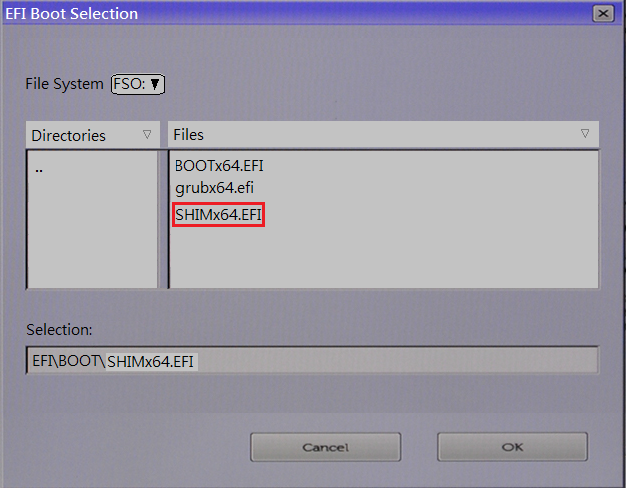
- Select OK.
- In the Boot Option Name field, type UBUNTU (all capital letters work best for clarity).

- Remove any other boot options from the list to make sure Ubuntu is the only one selected.
- Select Apply, then select OK to save your changes.
- Select Exit.
Your computer will restart and should now boot into Ubuntu normally.
Betroffene Produkte
XPS, XPS, Fixed Workstations, Mobile Workstations, Dell Canvas 27, Red Hat Enterprise Linux Version 8, Ubuntu Server LTS, XPS 13 9350 (End of Life)Artikeleigenschaften
Artikelnummer: 000177068
Artikeltyp: Solution
Zuletzt geändert: 11 Dez. 2025
Version: 13
Antworten auf Ihre Fragen erhalten Sie von anderen Dell NutzerInnen
Support Services
Prüfen Sie, ob Ihr Gerät durch Support Services abgedeckt ist.