Steps to migrate to a new AWS-Trusted Account in PowerProtect Cloud Management Software (CSM)
Summary: This is a mandatory article that provides required information to transition to using a new AWS-Trusted Account for Cloud Management in upcoming Release 3.
This article applies to
This article does not apply to
This article is not tied to any specific product.
Not all product versions are identified in this article.
Instructions
The trusted account migration process is mandatory for all AWS role-based cloud accounts using the trusted account number 069562425525. If the cloud account is not migrated to new trusted account, the indication banner is displayed on the CSM dashboard as below.

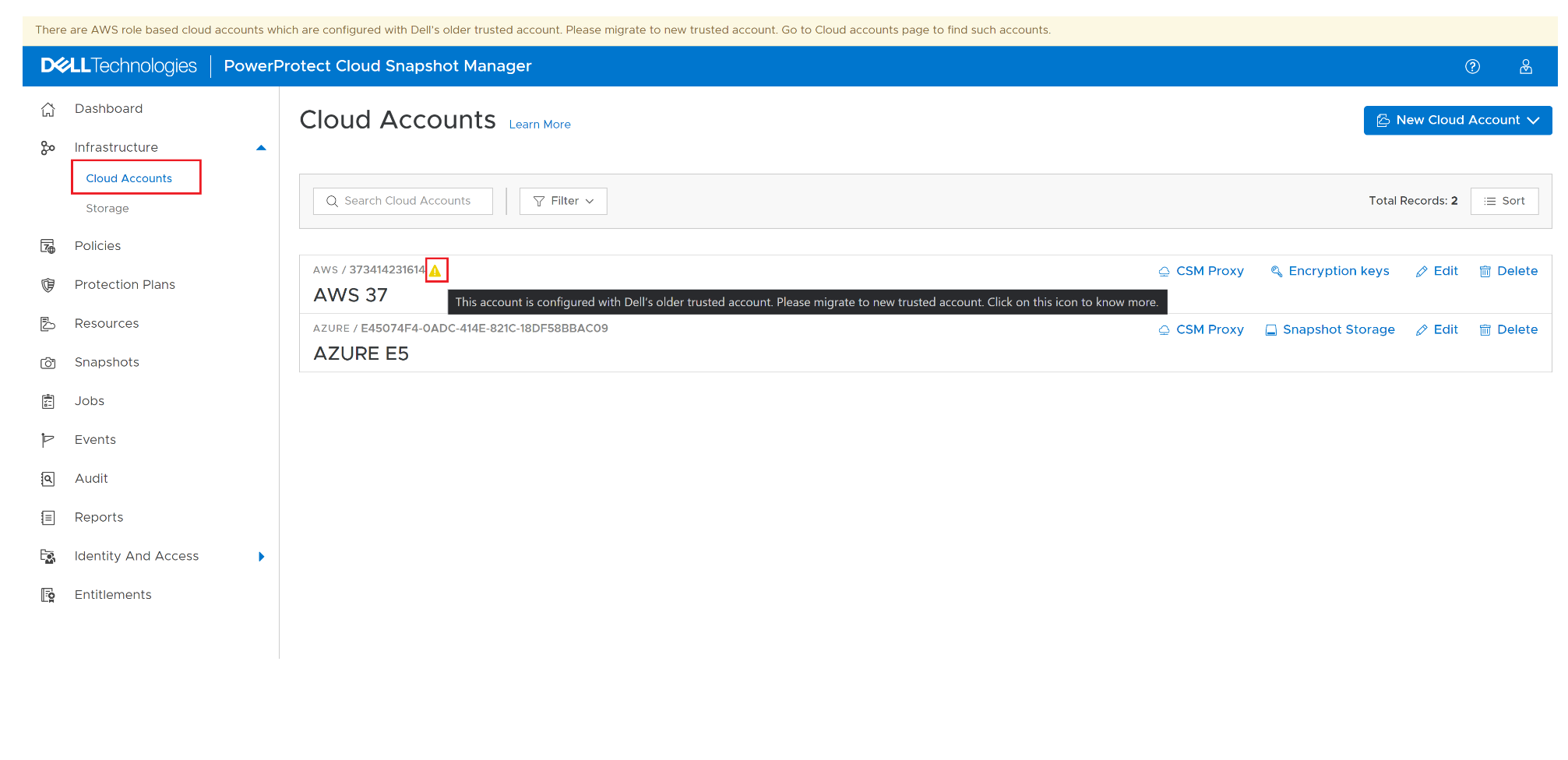
Figure 1: PowerProtect Cloud Snapshot Manager - Cloud Accounts

5. Now visit the AWS Console and open Role by navigating, IAM -> Roles -> Your role name [The one which is noted in the previous step].

Figure 4: Services Permissions
6. Open Trust Relationships and check what is the trusted account number mentioned in the policy. If the trusted account number is 903193600893, then no need to perform further steps. But if the trusted account number is 069562425525, the trust policy must be updated with the new trusted account number.

Figure 5: Edit Trust Policy
In the above screenshot, the role is using an old trusted account. It is here that the change in the Trusted Account needs to be edited to successfully perform the migration. Click Edit trust policy under the Trust Relationships tab.


Figure 7: Verify PowerProtect Cloud Snapshot Manager - Cloud Accounts.
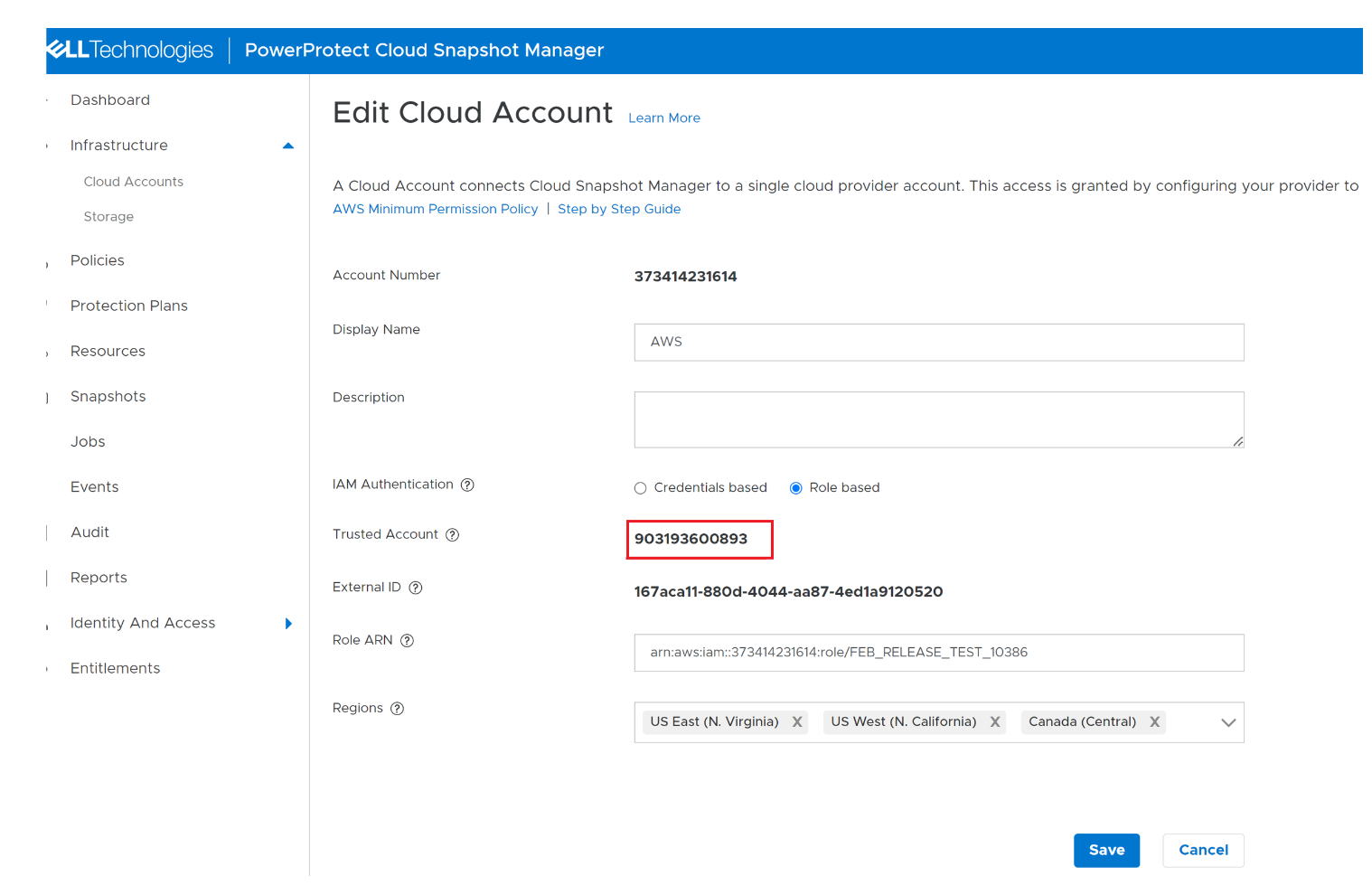
Figure 8: Verified PowerProtect Cloud Snapshot Manager - Cloud Accounts Number
Following are the steps to migrate AWS role-based cloud account from the old to the new trusted account.
1. Navigate to the Infrastructure → Cloud Accounts. The alert icon is displayed beside all the non-migrated AWS role-based cloud accounts.
Figure 1: PowerProtect Cloud Snapshot Manager - Cloud Accounts
- Click Edit to view/update the cloud account details.
Figure 2: PowerProtect Cloud Snapshot Manager - Edit Cloud Accounts
- The trusted account and roleARN are displayed on the edit cloud account page. If the trusted account number is 903193600893, the account is already migrated, and there is no need to take any action.
- If the trusted account number is 069562425525, then the cloud account must be migrated to a new trusted account. Take note of the Role ARN field. In this case, the role is FEB_RELEASE_TEST_10386.

Figure 3: PowerProtect Cloud Snapshot Manager - Edit Cloud Accounts Trusted Number
5. Now visit the AWS Console and open Role by navigating, IAM -> Roles -> Your role name [The one which is noted in the previous step].
Figure 4: Services Permissions
6. Open Trust Relationships and check what is the trusted account number mentioned in the policy. If the trusted account number is 903193600893, then no need to perform further steps. But if the trusted account number is 069562425525, the trust policy must be updated with the new trusted account number.
Figure 5: Edit Trust Policy
In the above screenshot, the role is using an old trusted account. It is here that the change in the Trusted Account needs to be edited to successfully perform the migration. Click Edit trust policy under the Trust Relationships tab.
- On the Edit trust policy page, change the trusted account from 069562425525 to a new trusted account which is 903193600893, and Click Update Policy

I have updated the trusted account as below.

Figure 6: Edit Trust Policy Number
- Next, go to CSM Dashboard (Refresh the page). If the account is migrated successfully, the banner and alert icon disappear and the latest Trusted account number 903193600893 is displayed if the user tries to edit the cloud account.
Figure 7: Verify PowerProtect Cloud Snapshot Manager - Cloud Accounts.
Figure 8: Verified PowerProtect Cloud Snapshot Manager - Cloud Accounts Number
Once migration is successful, CSM new trusted account is used for trust establishment with customer ROLE ARN.
- NOTE: This process must be repeated for all the AWS role-based cloud accounts added in CSM if cloud accounts are using different roleARNs.
Affected Products
Cloud Snapshot ManagerArticle Properties
Article Number: 000212720
Article Type: How To
Last Modified: 18 Jul 2023
Version: 3
Find answers to your questions from other Dell users
Support Services
Check if your device is covered by Support Services.