Avamar: How to check the expiry date of a security certificate
Summary: This article shows how to check the expiry date of a security certificate.
This article applies to
This article does not apply to
This article is not tied to any specific product.
Not all product versions are identified in this article.
Instructions
To check the expiry date of a security certificate, the following options are available:
1. Using the Avamar command line:
echo | openssl s_client -connect 127.0.0.1:443 | openssl x509 -noout -dates
depth=0 /C=US/ST=SomeState/L=SomeLocale/O=SomeOrganization/OU=SomeOrganizationalUnit/CN=hostname.domain/emailAddress=root
verify error:num=18:self signed certificate
verify return:1
depth=0 /C=US/ST=SomeState/L=SomeLocale/O=SomeOrganization/OU=SomeOrganizationalUnit/CN=hostname.domain /emailAddress=root
verify return:1
DONE
notBefore=Jul 24 10:35:40 2015 GMT
notAfter=Jul 21 10:35:40 2025 GMT
-- Or --
2. From a browser (The example below is shown with Chrome):
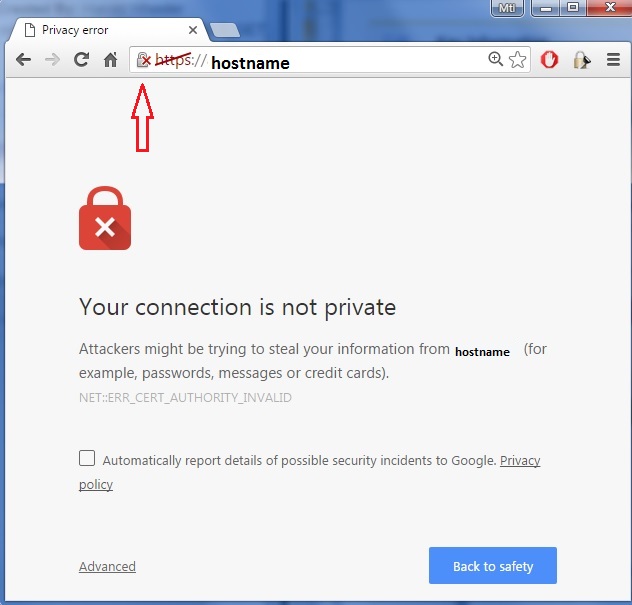
a. Click in the navigation window:
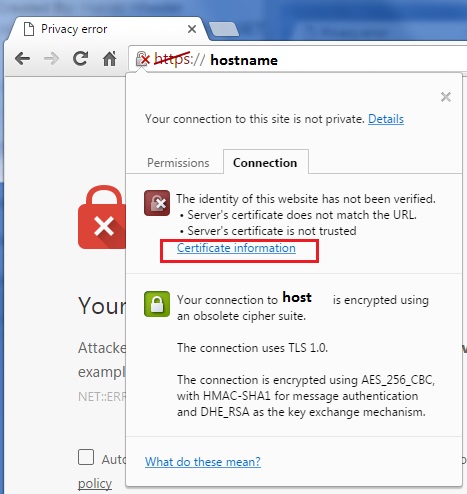
b. Select "Certificate information":
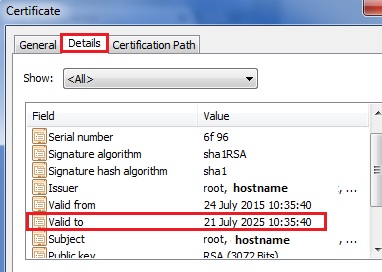
c. Select the "Details" tab and scroll to find "Valid To":
.
Affected Products
AvamarProducts
Avamar, Avamar ServerArticle Properties
Article Number: 000011234
Article Type: How To
Last Modified: 01 Apr 2025
Version: 9
Find answers to your questions from other Dell users
Support Services
Check if your device is covered by Support Services.