ViPR SRM: System Upgrade from SRM 4.0.1 to 4.1 stuck and not proceeding
Summary: System upgrade from SRM 4.0.1 to 4.1 is stuck mid-way and not proceeding. Status shows as 3 servers "preparing servers for upgrade" while other servers "waiting for remaining nodes".
This article applies to
This article does not apply to
This article is not tied to any specific product.
Not all product versions are identified in this article.
Symptoms
System upgrade from SRM 4.0.1 to SRM 4.1 started. The upgrade procedure runs for some time and it is now hung and the upgrade does not complete. The status of the upgrade shows for 3 servers as "Preparing server for upgrade" while for the other servers status shows as "Waiting for remaining nodes...".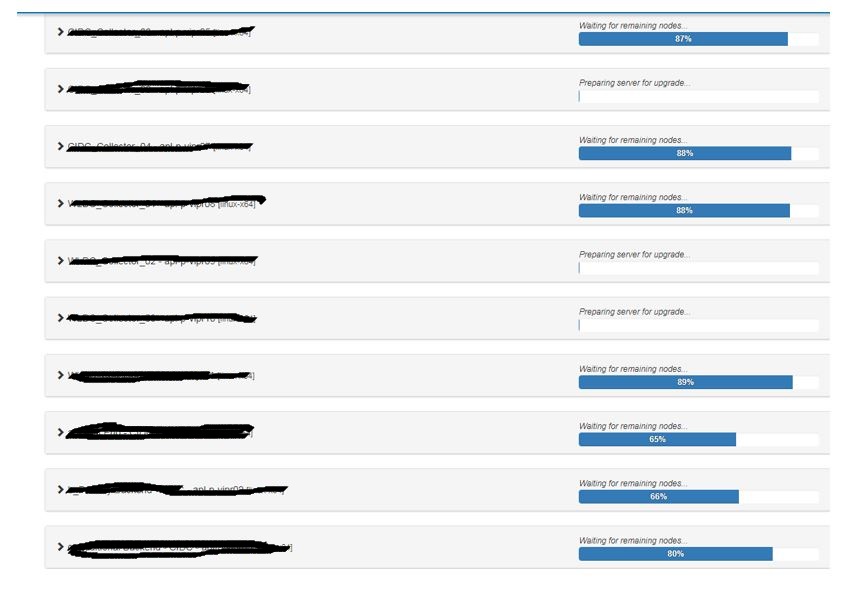
When reviewed the logs at the location /opt/APG/Tools/Update-Manager/xxx/logs/update-manager-0-0.log, see the message as:
INFO -- [2017-08-30 18:47:22 MDT] -- JavaUtilLog::info(): NO JSP Support for /Ahkt6zTLXgBqgpX9GcbMhQXprudCyvZL, did not find org.apache.jasper.servlet.JspServlet
Cause
Here the cause was that the 3 servers were not able to update the device-discovery package and manage-module package.
Resolution
1. Killed the upgrade task on frontend.
Log in to Frontend CLI and run the command:
ps -ef | grep update
This will show the pid of the update task.
Kill the process using the command:
kill <pid>.
2. Log in to putty session for servers respectively which are showing the status as: "preparing servers for upgrade".
3. Run the update command for the device discovery package as below:
xxx:/opt/APG/bin # ./manage-modules.sh update device-discovery
press yes and let the update complete.
4. Run the update command for module-manager package as below:
xxx:/opt/APG/bin # ./manage-modules.sh update module-manager
Press "yes" and let the update complete.
5. Log in to Frontend and Primary backend and start all the services as:
xxx:/opt/APG/bin # ./manage-modules.sh service start all.
6. Re-initiated the upgrade task from SRM GUI by going to Adminitration>> Centralized Management>> Configuration>> System Upgrade.
7. Click on "Go to maintenance mode".
8. The upgrade process will start and completed successfully.
Log in to Frontend CLI and run the command:
ps -ef | grep update
This will show the pid of the update task.
Kill the process using the command:
kill <pid>.
2. Log in to putty session for servers respectively which are showing the status as: "preparing servers for upgrade".
3. Run the update command for the device discovery package as below:
xxx:/opt/APG/bin # ./manage-modules.sh update device-discovery
press yes and let the update complete.
4. Run the update command for module-manager package as below:
xxx:/opt/APG/bin # ./manage-modules.sh update module-manager
Press "yes" and let the update complete.
5. Log in to Frontend and Primary backend and start all the services as:
xxx:/opt/APG/bin # ./manage-modules.sh service start all.
6. Re-initiated the upgrade task from SRM GUI by going to Adminitration>> Centralized Management>> Configuration>> System Upgrade.
7. Click on "Go to maintenance mode".
8. The upgrade process will start and completed successfully.
Affected Products
SRMArticle Properties
Article Number: 000057103
Article Type: Solution
Last Modified: 16 Sept 2025
Version: 5
Find answers to your questions from other Dell users
Support Services
Check if your device is covered by Support Services.