Open Networking switch - How to identify the Service Tag on Open Network Install Environment (ONIE)
Summary: This article introduces how to check your Open Networking Switch Service Tag from the Open Network Install Environment (ONIE) by using command.
This article applies to
This article does not apply to
This article is not tied to any specific product.
Not all product versions are identified in this article.
Instructions
Article Summary
This article provides how to identify the Switch Service Tag on Open Network Install Environment (ONIE).
Products to be applied:
- Dell Networking S3048-ON
- Dell Networking S4048-ON
- Dell Networking S4048T-ON
- Dell Networking S6000-ON
- Dell Networking S6010-ON
- Dell Networking S6100-ON
- Dell Networking Z9100-ON
How to Identify Service tag
-
Connect to the switch with a serial console via the serial console port.
-
Turn OFF then turn ON the switch power to restart.
-
After the restart completed, press ESC key within 5 seconds once the message "Press ESC to stop autoboot..." displayed on the terminal software.
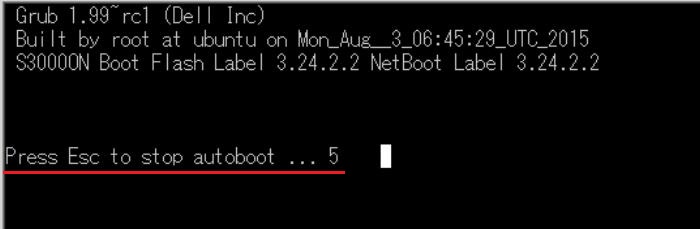
-
Select ONIE from the Grub menu and press Enter key.
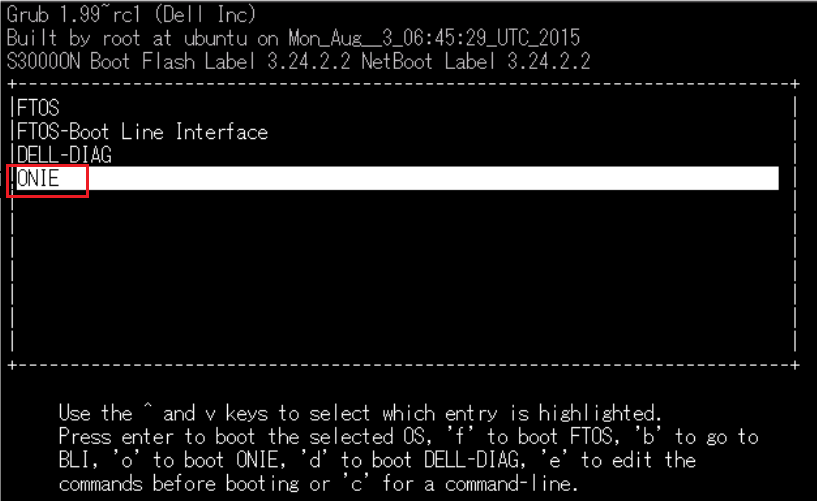
-
Select Rescue from the ONIE menu and press Enter key.
If the NOS is installed, ensure the Rescue is selected since OS does not boot if ""Install OS" is selected.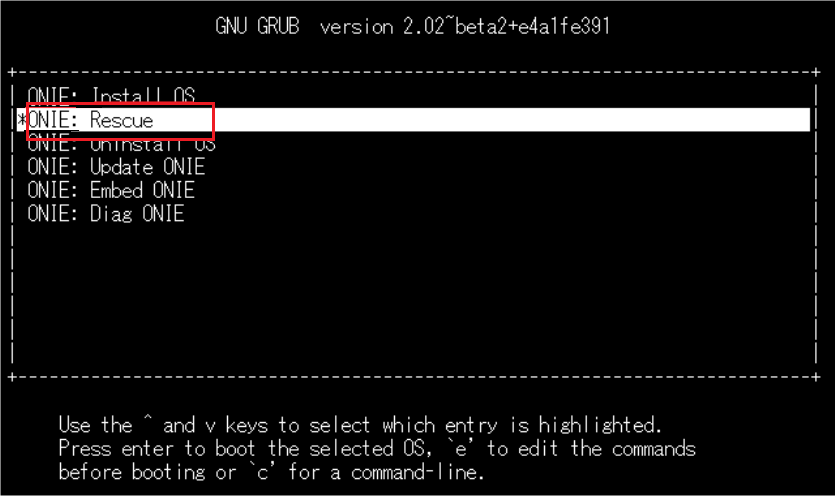
-
Run the command:
onie-syseepromon the ONIE prompt.
The Service Tag is displayed in the "Service Tag" line.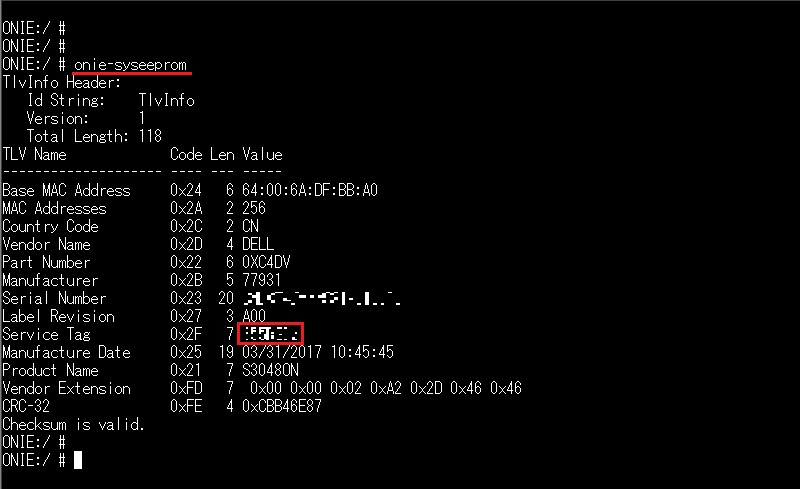
Affected Products
Networking, PowerSwitch S3048-ON, PowerSwitch S4048-ON, PowerSwitch S6000 ON, PowerSwitch S4048T-ON, PowerSwitch S6010-ON, PowerSwitch S6100-ON, PowerSwitch Z9100-ONArticle Properties
Article Number: 000122325
Article Type: How To
Last Modified: 29 July 2025
Version: 5
Find answers to your questions from other Dell users
Support Services
Check if your device is covered by Support Services.