How to scan a Service Tag QR code or Barcode
Summary: Follow the steps below to use your mobile device to scan the Service Tag QR code or Barcode on your Dell device. The Service Tag is the best way to access specific information about your Dell device. ...
This article applies to
This article does not apply to
This article is not tied to any specific product.
Not all product versions are identified in this article.
Instructions
You may encounter a situation where your Dell product is not working correctly to the point you cannot access our Support site with it.
Using your mobile device, you can scan your Service Tag QR code or Barcode, and use that to locate the Product Support page for your device. The product Support page provides you with self-help content, such as tutorials, drivers, and warranty information.
Step 1: Find the Service Tag QR code or Barcode of the product that you need support for.
The Service Tag QR code or Barcode is usually found on the back or bottom of your Dell product. A Service Tag is a 7-character code that Dell uses to identify your specific product and allows you to access customized support options based on your product’s tech specs and warranty.
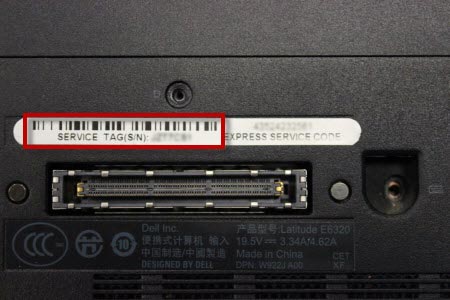
Figure 1: Example of a Service Tag barcode on the bottom of a Dell Laptop.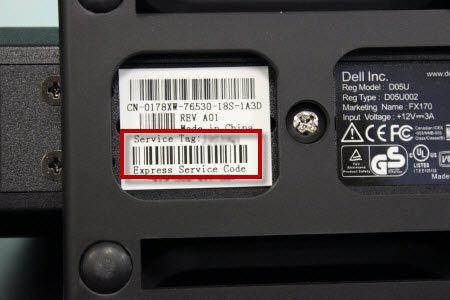
Figure 2: Example of a Service Tag barcode on the bottom of a Dell Docking Station.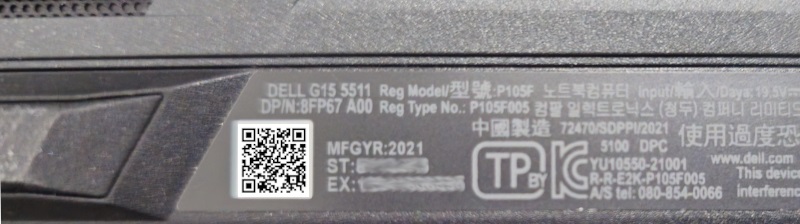
Figure 3: Example of a Service Tag QR code on the bottom of a Dell Laptop.
NOTE: Scanning the QR code in Figure 3, can take you to the Dell Support site, after you find your Service Tag.
NOTE: For additional information, see our Support Library page Find your Service Tag or Serial Number.
Step 2: Scan the Service Tag QR code or Barcode with your device’s camera.
- Ensure that you have a QR code or Barcode scanner application on your mobile device. If a QR code or Barcode scanner application is not installed on your mobile device, install one from a reliable source such as the Apple App Store or Google Play Store.
- Open the QR code or Barcode scanner application on your mobile device, and scan the QR code or Barcode.
- Once the Service Tag is obtained, copy it so that it can be used on the Dell Support site.
- Browse to the Dell Support page, or scan the QR code in Figure 3, and select open link.
- Once on the Dell Support site page, paste the Service Tag in to the box under Identify your product or search support, and select the type of support wanted.
Tips for taking a good scan of your Service Tag QR code or Barcode
- Ensure that the QR code or Barcode is legible on your product. The scan may not be able to read faded, damaged, or dirty barcodes.
- Ensure that your Dell device is in a well-lit area.
- When scanning, ensure that the QR code or Barcode is in focus.
Additional Information
 Out of warranty? No problem. Browse to the Dell.com/support website and enter your Dell Service Tag and view our offers.
Note: Offers are only available for US, Canada, UK, France, Germany, China, and Japan personal computer customers. Server and Storage not applicable.
Affected Products
Chromebox, Dell Pro Max Micro, Dell Pro Max Slim, Dell Pro Max Tower, Dell Pro Micro, Dell Pro Slim, Dell Pro Tower, Dell Slim, Dell Tower, Inspiron, Legacy Desktop Models, OptiPlex, XPS, G Series, Gateways & Embedded PCs, E Series, P Series
, S Series, SE Series, UltraSharp Premier (UP) Series, UltraSharp (U) Series, Dell Monitors, Dell Plus Monitors, Dell Pro Monitors, Dell Pro Plus Monitors, Dell Printers, MultiFunction Printers, Projectors & Accessories, TVs & Home Theater, Chromebook, G Series, Dell Plus, Dell Pro, Dell Pro Max, Dell Pro Plus, Dell Pro Premium, Inspiron, Latitude, Dell Pro Rugged, XPS, Legacy Laptop Models, D/Dock Expansion-Station, D/Port Advanced Port Replicator, Dell Compact Charging Cart - 36 Devices, Dell Dock WD15, Dell Dual Charge Dock HD22Q, Dell Dual Video USB3.0 Docking Station D1000, Dell EAPR2, Dell ESPR2, Dell Essential Charging Cart - 24 Devices - CT3021, Dell Mobile Computing Cart (Managed), Dell Mobile Computing Cart (Unmanaged), Dell Network Ready Charging Cart – 30 Devices, Dell Pro Max Micro XE FCM2250, Dell Pro Max Slim XE FCS1250, Dell Pro Max Tower T2 XE FCT2250, Dell Pro Max 16 XE MC16250, Dell Pro Micro Plus XE QBM1250, Dell Pro Slim Plus XE5 QBS1250, Dell Pro Tower Plus XE5 QBT1250, Dell Rugged Desk Dock, Dell SuperSpeed USB 3.0 Docking Station, Dell Thunderbolt Dock TB15, Dell Thunderbolt Dock TB16, Dell Precision Dual USB-C Thunderbolt Dock - TB18DC, Dell Universal Dock D6000, Dell Universal Dock - D6000S, Dell Universal Dock UD22, Dell Unmanaged Charging Cart – 30 Devices, Dell USB3.0 dock D3100, Dell Dock WD19, Dell Performance Dock - WD19DC, Dell Performance Dock – WD19DCS, Dell Dock – WD19S, Dell Thunderbolt Dock - WD19TB, Dell Thunderbolt Dock – WD19TBS, Dell Wireless Dock, Dell Wireless Docking Station WLD15, E-Port, E-Port Plus, Inspiron duo Audio Station, C/Dock Expansion Station, C/Port APR, Dell Thunderbolt Dock – WD22TB4
...
Article Properties
Article Number: 000130977
Article Type: How To
Last Modified: 19 Mar 2026
Version: 10
Find answers to your questions from other Dell users
Support Services
Check if your device is covered by Support Services.