PowerEdge: How to find the Supported Memory Configuration Guide for PowerEdge Servers
Summary: This article explains how to find supported memory configuration for your PowerEdge server.
This article applies to
This article does not apply to
This article is not tied to any specific product.
Not all product versions are identified in this article.
Instructions
Note: Find details for BIOS configuration options in Additional Information.
Table of Content
- Which memory configuration is supported on my PowerEdge server?
- Shipped Memory on my PowerEdge Server
- Different types of memory DIMMS for Dell PowerEdge servers
- An example of a memory upgrade based on the R740 server
Which memory configuration is supported on my PowerEdge server?
Each Dell server has different types of memory and configurations. See the Owner's manual for detailed information about the memory that your server can support.
To check the manual of your Dell Server, go to Dell Support.
- Enter the Service Tag of your server.
- Access the tab menu Documentation and scroll down to Manuals and Documents.
- Locate your system type Installation and Service Manual. Click View PDF or View Page.
- Search for the menu Installing and removing system components > Memory or System Memory.
- You should find detailed information about the memory configuration for your Dell server.
Example for R740:
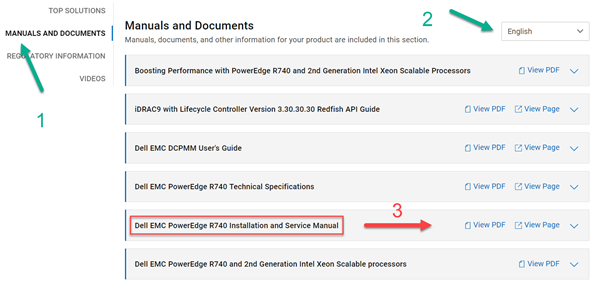
Figure 1: Manual and documents on the support page showing access to the installation and service manual
Displayed language can be changed in the top section.
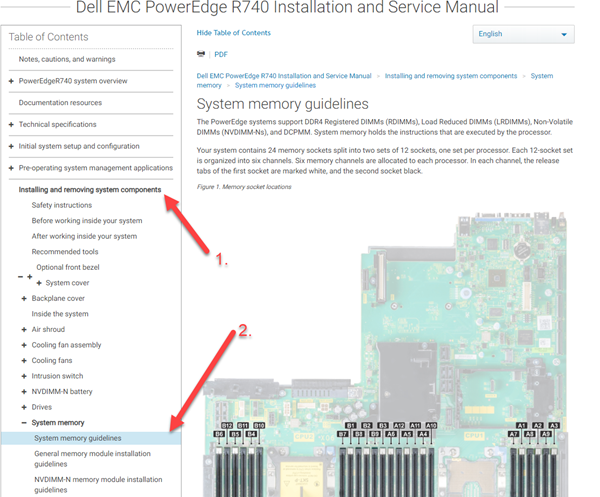
Figure 2: System memory guidelines
Here, we read that the R740 supports Dual In-Line memory module (DIMM)-DDR4 Registered DIMMs (RDIMMs), Load Reduced DIMMs (LRDIMMs), Non-Volatile DIMMs (NVDIMM-Ns), and DC Persistent memory module (DCPMM). System memory holds the instructions that the processor runs. All other memory information is located in this place.
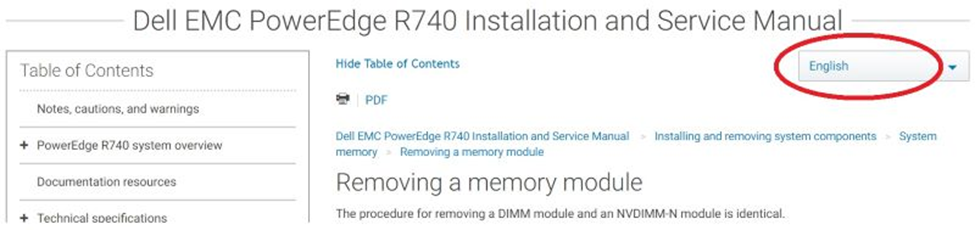
Figure 3: Example showing the language selection in the installation and support manual.
To remove or install memory modules:
- Search for the menu Installing and removing system components > Memory or System Memory > Removing a memory module or Installing a memory module.
- You should find detailed information about how to remove and install memory modules for your Dell server.
Shipped Memory on my PowerEdge Server
To check the current memory in your Dell Server, go to Dell Support Home.
- Enter the Service Tag of your server.
- Access the menu Product Details > View System Configuration
- Locate the memory that was shipped with your Dell Server from the configuration list.
Different types of memory DIMMS for Dell PowerEdge servers
Note: There are several types of memory DIMMS for servers available:
- Unbuffered DIMM: UDIMM does not buffer add, control, clock, or data I/O lines
- Registered DIMM: RDIMM buffers add, control, and clock lines but does not buffer data I/O lines
- Load reduced DIMMs: LRDIMM buffers add, control, clock, and data I/O lines
RDIMMs, by buffering and registering the address, control, and clock lines, removes loads from the system memory bus and isolates these to the well-defined signal paths on the DIMM itself. While this register introduces some latency to buffer these signals, the pipelined nature of the memory allows full-speed access once the transfer begins. Rather than having eight or sixteen loads on these signals, the system memory bus only sees one load, that of the register. However, the data I/O signals on an RDIMM remain connected directly between the connector and the individual DRAMs (up to four loads on a 4-rank DIMM). LRDIMMs are a new technology, introduced on the PowerEdge 12th generation servers. LRDIMMs buffer the data I/O signals between the DRAMs and the system memory bus by using a buffer device.
NVDIMM-Ns Persistent Memory is a disruptive Storage Class Memory technology that enables unprecedented performance improvement over legacy storage technologies. Each NVDIMM-N provides 16 GB of nonvolatile memory and has the same form factor as a standard 288-Pin DDR4 DIMM. The NVDIMM-N resides in a standard CPU memory slot, placing data close the processor. With its ability to operate at 2666 MT/s DDR4 data rates. The NVDIMM-N takes full advantage of the high bandwidth and low latency that is characteristic of the memory bus. For comparison, the table below provides approximate data access times for DDR4 relative to other server storage media.
DCPMMs persistence and capacity of data storage of a solid state drive. This means the DCPMMs have performance characteristics similar to that of TruDDR4 DIMMs. The storage capacity of an SSD, and the ability to stay active after a power cycle or reboot of the server. These features open up a new way of performing data I/O to application developers and new levels of server performance.
Note: Do not confuse LR-DIMMS with LV-DIMMS, as LV stands for Low Voltage.
An example of a memory upgrade based on the R740 server
Initial assumptions:
- The machine comes with 2 CPUs
- The machine uses 6 DIMMs of memory (384GB, 12 x 32 GB RDIMMs, 6 per CPU in slot A1, A2, A3, A4, A5, A6, B1, B2, B3, B4, B5, and B6)
- The machine is to be upgraded to a 2/3 max configuration (1 TB). A mixture of DIMM capacities must be installed to bring it up to the target amount of memory.
Considerations:
- There are rules and technical limitations for implementing memory configuration changes
- R740 > Technical specifications > Memory specifications
- R740 > Installation and Service Manual > Installing and Removing system components > System memory > Memory guidelines
- R740 > Installation and Service Manual > Installing and Removing system components > System memory > General memory module installation guidelines
- RDIMMs and LRDIMMs can NOT be mixed so an upgrade must be ALL RDIMMs or ALL LRDIMMs!
- Due to the above, understanding what is currently installed is critical if the existing DIMMs are to be used in the new configuration
- The memory configuration between the two CPUs must be identical in size and position.
- Triple mixing sizes is NOT an option (32GB DIMMs, 16 GB DIMMs, and the two original 8 GB DIMMs), only two different capacity sizes are allowed.
Implementation:
- The current memory configuration: 384 GB
- 6 x 32 GB RDIMM (dual rank) 2666 MT/s per CPU
- The target memory configuration: 1024 GB (example build out)
- 4 x 128 GB LRDIMM (Octa rank) 2933 MT/s speed per CPU
- 4 x 128 GB LRDIMM (Quad rank) 3200 MT/s per CPU
- 6 x 64 GB RDIMM (Dual rank) 2666 MT/s + 6 x 32 GB RDIMM (dual rank) 2666 MT/s per CPU
Factors that change the memory selection needed:
- Memory speed requirements
- Do the applications running on the server benefit enough from faster memory to warrant higher speed memory with fewer DIMMs and a higher cost?
- Is the amount the most important factor over speed?
- Does the memory selection fit with the budget for the memory?
Benefits of the three different selections:
- 4 x 128 GB LRDIMM (Octa rank (x8)) 2933 MT/s
- This is a fast solution, likely at the limit of the speed that can be supported in most configurations per single DIMM.
- This is likely an expensive solution
- 4 x 128 GB LRDIMM (Quad rank (x4)) 3200 MT/s
- Similar to the above, but with the potential for even higher speeds given the CPU support, otherwise it falls down to the next supported speed (2933, 2666, or 2133 based on the base MT/s)
- 6 x 64 GB RDIMM (dual rank) 2666 MHz + 6 x 32 GB RDIMM (dual rank) 2666 MT/s
- This is the value selection, here speed does not matter as much as capacity does.
- This configuration uses the largest bandwidth available as opposed to highest single DIMM speed.
Installation considerations:
- 4 x 128 GB LRDIMM (Octa rank (x8)) 2933 MT/s
- The DIMMs must be installed in specific slots to function as expected: 1, 2, 5, 6 (A1/B1, A2/B2, A5/B5, A6/B6)
- 4 x 128 GB LRDIMM (Quad rank (x4)) 3200 MT/s
- These also need to be installed in the same special slots as mentioned above
- 6 x 64 GB RDIMM (dual rank) 2666 MHz + 6 x 32 GB RDIMM (dual rank) 2666 MT/s
- Installation is to be done in order, 64 GB RDIMMs first (A1/B1, A2/B2, A3/B3, A4/B4, A5/B5, and A6/B6) followed by the 32 GB RDIMMs in the remainder of the slots.
- Slots tabs are color-coded. The white tab slots are the lower numbers (1 to 6) and the black tab slots are the higher number slots (7 to 12), so 64 GB in white, 32 GB in black.
Additional Information
How to set different memory modes in the System BIOS?
The System Memory screen allows you to view all the memory settings and enable or disable specific memory functions such as system memory testing and node interleaving.
In the System Setup Main Menu, click System BIOS > System Memory.
You can specify the memory operating mode. The options available are Optimizer Mode, Advanced ECC Mode, Mirror Mode, Spare Mode, Spare with Advanced ECC Mode, and Dell Fault Resilient Mode.
Note: By default, the Memory Operating Mode option is set to Optimizer Mode.
Information about each mode below is available in the product manuals for your server (English only):
-
Optimizer Mode
-
Advanced ECC Mode
-
Mirror Mode
-
Spare Mode
-
Dell Fault Resilient Mode
Affected Products
PowerEdge C4130, Poweredge C4140, PowerEdge c6320, PowerEdge c6320p, PowerEdge C6420, PowerEdge C6520, PowerEdge C6525, PowerEdge C6615, PowerEdge C6620, Poweredge FC430Products
HS Series, Rack Servers, Tower Servers, XE Servers, PowerEdge XR2, Poweredge FC630, PowerEdge FC640, Poweredge FC830, PowerEdge FM120x4 (for PE FX2/FX2s), PowerEdge M630, PowerEdge M630 (for PE VRTX), PowerEdge M640, PowerEdge M640 (for PE VRTX)
, PowerEdge M830, PowerEdge M830 (for PE VRTX), PowerEdge MX740C, PowerEdge MX750c, PowerEdge MX760c, PowerEdge MX840C, PowerEdge XR11, PowerEdge XR12, PowerEdge XR4510c, PowerEdge XR4520c, PowerEdge XR5610, PowerEdge XR7620
...
Article Properties
Article Number: 000135681
Article Type: How To
Last Modified: 02 Sept 2026
Version: 17
Find answers to your questions from other Dell users
Support Services
Check if your device is covered by Support Services.