NetWorker: NSR critical JAVA_HOME environment variable might not be set correctly: Unable to execute java
Summary: After updating the OS or upgrading JAVA on the NetWorker server, the NetWorker server service (nsrd) or the authentication service fail to start. Connecting to the NetWorker server from the NetWorker Management Console may fail, reporting the server is down or cannot reach the authentication service. The JAVA_HOME system environment variable must be updated to reflect the new Java version's installation path. ...
This article applies to
This article does not apply to
This article is not tied to any specific product.
Not all product versions are identified in this article.
Symptoms
- The "NetWorker Backup and Recover Server" service (NSRD) does not start.
- Oracle Java Runtime Environment (JRE) is installed and may have been recently upgraded.
- The NetWorker server's daemon.raw contains the following error upon service startup:
nwserver_hostname nsrctld NSR critical JAVA_HOME enrivonment variable might not be set correctly: Unable to execute java 'C:\Program Files\Java\jre1.8.0_121\bin\java.exe'. Ensure that JAVA_HOME is set to 64-bit JRE directory.
Location:
Linux:
Windows:
/nsr/logs/daemon.raw
Windows:
..\Program Files\EMC NetWorker\nsr\logs\daemon.raw
Cause
The NetWorker server software check's for the required Java version on a host when starting the "NetWorker Backup and Recover Server" (nsrd) service. When the process does not detect the minimum-required Java version on the host, the process fails to start. This issue arises when Java was installed but has been removed, or the Java version was upgraded and now the JAVA_HOME system environment-variable path does not match the current Java version.
Resolution
Update the JAVA_HOME environment variable path to reflect the new Java version path.
- Confirm what Java packages are installed.
Linux
- Run the following command to identify the installed Java packages:
sudo find /usr /opt /lib* -type f -name "java" 2>/dev/null
This command may identify multiple Java installs. The host may have NetWorker Runtime Environment (NRE) and Oracle Java Runtime Environment (JRE) installed. For example:
nve:~ # sudo find /usr /opt /lib* -type f -name "java" 2>/dev/null
/usr/share/bash-completion/completions/java
/usr/lib/jvm/jre-1.8.0_441-oracle-x64/bin/java
/opt/nre/java/jre1.8.0_441/bin/java
NOTE: For NetWorker Virtual Edition (NVE) servers, both Oracle JRE and NRE are installed. The preference for NetWorker is to use NRE; however, JRE must be left installed on the host. For standard NetWorker deployments (non-NVE), check with the system administrator if the Oracle JRE package is required. If not required, it can be removed.
- When using NRE, the /opt/nre/java/latest symbolic link can be used to reflect the latest Java version included with NRE:
nve:~ # ls -l /opt/nre/java/latest
lrwxrwxrwx 1 root root 26 Jun  2 11:36 /opt/nre/java/latest -> /opt/nre/java/jre1.8.0_441
Windows:
- Open Control Panel->Programs->Programs and Features and look for NetWorker Runtime Environment (NRE) or Java Runtime Environment (JRE). The server may include both. The preferred runtime environment for NetWorker is (NRE). If the server includes both NRE and Oracle (JRE), consult with the system administrator to see if Oracle JRE can be removed.
- For NetWorker Runtime Environment (NRE), open File Explorer and go to C:\Program Files\NRE\java

- For Oracle Java Runtime Environment (JRE), go to Control Panel-->Java-->Java Control Panel Opens-->Java-->View:

- Update the
JAVA_HOMEsystem environment variable:
Linux:
- If there are any NetWorker services running, stop them:
sudo nsr_shutdown - Open the /nsr/authc/conf/installrc file using a text editing tool:
sudo vi /nsr/authc/conf/installrc - This file should only contain the JAVA_HOME environment variable, update the path to the updated JRE path collected in the step 1.
[root@nwserver ~]# vi /nsr/authc/conf/installrc
JAVA_HOME=/opt/nre/java/latest
- Open the /nsr/nsrrc file using a text editor:
sudo vi /nsr/nsrrc - Add, or modify the following lines to point to the correct runtime environment:
JAVA_HOME=/opt/nre/java/latest
export JAVA_HOME
- Start the NetWorker server services:
systemctl start networker
NOTE: When using Oracle Java Runtime Environment (JRE), specify the full path to the Oracle JRE folder, or user-created symbolic /usr/java/latest folder.
Windows:
- Log in to the target host with a user that has administrator privileges.
- If there are any running NetWorker services, stop them by running the following command:
net stop nsrexecd /y - Browse to Control Panel-->System-->Advanced System Settings.
- On the Advanced tab, click Environment Variables...
- In the System Variables section, click New.
- In the Variable name field, type JAVA_HOME
- In the Variable value field, type the path to the Java directory. For example:
C:\Program Files\NRE\java\jre1.8.0_431 - Click OK.
- Click OK to close the Environment Variables window, and then click OK to close the System Properties window.
- In the System Variables section, click New.
- In the Variable name field, type NSR_JAVA_HOME
- In the Variable value field, type the path to the Java directory. For example:
C:\Program Files\NRE\java\jre1.8.0_431 - Click OK.
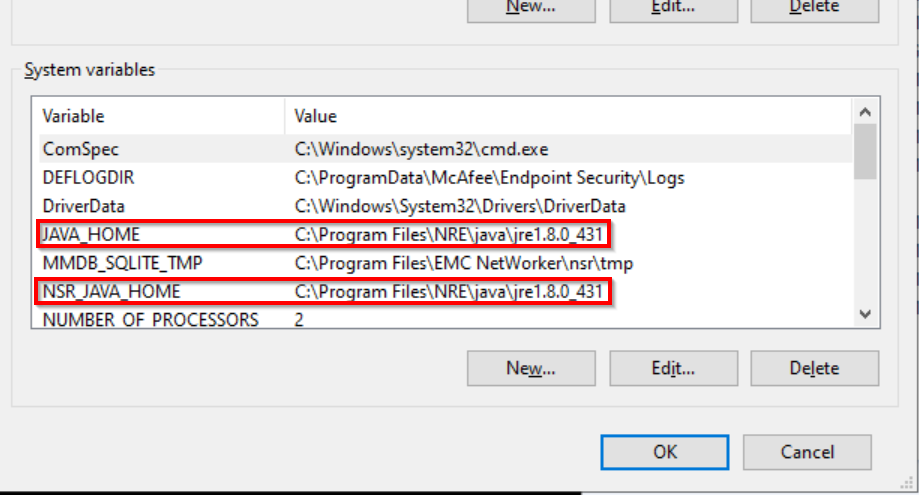
- Reboot the NetWorker server for the system variable to take effect. The NetWorker server services should automatically start once the host has come back up:
tasklist | findstr nsr
Affected Products
NetWorkerProducts
NetWorkerArticle Properties
Article Number: 000166530
Article Type: Solution
Last Modified: 04 June 2025
Version: 5
Find answers to your questions from other Dell users
Support Services
Check if your device is covered by Support Services.