NVP vProxy: Instant VM Restore left behind NFS mounts on Data Domain and VMware
Summary: Instant Access or File Level Restore (FLR) Network File System (NFS) datastore is mounted in VMware from Data Domain despite no ongoing IA/FLR.
This article applies to
This article does not apply to
This article is not tied to any specific product.
Not all product versions are identified in this article.
Symptoms
The NetWorker VMware Protection (NVP) integration is configured with the vProxy Appliance. A virtual machine (VM) Instant Recovery was performed to create a Network File System (NFS) datastore from the target Data Domain.
The Instant Recovery session remains in the NetWorker Management Console (NMC) until the Administrator vMotions the VM to another datastore and manually cancels the session. The Instant Recovery session has been removed from the NetWorker data zone, but the NFS datastore is still available in the vSphere environment.
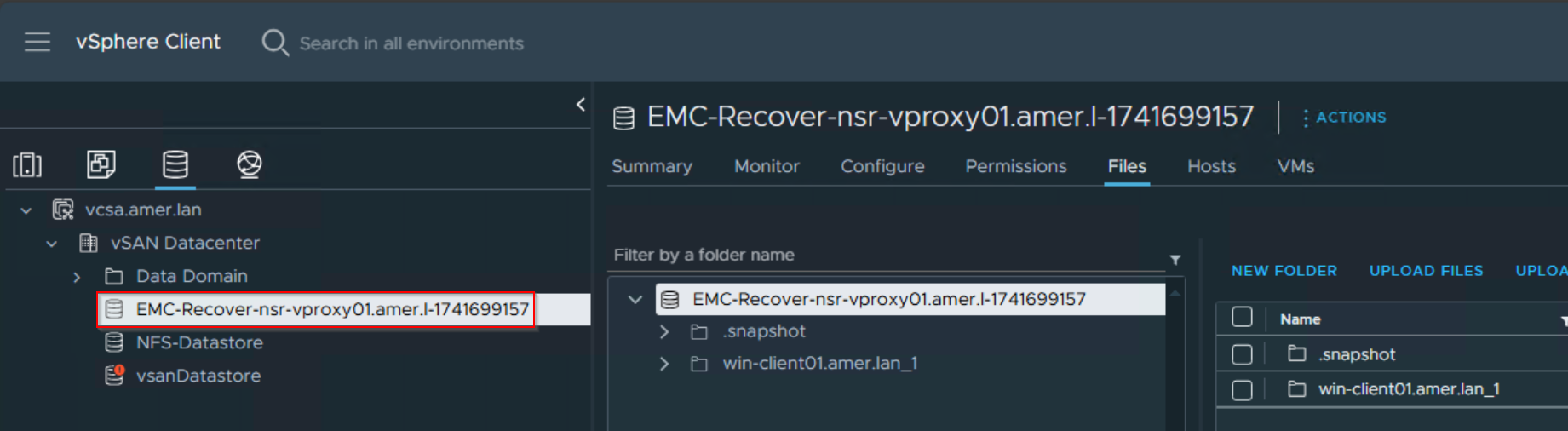
The Data Domain still lists the NFS export under Protocols->NFS.

Cause
The VM was never migrated to a VMware datastore, and the Instant Recovery session was never cancelled. Instant Recovery makes the VM available on the Data Domain, then powers it on. The VM should be migrated to a VMware datastore for permanent storage/compute resources. After vMotioning the VM to a VMware datastore, cancel the recovery from the NMC to remove temporary NFS datastores from VMware and the Data Domain. If left too long, the Instant Restore session disappears from the "currently running" window and you cannot cancel it. This leaves the NFS export on the Data Domain, and the datastore is mounted in VMware.
Resolution
Manually remove the VMware NFS datastore and then manually remove the Data Domain NFS export.
- In vSphere, right click the VM and Migrate the VM's compute/storage resources to the VMware environment.
- Right-click the VM again and select Edit Settings. Expand each disk drop-down and confirm that the VM is showing on a VMware datastore and not the Data Domain NFS datastore.
- In vSphere, select the Datastores tab. Select the "EMC Recover" datastore, then select Unmount Datastore from the Actions menu. Select all the ESXi hosts, then click Ok.

- Monitor the vSphere tasks and events and ensure that the Datastore is successfully unmounted.
- Log in to the Data Domain management user interface (web) with sysadmin credentials. Expand the Protocols drop down and select NFS. Check only the "Recover-vProxy_Name" NFS datastore and select delete

Products
Data Domain, NetWorkerArticle Properties
Article Number: 000174180
Article Type: Solution
Last Modified: 19 Mar 2025
Version: 4
Find answers to your questions from other Dell users
Support Services
Check if your device is covered by Support Services.