USB Eject icon missing and incorrect SD card icon appears on Inspiron and Vostro Laptops
Summary: The following article deals with resolving an issue where the USB Eject icon is missing from the toolbar and the incorrect SD card icon is showing in "This PC" in Windows 10.
This article applies to
This article does not apply to
This article is not tied to any specific product.
Not all product versions are identified in this article.
Symptoms
Card reader issues in windows 10 on Inspiron and Vostro Laptops
Inspiron 3501, 3502, 3505 and Vostro 3400, 3401, 3405, 3500, and 3501 laptop owners have reported a couple if issues with the card reader in Windows 10.
The two related issues shown when a card is inserted are:
- The USB eject icon on the toolbar does not appear.
- The wrong SD card icon is showing in This PC.
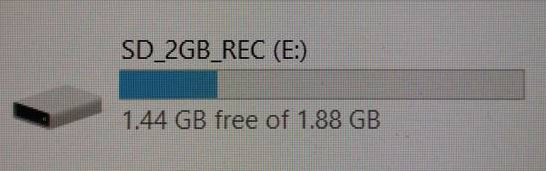
(Figure.1 SD Icon)
Cause
Dell Engineering recommends keeping your computers drivers and operating system updated to the latest versions.
Resolution
Any of the following methods resolve this issue:
Ensure that Windows Update has updated the operating system and drivers to the latest versions:
-
Click the Start menu button. (Usually located on the bottom-left corner.)
-
Click the Settings icon. (It looks like a gear icon.)
-
Select Update and Security.
-
Choose Windows Update.
-
Check the box for updates. (If there are any available updates, they begin to download automatically.)
The Dell Update application comes on your computer and searches and installs the latest versions of your computers drivers for you. It is in your Start Menu.
-
Identify the type of card reader in your PC:
-
Boot into your operating system and then press the Windows key and the X key together to open a menu and then press the M key or select Device Manager to open the Device Manager utility.
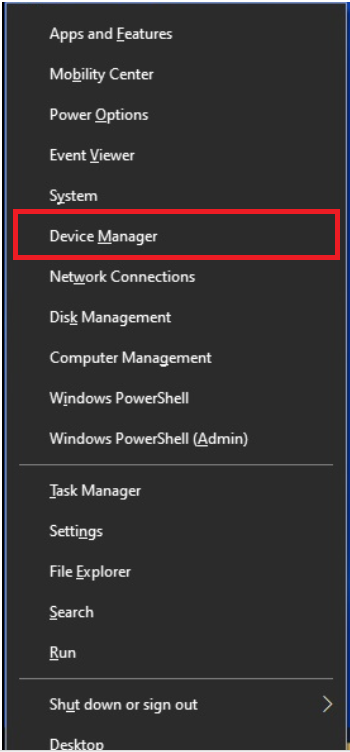
(Figure.2 Power User Menu)
-
Insert an SD, SDHC, MMC, or MMC-Plus memory card into your card reader and then find the USB Mass Storage Device under Universal Serial Bus controllers.
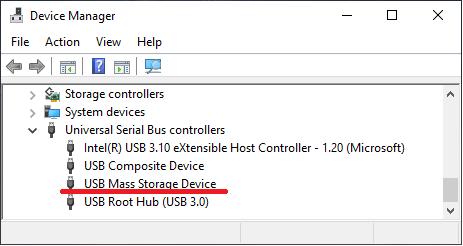
(Figure.3 Device Manager)
-
Right click the USB Mass Storage Device and select Properties.
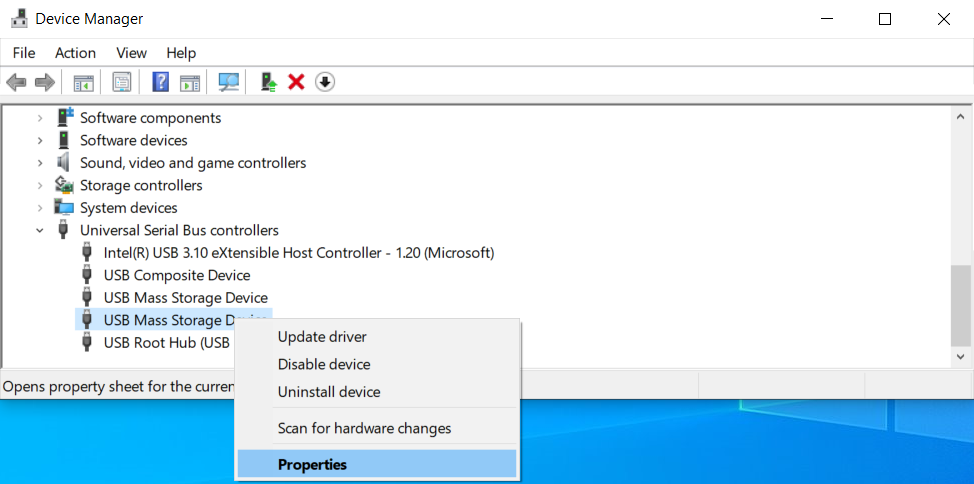
(Figrue.4 Driver Properties)
-
Click the Details tab and select Hardware IDs.
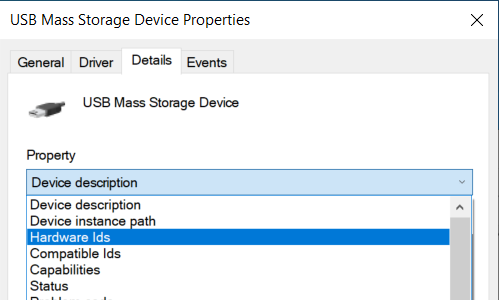
(Figure.5 Details Tab)
-
Check the value field:
-
VID_0BDA&PID_0177 for Realtek
-
VID_05E3&PID_0761 for Genesys
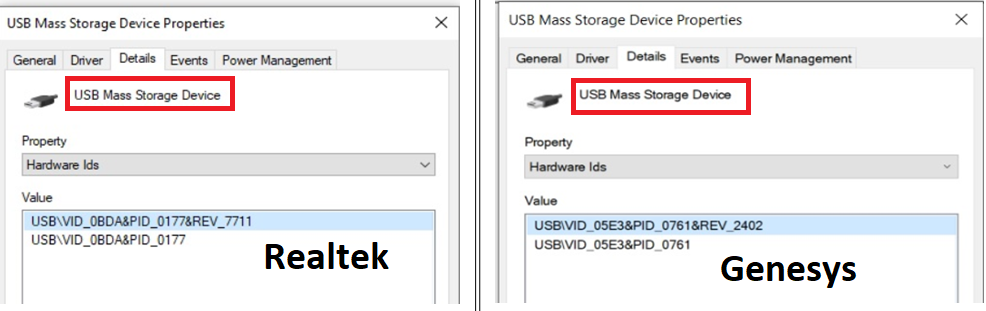
(Figure.6 Driver Values)
-
-
-
Browse to the Dell Drivers & Downloads page:
-
Select the Operating System
-
Under Category, select Chipset
-
Locate the latest:
-
VID_0BDA&PID_0177 = Realtek Memory Card Reader Driver
-
VID_05E3&PID_0761 = Genesys Memory Card Reader Driver
-
-
Click Download and save the file to your computer
-
Open File Explorer and browse to the location where the downloaded file is saved
-
Double-click the card reader setup file and follow the on-screen instructions to complete the installation process
Affected Products
Inspiron 3501, Inspiron 3502, Inspiron 3505, Vostro 3400, Vostro 3401, Vostro 3405, Vostro 3500, Vostro 3501Article Properties
Article Number: 000182435
Article Type: Solution
Last Modified: 08 May 2026
Version: 5
Find answers to your questions from other Dell users
Support Services
Check if your device is covered by Support Services.