PowerVault ME5: Resolving SupportAssist test connection failed
Summary: This article outlines steps to resolve SupportAssist Test Connection failed on PowerVault ME5 series arrays.
This article applies to
This article does not apply to
This article is not tied to any specific product.
Not all product versions are identified in this article.
Instructions
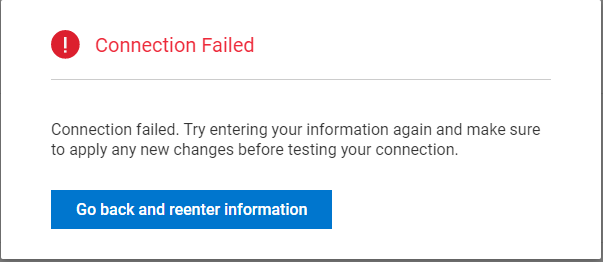
PowerVault administrators may receive the following message when trying to verify SupportAssist can connect to its endpoint. "Connection failed. Try entering your information again an make sure to apply any new changes before testing your connection."
If your endpoint is secure connect gateway (SCG/VE) refer to this article: PowerVault ME5: How to configure SupportAssist to Connect via Gateway Server. When SupportAssist is configured to use a direct connection the following pre-requisites must be in place:
- Minimum controller firmware. Controller firmware must be version ME5.1.1.0.5 or later to connect to Dells endpoint, previous versions ME5.1.0.0 and ME5.1.0.1.0 will not connect. If PowerVault ME array controller firmware has not been updated refer to PowerVault ME5: Older Version Reports Message: Lost Connectivity to the SupportAssist Backend
- Controller A management port must be configured and connected to a network with an internal routable path to your organizations internet gateway or proxy server. Using an SSH client (e.g. PuTTY) open a session to controller A management IP address. If you are unable to establish a connection to the controller management port the following articles may help resolve.
With an SSH session open, run the following commands show network-parameters and ping to check network connectivity to your local router and internet gateway or proxy/firewall. The link on controller A should be 100 or 1000 mbps. Use ping to test response from your local management network gateway address. If there is no response using ping work with your network administrator to resolve this.
# show network-parameters
Network Parameters Controller A
-------------------------------
IP Address: 10.0.0.2
Gateway: 10.0.0.3
Subnet Mask: 255.255.255.0
MAC Address: 00:c0:ff:xx:xx:xx
Addressing Mode: Manual
Link Speed: 1000mbps
Duplex Mode: full
Auto Negotiation: Enabled
Ping Broadcast: Enabled
Health: OK
Health Reason:
Health Recommendation:

<some output snipped>


Success: Command completed successfully. (2025-03-04 04:10:01)
#
# ping 10.0.0.23 count 4
Info: Pinging 10.0.0.3 with 4 packets and packet size of 56.

Success: Command completed successfully. - The remote computer responded with 4 packets. (2025-03-04 04:16:08)
#
- DNS Servers and search domains. PowerVault administrators must configure PowerVault ME5 with a DNS server IP address to resolve the following Dell endpoint hostnames. Without DNS any SupportAssist connection cannot work.
IP version Dell direct connection endpoint hostnames Protocol/Port IPv4 esrs3-core.emc.com outbound TCP/443 IPv4 esrs3-coredr.emc.com outbound TCP/443 IPv6 srs-1-v6.dell.com outbound TCP/443
To check the DNS server settings. Using an SSH client open an session to the PowerVault ME5 controller management IP address and use the following commandshow dns-parameters. Use thepingcommand to confirm the DNS server is reachable from the ME5 controller management port address.
# show dns-parameters
Controller A
------------
Controller: A
Name Servers: 10.0.0.10, 10.0.0.11
Search Domains: mycompany.local

Controller B
------------
Controller: B
Name Servers: 10.0.0.10, 10.0.0.11
Search Domains: mycompany.local

Success: Command completed successfully. (2025-03-04 04:29:24)
#
If no DNS server is configured useset dns-parametersto configure the DNS server IP address. It is possible to use open DNS servers such as Google DNS IP addresses: 8.8.8.8 or 8.8.4.4. Consult your network administrator if you do not know the DNS server IP address, some organizations security policies do not permit use of external DNS servers.
# set dns-parameters nameservers 10.0.0.10, 10.0.0.11 search-domains mycompany.local controller both Success: Command completed successfully. - Request to change DNS parameters is in progress. Allow up to 30 seconds for the changes to be visible. (2025-03-04 04:35:32) # - Outbound TCP on port 443. Firewall, or internet gateway must allow outbound connections on TCP port 443 to Dell endpoint hosts listed above. You can test if a network connection to any webserver on port 443 is possible by using the following command:
check support-assist-connection mode gateway uri https://www.dell.com:443 proxy falseYou can adjust the uri web address or change proxy to true as appropriate to your network settings. The Status Detail output will report Success if both TCP port 443 is open and the destination web server (www.dell.com) is online.
# check support-assist-connection mode gateway uri https://www.dell.com:443 proxy false
SupportAssist Connection
------------------------
Connection State: Connected

  Endpoint
  --------
  Mode: gateway
  Endpoint: https://www.dell.com:443
  Status: success
  HTTP Status: 200
  Message: OK
  Status Detail: Success
  Proxy Type: none

Success: Command completed successfully. (2025-03-04 04:52:20)
If you receive a Status Detail with Connection Error it is likely a DNS server is not configured or reachable from the management network. If you received Status Detail with Timed Out there is no route to the internet gateway, the internet gateway connection is offline or a firewall is blocking the connection to the domain. Consult your network administrator to resolve this.
# check support-assist-connection mode gateway uri https://www.dell.com:443 proxy false SupportAssist Connection ------------------------ Connection State: Not Connected Endpoint -------- Mode: gateway Endpoint: https://www.dell.com:443 Status: fail HTTP Status: 0 Message: Status Detail: TimedOut Proxy Type: none Success: Command completed successfully. (2025-03-04 04:52:48) # - Add exception if using SSL/TLS certificate inspection. PowerVault ME5 SupportAssist service establishes a secure mutual transport layer security connection to Dell endpoints If SSL decryption is enabled on the proxy servers and other devices, ensure the server hostnames listed in step 3 are added to the SSL decryption exclusion list on the proxy servers and devices.
- PowerVault ME5 systems shipped before April 2023 require an Access key and PIN to establish a connection to the Dell endpoint. Systems shipped after March 2023 have the access key pre-loaded at the factory and administrators DO NOT need to generate this. Where this is required follow this article PowerVault ME5: How to Generate an Access Key and Pin to Enable SupportAssist or contact Dell technical support for assistance to generate the access key.
An access key is needed if the test connection to the Dell endpoint returns SSLError
check support-assist-connection mode direct SupportAssist Connection ------------------------ Connection State: Not Connected Endpoint -------- Mode: direct Endpoint: https://esrs3-core.emc.com Status: fail HTTP Status: 0 Message: Status Detail: SSLError Proxy Type: none Endpoint -------- Mode: direct Endpoint: https://esrs3-coredr.emc.com Status: fail HTTP Status: 0 Message: Status Detail: SSLError Proxy Type: none - Check SupportAssist State is enabled, by typing the command
show support-assist. To enable SupportAssist type the command:set support-assist enabled. If your organization uses a proxy server you may need to set those details using theset support-assist-proxycommand. For syntax details typehelp set support-assist-proxyor lookup the Dell PowerVault ME5 Series Storage System CLI Reference Guide.
# set support-assist enabled
Success: Command completed successfully. (2025-03-04 06:05:32)
#
# show support-assist
SupportAssist
-------------
SupportAssist State: Enabled
Operation Mode: Normal
Auto-case Creation: Enabled
CloudIQ: Enabled
Connection Preference: Direct

  Gateway Endpoints
  -----------------
  Gateway 1:
  Gateway 2:
  Gateway 3:

  Proxy Information
  -----------------
  Proxy State: Disabled
  Protocol: HTTP
  Host:
  Ports:
  User Name:

Success: Command completed successfully. (2025-03-04 05:28:21)
To confirm SupportAssist direct connection to Dell endpoints is working, use the command:check support-assist-connection mode direct. You should see the following output with Status Detail reporting Success.
# check support-assist-connection mode direct
SupportAssist Connection
------------------------
Connection State: Connected

  Endpoint
  --------
  Mode: direct
  Endpoint: https://esrs3-core.emc.com
  Status: success
  HTTP Status: 200
  Message: OK
  Status Detail: Success
  Proxy Type: none

Success: Command completed successfully. (2025-03-04 05:53:29)
#
To check if any controller or disk driver firmware updates are available for your PowerVault ME5 array, use the commandcheck support-assist-updates. When SupportAssist is first connected this function may not advertise any updates. You may need to wait a few hours before Dell backend has registered the system.
# check support-assist-updates Success: Command completed successfully. - No updates available. (2025-03-04 05:57:20) # - Don't forget to check contact details for local PowerVault administrator have been set and are up to date. Use
show support-assist-contactto view current contacts. If contacts are not configured use PowerVault Manager or the CLI. Typehelp set support-assist-contactfor syntax details. - If you are not able to resolve the connection failure following the above steps, gather a support bundle following this article PowerVault ME5: How to collect PowerVault support logs
Once the log has been gathered contact Dell technical support for further assistance.
Affected Products
ME Series, PowerVault ME5012, PowerVault ME5024, PowerVault ME5084Article Properties
Article Number: 000197532
Article Type: How To
Last Modified: 06 Mar 2025
Version: 1
Find answers to your questions from other Dell users
Support Services
Check if your device is covered by Support Services.