PowerFlex 3.X: Update External Compute-only Nodes Firmware using PFxM
Summary: This document outlines a mechanism for using PowerFlex Manager’s Reserved Mode to upgrade some server components. This keeps them aligned with the compliance requirements used for nodes managed as a PowerFlex cluster. ...
This article applies to
This article does not apply to
This article is not tied to any specific product.
Not all product versions are identified in this article.
Instructions
PowerFlex enables users to bring their own compute resources, to consume PowerFlex volumes, if there is a Storage Data Client (SDC) driver available for the operating system or hypervisor running on that node. Such external nodes are outside the management domain of PowerFlex or PowerFlex Manager. Users are required to manage these nodes on their own, including any required BIOS, firmware, software, and so forth.
PowerFlex Manager Resource States
PowerFlex Manager has the following states or modes:
| Managed state | Description |
|---|---|
| Managed | Indicates that PowerFlex Manager manages the firmware on that node, and the node can be used for deployments. |
| Unmanaged | This indicates that PowerFlex Manager does not manage the resource. By default, the operational state for all discovered nodes is Unmanaged. If you want to perform firmware updates or deployments on a discovered node, you must select the node and change the operational state to Managed. If you did not upload a license file in the Initial Setup wizard, PowerFlex Manager is configured for monitoring and alerting only. All resources are restricted to the Unmanaged resource state, and you cannot change the state to Managed or Reserved. |
| Reserved | This indicates that PowerFlex Manager only manages the firmware on that particular node, but that node cannot be used for deployments. You can assign a host to the reserved state only if the host has been discovered, but it is not part of a service. |
Goal:
This document outlines a mechanism for using PowerFlex Manager’s Reserved Mode to upgrade some server components. This keeps them aligned with the compliance requirements used for nodes managed as a PowerFlex cluster.
Fact:
A user can use Reserved Mode to achieve the double benefit of preventing PowerFlex Manager from using the nodes in service deployments while still using PowerFlex Manager to perform firmware upgrades. Before nodes can be put into the reserved mode, the instance of PowerFlex Manager must be licensed.
Solution:
- External Compute Only (CO) nodes for which we want firmware compliance monitoring and updates must be discovered by PowerFlex Manager first. Once discovered and in the Resources list, the items show up as Unmanaged.

Figure 1: Unmanaged Resources
- From the Change Resource State menu, select Reserved.
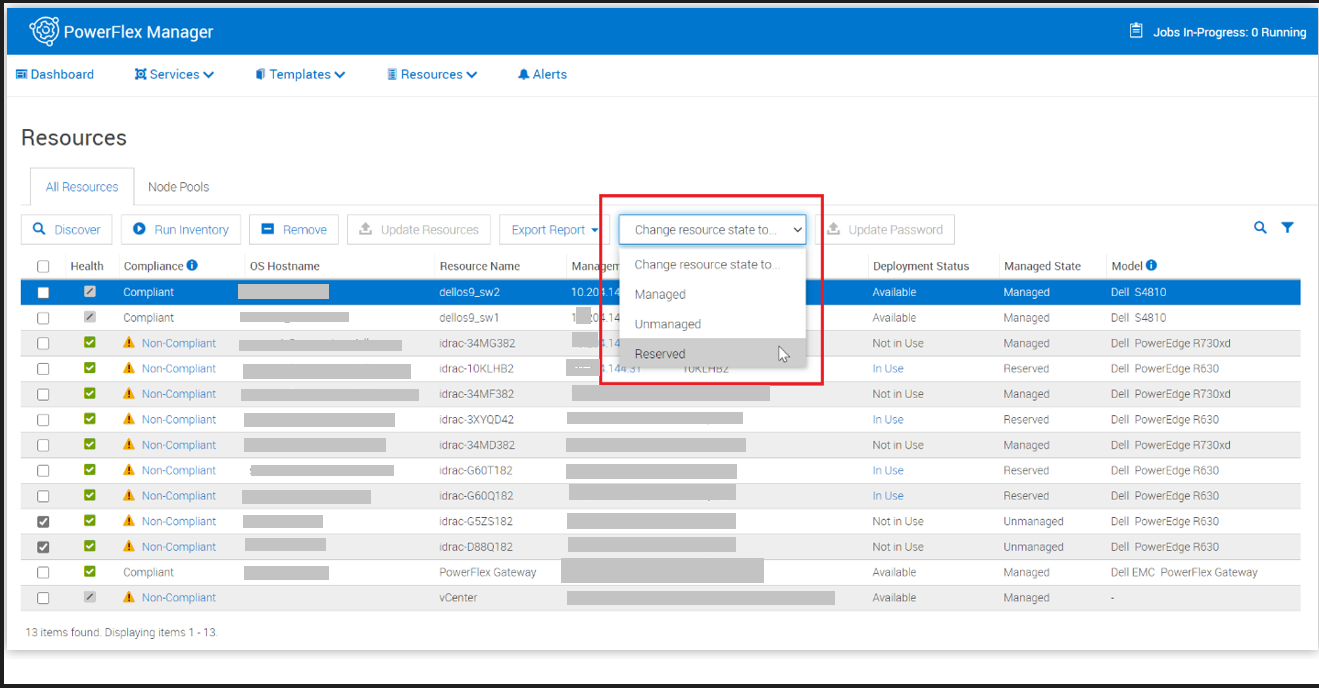
Figure 2: Reserved Resources
- Confirm the change.
Any resources not in compliance with the active default compliance catalog are noted. If a resource is out of compliance, the rows under the Compliance category are clickable links.
- Click the Non-Compliant link for an asset in the Reserved state.

Figure 3: Noncompliant Link
The compliance report states what the compliance issue is. In our case example, both the BIOS and the iDRAC versions are out of date.

Figure 4: Compliance Report for Issues
- Select Update Resource to remediate all current issues with the node.
- Choose to apply the updates now or select a later time and date.
- Click Apply Updates.
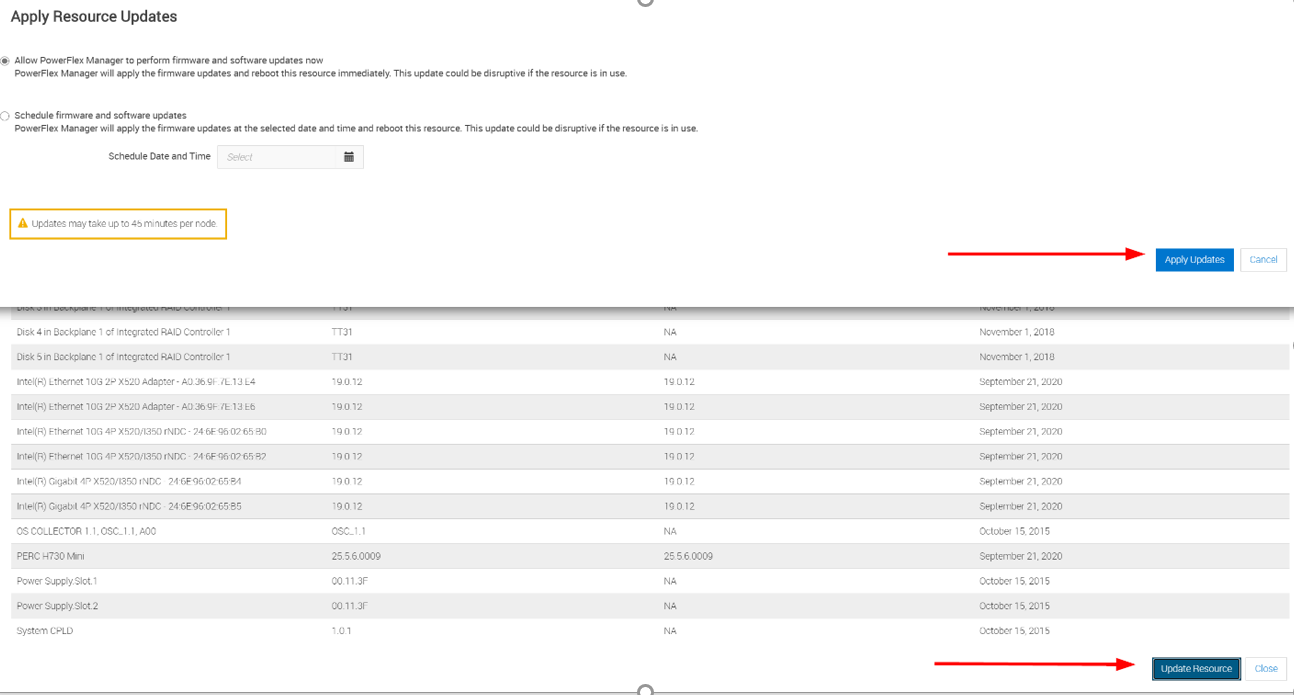
Figure 5: Apply Resource Updates.
The WebUI shows the Job in progress and notes that the Compliance State is "Pending Updates."
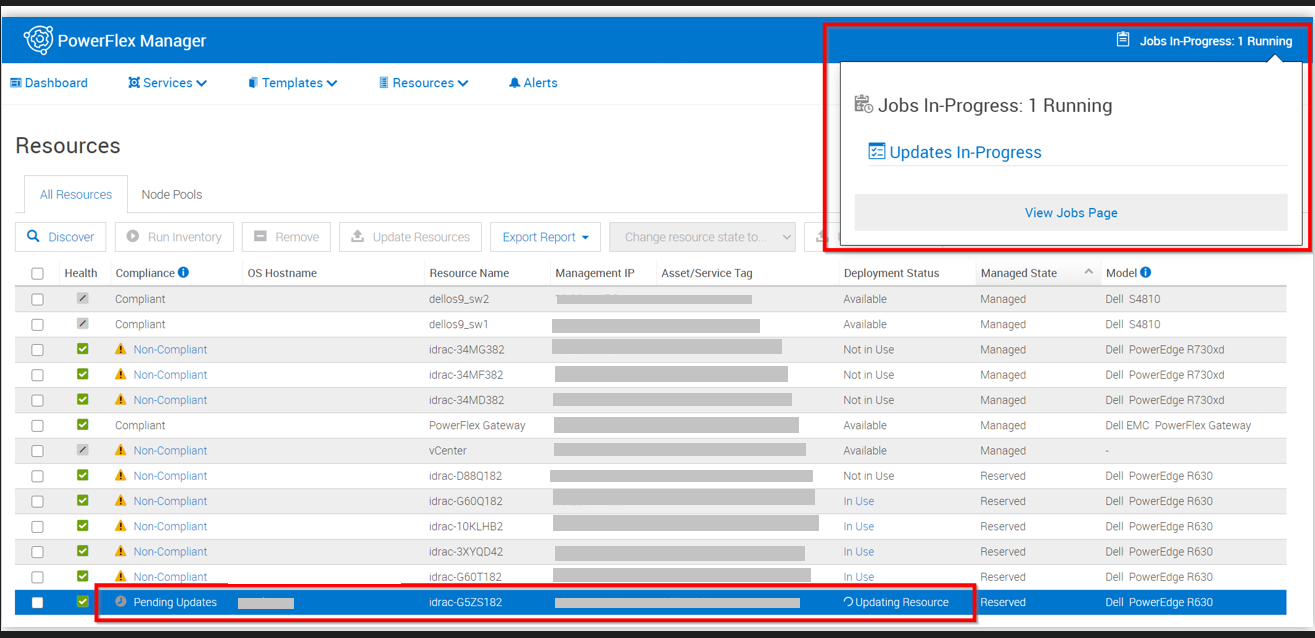
Figure 6: Pending Updates
The remediation updates can take a long time to complete. When finished, the resource state should be Compliant.

Figure 7: Resource State Compliant
- Repeat for any other resources in the Reserved state that need compliance remediation.
NOTE: If users choose this method for keeping nonmanaged. Compute nodes in compliance with the default catalog, the operation must be coordinated carefully by the administrator running the process.
For nodes in Reserved mode, PowerFlex Manager does not check the node’s readiness to reboot and performs no validation of how many nodes a user is updating at once. The user must ensure that the nodes are ready to reboot from an operating system and application perspective.
Once the user tells PowerFlex Manager to update a node in the Reserved state, PowerFlex Manager provides no other warnings and is unaware of workloads or applications running on the node.
Additional Information
\
Affected Products
VxRackProducts
PowerFlex ApplianceArticle Properties
Article Number: 000205731
Article Type: How To
Last Modified: 19 Nov 2025
Version: 6
Find answers to your questions from other Dell users
Support Services
Check if your device is covered by Support Services.