Display Scaling Issues After Switching Resolution in Alienware AW2725QF Gaming Monitor
Summary: Alienware 27 4K Dual-Resolution Gaming Monitor AW2725QF has a Dual-Resolution feature that allows switching between Full High Definition (FHD) (360 Hz*) and 4K (180 Hz*) resolution (* With Overclock turned on). ...
This article applies to
This article does not apply to
This article is not tied to any specific product.
Not all product versions are identified in this article.
Instructions
To avoid screen disruptions, the following On-Screen Display (OSD) warning message appears to advise users to close their game application before switching resolution:
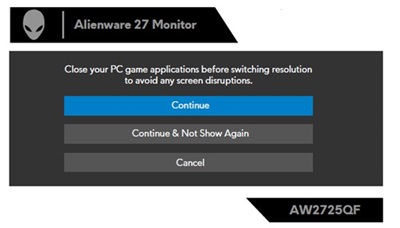
There are scenarios where there are screen disruptions (display scaling issues) for some games even though the game application was closed before switching resolution. This behavior depends on game implementation and is NOT a monitor issue.
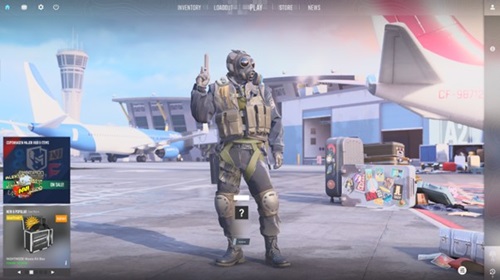
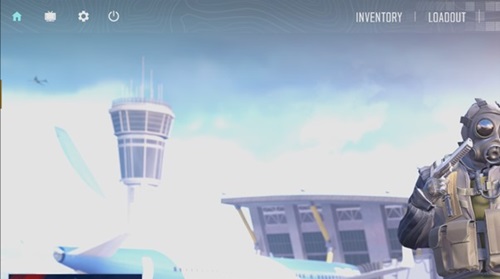
Scenario 1: After switching from 4K to FHD, the game scales to four times the screen size.
The current resolution is 4K:
After switching resolution to FHD, the game scales to four times the screen size.
To work around this issue, follow these steps:
- Revert back to 4K resolution
- Change Resolution to FHD in the game settings
- Close the game
- Switch the monitor resolution to FHD
- Restart the game
Scenario 2: After switching from FHD to 4K, the game scales to one quarter the screen size.
The current resolution is FHD:
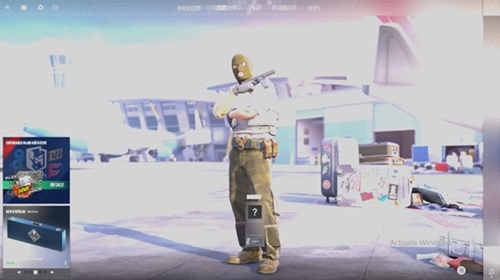
After switching resolution to 4K, the game scales to one quarter the screen size.
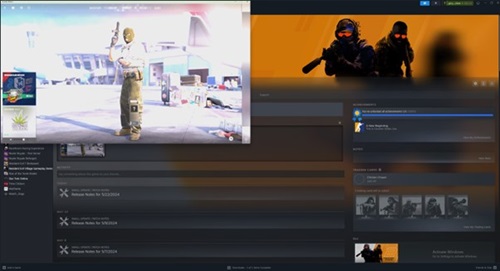
To work around this issue, follow these steps:
- Set the Resolution to 4K in game settings.
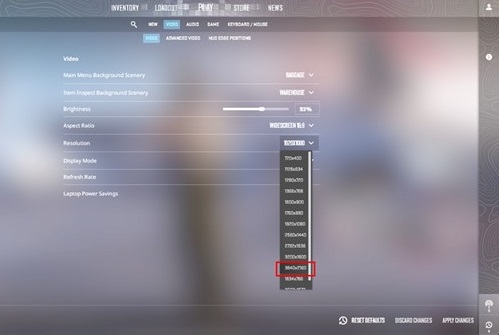
Note: For both scenarios, go to game settings after switching resolution to set the Refresh Rate to the wanted value.
For display scaling issues arising after switching from FHD to 4K or FHD to 4K, these workarounds might work depending on the game:
- If the game is in Windowed mode, double-click the title bar of the game application or press Alt + Enter key to restore the image size.
- For games developed with the Source game engine from Valve,
- Close the game
- Right-click the game and select Properties.
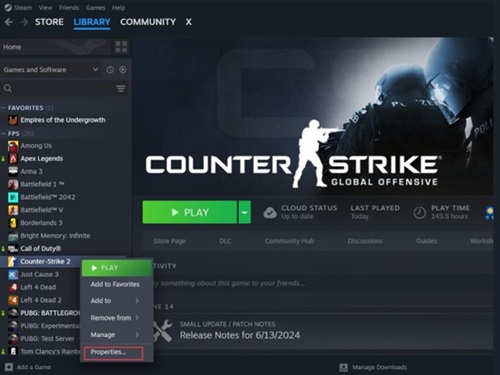
- In the General tab, go to Launch Options and enter -autoconfig.
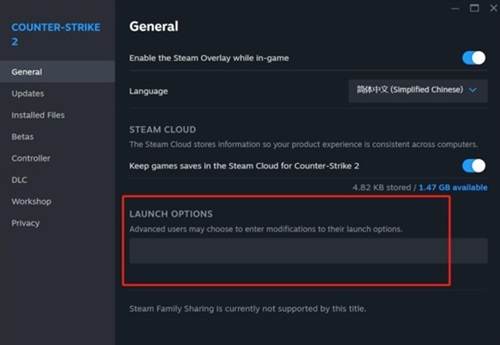
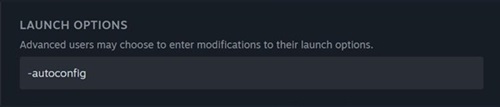
- Restart the game
More information is available in the User's Guide.
Affected Products
Alienware 27 4K Dual-Resolution Gaming Monitor AW2725QFArticle Properties
Article Number: 000227728
Article Type: How To
Last Modified: 21 May 2026
Version: 6
Find answers to your questions from other Dell users
Support Services
Check if your device is covered by Support Services.