Dell ThinOS 9 and 10 Slow Login on Horizon VDI Session
Summary: This article provides information about Dell ThinOS 9 and 10 login process taking between six to eight seconds when the Horizon Client SDK package is installed.
This article applies to
This article does not apply to
This article is not tied to any specific product.
Not all product versions are identified in this article.
Symptoms
Affected Operating Systems:
- Dell ThinOS 10 2502
- Dell ThinOS 9 2402 and Later
After deploying on ThinOS, the Horizon Client SDK package time to log in to a published host pool increases from less than two seconds to six to eight seconds.
- The issue is not in ThinOS 2402 and VMware_Horizon_2309.8.11.0.22660930.37.pkg (Horizon Session SDK package)
- The issue is not in ThinOS 2402 and VMware_Horizon_2306.8.10.0.21964631.3.pkg (Horizon Session SDK package)
- The issue is more noticeable on low specification devices.
Cause
- The issue has been introduced with the Horizon Client SDK package:
- During the initialization of the connectivity to the remote Horizon session, a key pair must be generated on the Thin Client.
- This is a complex mathematical computation with high CPU usage.
- This function is part of the Horizon Client SDK and does not leverage hardware acceleration.
- This issue is not present in the Horizon Session SDK package.
- Checking the ThinOS logs at the time of the issue that it is possible to see something similar to the below related to the key pair generation process:
compat/linux/var/log/wlogd/
            [TIMESTAMP1] D/vmware-view /vmware-view (yyyy/yyyy) [All] CdkUtil_GenerateDHKeyPair:xxxx: Entry
            [TIMESTAMP2] D/vmware-view /vmware-view (yyyy/yyyy) [All] CdkUtil_GenerateDHKeyPair:xxxx: Exit
The time difference between the two timestamps is four to six seconds.
Resolution
The issue has been resolved in ThinOS 9 2505 and in ThinOS 10 2502.60 Firmware Upgrade Package.
Note: In ThinOS 9 2505, it is necessary to enable the Optimize Login (Tech Preview) policy option using the Admin Policy Tool following the steps below:
- On the Thin Client, open the Admin Policy Tool and go to: Advanced > Broker Settings > VMware Horizon Settings
- Enable the Optimize Login (Tech Preview) setting

- Click Save and Publish
- Reboot the Thin Client
Workaround:
Do one of the following:
- Downgrade the ThinOS 9 to a working version such as the below ones:
- ThinOS 2402 and VMware_Horizon_2306.8.10.0.21964631.3.pkg
- ThinOS 2402 and VMware_Horizon_2309.8.11.0.22660930.37.pkg
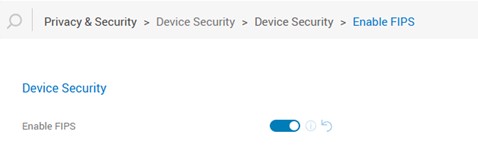
- Enable the FIPS authentication compliance in the ThinOS policies. This forces a more efficient algorithm for the key pair generation.
Note: To enable it, from the Wyse Management Suite (WMS) console, edit the relevant ThinOS policy for the affected device group and go to Advanced > Privacy & Security > Device Security > Device Security > Enable FIPS
Some additional prerequisites may be necessary in your environment to successfully use FIPS authentication.
Affected Products
Dell ThinOSArticle Properties
Article Number: 000306742
Article Type: Solution
Last Modified: 22 May 2026
Version: 5
Find answers to your questions from other Dell users
Support Services
Check if your device is covered by Support Services.