PowerEdge: Export a SupportAssist Collection Using iDRAC UI or racadm cmd
Summary: Learn how to create and export a SupportAssist Collection using iDRAC9 and iDRAC10 on Dell devices. Resolve technical issues with this step-by-step guide.
This article applies to
This article does not apply to
This article is not tied to any specific product.
Not all product versions are identified in this article.
Instructions
The iDRAC9 and iDRAC10 SupportAssist utility can create a SupportAssist collection, also known as a Technical Support Report (TSR). The iDRAC provides an application interface for gathering platform information that enables support services to resolve platform problems. The iDRAC generates a SupportAssist collection of the system. It saves the collection locally. The SupportAssist collection, or Technical Support Report, can then be used to troubleshoot a system.
Note: For Dell systems with iDRAC7 or iDRAC8, reference Export a SupportAssist Collection over iDRAC7 and iDRAC8.
Note: Using the iDRAC 10 is identical in terms of functional steps. All current firmware versions work for this purpose.
How to Extract SupportAssist Logs Using iDRAC9
Duration: 00:01:34 (hh:mm:ss)
Closed caption (subtitles) language settings can be chosen using the CC icon on this video player.
To export a SupportAssist Collection using the iDRAC9:
Note: How to configure the Integrated Dell Remote Access Controller 9 (iDRAC9) with Lifecycle Controller network settings explains how to configure the Integrated Dell Remote Access Controller.
- Log in to the iDRAC UI (Figure 1).

Figure 1: iDRAC9 SupportAssist Collection Menu
- Click Maintenance, and then click SupportAssist (Figure 1).
Note: If the server is not registered for SupportAssist, the SupportAssist Registration Wizard is displayed. Registration is optional. If registration is not wanted, click Cancel, and then click Cancel Registration. Registration must be completed to automatically send the collection to Dell Support.
- Click Start a Collection (Figure 1).
- Select the datasets to include in the collection. Optionally, proceed with the default selection.
Note: OS and Application Data requires the iDRAC Service Module (iSM) be installed and running. For more information, reference Support for Dell iDRAC Service Module. iSM is an optional software application that can include relevant OS and Application Data in the SupportAssist collection. The Operating System and Application Data option is disabled and not selectable if either the iDRAC Service Module is not installed and running or if the Operating System BMC/iDRAC Passthrough is disabled in the iDRAC.
- Collection Preferences: Select datasets that should be filtered for Personally Identifiable Information (Figure 2).
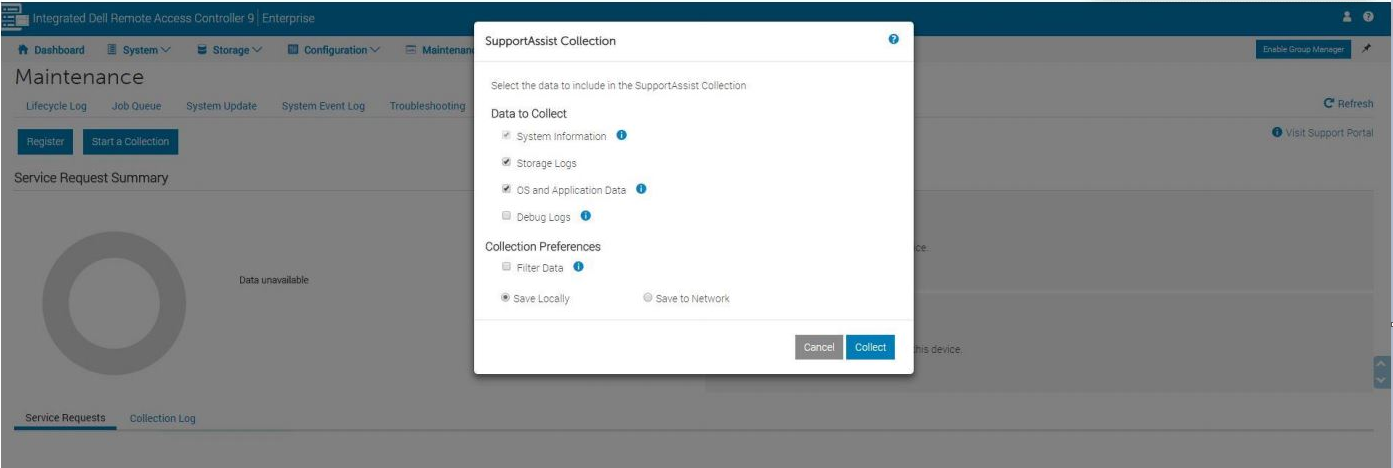
Figure 2: iDRAC9 Collection Preferences
Note:
- Select the Filter Data option to exclude host names, MAC addresses, logs, or registry contents.
- Thermal data is not included in the collection when filtering is enabled.
- Debug logs and storage logs are not included in the collection when filtering is enabled.
- Select the Filter Data option to exclude host names, MAC addresses, logs, or registry contents.
- Thermal data is not included in the collection when filtering is enabled.
- Debug logs and storage logs are not included in the collection when filtering is enabled.
- Select the destination to save the collection to.
Note: If the Save to Network option is selected, the provided network details are saved as default for all future collections.
Note: As of iDRAC9 firmware 7.0 and newer it is no longer possible for an iDRAC SupportAssist collection to be directly sent to Dell.
- Save locally option saves the generated collection on the local system.
Note: A message displays to save a compacted file to open in your browser. Certify that this message is not blocked.
- Save to Network option saves the generated collection to a defined CIFS or NFS share location.
- Click Collect to proceed with Collection generation.
- Accept the End-User Level Agreement (EULA) to continue the process.
Note:
- Updating the system's drivers and firmware may resolve many of the issues that are captured in a SupportAssist collection. For more information, reference Updating Firmware and Drivers on Dell PowerEdge Servers.
- Access iDRAC documentation by selecting "iDRAC <xx>", the installed firmware version and then documentation.
Additional Information
To log in to the iDRAC using racadm, see the following tutorial:
Tutorial on iDRAC RACADM Command Line
Duration: 00:05:18 (hh:mm:ss)
When available, closed caption (subtitles) language settings can be chosen using the CC icon on this video player.
Generate a SupportAssist (TSR) collection using the racadm command
iDRAC7 and iDRAC8 firmware version 2.30 and later.
- Connect to the iDRAC using an SSH connection (Use an SSH client if needed)
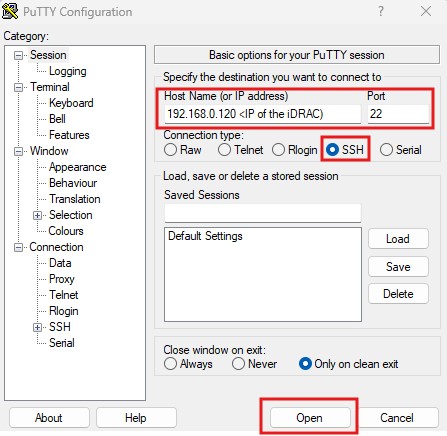
Figure 5: Putty application - Opening a connection to the iDRAC
- Run
racadm

Figure 6: Run the initial command.
- Run
racadm techsupreport generate -t SysInfo
[options for logs are added with comma (,) no spaces, logs are SysInfo [main log], TTYLog [Storage controller logs], OSAppAll [OS logs, available only if iDRAC Service Module [iSM] is installed on the OS and running]]

Figure 7: Running TSR collection command.
- Check the job queue to ensure that the file collection is complete
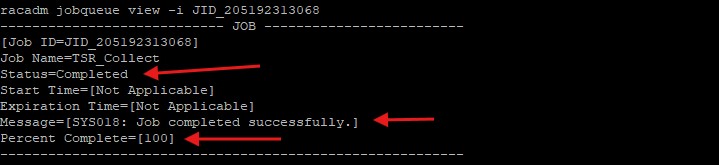
Figure 8: Running Job queue view command.
- Once the job has been successfully completed, run
racadm techsupreport collect -f <filename>.zip [Local save when run on the server]
orracadm techsupreport collect -l <your CIFS or NFS share name> [-u <your share username> -p <your share user password> as needed]

Figure 9: Local export

Figure 10: Remote export
Note: The -f for the file name is NOT needed when using a share to save the file.
Affected Products
iDRAC9, iDRAC10 - 1.10.xx Series, iDRAC10 - 1.20.xx Series, Storage Spaces Direct R440 Ready Node, Storage Spaces Direct R640 Ready Node, Storage Spaces Direct R740xd Ready Node, Storage Spaces Direct R740xd2 Ready node, OEMR XL R570, OEMR XL R670
, OEMR XL R770, OEMR R240, OEMR R250, OEMR XE R250, OEMR R260, OEMR XE R260, OEMR R340, OEMR R350, OEMR XE R350, OEMR R360, OEMR XE R360, PowerEdge XR2, OEMR R540, OEMR R550, OEMR R5500, OEMR R640, OEMR XL R640, OEMR R6415, OEMR R650, OEMR R650xs, OEMR R6515, OEMR R6525, OEMR R660, OEMR XL R660, OEMR R660xs, OEMR R6615, OEMR R6625, OEMR R740, OEMR XL R740, OEMR R740xd, OEMR XL R740xd, OEMR R740xd2, OEMR R7415, OEMR R7425, OEMR R750, OEMR R750xa, OEMR R750xs, OEMR R7515, OEMR R7525, OEMR R760, OEMR R760xa, OEMR R760XD2, OEMR XL R760, OEMR R760xs, OEMR R7615, OEMR R7625, OEMR R940, OEMR R940xa, OEMR R960, OEMR T140, OEMR T150, OEMR T340, OEMR T350, OEMR T360, OEMR T440, OEMR T550, OEMR T560, OEMR T640, OEMR XL T640, OEMR XL R240, OEMR XL R340, OEMR XL R660xs, OEMR XL R6615, OEMR XL R6625, OEMR XL R6715, OEMR XL R6725, OEMR XL R760xs, OEMR XL R7615, OEMR XL R7625, OEMR XL R7715, OEMR XL R7725, OEMR XR11, OEMR XR12, OEMR XR4000r, OEMR XR4000w, OEMR XR4510c, OEMR XR4520c, OEMR XR5610, OEMR XR7620, OEMR XR8610t, OEMR XR8620t, Poweredge C4140, PowerEdge C6420, PowerEdge C6520, PowerEdge C6525, PowerEdge C6615, PowerEdge C6620, PowerEdge FC640, PowerEdge HS5610, PowerEdge HS5620, PowerEdge M640, PowerEdge M640 (for PE VRTX), PowerEdge MX740C, PowerEdge MX750c, PowerEdge MX760c, PowerEdge MX840C, PowerEdge R240, PowerEdge R250, PowerEdge R260, PowerEdge R340, PowerEdge R350, PowerEdge R360, PowerEdge R440, PowerEdge R450, PowerEdge R470, PowerEdge R540, PowerEdge R550, PowerEdge R570, PowerEdge R640, PowerEdge R6415, PowerEdge R650, PowerEdge R650xs, PowerEdge R6515, PowerEdge R6525, PowerEdge R660, PowerEdge R660xs, PowerEdge R6615, PowerEdge R6625, PowerEdge R670, PowerEdge R740, PowerEdge R740XD, PowerEdge R740XD2, PowerEdge R7415, PowerEdge R7425, PowerEdge R750, PowerEdge R750XA, PowerEdge R750xs, PowerEdge R7515, PowerEdge R7525, PowerEdge R760, PowerEdge R760XA, PowerEdge R760xd2, PowerEdge R760xs, PowerEdge R7615, PowerEdge R7625, PowerEdge R770, PowerEdge R7715, PowerEdge R7725, PowerEdge R840, PowerEdge R860, PowerEdge R940, PowerEdge R940xa, PowerEdge R960, PowerEdge T140, PowerEdge T150, PowerEdge T160, PowerEdge T340, PowerEdge T350, PowerEdge T360, PowerEdge T440, PowerEdge T550, PowerEdge T560, PowerEdge T640, PowerEdge XE2420, PowerEdge XE7100, PowerEdge XE7420, PowerEdge XE7440, PowerEdge XE7745, PowerEdge XE8545, PowerEdge XE8640, PowerEdge XE9640, PowerEdge XE9680, PowerEdge XR11, PowerEdge XR12, PowerEdge XR4000r, PowerEdge XR4000w, PowerEdge XR4510c, PowerEdge XR4520c, PowerEdge XR5610, PowerEdge XR7620, PowerEdge XR8610t, PowerEdge XR8620t, PowerFlex appliance R650, PowerFlex appliance R6525, PowerFlex appliance R660, PowerFlex appliance R6625, Powerflex appliance R750, PowerFlex appliance R760, PowerFlex appliance R7625, PowerFlex custom node R650, PowerFlex custom node R6525, PowerFlex custom node R660, PowerFlex custom node R6625, PowerFlex custom node R750, PowerFlex custom node R760, PowerFlex custom node R7625, PowerFlex custom node R860, Precision 7920 Rack, VxFlex Ready Node R640, VxFlex Ready Node R740xd, Dell EMC vSAN C6420 Ready Node, Dell EMC vSAN MX740c Ready Node, Dell EMC vSAN MX750c Ready Node, Dell vSAN Ready Node MX760c, Dell EMC vSAN R440 Ready Node, Dell EMC vSAN R640 Ready Node, Dell EMC vSAN R6415 Ready Node, Dell EMC vSAN R650 Ready Node, Dell EMC vSAN R6515 Ready Node, vSAN Ready Node R660, Dell vSAN R6615 Ready Node, Dell EMC vSAN R740 Ready Node, Dell EMC vSAN R740xd Ready Node, Dell EMC vSAN R750 Ready Node, Dell EMC vSAN R7515 Ready Node, Dell EMC vSAN R760 Ready Node, Dell vSAN R7615 Ready Node, Dell vSAN Ready Node R7625, Dell EMC vSAN R840 Ready Node, Dell EMC vSAN T350 Ready Node, PowerFlex appliance R640, PowerFlex appliance R740XD, PowerFlex appliance R7525, PowerFlex appliance R840, VxFlex Ready Node R840
...
Article Properties
Article Number: 000126308
Article Type: How To
Last Modified: 14 Aug 2025
Version: 25
Find answers to your questions from other Dell users
Support Services
Check if your device is covered by Support Services.