Unisphere for PowerMax: Converting local device groups created with Unisphere GUI to be stored with GNS on the array
Summary: It may be witnessed where devices groups on an embedded Unisphere instance, differs from a stand-alone managing the same array. A "How To" for converting device groups created in Unisphere on a stand-alone server (only), enabling them for use of GNS (Global Naming Service), by placing the DGs inside the array to share with other GNS enabled hosts. This allows and changes made in the device group centrally on one host, to propagate to all other hosts with same access to the device group. This is typically useful in DR environments. ...
This article applies to
This article does not apply to
This article is not tied to any specific product.
Not all product versions are identified in this article.
Instructions
You will see with symcli, the device group is currently NOT in GNS. The initial creation of a device group from Unisphere stand-alone, is locally in symapi_db.bin
When you save the options file, you will notice with a "symdg list", there are NO device groups.
The device group(s) in Unisphere, will still be there.
A "symdg list -inactive" will show the device groups - but this device group is not yet propagated to the storage array GNS area.
Move the device group to the array:
symdg activateall, and select Y for each DG you are prompted for
Run a: symdg list, and you will see your DG created in Unisphere, as well as other device groups registered to GNS repository on the array.
A, symdg show <device group name>, will reveal it is in GNS
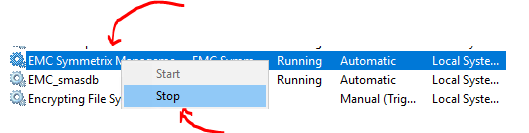
Stop and Start, SMAS (Symmetrix Management Application Server), from services.
You will see all the device groups that are registered to GNS on that specific array.
From this point, you can manage your device group in a typical manner using GUI. May need to only refresh the GUI and no need to further stop/start SMAS this point forward.

More information about GNS can be found in the "Solutions Enabler Array Management" guide.
C:\Users\Administrator>symdg list -v

Group Name:  <dgname>
    Group Type                            : REGULAR
    Device Group in GNS                   : No
    Valid                                 : Yes

Create a backup of your device groups locally (which creates a text file):
symdg exportall -f <preGNSalldgs>

Make a copy of the "options" file in <install dir>\SYMAPI\config

Edit the "options" file in <install dir>\SYMAPI\config (same area for Linux)

Uncomment the line: # SYMAPI_USE_GNS
# Parameter:            SYMAPI_USE_GNS
#
# Allowed values:       ENABLE | DISABLE
#
# Default value:        DISABLE
#
# Description:          Stores and maintains, in a common repository,
#                       SYMAPI device group (DG) and composite group (CG)
#                       definitions across Symmetrix arrays that are visible
#                       to all locally-attached hosts.
#
#SYMAPI_USE_GNS = ENABLE <---- remove "#" only
When you save the options file, you will notice with a "symdg list", there are NO device groups.
The device group(s) in Unisphere, will still be there.
A "symdg list -inactive" will show the device groups - but this device group is not yet propagated to the storage array GNS area.
Stop storgnsd:
stordaemon shutdown storgnsd -immediate
Start storgnsd:
stordaemon start storgnsd
Move the device group to the array:
symdg activateall, and select Y for each DG you are prompted for
Run a: symdg list, and you will see your DG created in Unisphere, as well as other device groups registered to GNS repository on the array.
A, symdg show <device group name>, will reveal it is in GNS
Group Name:  <dgname>
    Group Type                                   : REGULAR
    Device Group in GNS                          : Yes
    Valid                                        : Yes
Stop and Start, SMAS (Symmetrix Management Application Server), from services.
If Unix:
/etc/init.d/smas stop
/etc/init.d/smas start
Wait about 5-10 minutes
You will see all the device groups that are registered to GNS on that specific array.
From this point, you can manage your device group in a typical manner using GUI. May need to only refresh the GUI and no need to further stop/start SMAS this point forward.
More information about GNS can be found in the "Solutions Enabler Array Management" guide.
Additional Information
NOTE: Embedded Unisphere instances automatically have GNS enabled.
Affected Products
Unisphere for PowerMaxProducts
Solutions EnablerArticle Properties
Article Number: 000185068
Article Type: How To
Last Modified: 11 Oct 2022
Version: 6
Find answers to your questions from other Dell users
Support Services
Check if your device is covered by Support Services.