Windows 10S、11S 和 11SE 不支援 SupportAssist OS Recovery 功能
Summary: 下列文章提供 SupportAssist 作業系統 (OS) 復原軟體的相關資訊。不適用於 Windows S 和 SE 版本。
This article applies to
This article does not apply to
This article is not tied to any specific product.
Not all product versions are identified in this article.
Symptoms
SupportAssist OS Recovery 軟體無法與 Windows S 和 SE 版本搭配運作。
Cause
Windows S 和 SE 版本不支援 SupportAssist OS Recovery。
Resolution
SupportAssist OS Recovery
Windows 作業系統版本不支援 SupportAssist OS Recovery:Win 10S、Win 11S 和 Win 11SE。
在這些產品的 BIOS 中,預設啟用 BIOSConnect 以進行韌體更新。
如果您從 BIOS 開機選單叫用此功能,啟動 SupportAssist OS Recovery 功能的 BIOSConnect 將無法運作。
您會看到載入視窗,且必須重新開機電腦,而不要在 BIOS 開機功能表中選取 BIOSConnect,以避免發生此情形。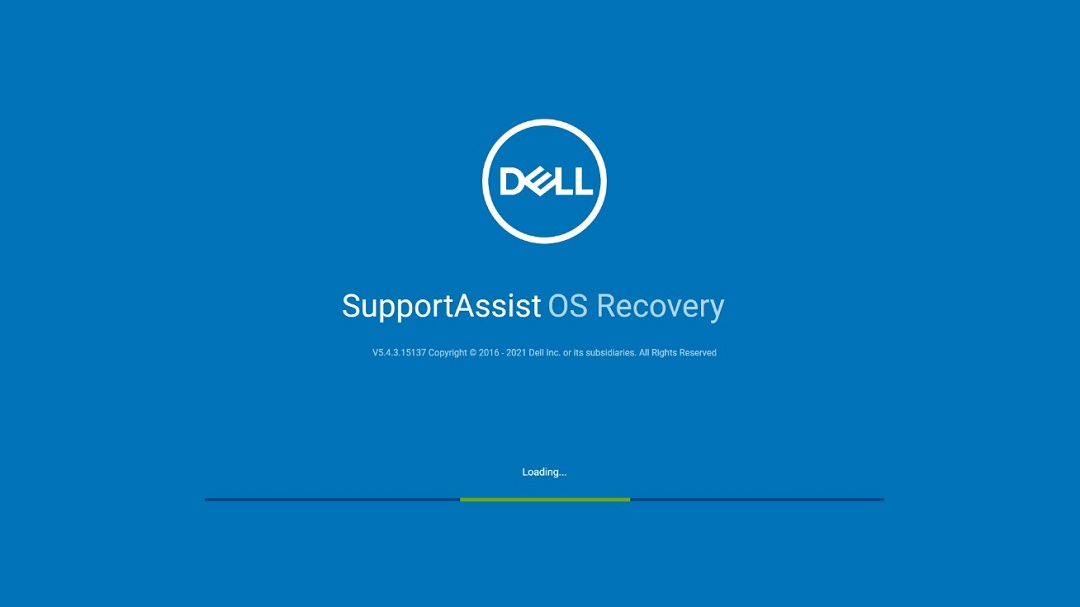
圖1
選取 SupportAssist OS Recovery 選項並按下 ENTER 鍵,即可在 BIOS 開機功能表中意外叫用 BIOSConnect (圖 2):
圖 2
因應措施
下列因應措施可用於防止此行為。
- 在開機期間按下 F12 ,以進入 BIOS 一次性開機功能表 (圖 3)。
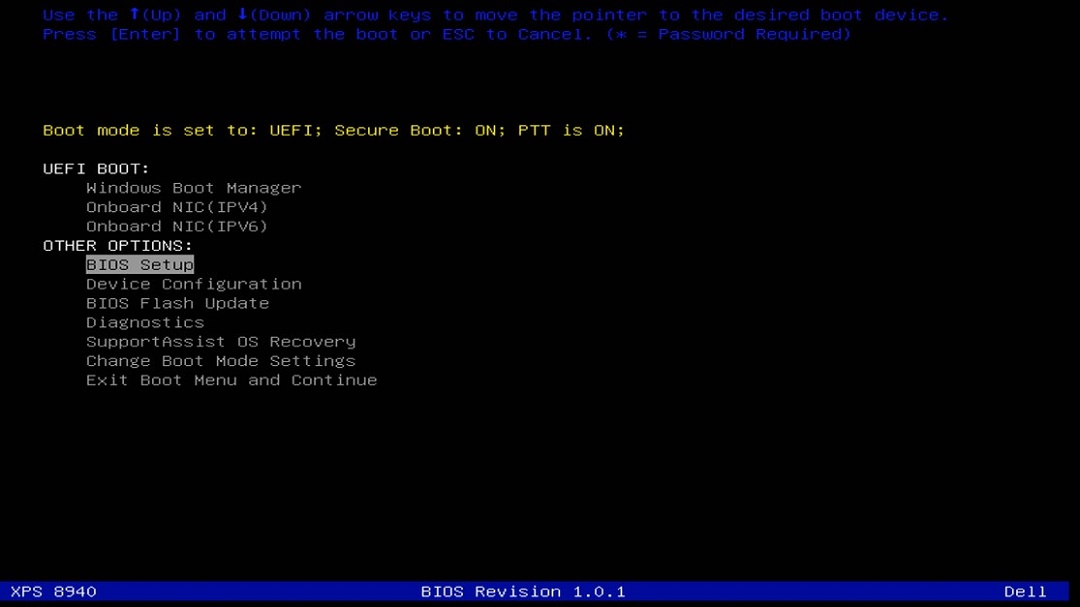
圖3注意:您的電腦外觀與其中一個可用選項類似,單次開機功能表上的平台名稱和 BIOS 修訂可能因電腦而異。 - 向下捲動一次性開機功能表,直到進入 BIOS 設定 選項。選取並按下 Enter 鍵。
- 進入 BIOS 設定畫面後,向下移至標題為 SupportAssist 系統解析的部分, 然後展開以顯示其選項。
- 開啟「SupportAssist OS Recovery」子區段, 然後清除 此方塊以 停用 此功能 (圖 4)。

圖4注意:此圖片預設為勾選此方塊。清除 此方塊可 停用 SupportAssist OS Recovery 功能。 - 停用後,按一下 套用 以儲存 BIOS 設定,然後 退出 BIOS,以重新開機電腦。SupportAssist OS Recovery 不再出現在 BIOS 選單選項中 (圖 5):
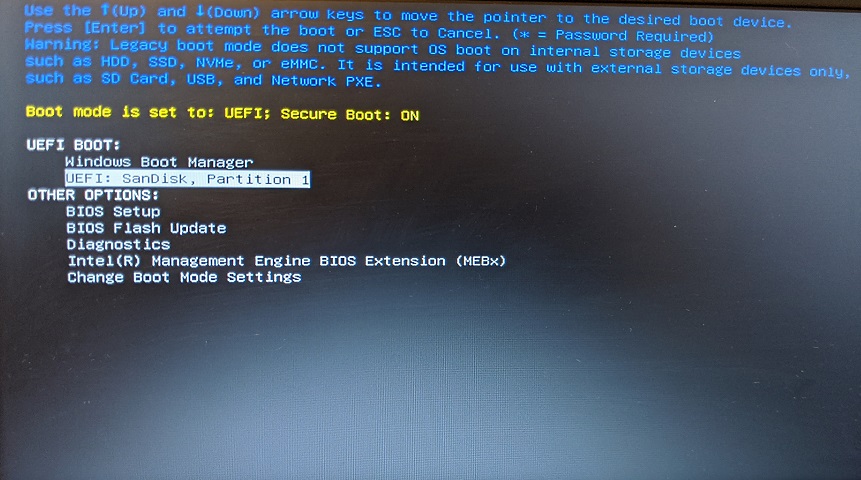
圖 5
解析度
此功能依設計運作,因為 Windows S 僅限 Windows 市集應用程式使用。
Additional Information
建議的文章
以下是一些與本主題相關的建議文章,您可能會感興趣。
Affected Products
SupportAssist OS RecoveryArticle Properties
Article Number: 000194975
Article Type: Solution
Last Modified: 21 Jul 2025
Version: 8
Find answers to your questions from other Dell users
Support Services
Check if your device is covered by Support Services.