Configure ECS Cloud tier with Data domain
Summary: This KB walks you through the process of configuring ECS cloud tier with Data Domain for cloud capacities.
This article applies to
This article does not apply to
This article is not tied to any specific product.
Not all product versions are identified in this article.
Instructions
The following article walks you through the needed steps to configure ECS cloud tier with Data domain.
This guide contains five steps
Use elicense update to add cloud capacity license, after adding the elicense show should list cloud capacity license similar to below:

2. Configure cloud local metadata for ECS
2.1 check addable storage
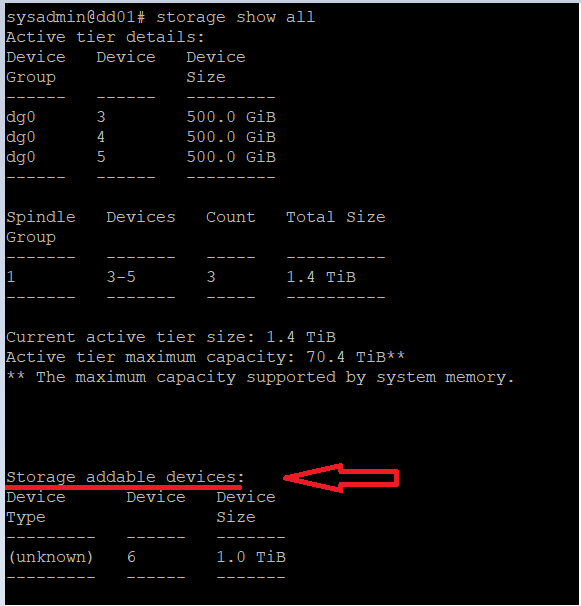
Use storage show all command to list assigned and addable storage. In this demo example, it shows dev 6 as 'storage addable device', while dev 3-5 have already been assigned for Active tier, so dev 6 can be used to configure cloud tier local metadata.
2.2 Create cloud tier with addable devices and form cloud local metadata
Run storage add tier cloud command to add wanted device to cloud tier as local metadata, in this example, dev 6 was added and it was listed in cloud tier details.

3. Run cloud provider verify to verify Load Balancer and ECS connections
3.1 To confirm time on Data Domain and ECS are consistent
A time gap may cause the connection to fail, and cloud provider verify would fail too.

3.2 Run 'cloud provider verify' to verify Load Balancer and ECS accessibilities
There are three types of endpoint connections:
a. Nonsecure, use http port 80 for connection, no certification is required on DD.
b. SSL termination at Load Balancer, use https port 443 secure endpoint; this requires LB certificate being presented to DD (this is automatically imported during verification).
c. Full SSL secure endpoint, use https port 8443; this requires LB certificate being presented to DD and root CA for ECS being installed on Load Balancer.
In this example, we used self-signed certificate, you may use either self-signed or CA signed certificate.
If no port is specified in endpoint entry, when using https, by default 443 is used for verification with LB.
Access key and secret key are obtained from ECS for authentication.

During the verification, Load Balance certification has been automatically imported to Data Domain, it can be checked using adminaccess cert show command:

4. Create the cloud profile on Data Domain
Run cloud profile add to create a cloud profile, the inputs are similar to cloud provider verify.


5. Create the cloud unit on the configured cloud profile
Run cloud unit add to create a cloud unit for the cloud profile, this step may take some time.


We are now done with creating ECS cloud unit that is integrated with Data Domain, and are ready to start accepting data that are determined to migrate to cloud tier.
This guide contains five steps
- Add cloud capacity license
- Configure cloud local metadata for ECS
- Run cloud provider verify to verify Load Balancer and ECS connections and import the CA certificate to enable the communication between Data Domain, Load Balancer and ECS.
- Create the cloud profile on Data Domain
- Create the cloud unit
Use elicense update to add cloud capacity license, after adding the elicense show should list cloud capacity license similar to below:
2. Configure cloud local metadata for ECS
2.1 check addable storage
Use storage show all command to list assigned and addable storage. In this demo example, it shows dev 6 as 'storage addable device', while dev 3-5 have already been assigned for Active tier, so dev 6 can be used to configure cloud tier local metadata.
NOTE: In general, the local metadata capacity for cloud tier is configured as 1/10 of the total cloud tier licensed capacity (based on the compression ratio of 10x). But it is ok to configure a portion initially and add more devices at later stages.
2.2 Create cloud tier with addable devices and form cloud local metadata
Run storage add tier cloud command to add wanted device to cloud tier as local metadata, in this example, dev 6 was added and it was listed in cloud tier details.
3. Run cloud provider verify to verify Load Balancer and ECS connections
3.1 To confirm time on Data Domain and ECS are consistent
A time gap may cause the connection to fail, and cloud provider verify would fail too.
3.2 Run 'cloud provider verify' to verify Load Balancer and ECS accessibilities
NOTE: Load Balancer is required as a valid setup to integrate ECS cloud with Data Domain. LB relays the connections coming from the DD to one of the ECS nodes. .
There are three types of endpoint connections:
a. Nonsecure, use http port 80 for connection, no certification is required on DD.
b. SSL termination at Load Balancer, use https port 443 secure endpoint; this requires LB certificate being presented to DD (this is automatically imported during verification).
c. Full SSL secure endpoint, use https port 8443; this requires LB certificate being presented to DD and root CA for ECS being installed on Load Balancer.
In this example, we used self-signed certificate, you may use either self-signed or CA signed certificate.
If no port is specified in endpoint entry, when using https, by default 443 is used for verification with LB.
Access key and secret key are obtained from ECS for authentication.
During the verification, Load Balance certification has been automatically imported to Data Domain, it can be checked using adminaccess cert show command:
4. Create the cloud profile on Data Domain
Run cloud profile add to create a cloud profile, the inputs are similar to cloud provider verify.
5. Create the cloud unit on the configured cloud profile
Run cloud unit add to create a cloud unit for the cloud profile, this step may take some time.
We are now done with creating ECS cloud unit that is integrated with Data Domain, and are ready to start accepting data that are determined to migrate to cloud tier.
Additional Information
- To check more details on certificate requirement for secured DD Cloud Tier connection to ECS and Best Practice guide, see Data Domain: Certificate requirements for secured DD Cloud Tier connection to ECS and Best Practice guide
- To check more details on Cloud Provider Verify tool, see Data Domain: How to use the Data Domain cloud provider verification tool
See this published video:
Affected Products
Data Domain Extended RetentionArticle Properties
Article Number: 000204368
Article Type: How To
Last Modified: 16 May 2023
Version: 6
Find answers to your questions from other Dell users
Support Services
Check if your device is covered by Support Services.