VxRail - Managing vLCM Custom Components
Summary: This document describes how to validate, install, and manage custom third-party components in VxRail environments using VxRail vLCM. It outlines supported upgrade scenarios, common misconfigurations, and best-practice workflows to ensure reliable VxRail life cycle operations. ...
Instructions
Introduction
This document focuses exclusively on the installation and upgrade of the third-party depot package (excluding standalone vSphere Installation Bundle (VIBs)) on VxRail ESXi hosts that are members of a VxRail cluster.
All validation and testing were performed on VxRail clusters running 8.0.3xx code.
The procedures apply to all vLCM-enabled VxRail cluster types:
- Dynamic
- Standard
- Stretched
Ensure that you are familiar with these concepts before proceeding to the scenarios:
- How to confirm vLCM is enabled
- How to confirm vLCM is not enabled
- Installing a third-party Component Using the VxRail Plugin
- How to check if Third-Party Components was installed incorrectly
- How to check if Third-Party Components was installed correctly
Scenarios:
- Scenario 1 - Installed third-party component and enable VxRail vLCM
- Scenario 2 - Install a third-party component
- Scenario 3 - Upgrade VxRail does not upgrade third-party component
- Scenario 4 - Upgrade VxRail/upgrade third-party component
- Scenario 5 - Upgrade Third-Party outside of the VxRail vLCM upgrade cycle
How to confirm vLCM is enabled:
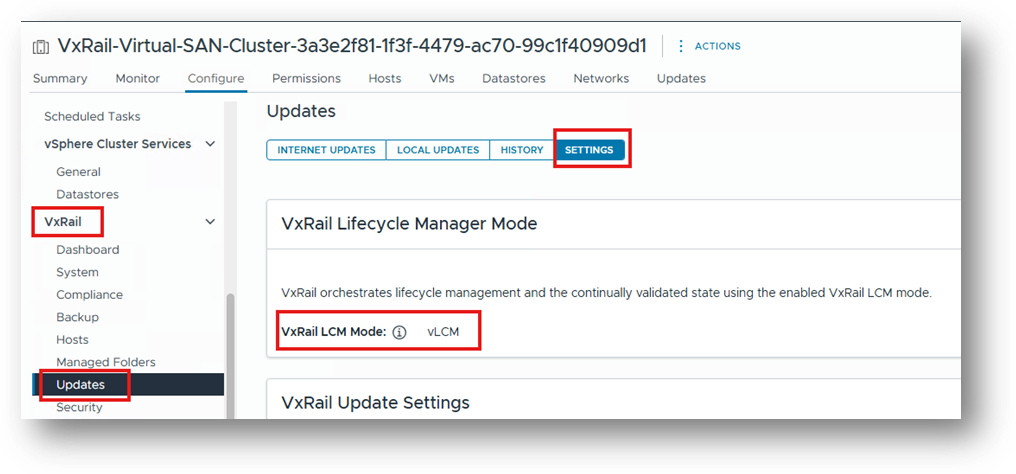
- Check VxRail Plugin in vCenter UI, browse to the Updates tab within the plugin
- Check Image status, Firmware, and Drivers Addon: vxrail-hsp-cluster will be stated:
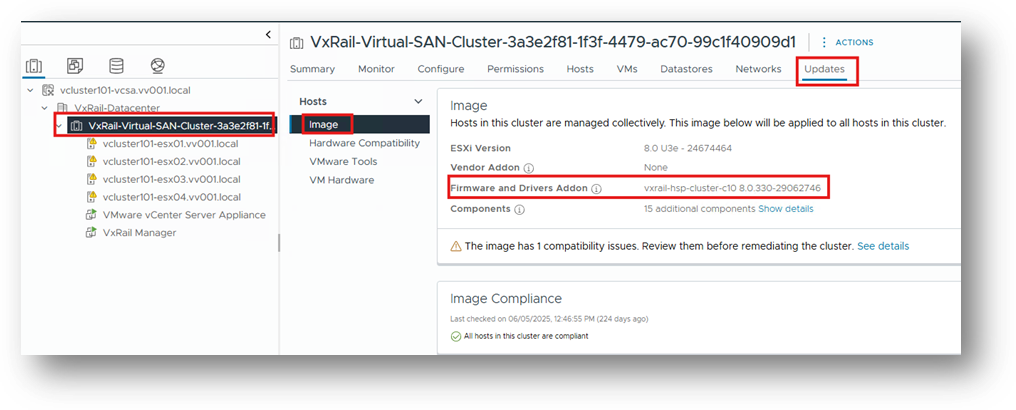
Both locations in the UI must be checked to confirm that VxRail vLCM is enabled.
Running a curl command from the VxRail Manager to check vLCM status is not sufficient.
How to confirm vLCM is not enabled:
Check the Update Tab in vCenter (not VxRail Plugin).
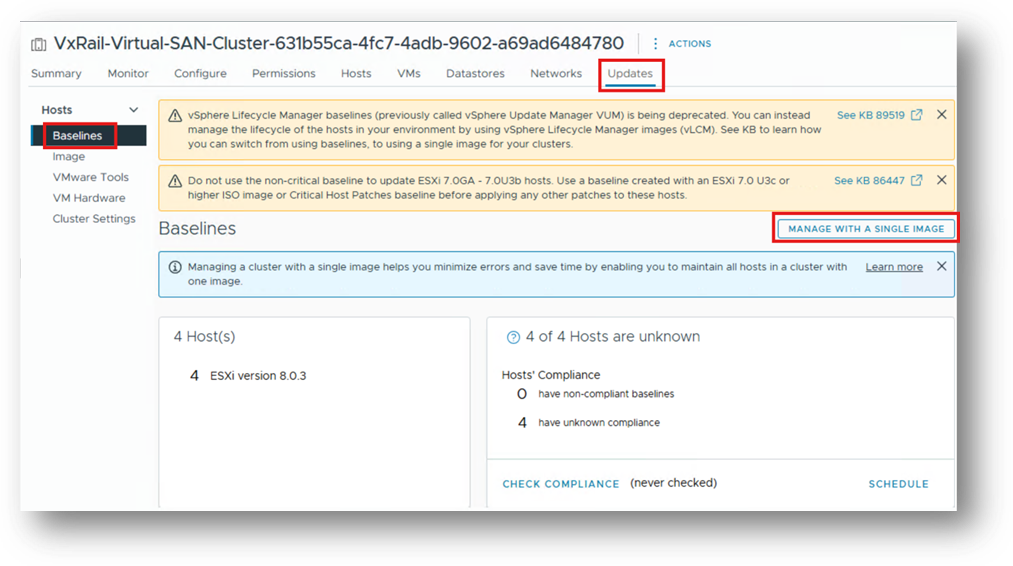
Here we see references to "Baselines" and "Manage with a Single Image."
This implies that the cluster has not gone through the vLCM enablement process; vLCM is not enabled.
When a cluster does go through the vLCM enablement process, a Single Image is created containing all the required components that will be used to manage future upgrades on the cluster.
Both locations in the UI must be checked to confirm that VxRail vLCM is not enabled.
Running a curl command from the VxRail Manager to check vLCM status is not sufficient.
Installing a third-party Component Using the VxRail Plugin
To install any third-party component, you must use the Add Component feature in the VxRail Plugin. This does not apply to Solution Components, see Article: VxRail: Best Practices for vLCM in VxRail
The Add Component feature option is only available during an upgrade cycle, immediately after the VxRail composite bundle has been uploaded.
This is the only supported method for installing third-party components.
Because we are not performing a full upgrade cycle in this case, the required workaround is to initiate an "upgrade" to the same software version that the cluster is already running.
In this example, the cluster is running 8.0.330, so the first step is to obtain the 8.0.330 upgrade composite bundle:
VXRAIL_COMPOSITE-8.0.330-29081604_for_8.0.x.zip
Upload the Composite bundle as you would for any other upgrade cycle.
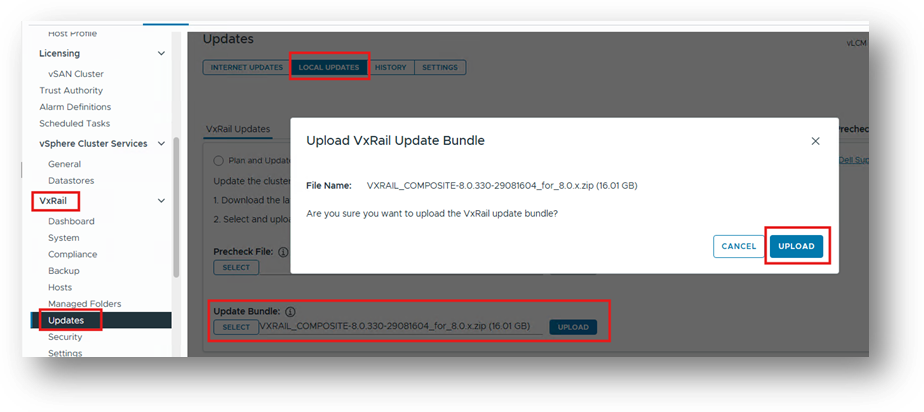
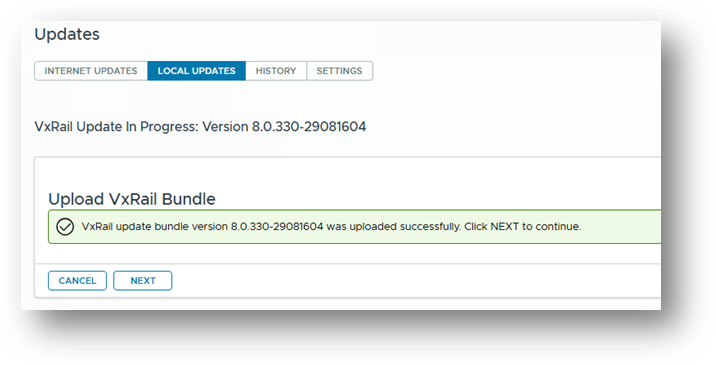
After Change Report scan:
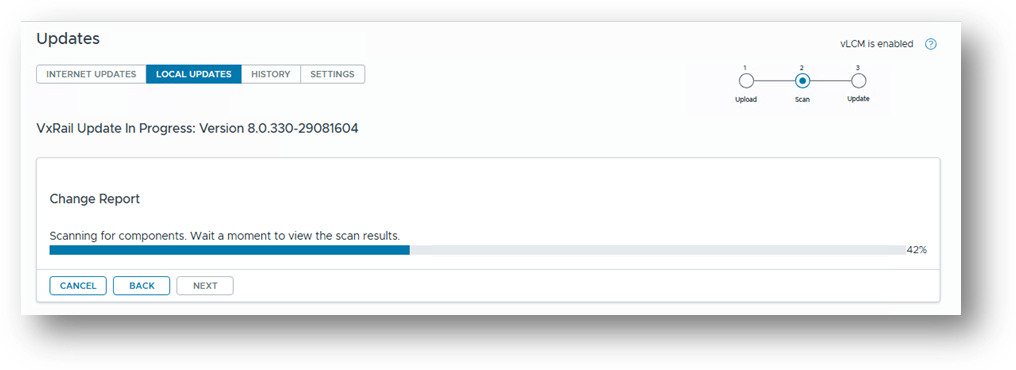
You are presented with:
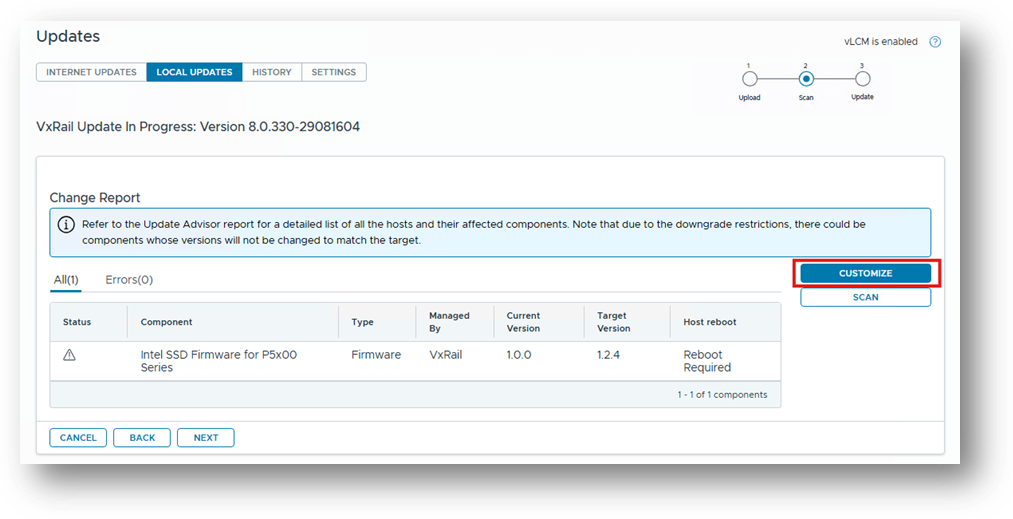
By clicking CUSTOMIZE, you have the option to manage the third-party components.
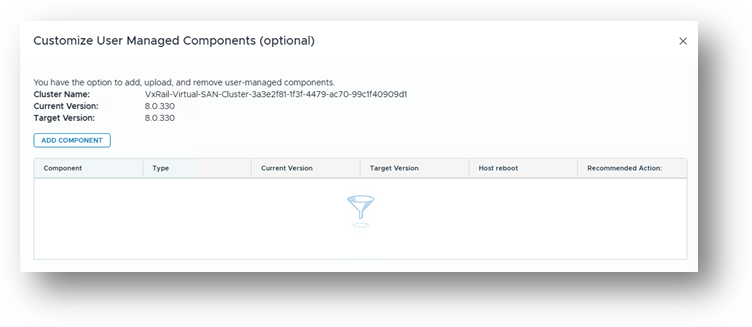
Next, click ADD COMPONENT
Component Type: Driver
Component Bundle: DellPower.VMWARE.8.2.b160.ESX8x.zip
Please read and take note of the info message.
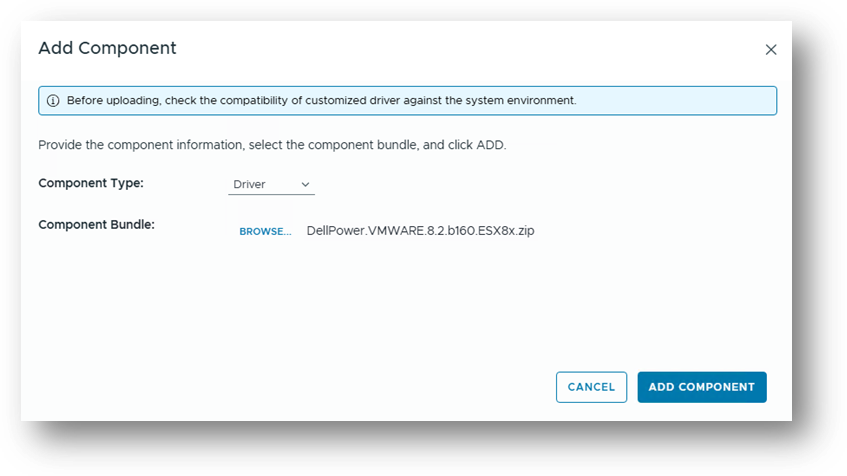
Click ADD COMPONENT, here the Component is ready to be added to the Single Image.
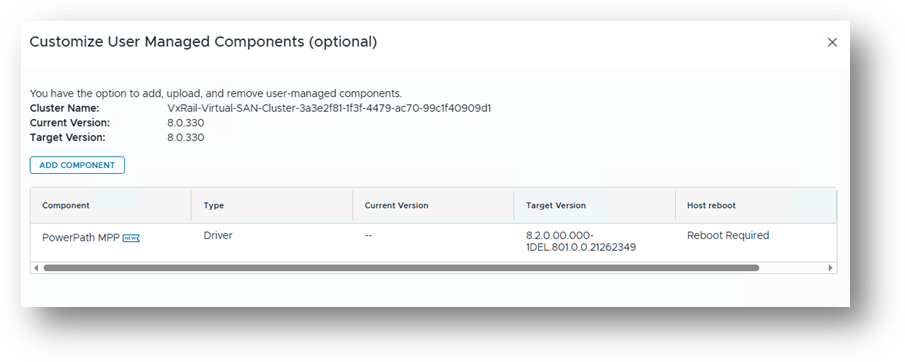
Click SAVE AND VALIDATE
Here we can see that the third-party Component has been successfully added to the Single Image used for this cluster.
Proceeding with the "Upgrade" triggers a Remediation and apply the component to each host using the correct and supported method.
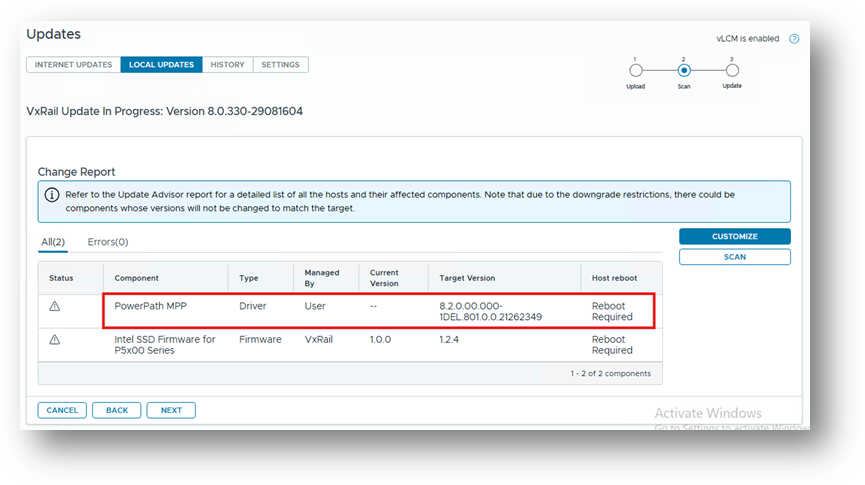
Remember that we are running an "upgrade" from 8.0.330 to 8.0.330, so the only change that is applied to the cluster is the third-party component, which is third-party in this example.
Proceed with the upgrade and allow it to complete.
Once the upgrade is complete, you can verify that the third-party component is added to the VxRail Single Image correctly; browse to Image tab: (filter with name of component)
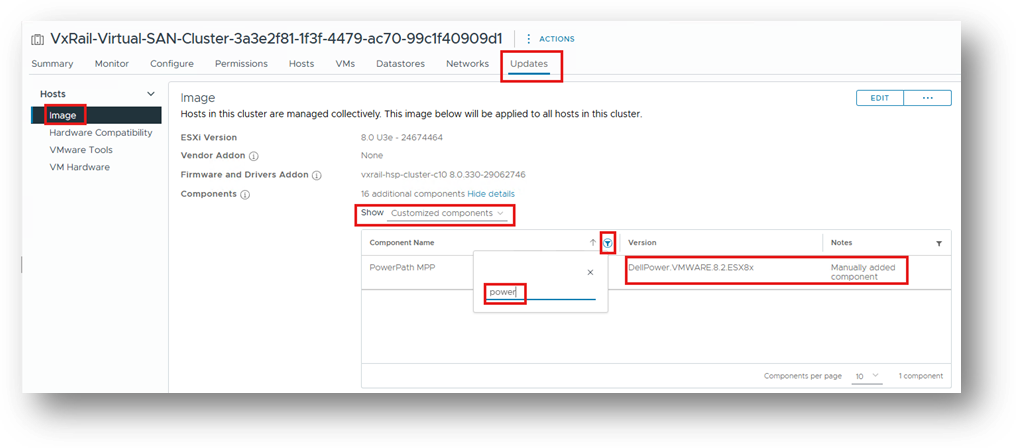
Extra verification can also be done here:
Lifecycle Manager / Settings / Administration / Patch Setup
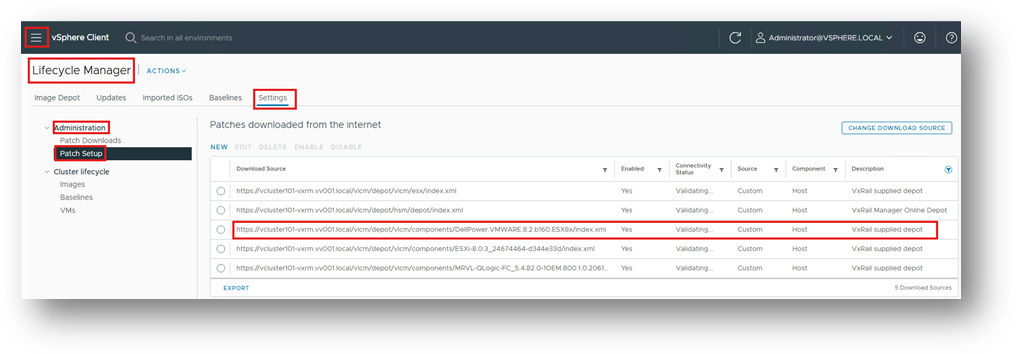
The above confirms that the third-party component has been successfully added to the VxRail Single Image and will not be removed during the next upgrade cycle.
Never should any settings or options be changed within the Lifecycle Manager UI. All changes made there are unsupported on VxRail clusters.
How to check if Third-Party Components was installed incorrectly:
Here we can see that the compliance scan (which you can trigger manually) has detected that there is a component installed on the hosts that is not part of the Single Image:
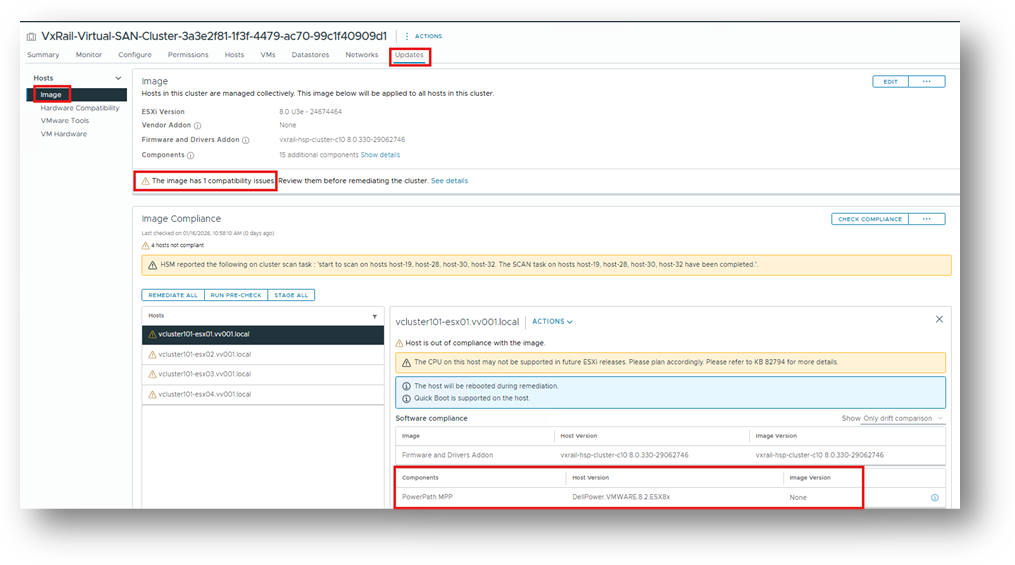
These components were installed manually using esxcli, or some other method that is not supported, and will result in the component being removed in the next upgrade cycle, this is entirely by design.
How to check if Third-Party Components was installed correctly:
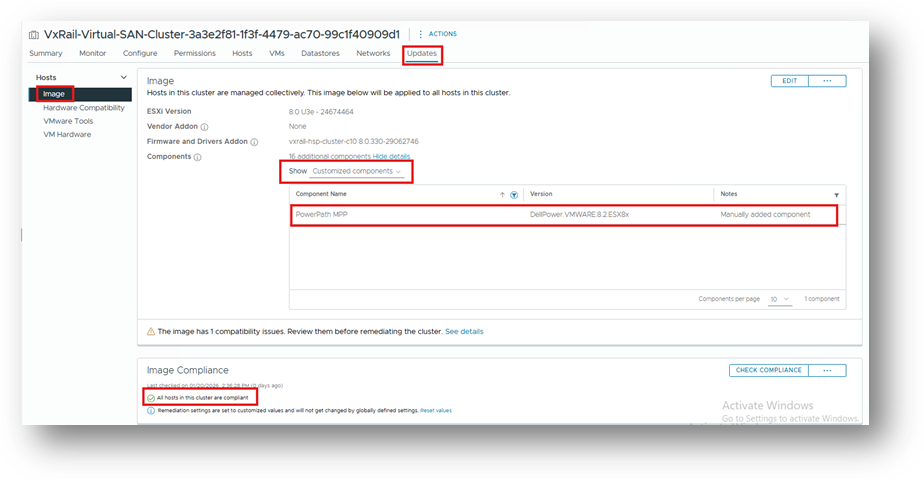
Here we can see that the compliance scan (which you can trigger manually) has detected that there is a component installed on the hosts that is part of the Single Image: (filter by name of component)
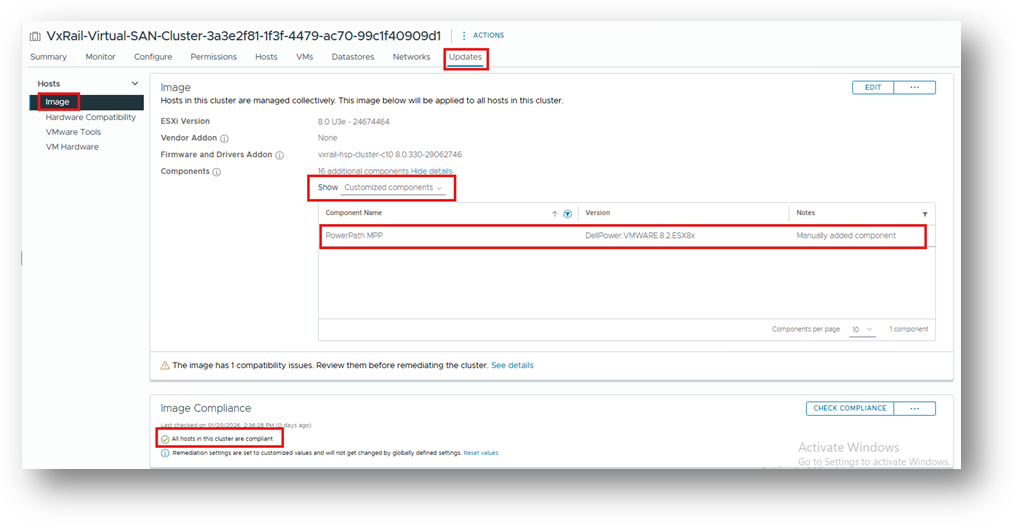
Image Compliance
- All hosts in this cluster are compliant
These components were installed correctly using ADD COMPONENT and will result in the component remaining as part of the Single Image during the next upgrade cycle.
Scenario 1 - Installed third-party component / enable VxRail vLCM
Assumptions:
- Third-Party drivers =
PowerPath_VE_8.2_ESX8x_for_VMWARE_vSphere_Install_SW.zip - Component (depot) that is used (inside above .zip) =
DellPower.VMWARE.8.2.b160.ESX8x.zip - Currently, VxRail vLCM is not enabled on the cluster.
- The third-party component was manually installed on some or all nodes in the cluster prior to enabling vLCM
Browse to the Updates tab in the VxRail plugin and go through: VxRail: How to Enable vSphere Lifecycle Manager Mode
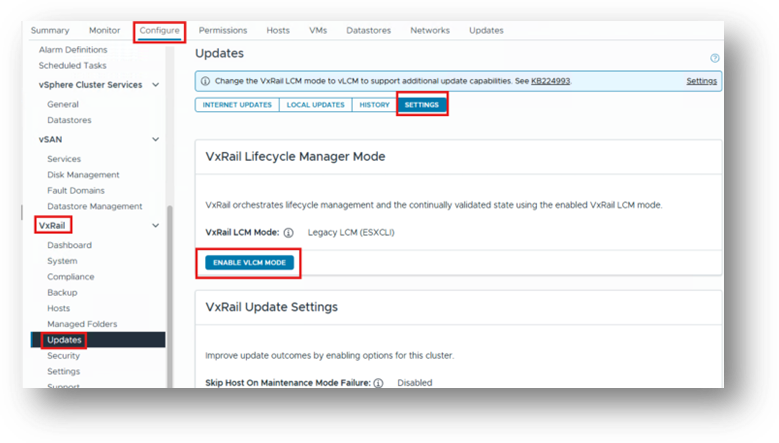
At the end of the validation you note a failure, this is expected.
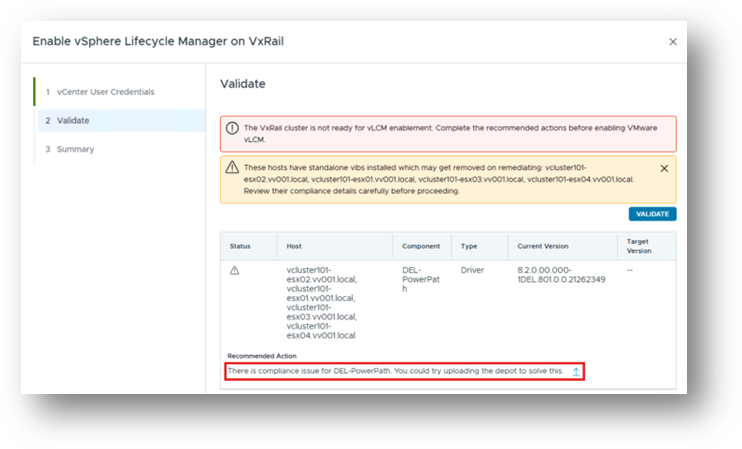

This message is telling us that during validation of the Single Image creation, components were detected on the nodes that are not part of the desired state — which is the Single Image used for those nodes.
In this case, the third-party component was installed manually on the nodes.
As shown in the screenshot, the user is prompted to provide the component in ZIP depot format (not standalone VIBs) in order to resolve the compliance issue and allow the vLCM enablement process to proceed.
For this scenario we need:
DellPower.VMWARE.8.2.b160.ESX8x.zip
Please note:
All third-party components or component must come directly from the vendor.
VxRail does not provide these ZIP components.
These ZIP components are a strict requirement when enabling vLCM on VxRail.
Click  and select your component (.zip)
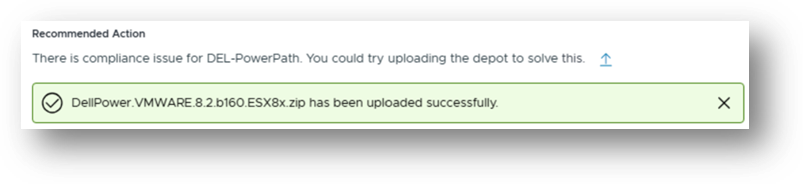
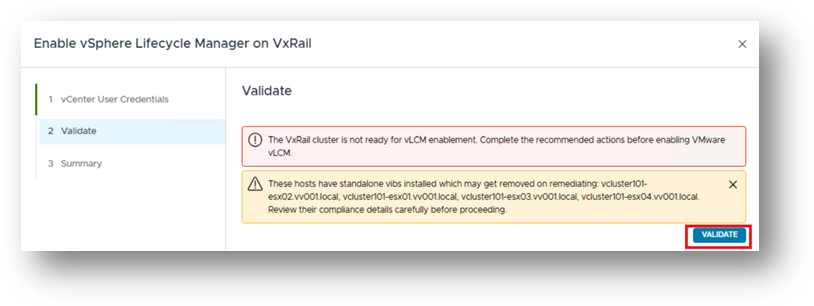
Next - revalidate
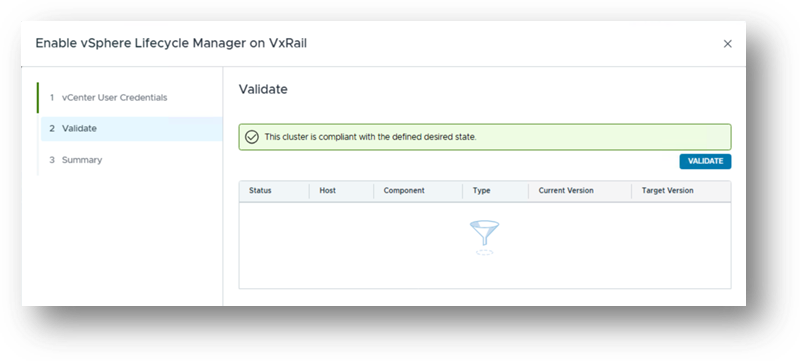
Once validation succeeds, click next to proceed with enablement.
Once wizard is complete:

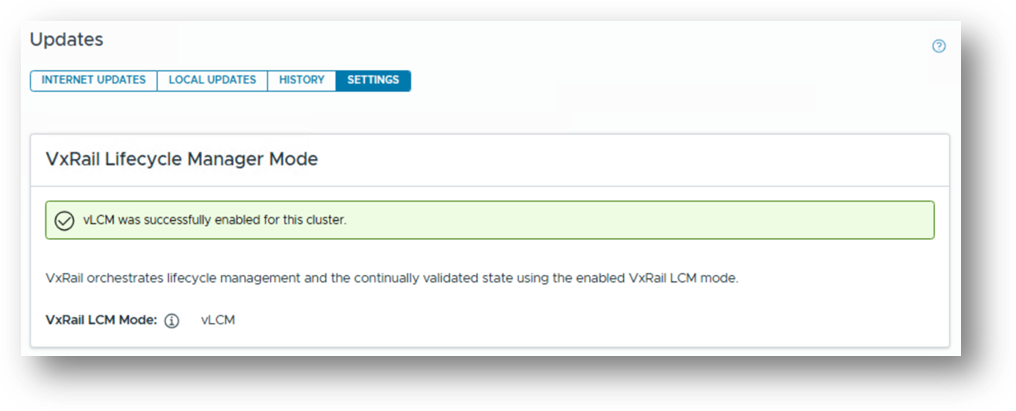
Additional notes: How to check if Third-Party Components was installed correctly:
Scenario 2 - Install a third-party component
Assumptions:
- Third-Party drivers =
Third-Party_VE_8.2_ESX8x_for_VMWARE_vSphere_Install_SW.zip - Depot that is used (inside above .zip) =
DellPower.VMWARE.8.2.b160.ESX8x.zip - VxRail vLCM is already enabled on the cluster.
There is no functionality within VxRail that allows third-party components to be installed outside of an upgrade cycle. However, one does not have to upgrade the entire cluster to install a component. Please see:
Installing a third-party Component Using the VxRail Plugin
Scenario 3 - Upgrade VxRail / do not upgrade third-party component
Assumptions
- The third-party component were installed correctly, following the procedures outlined in Scenario 1 and Scenario 2.
- If the third-party component were not installed correctly, or if the end user is unsure whether they were installed correctly (for example, if they were installed manually using esxcli), caution is advised.
- Before the VxRail cluster upgrade can proceed, it must be verified which installation method was used and whether the current configuration was applied using an unsupported or incorrect approach.
- This verification is essential because, during the upgrade cycle, the Third-Party VIBs is removed from all hosts by design if Third-Party was originally installed using an incorrect method.
3a - Upgrade VxRail/Third-Party installed incorrectly / do not upgrade third-party component
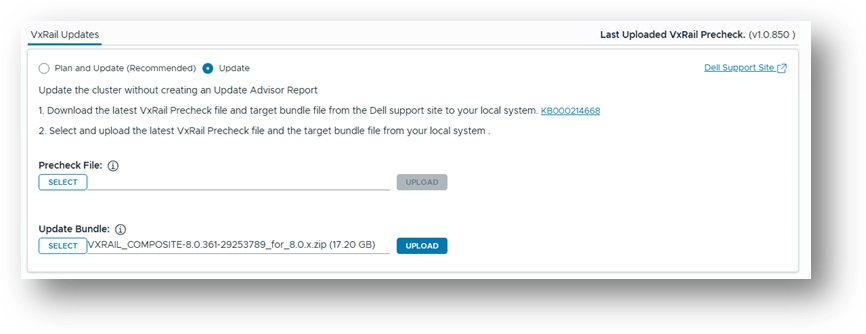
In this example, we are upgrading from 8.0.330 to 8.0.361. Upload the Composite bundle as you would for any other upgrade cycle.
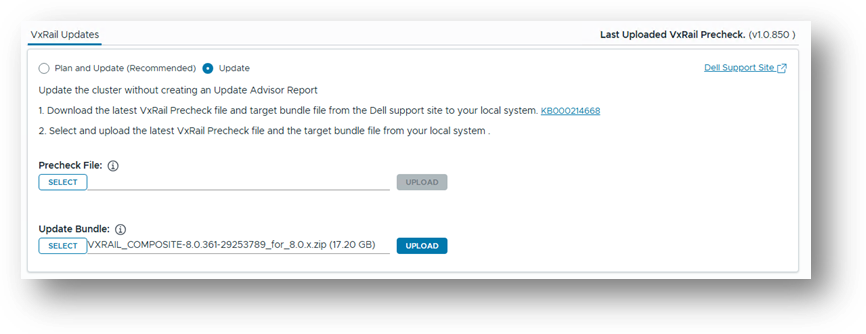
In this scenario, as the third-party component was not installed correctly. During a VxRail upgrade the upgrade logic removes the component by design, which is reflected in the upgrade log. To avoid this problem, we should first correct the installation of Third-Party and then add the component back to the system, thereby eliminating the recurring removal issue.
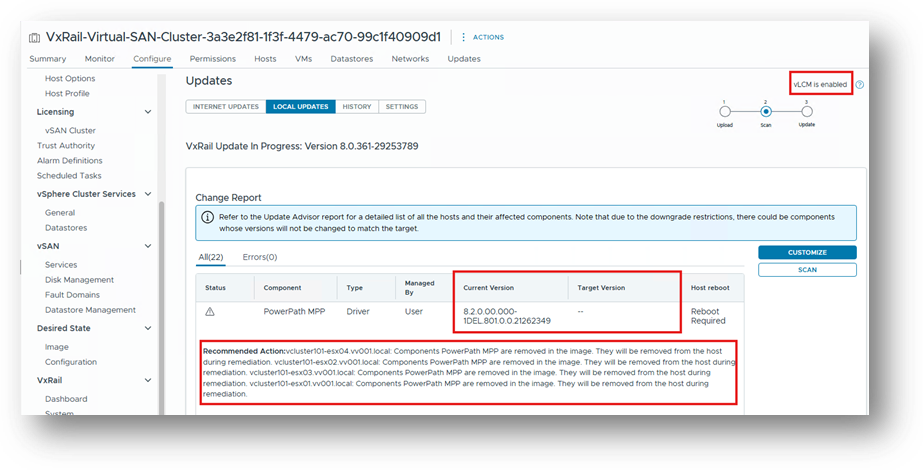
To fix this issue click CUSTOMIZE to add the third-party component.
By clicking CUSTOMIZE, you have the option to manage the third-party components.
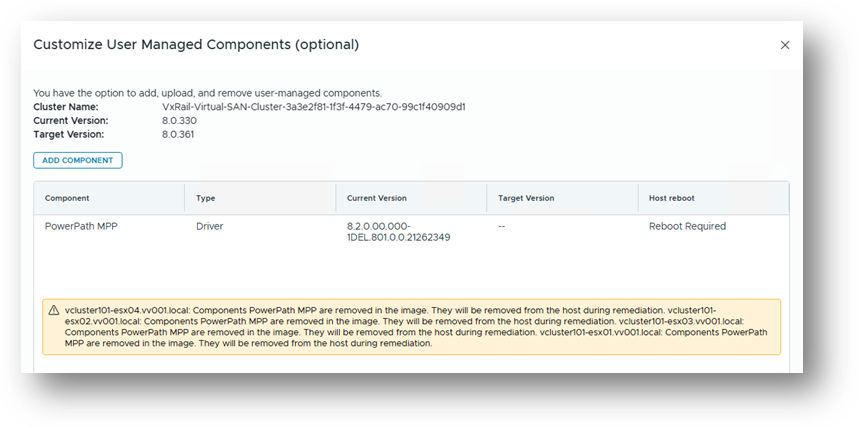
Next, click ADD COMPONENT
Component Type: Driver
Component Bundle: DellPower.VMWARE.8.2.b160.ESX8x.zip
Read and take note of the info message.
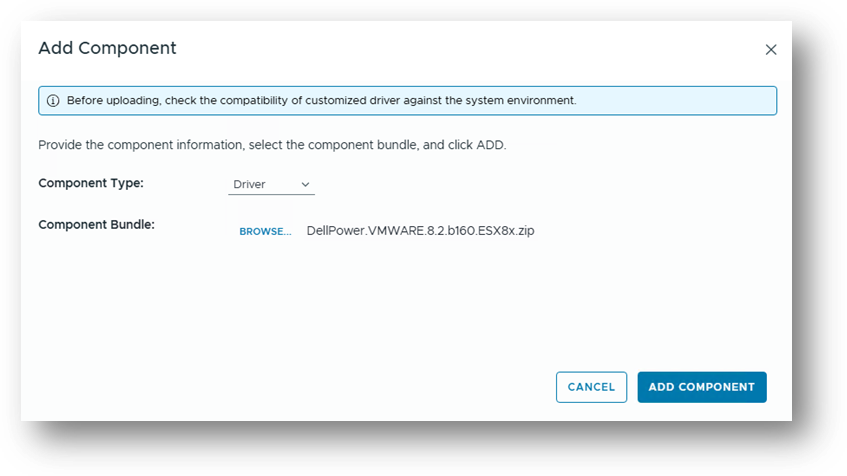
Click ADD COMPONENT, here the Component is ready to be added to the Single Image.
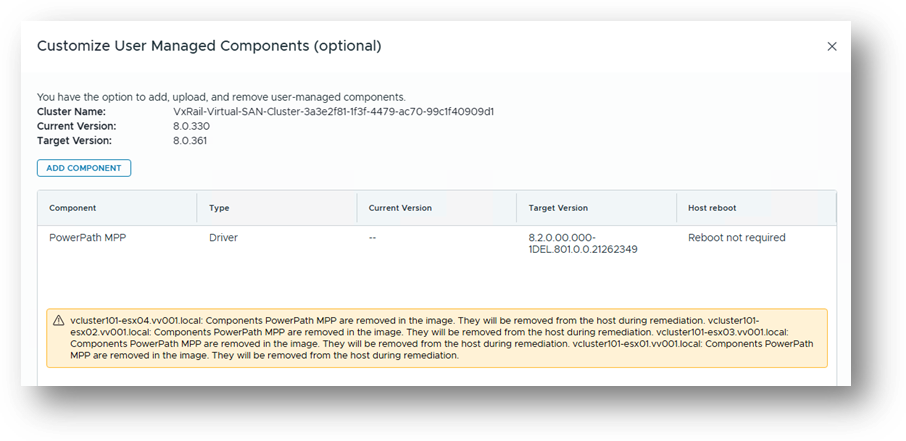
Click SAVE AND VALIDATE
Here we know that the third-party Component already exists on the nodes, so there will be no mention of it in the change report. However, the component will still be added to the Single Image.
Proceeding with the Upgrade triggers a remediation as part of the full upgrade cycle and will apply the component to each host using the correct and supported method.
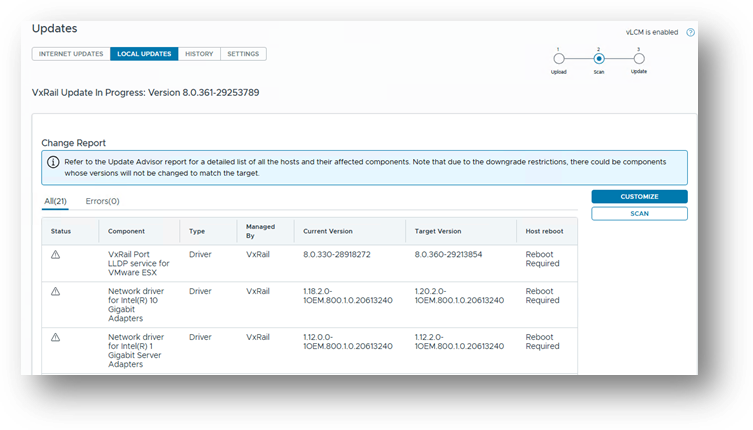
Now that the component will be in the Single Image, you will not need to add it again during the next upgrade cycle. It remains static inside the Single Image until you decide to upgrade that component, which is a separate scenario also covered in the documentation.
Once the upgrade completes, you can check the image to confirm that the component has been added and that the image is compliant.
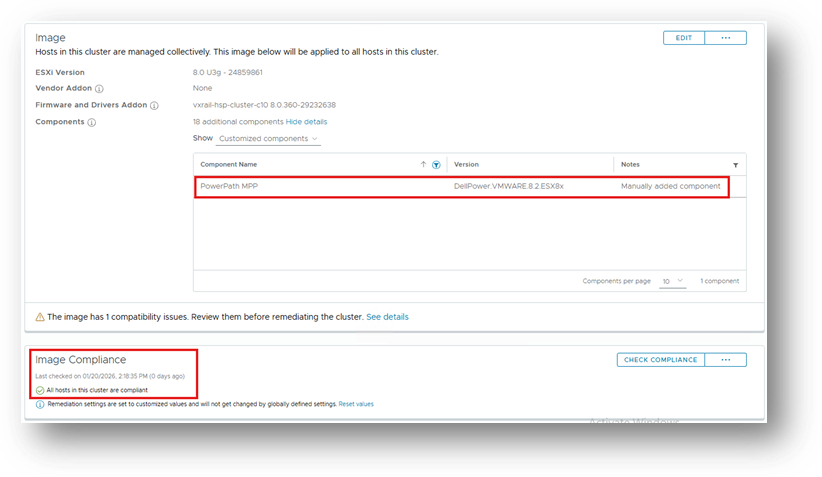
3b - Upgrade VxRail/Third-Party installed correctly / do not upgrade third-party component
In this example, we are upgrading from 8.0.330 to 8.0.370. Upload the Composite bundle as you would for any other upgrade cycle.
In this scenario, as the third-party component was previously installed correctly.
Here we can see that the compliance scan (which you can trigger manually) has detected that there is a component installed on the hosts that is part of the Single Image: (filter by name of component)
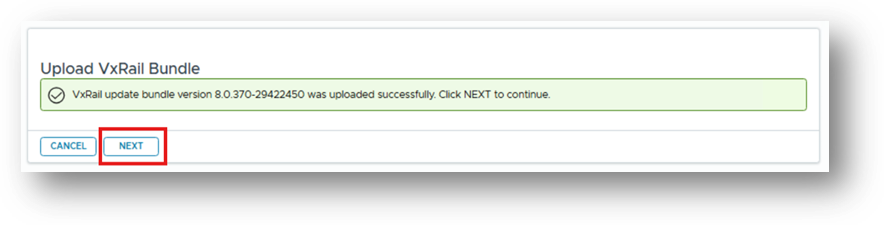
After the bundle uploads, click Next
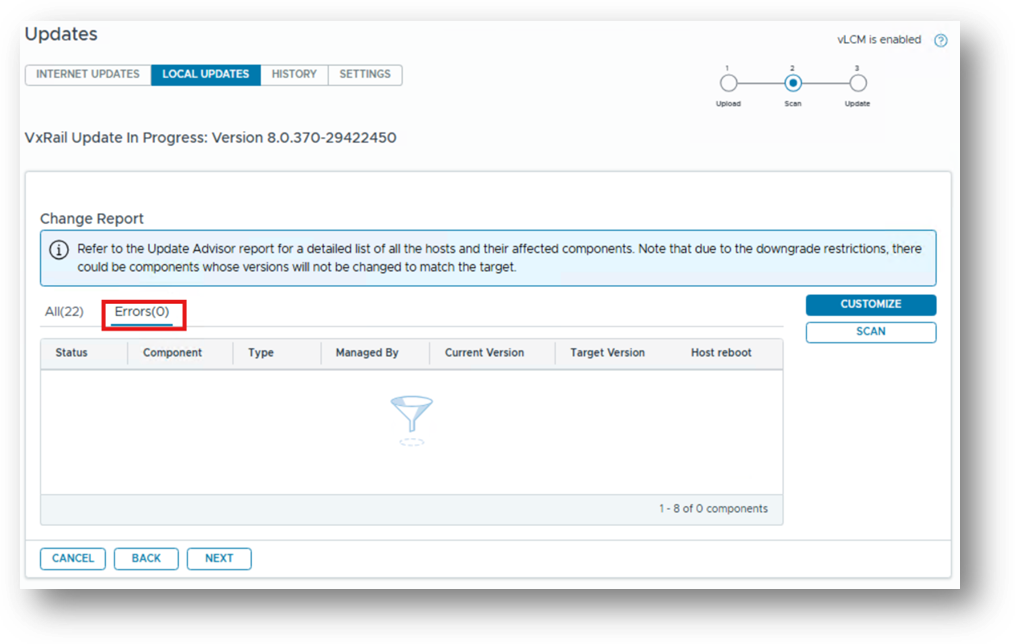
Reviewing the Change Report screen shows no errors, because the component was previously accessed using the correct procedure. Therefore, it will not be removed during the upgrade cycle or remediation process.
Proceed with the upgrade as normal. The third-party component will not be removed and will remain part of the Single Image.
Scenario 4 - Upgrade VxRail/upgrade third-party component
Assumptions
- The third-party components were installed correctly, following the procedures outlined in Scenario 1 and Scenario 2.
- If the third-party component were not installed correctly, or if the end user is unsure whether they were installed correctly (for example, if they were installed manually using esxcli), caution is advised.
- Before the VxRail cluster upgrade can proceed, it must be verified which installation method was used and whether the current configuration was applied using an unsupported or incorrect approach.
- This verification is essential because, during the upgrade cycle, the Third-Party VIBs is removed from all hosts by design if Third-Party was originally installed using an incorrect method.
Review:
How to check if Third-Party Components was installed incorrectly
How to check if Third-Party Components was installed correctly
4a - Upgrade VxRail/Third-Party installed incorrectly / upgrade Third-Party component
In this example we are upgrading from 8.0.330 to 8.0.361. Upload the Composite bundle as you would for any other upgrade cycle.
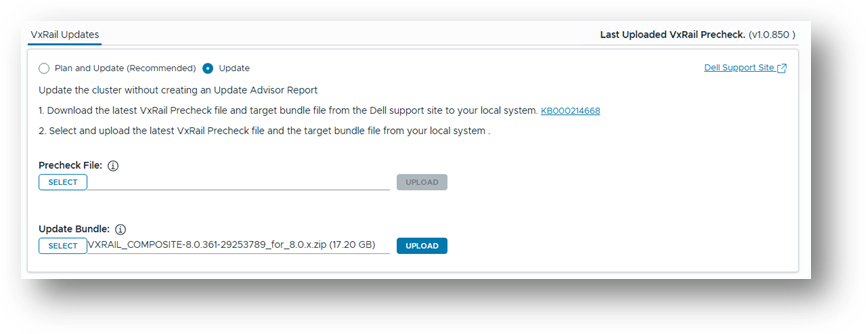
In this scenario, as the third-party component was not installed correctly. During a VxRail upgrade the upgrade logic removes the component by design, which is reflected in the upgrade log. To avoid this problem, we should first correct the installation of Third-Party and then add the component back to the system, thereby eliminating the recurring removal issue.
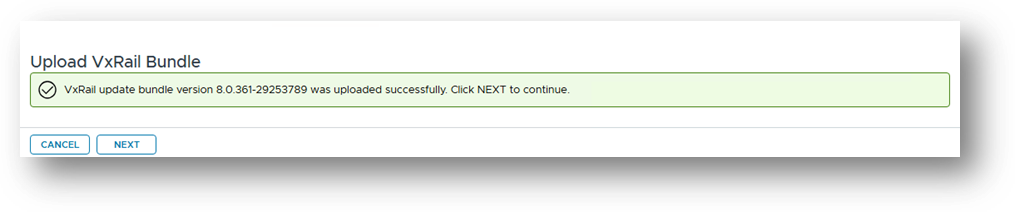
Click Next
At the Change Report screen, we see that the third-party driver was installed incorrectly. Since it is not part of the Single Image, it is removed by design during this upgrade cycle.
However, we can use ADD COMPONENT at this stage to install the newer version of the component.
8.2.0.00.000-1DEL.801.0.0.21262349 is installed on the nodes in this example, and we add DellPower.VMWARE.8.2.SP1.b021.ESX8x to the Single Image.
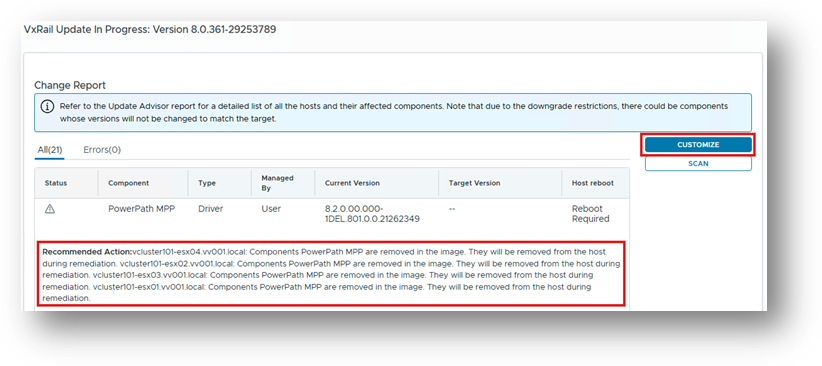
Click CUSTOMIZE
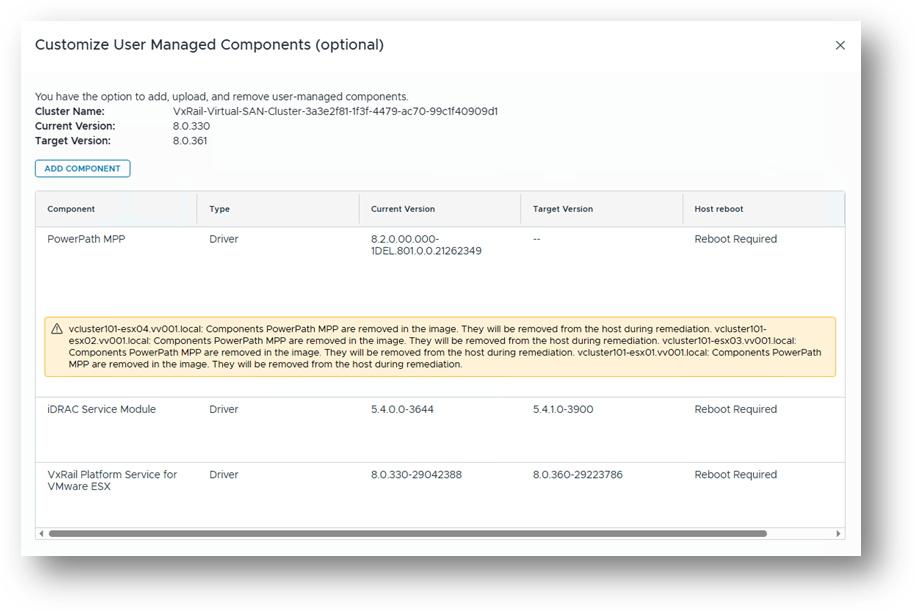
Ensure to use scroll bar to scroll over to the right, this option is hidden initially.
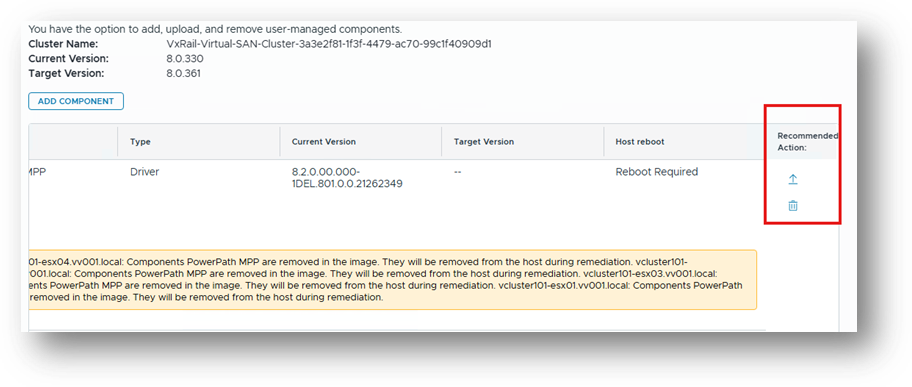
Click  and select your component (.zip) to upgrade component, then SAVE AND VALIDATE.
The Change Report reports no errors, and the upgraded component will be added to the Single Image.
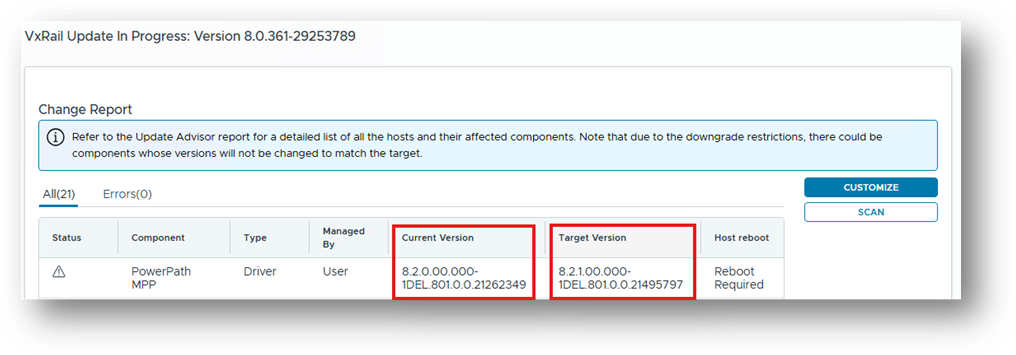
Proceed with the rest of the upgrade as normal.
4b - Upgrade VxRail/Third-Party installed correctly / upgrade Third-Party component
In this example we are upgrading from 8.0.330 to 8.0.361. Upload the Composite bundle as you would for any other upgrade cycle.
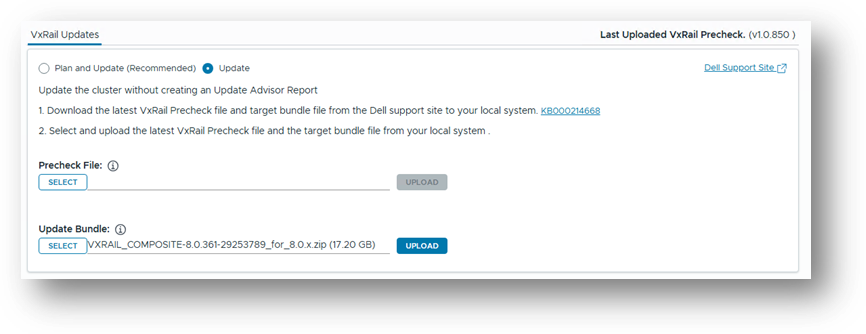
In this scenario, as the third-party component was installed correctly.

Click CUSTOMIZE at the Change Report screen, then select ADD COMPONENT.
In this example, we are upgrading the component to DellPower.VMWARE.8.2.SP1.b021.ESX8x.zip.
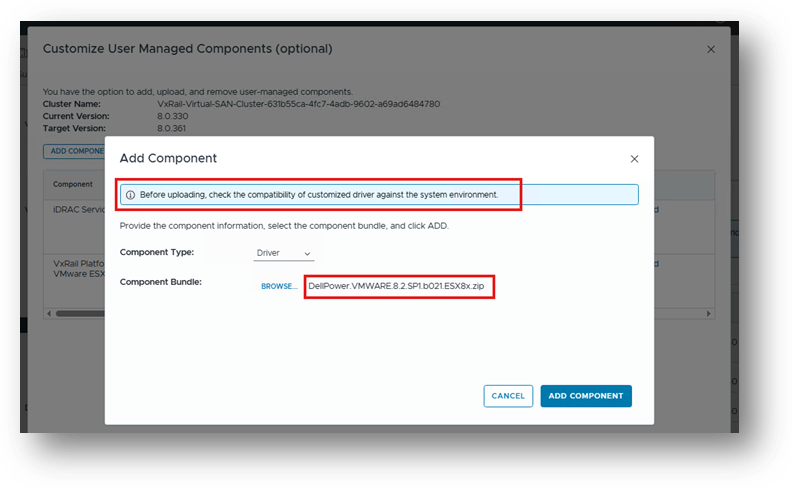
Click ADD COMPONENT / SAVE AND VALIDATE
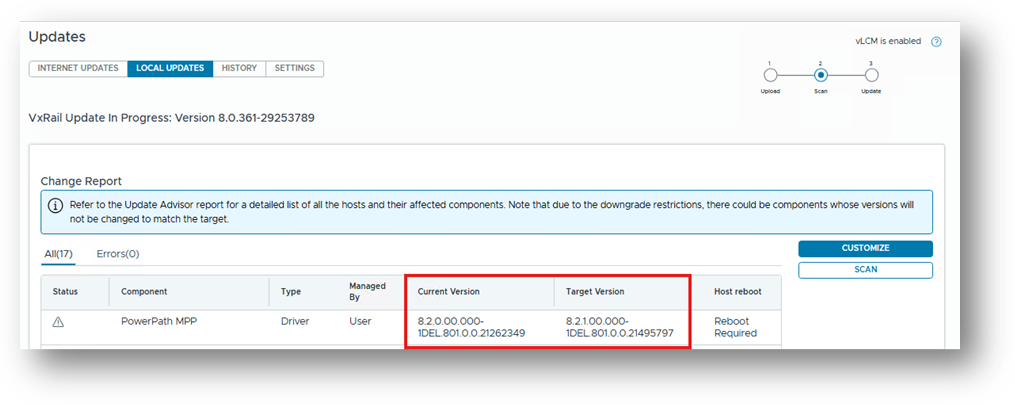
The Change Report screen shows that the component will be upgraded as part of the vLCM upgrade across the cluster.
Proceed with the rest of the upgrade as normal.
Scenario 5 - Upgrade Third-Party outside of the VxRail vLCM upgrade cycle
Assumptions
- The third-party components were installed correctly, following the procedures outlined in Scenario 1 and Scenario 2.
- If the third-party component were not installed correctly, or if the end user is unsure whether they were installed correctly (for example, if they were installed manually using esxcli), caution is advised.
- Before the VxRail cluster upgrade can proceed, it must be verified which installation method was used and whether the current configuration was applied using an unsupported or incorrect approach.
- This verification is essential because, during the upgrade cycle, the Third-Party VIBs is removed from all hosts by design if Third-Party was originally installed using an incorrect method.
Please review:
How to check if Third-Party Components was installed incorrectly
How to check if Third-Party Components was installed correctly
5a - third-party component installed incorrectly / upgrade Third-Party outside of the VxRail vLCM upgrade cycle
There is no functionality within VxRail that allows third-party components to be installed outside of an upgrade cycle. However, one does not have to upgrade the entire cluster to install a component. See:
Installing a third-party Component Using the VxRail Plugin
However, the following example will also cover upgrading the component.
Because we are not performing a full upgrade cycle in this case, the required workaround is to initiate an "upgrade" to the same software version that the cluster is already running.
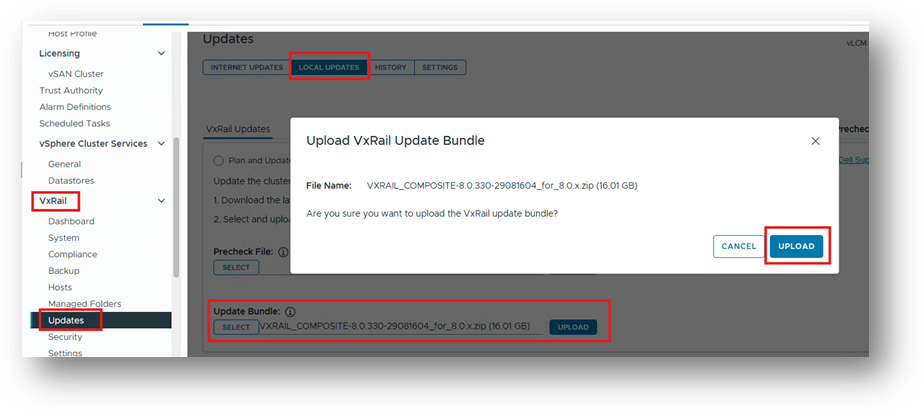
In this example, the cluster is running 8.0.330, so the first step is to obtain the 8.0.330 upgrade composite bundle:
VXRAIL_COMPOSITE-8.0.330-29081604_for_8.0.x.zip
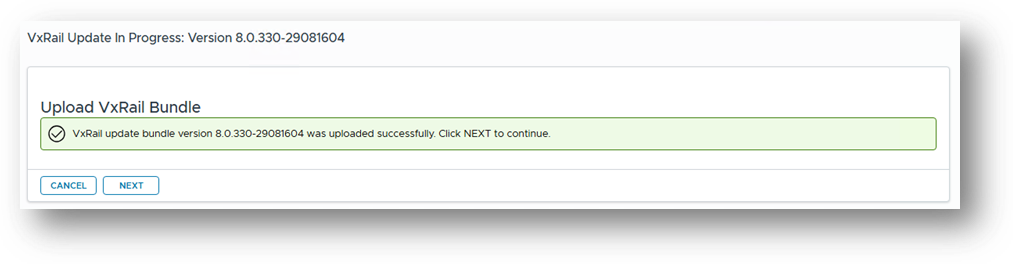
Upload the Composite bundle as you would for any other upgrade cycle.
After Change Report scan:
Click CUSTOMIZE
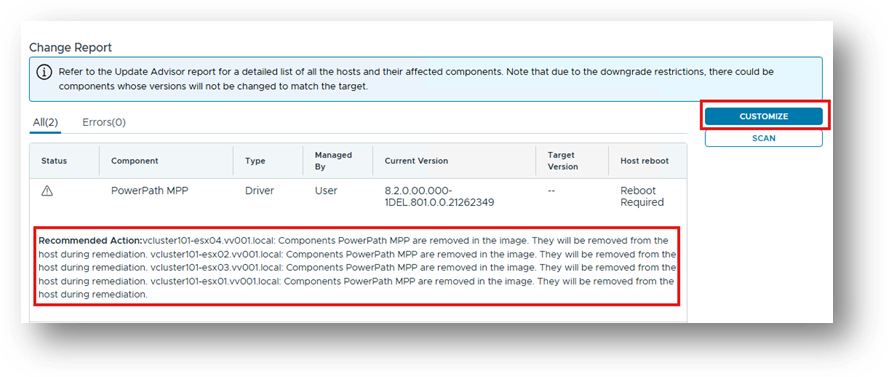
Ensure to use scroll bar to scroll over to the right, this option is hidden initially.
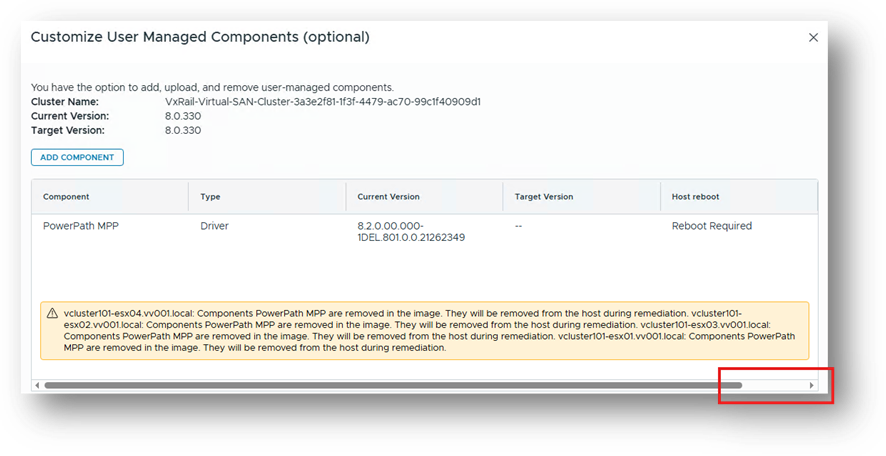
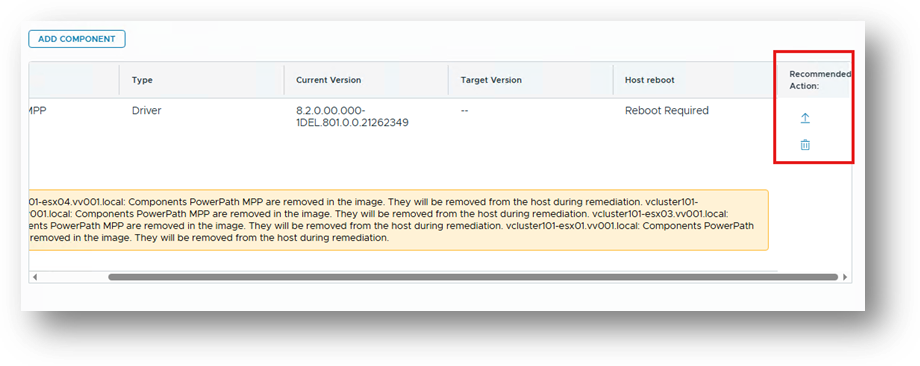
Click  and select your component (.zip) to upgrade component, then SAVE AND VALIDATE.
The Change Report reports no errors, and the upgraded component are added to the Single Image.
SAVE AND VALIDATE
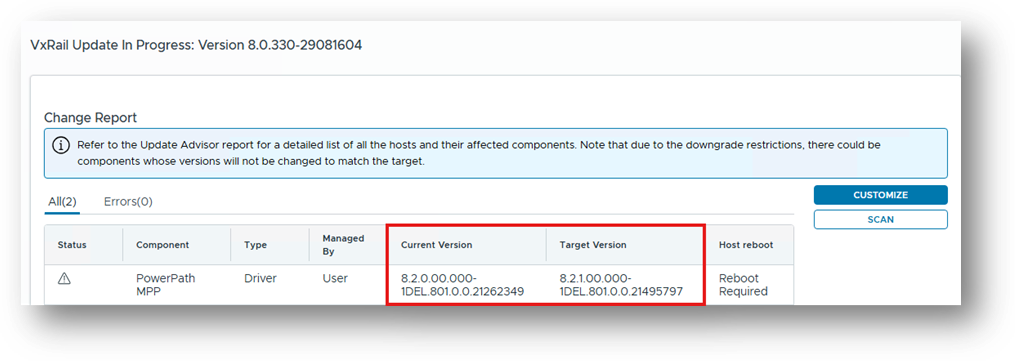
Proceed with upgrade as normal.
5b - third-party component installed correctly / upgrade Third-Party outside of the VxRail vLCM upgrade cycle
There is no functionality within VxRail that allows third-party components to be installed outside of an upgrade cycle. However, one does not have to upgrade the entire cluster to install a component. See:
Installing a third-party Component Using the VxRail Plugin
However, the following example will also cover upgrading the component.
Because we are not performing a full upgrade cycle in this case, the required workaround is to initiate an "upgrade" to the same software version that the cluster is already running.
In this example, the cluster is running 8.0.330, so the first step is to obtain the 8.0.330 upgrade composite bundle:
VXRAIL_COMPOSITE-8.0.330-29081604_for_8.0.x.zip
Upload the Composite bundle as you would for any other upgrade cycle.
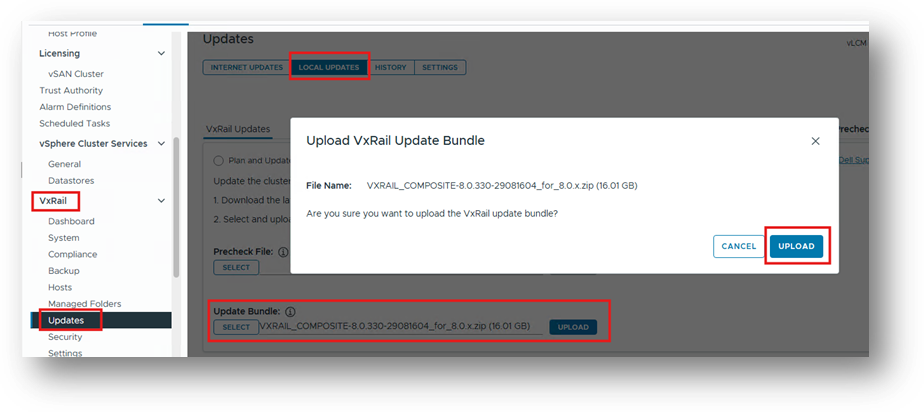
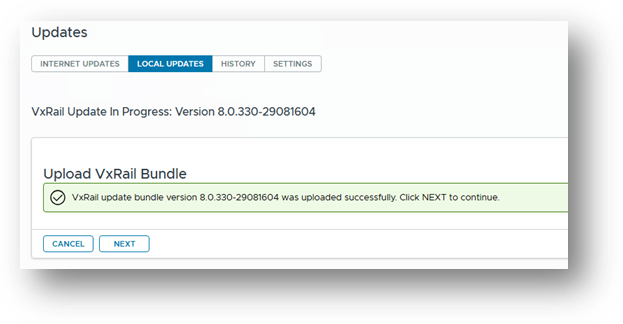
After Change Report scan, Click CUSTOMIZE at the Change Report screen, then select ADD COMPONENT.
In this example, we are upgrading the component to DellPower.VMWARE.8.2.SP1.b021.ESX8x.zip.
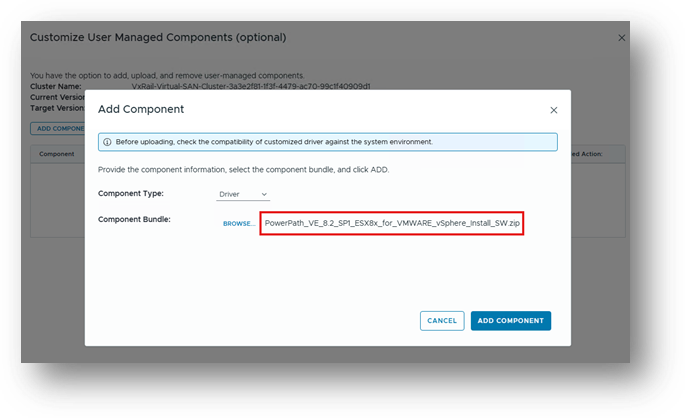
Click ADD COMPONENT / SAVE AND VALIDATE
The Change Report screen shows that the component will be upgraded as part of the vLCM upgrade across the cluster.
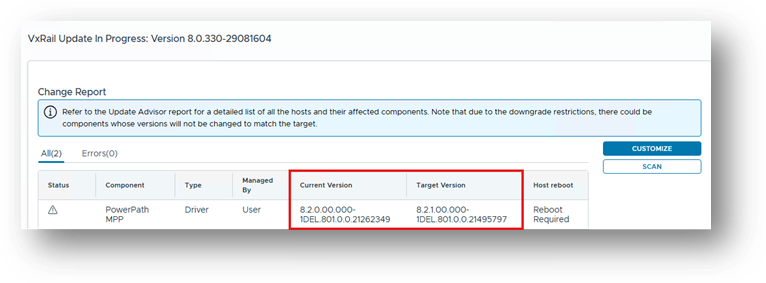
Proceed with upgrade as normal.
Additional Information
VxRail: Best Practices for vLCM in VxRail
VxRail and VCF on VxRail: Working with Third-Party Components