How to Identify the Netskope Client Version
Summary: Learn how to identify the version of the Netskope Client by following these step-by-step instructions.
Instructions
This article provides the steps to locate and identify the Netskope Client version.
Affected Products:
- Netskope Client
Affected Operating Systems:
- Windows
- Mac
- Android
Knowing the Netskope Client version allows administrators to:
- Identify known issues
- Determine UI differences
- Understand workflow changes
- Verify system requirements
Click Windows, Mac, or Android for versioning information.
Windows
The Windows Netskope Client version can be identified through the:
Click the appropriate method for more information.
UI
- Log in to the Windows computer.
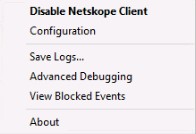
- In the Windows System Tray, right-click the Netskope Client icon and then select About.
- Record the Version. In the example, 66.0.0.327 is the Version.
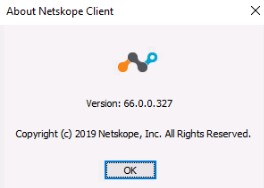 Note: The Version may differ from the example above.
CLI
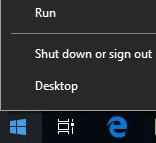
- As an administrator, right-click the Windows start menu and then click Run.
- In the Run UI, type
cmdand then press Enter.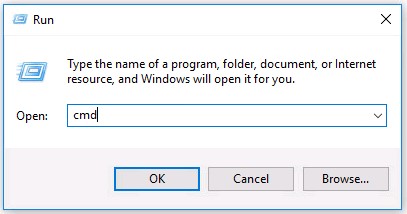
- In Command Prompt, type
wmic product where name='Netskope Client' get versionand then press Enter.
- Record the Version. In the example, 70.0.0.391 is the product version.

- Type
exitand then press Enter.Note: The Version may differ from the example above.
Installer
- Right-click
NSClient[TENANTSPECIFICINFO].msiand select Properties.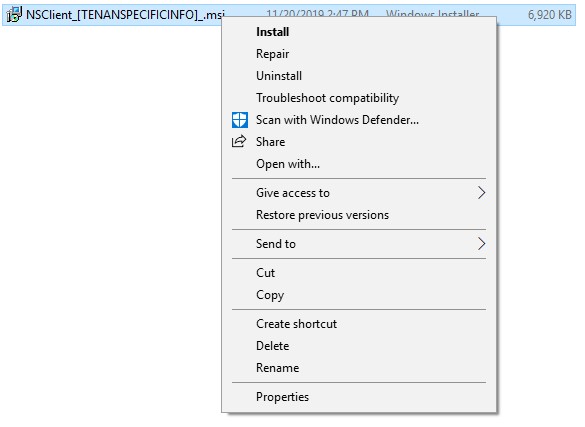 Note:
Note:[TENANTSPECIFICINFO]= Name assigned to Netskope tenant - Click the Details tab.

- The version is located within Subject. Record the version. In the example, 69.2.0.373 is the Version.
 Note: The Version may differ from the example above.
Mac
The Mac Netskope Client version can be identified through the:
Click the appropriate method for more information.
UI
- Log in to the Mac computer.
- In the menu bar, select the Netskope Client icon and then select About.
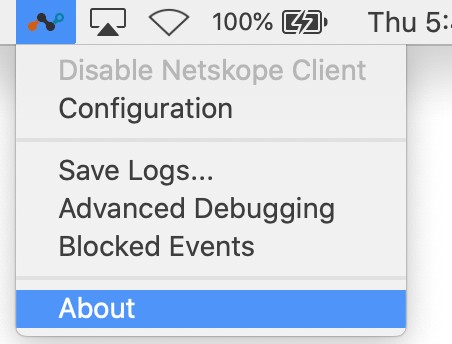
- Record the Version. In the example, 70.0.0.391 is the Version.
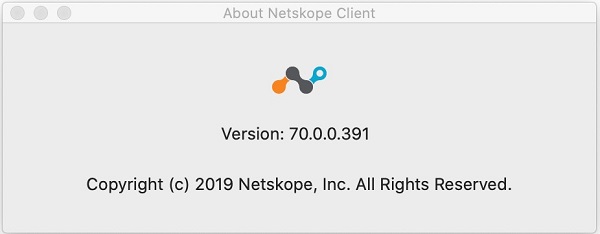 Note: The Version may differ from the example above.
Terminal
- From the Apple menu, click Go and then select Utilities.
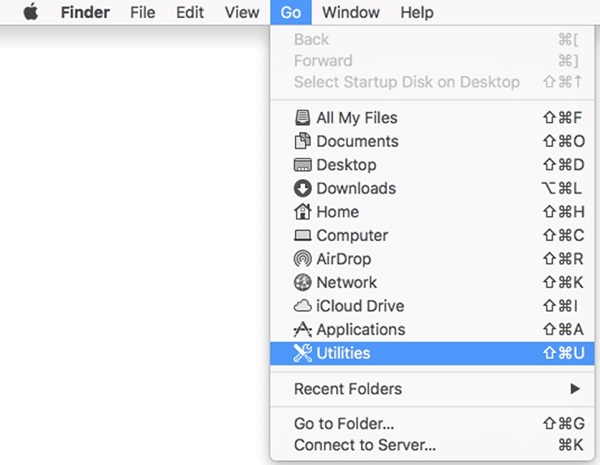
- In the Utilities menu, double-click Terminal.
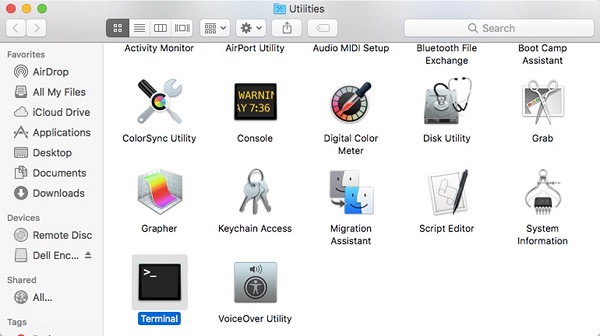
- In Terminal, type
defaults read /Library/Application\ Support/Netskope/STAgent/Netskope\ Client.app/Contents/Info.plist CFBundleShortVersionStringand then press Enter.
- Record the Version. In the example, 70.0.0.391 is the product version.
 Note: The Version may differ from the example above.
 - Type
exitand then press Enter.
Android
The Android Netskope Client version can be identified through the user interface (UI).
- Select the Netskope Client application.

- Select the dropdown on the right and then choose Settings.
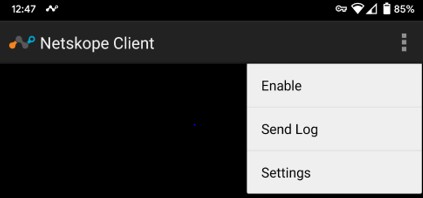
- Locate App info and then record the Version. In the example, 70.0.0.391 is the Version.
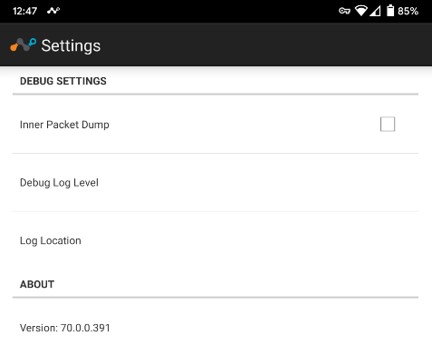 Note: The Version may differ from the example above.
To contact support, reference Dell Data Security International Support Phone Numbers.
Go to TechDirect to generate a technical support request online.
For additional insights and resources, join the Dell Security Community Forum.