PowerProtect DD: File System is disabled if there is a critical environmental alert is set on DD
Summary: The DD File System (DDFS) automatically disables itself as a safeguard when the system sees an environmental condition is not good and it sees a critical alert on enclosure 1
This article applies to
This article does not apply to
This article is not tied to any specific product.
Not all product versions are identified in this article.
Symptoms
PowerProtect DDOS includes a safeguard that disables the DD File System (DDFS) If
1: The system time jumps back by more than 60 s. If such a change in system time occurs,, and/OR
2: If any other hardware components fails and system sets a critical environmental alert for enclosure 1
The following takes place:
- DDFS is disabled and does not automatically restart
- An alert (EVT-ENVIRONMENT-00052) is posted, that is:
Event posted: p0-32 -EVT-ENVIRONMENT-00052: File system is disabled due to a critical condition.EVT-OBJ::Enclosure=1 EVT-INFO::Cause=System Time backward jumped
Event posted: p0-32 -EVT-ENVIRONMENT-00052: File system is disabled due to a critical condition.EVT-OBJ::Enclosure=1 EVT-INFO::Cause=System has Critical alert
Once this issue is encountered:
- DDFS is unable to manually restart (it panics during boot)
- Restoring the date and time (to reverse the backwards jump) does not allow DDFS to start
- Resolving the hardware problem does not allow DDFS to start
Cause
Data domain filesystem can not be enabled until we fix the critical environment condition just to safeguard the DD and other application integrated to DD
This safeguard was implemented as a backwards jump in system time may adversely affect certain backup applications which store data on the DDR. As a result, it is designed such that the administrator of the DDR has to allow the change in system time before DDFS can be re-enabled.
Note: Once this issue is encountered, DDFS cannot be enabled as it refuses to start, for example:
# filesys enable
Please wait...
01/01 20:32:10.217 (tid 0xxxxxxx): INFO: Event posted: m0-28 (2100001c:553648156): EVT-FILESYS-00008: Filesystem has encountered an error and is restarting.
**** There was a problem bringing up the filesystem. Status: The filesystem is aborting due to a problem.
In addition, reversing the backwards jump in system time does not allow DDFS to be re-enabled (the issue persists).
Resolution
To enable DDFS, follow these steps. If the affected DD is the active node in a DD HA pair, apply these steps to both nodes before enabling the File System (FS).
From the UI:
1. Ensure the system’s date, and time are correct. If you change the time zone, the DDR might prompt for a reboot.
Perform this reboot immediately to ensure that all processes recognize the new time zone. Go to Administration > Settings > TIME AND DATE
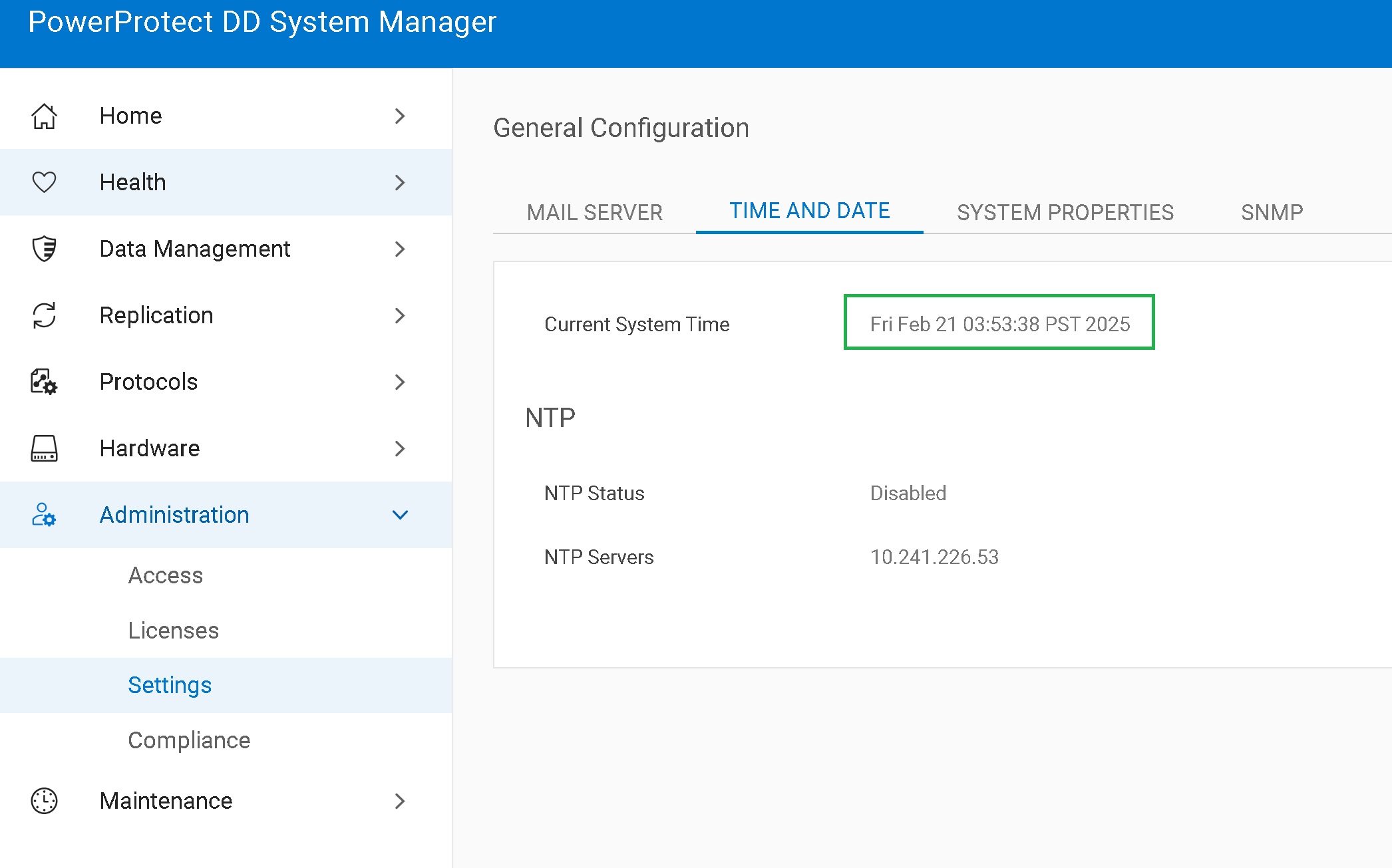
- If you have NTP enabled, disable it temporarily to correct the clock. Go to MORE TASKS > Configure Time Settings
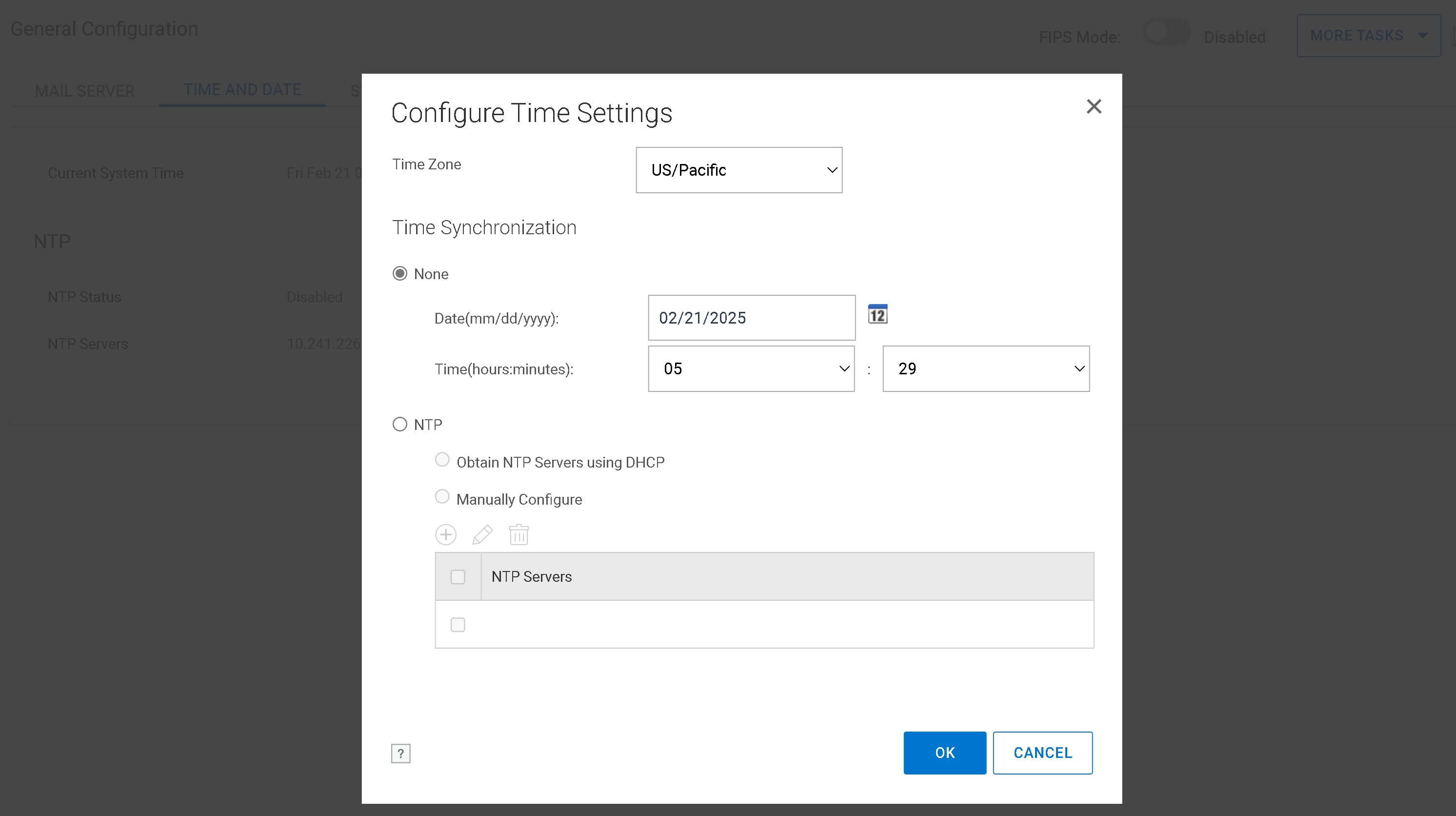
- Then configure the time settings again to re-enable NTP if needed
2. Clear the emergency alert corresponding to the 'filesystem disabled due to a critical condition' error. Go to Health > Alerts > CURRENT ALERTS
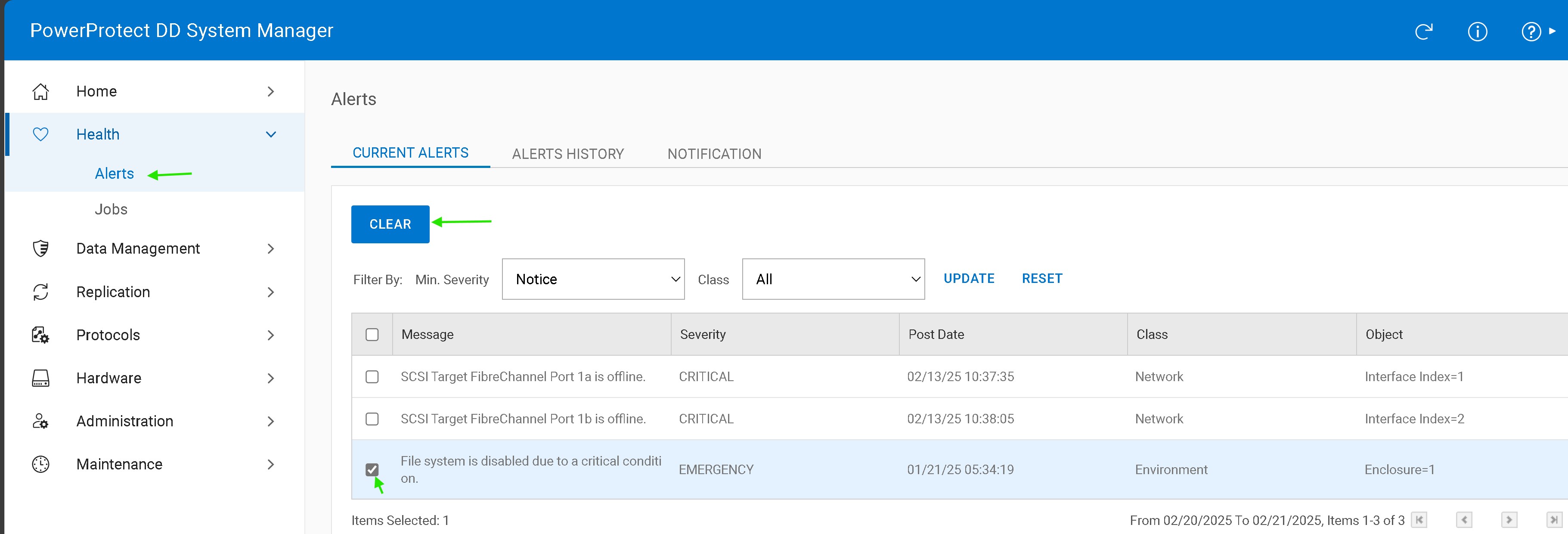
-
Wait one minute for the alert to clear and the system status to update. If you do not, the system status might not fully update before the DDFS process starts, potentially causing a one-time FS crash and alert.
3. Enable the filesystem if it is not already enabled after clearing the alert. Go to Data Management > File System > Summary > Click Enable, towards bottom of the page.
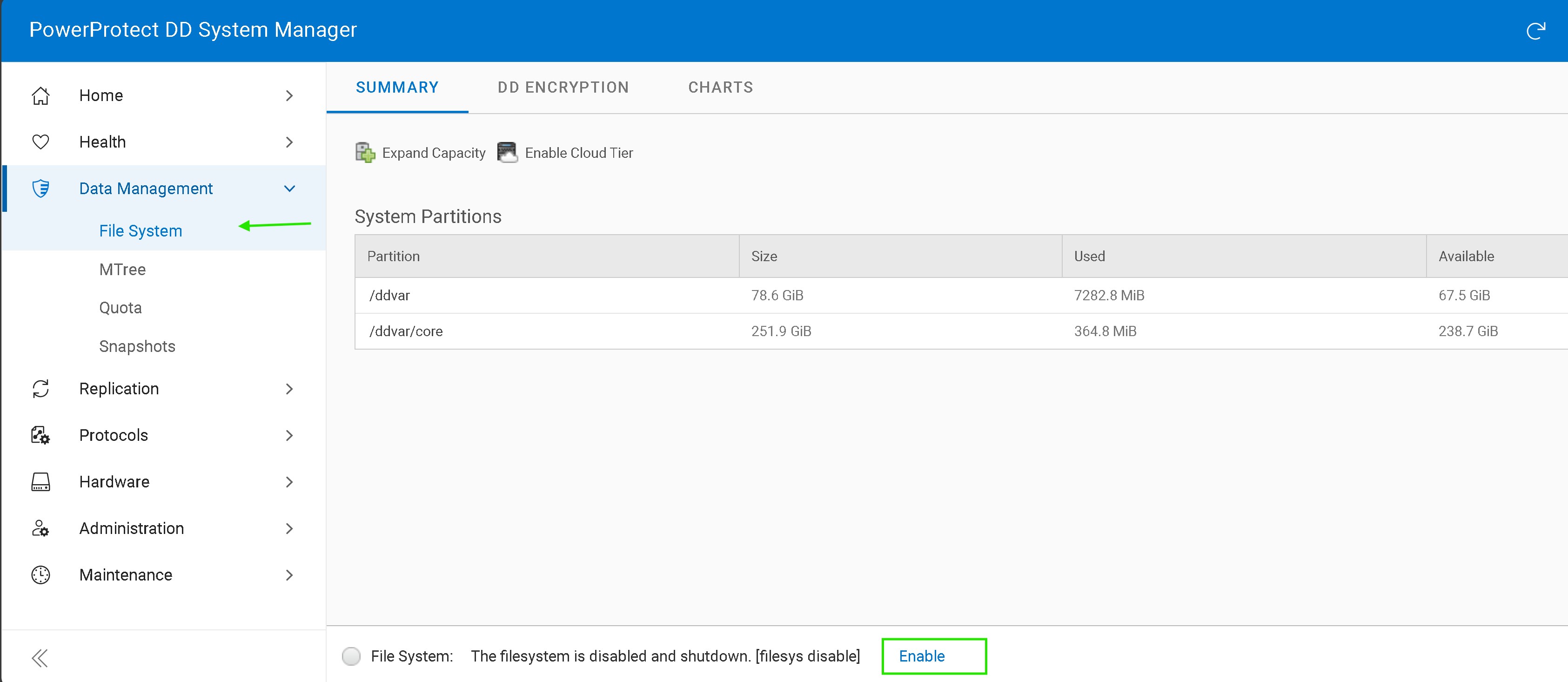
- DDFS should now boot/run as normal. If you failed to wait a sufficient time after clearing the alert before starting the FS process, you may receive an alert on the CLI about the FS to have encountered a problem, however, FS will continue trying to start up and, if the problem was as described in this KB, the FS process will eventually enable.
From the CLI:
1a. Ensure the system’s date, and time are correct. If you change the time zone, the DDR might prompt for a reboot.
Perform this reboot immediately to ensure that all processes recognize the new time zone.
1b. Ensure all the hardware components in DD are in good state
2. Clear the emergency alert corresponding to the 'filesystem disabled due to a critical condition' error:
# alert clear alert-id [alert id]
For example, if this were alert p0-32 (as shown above):
# alert clear alert-id p0-32
3. Wait one minute for the alert to clear and the system status to update. If you do not, the system status might not fully update before the FS process starts, potentially causing a one-time FS crash and alert.
4. Now DDFS should automatically come online, you may check the status of filesystem with "# filesys status". if not, Enable DDFS:
# filesys enable
- DDFS should now boot/run as normal. If you failed to wait a sufficient time after clearing the alert before starting the FS process, you may receive an alert on the CLI about the FS to have encountered a problem, however, FS will continue trying to start up and, if the problem was as described in this KB, the FS process will eventually enable.
For further information about this safeguard or any of the information contained within this article, please contact Dell Technical Support.
Additional Information
An example of the issue is shown below:
- Initially, DDFS is running as normal:
# filesys status
The filesystem is enabled and running.
- The DDR has a system date, time of 13:28 on March 7, 2017:
# date
Sun Mar  7 13:28:24 PST 2017
- The date is manually set backwards to January 1, 2017 (The network time protocol/NTP must be disabled before this change is possible):
# system set date 01012017
- Logs in to the DDR (messages.engineering) indicate that the system date or time was changed backwards and that DDFS is being disabled:
Mar  7 13:28:24 rtp-ddr30 ddsh: NOTICE: MSG-DDSH-00009: (tty=ttyS0, session=15703) root: command "system set date 01012017"
...
Jan  1 20:17:04 rtp-ddr30 ddr_stated: Availability stats: Invalid time interval -5591476. Probably the system clock was changed.
Jan  1 20:17:51 rtp-ddr30 platmon: INFO: Found a system time jump: -5591485
Jan  1 20:17:51 rtp-ddr30 platmon: INFO: Before Jump: system time: Tue Mar  7 13:28:15 2017 , rtc time: Tue Mar  7 13:28:16 2017 , ntp last sync time: Unknown
Jan  1 20:17:51 rtp-ddr30 platmon: INFO: After  Jump: system time: Sun Jan  1 20:17:51 2017 , rtc time: Sun Jan  1 20:17:51 2017 , ntp last sync time: Unknown
...
Jan  1 20:17:51 rtp-ddr30 platmon: NOTICE: post_alert: Generating alert EVT-ENVIRONMENT-00052
Jan  1 20:17:52 rtp-ddr30 platmon: INFO: Event posted: p0-32 (11000020:285212704): EVT-ENVIRONMENT-00052: File system is disabled due to a critical condition.EVT-OBJ::Enclosure=1 EVT-INFO::Cause=System Time backward jumped
Jan  1 20:17:52 rtp-ddr30 platmon: NOTICE: evaluate_symbol_node: taking action(s) on error_indict(1)
Jan  1 20:17:52 rtp-ddr30 platmon: INFO: System time jumped, needs service now
Jan  1 20:17:52 rtp-ddr30 platmon: ERROR: Fatal error in platform monitor, DDFS shall be disabled
...
Jan  1 20:17:55 rtp-ddr30 ddr_procmon: ERROR: Critical error is detected by platform monitoring, filesystem is shutdown.
...
Jan  1 20:17:55 rtp-ddr30 ddr_stated: INFO: change_state(): shutdown requested
Jan  1 20:17:55 rtp-ddr30 ddfs[3761]: NOTICE: MSG-DDR-00003: Shutting down ddfs
- An emergency alert is posted indicating that DDFS has been disabled 'due to a critical condition':

When the DD is part of or joined to a Windows Active Directory, it uses the domain controller (DC) as its system time source. The DD periodically syncs its date and time with the DC. If the Windows DC’s date and time change, updates are pushed to the DD through CIFS. A backward time jump over 60 s triggers this behavior.
To learn if this could be the case, start with checking if the DD is configured for CIFS and bound or joined to a particular Active Directory realm:
# cifs show config
Mode                 Active-Directory
Realm                realm.example.com
Domain Controllers   *
WINS Server          not specified
NB Hostname          DD9300
Max Connections      Not Available
Max Open Files       Not Available
- If so, check the "cifs.log" file for entries such as the ones below:
# log view debug/cifs/cifs.log
Mar 28 22:03:16 DD9300 lsass: ALWAYS: [24497/1585429396.001947087] [lsass] ADSyncTimeToDC: Attempting to change System Time, from [Sat Mar 28 22:03:16 2020 ] to [Sat Mar 28 22:54:38 2020 ]
Mar 28 23:44:38 DD9300 lsass: ALWAYS: [24497/1585435478.001799190] [lsass] ADSyncTimeToDC: Attempting to change System Time, from [Sat Mar 28 23:44:38 2020 ] to [Sat Mar 28 22:53:15 2020 ]
Mar 29 22:04:38 DD9300 lsass: ALWAYS: [24497/1585512278.002014016] [lsass] ADSyncTimeToDC: Attempting to change System Time, from [Sun Mar 29 22:04:38 2020 ] to [Sun Mar 29 22:55:53 2020 ]
Mar 29 23:25:53 DD9300 lsass: ALWAYS: [24499/1585517153.001946740] [lsass] ADSyncTimeToDC: Attempting to change System Time, from [Sun Mar 29 23:25:53 2020 ] to [Sun Mar 29 22:34:37 2020 ]
Mar 29 23:25:53 DD9300 lsass: ALWAYS: [24497/1585517153.001946645] [lsass] ADSyncTimeToDC: Attempting to change System Time, from [Sun Mar 29 23:25:53 2020 ] to [Sun Mar 29 22:34:37 2020 ]
Mar 30 22:00:53 DD9300 lsass: ALWAYS: [24497/1585598453.002161373] [lsass] ADSyncTimeToDC: Attempting to change System Time, from [Mon Mar 30 22:00:53 2020 ] to [Mon Mar 30 22:52:01 2020 ]
Mar 30 23:12:01 DD9300 lsass: ALWAYS: [24497/1585602721.002275775] [lsass] ADSyncTimeToDC: Attempting to change System Time, from [Mon Mar 30 23:12:01 2020 ] to [Mon Mar 30 22:20:52 2020 ]
The configured DC has an issue as the time jumps forward by 50 minutes daily and then reverts back shortly after. This happens around the same time each day. This triggers the alert with the DD and forcing the DD FS to shut down. In this particular case, the DC must be investigated for the time changes and resolved accordingly.
When Active Directory is configured, it is recommended that NTP is disabled, as per the contents of the DDOS 8.0 Administration Guide (see page 137):
When Active Directory is configured, it is recommended that NTP is disabled, as per the contents of the DDOS 8.0 Administration Guide (see page 137):
Note:
Using time synchronization from an Active Directory domain controller might cause excessive time changes on the system if both NTP and the domain controller are modifying the time.
At the least, if AD and NTP time sync are being used, if NTP is enabled, it should be configured to sync to the NTP server provided by the DC or to the configured DC's upstream time source for consistency.
Affected Products
Data DomainProducts
Data Domain, Data Domain Boost – File System, Data Domain Deduplication Storage Systems, DD OS 6.2, DD OS, DD OS 6.0, DD OS 6.1, DD OS 7.0, DD OS 7.1, DD6300 Appliance, DD6800 Appliance, DD9300 ApplianceArticle Properties
Article Number: 000060531
Article Type: Solution
Last Modified: 10 Jul 2025
Version: 9
Find answers to your questions from other Dell users
Support Services
Check if your device is covered by Support Services.