VxRail: How to Gather Switch Logs or Switch Grabs
Summary: This article details how to gather switch logs or grabs from Dell S4048-ON switches. *The commands should work for other brands and models of switches, as well.
This article applies to
This article does not apply to
This article is not tied to any specific product.
Not all product versions are identified in this article.
Instructions
This article assumes that PuTTY can be used to connect to the switch, either remotely or using a serial connection to the switch.
Steps:
- In the main PuTTY window, select Session>Logging.
- Select the "All sessions output" option.
- Enter a name for the log in the "Log file name:" field.
- Click the "Browse…" button to specify where the file is saved.

5. Click "Session" and open a connection to the switch.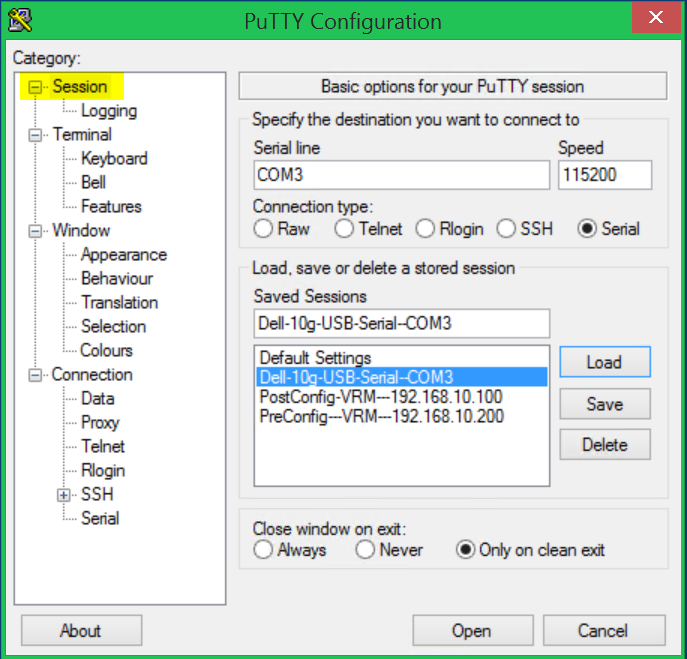
6. Enter the command "enable" and provide the switch's password.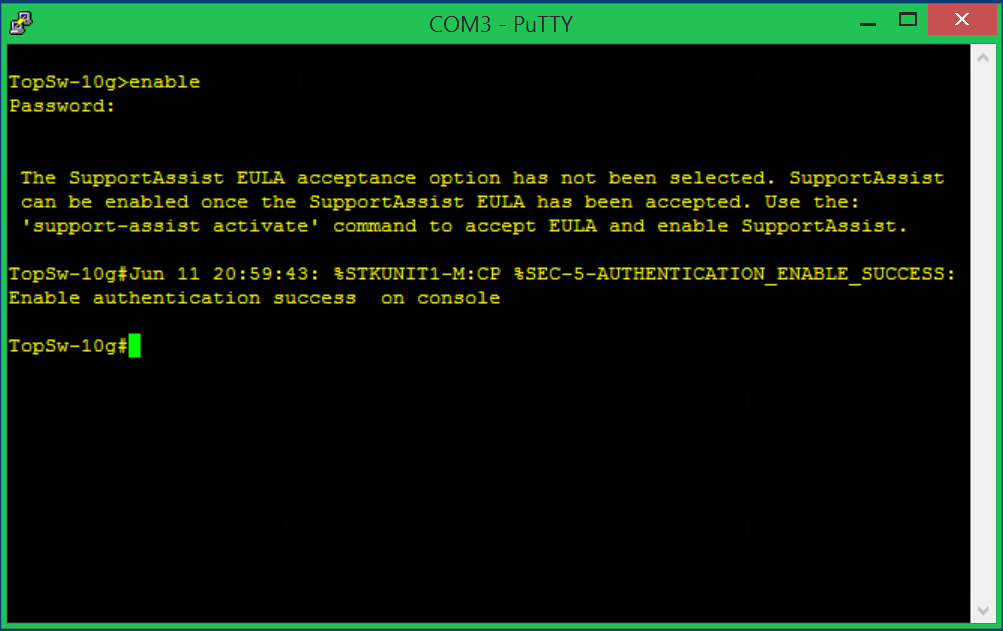
7. Enter the command "show tech-support" to generate the logs. This gathers logs and the switch's running configuration.
8. After the logs have been generated, type "exit" to log out of the switch.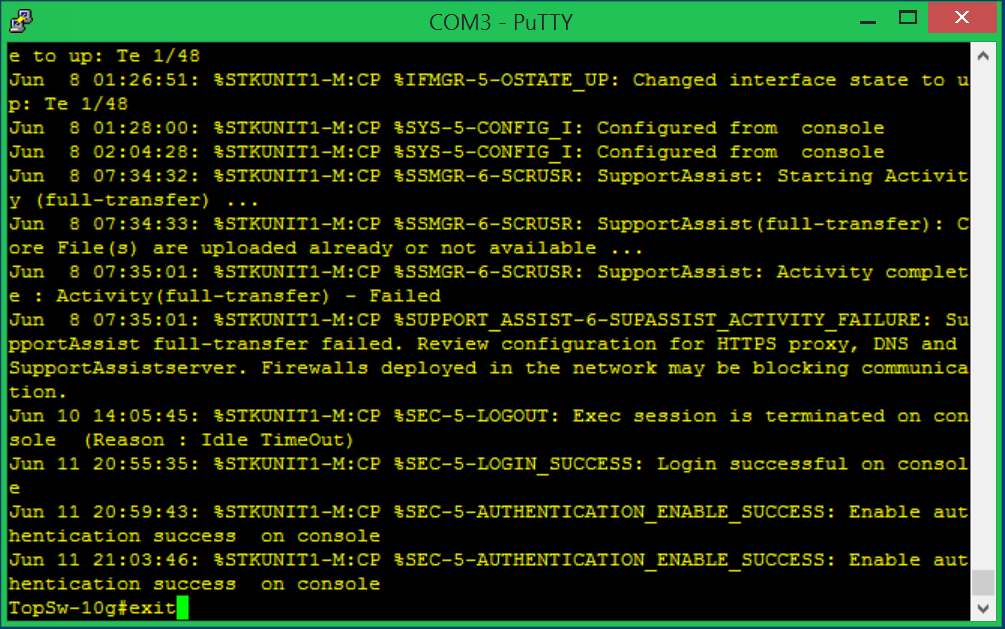
9. Repeat the above steps on any other switches for which you need logs.
10. Navigate to the folder that you specified in step 4 and gather all the log files.
Affected Products
VxRail, VxRail Appliance SeriesArticle Properties
Article Number: 000010735
Article Type: How To
Last Modified: 28 Mar 2025
Version: 4
Find answers to your questions from other Dell users
Support Services
Check if your device is covered by Support Services.