macOSでDell Data Securityのカーネル拡張子を許可する方法
Summary: Dell Endpoint Security Suite Enterprise for Mac、Dell Threat Defense、Dell Encryption Enterprise for Mac、CrowdStrike Falcon Sensor、VMware Carbon Black Cloud Endpointのカーネル拡張機能を許可する方法について説明します。 ...
Instructions
- 2021年2月で、Dell Encryption Enterprise for Macのメンテナンスが終了しました。この製品およびこの製品に関する記事は、Dellでは今後アップデートされません。
- 2022年5月をもって、Dell Endpoint Security Suite Enterpriseはメンテナンス終了となりました。この製品およびこの製品に関する記事は、Dellでは今後アップデートされません。
- 2022年5月をもって、Dell Threat Defenseはメンテナンス終了となりました。この製品およびこの製品に関する記事は、Dellでは今後アップデートされません。
- 詳細については、「Dell Data Securityの製品ライフサイクル(サポート終了およびライフサイクル終了)」を参照してください。代替記事に関する質問がある場合は、担当のセールス チームに連絡するか、またはendpointsecurity@dell.comにお問い合わせください。
- 現在の製品に関する追加情報については、Endpoint Securityを参照してください。
System Integrity Protection(SIP)は、macOS High Sierra(10.13)で強化され、新しいサード パーティーのカーネル拡張子(KEXT)をユーザーが承認する必要があるようになりました。この記事では、macOS High Sierra以降でDell Data Securityのカーネル拡張子を許可する方法について説明します。
対象製品:
- Dell Endpoint Security Suite Enterprise for Mac
- Dell Threat Defense
- Dell Encryption Enterprise for Mac
- CrowdStrike Falcon Sensor
- VMware Carbon Black Cloud Endpoint
対象オペレーティング システム:
- macOS High Sierra(10.13)以降
次の場合、ユーザーにこのセキュリティ機能からのメッセージが表示されます。
- 以下の新規インストールを実行:
- Dell Threat Defense
- Dell Endpoint Security Suite Enterprise
- Dell Encryption Enterprise for Mac
- CrowdStrike Falcon Sensor
- VMware Carbon Black Cloud Endpoint
- SIPが有効になっている。
次の場合は、ユーザーにはこのセキュリティ機能からのメッセージは表示されません。
- 以下のアップグレードを実行:
- Dell Threat Defense
- Dell Endpoint Security Suite Enterprise
- Dell Encryption Enterprise for Mac
- CrowdStrike Falcon Sensor
- VMware Carbon Black Cloud Endpoint
- SIPが無効になっている。
カーネル拡張機能の許可は、 ユーザー エクスペリエンス と エンタープライズ展開で異なります。詳細については、該当するオプションを選択してください。
ユーザーエクスペリエンス
macOS High Sierra以降でSIPが有効になっている場合、オペレーティング システムで、Dell Endpoint Security Suite Enterprise、Dell Threat Defense、Dell Encryption Enterprise for Mac、CrowdStrike Falcon Sensor、VMware Carbon Black Cloud Endpointのいずれかのインストール後に、拡張子ブロック アラートが発生します。これは、「システム拡張機能がブロックされました - プログラムが「[NAME]」によって署名された新しいシステム拡張機能を読み込もうとしました。これらの拡張機能を有効にする場合は、Security & Privacy System Preferences ペインに移動します。
![[System Extension]がブロックされました。](https://supportkb.dell.com/img/ka0Do0000005xZNIAY/ka0Do0000005xZNIAY_ja_1.jpeg)
- Dell Inc.(旧Credant Technologies)
- Credant Technologies
- Benjamin Fleischer(Encryption External Mediaポリシーが有効になっている場合)
インストールされているmacOSのバージョンによって、拡張子の承認は異なります。詳細については、v11をクリックしてください。X(Big Sur)またはv10.13.Xから10.15.X(High Sierra、Mojave、Catalina)。
v11.X(Big Sur)
macOS Big Surにシステム拡張子が導入されることに伴って、アプリケーションの新規インストール時にカーネル拡張子が正しくロードされない場合があります。macOS Big Surへアップグレードする前にインストールされたアプリケーションでは、カーネル拡張子を事前にインポートする必要があります。
アプリケーションが正常に開始されない場合は、アプリケーションのTeamIDをオペレーティング システム外で手動入力することが必要な場合があります。
- 影響を受けたMacをリカバリー モードで起動します。
詳細については、https://support.apple.com/ja-jp/HT201314
の『Intel 搭載 Mac コンピュータの macOS 復旧について』を参照してください。
- [Utilities]メニューをクリックして、[ターミナル]を選択します。
- ターミナルで、「sudo shasum -a 256 [FILENAME]」と入力して、
/usr/sbin/spctl kext-consent add [TEAMID]と入力して、Enterを押します。注:[TEAMID][TEAMID] = インストールしている製品のApple TeamID。- Apple TeamID:
- Dell Endpoint Security Suite Enterprise:
6ENJ69K633 - Dell Threat Defense:
6ENJ69K633 - Dell Encryption Enterprise:
VR2659AZ37- Dell Encryption External Media:
3T5GSNBU6Wv10.1.0以前: - Dell Encryption External Media:
VR2659AZ37v10.5.0以降:
- Dell Encryption External Media:
- CrowdStrike Falcon Sensor:
X9E956P446 - VMware Carbon Black Cloud Endpoint:
7AGZNQ2S2T
- Dell Endpoint Security Suite Enterprise:
- たとえば、VMware Carbon Black Cloud Endpointを手動で追加する必要がある場合は、と入力してEnterを押します。
/usr/sbin/spctl kext-consent add 7AGZNQ2S2Tと入力して、Enterを押します。
- ターミナル アプリを閉じ、macOSを再起動します。
v10.13.X~10.15.X(High Sierra、Mojave、およびCatalina)
- 影響を受けるMacにログインします。
- Apple Dockで、[System Preferences]をクリックします。
![[System Preferences]](https://supportkb.dell.com/img/ka0Do0000005xZNIAY/ka0Do0000005xZNIAY_ja_2.jpeg)
- [Security & Privacy]をダブルクリックします。
![[Security & Privacy]](https://supportkb.dell.com/img/ka0Do0000005xZNIAY/ka0Do0000005xZNIAY_ja_3.jpeg)
- [General]タブで、[Allow]をクリックしてKEXTをロードします。
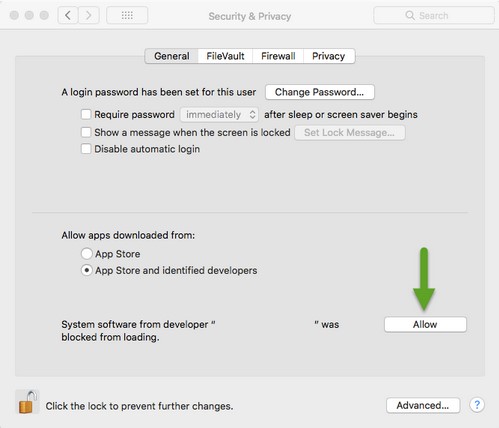 [Allow]ボタンは、インストール後30分間のみ使用できます。ユーザーがKEXTを承認するまでは、さらにロードしようとすると承認UIが再表示されますが、別のユーザー アラートはトリガーされません。
エンタープライズ導入
Apple管理ソリューション(Workspace One, Jamfなど)は、KEXTのユーザー承認を抑止するために、Apple TeamIDを使用することができます。
- Apple TeamID:
- Dell Endpoint Security Suite Enterprise:
6ENJ69K633 - Dell Threat Defense:
6ENJ69K633 - Dell Encryption Enterprise:
VR2659AZ37- Dell Encryption External Media:
3T5GSNBU6Wv10.1.0以前: - Dell Encryption External Media:
VR2659AZ37v10.5.0以降:
- Dell Encryption External Media:
- CrowdStrike Falcon Sensor:
X9E956P446 - VMware Carbon Black Cloud Endpoint:
7AGZNQ2S2T
- Dell Endpoint Security Suite Enterprise:
エンドポイントの許可リストに登録されているApple TeamIDを確認するには、次の手順を実行します。
- エンドポイントで[ターミナル]を開きます。
- タイプ
sudo kextstat | grep -v com.appleと入力して、Enterを押します。 - スーパーユーザーのパスワードを入力して、Enterを押します。