Complete Guide to Thunderbolt Ports on Dell Devices
Summary: This article is a collection of answers to the most frequently asked questions about the Thunderbolt ports and connectors on Dell equipment.
Instructions
What is Thunderbolt?
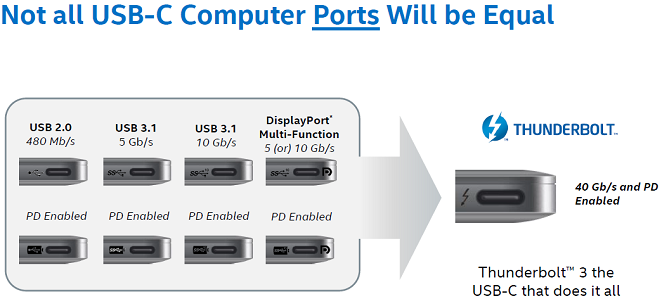
Thunderbolt is a powerful connection technology that combines data, video, audio, and power delivery through a single cable. Think of it as the ultimate all-in-one port that can handle everything from charging your laptop to connecting multiple 4K monitors and high-speed storage devices.
Originally developed by Intel, Thunderbolt has become the go-to solution for professionals who need fast, reliable connections with minimal cable clutter. Whether you're a creative professional working with large video files or a business user who wants a clean desktop setup, Thunderbolt makes it simple.
How Thunderbolt Works
Thunderbolt technology works by combining different types of signals into one connection:
- Data transfer: Move files between devices at lightning-fast speeds
- Video output: Connect monitors and displays with crystal-clear quality
- Audio transmission: Send high-quality audio to speakers or headphones
- Power delivery: Charge devices while transferring data
The technology uses active cables, which means they have built-in chips to maintain signal quality over longer distances. This ensures reliable performance whether you're connecting a single device or creating a chain of up to six devices.
Thunderbolt Versions Explained
Thunderbolt 4 (2020)
- Speed: 40 Gbps (same as Thunderbolt 3)
- Connector: USB-C
- Key improvements:
- Supports two 4K displays or one 8K display
- Better security features
- Guaranteed 32 Gbps PCIe speeds
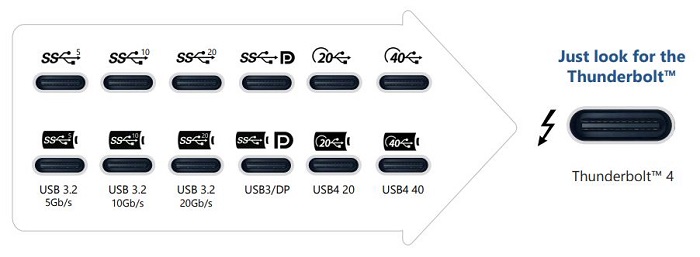
- Compatible with USB4 devices
Thunderbolt 3 (2015)
- Speed: 40 Gbps
- Connector: USB-C
- Key features:
- Supports 4K displays at 60Hz
- Up to 100W power delivery
- Works with regular USB-C devices
- Four times faster data transfer than previous versions
Thunderbolt 2 (2013)
- Speed: 20 Gbps
- Connector: Mini DisplayPort
- Key feature: Can stream and record 4K video simultaneously
- Compatibility: Works with Thunderbolt 1 devices
Thunderbolt 1 (2011)
- Speed: 10 Gbps
- Connector: Mini DisplayPort
- Key feature: First version to combine data and video in one cable
What You Can Connect
Displays and Monitors
Connect multiple high-resolution displays for expanded workspace. Thunderbolt 4 supports two 4K monitors at 60Hz or one stunning 8K display. Check your monitor's specs for details.
Storage Devices
External hard drives, SSDs, and flash drives benefit from Thunderbolt's high speeds. Perfect for video editing, large file transfers, and backup solutions.
Docking Stations
Transform your laptop into a desktop workstation with a single cable connection. Dell Thunderbolt docks provide multiple ports, display outputs, and laptop charging.
Audio Equipment
Professional audio interfaces take advantage of Thunderbolt's low latency for recording and music production.
Other Devices
- Tablets and smartphones (for charging and data)
- Video capture devices
- Network adapters
- External optical drives
Troubleshooting Common Issues
Device Not Recognized
- Check physical connections: Ensure cables are firmly connected and undamaged
- Test with another device: Try your Thunderbolt device on a different computer
- Update drivers: Download the latest Thunderbolt drivers from Dell Support
- Enable in BIOS: Some systems require Thunderbolt support to be enabled in BIOS settings

Poor Performance
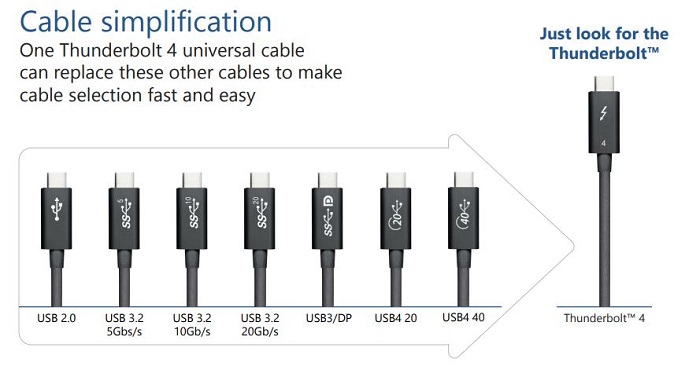
- Use certified Thunderbolt cables for best results
- Avoid mixing different device types in the same chain
- Check that your device supports the Thunderbolt version you're using
- Update your computer's BIOS and drivers
Power Delivery Issues
- Verify your Thunderbolt port supports power delivery (look for power rating specs)
- Use cables rated for the power requirements of your device
- Check BIOS power settings if using PowerShare features
Operating System Compatibility
Thunderbolt works seamlessly across all major operating systems:
- Windows: Full support with proper drivers installed
- Linux: Supported on most modern distributions
Frequently Asked Questions
1. What is a Thunderbolt port and why should I care?
A Thunderbolt port is like a super-powered connection that handles data, video, audio, and power all through one small cable. Think of it as the Swiss Army knife of ports - it can connect to monitors, hard drives, docking stations, and charge your devices all at the same time.
2. What's the difference between Thunderbolt versions?
Thunderbolt 1 and 2 use Mini DisplayPort connectors with speeds up to 20 Gbps. Thunderbolt 3 and 4 use USB-C connectors with speeds up to 40 Gbps and can charge laptops while supporting multiple 4K displays.
3. Can I use regular USB-C cables with Thunderbolt ports?
Yes, Thunderbolt 3 and 4 ports work with regular USB-C cables and devices. However, you'll only get basic USB speeds unless you use a proper Thunderbolt cable.
4. How many devices can I connect to one Thunderbolt port?
You can connect up to six devices in a "daisy chain" by plugging devices into each other in sequence. This is perfect for creating complex desktop setups from just one laptop port.
5. Why isn't my Thunderbolt device working?
Check that cables and connections are secure and undamaged. Test the device on another computer if possible. Try different Thunderbolt ports and make sure Thunderbolt support is enabled in your BIOS settings.
6. Do all Dell computers have Thunderbolt ports?
Not all Dell computers include Thunderbolt ports. They're typically found on premium laptops, workstations, and some desktops. Look for the lightning bolt symbol next to the port to confirm.
7. Can I charge my Dell laptop through a Thunderbolt port?
Yes, Thunderbolt 3 and 4 ports can deliver up to 100 watts of power for laptop charging. You can use a single cable to connect a docking station that charges your laptop and connects all your accessories.