How to Roll Back a Device Driver on Dell Windows Computers
Summary: Learn how to roll back a device driver to a previous version on Dell computers running Windows. Restore stability by following these simple steps to resolve driver conflicts or issues after an update. ...
Instructions
In some rare instances, a device can become unstable or stop functioning correctly when the device driver is updated.
Driver rollback feature in Microsoft Windows helps restore the device driver to a previous version. This helps avoid potential conflicts or issues with the new driver that is installed on the computer.
Driver issues can occur if the driver is corrupt or if another device driver is in conflicting with the updated version.
To roll back a device driver to a previous working version, follow these steps:
-
Press the Windows + R key on the keyboard.
-
In the Run dialog box, type
devmgmt.mscand press Enter. -
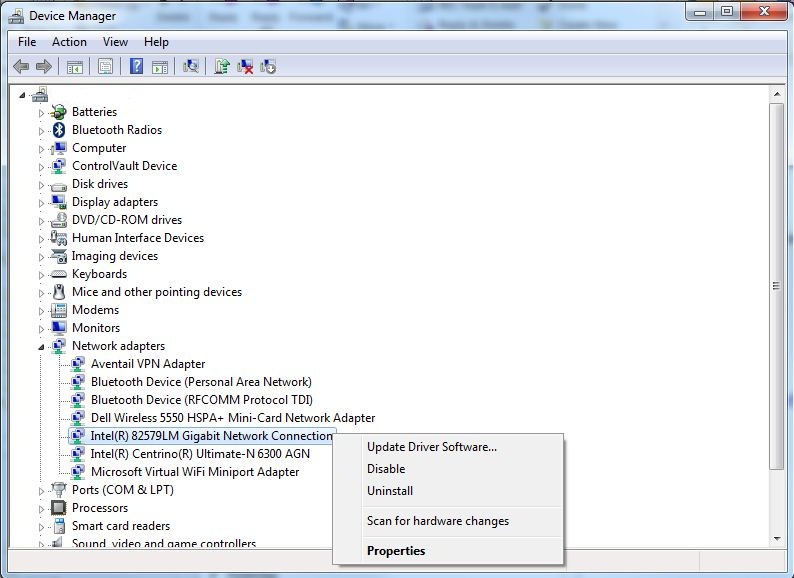
In the Device Manager window, right-click the suspected driver name and select Properties.
-
The device driver that has stopped functioning may be displayed in the Device Manager with an exclamation mark or a red cross.
- Go to the Driver tab and click Roll Back Driver.
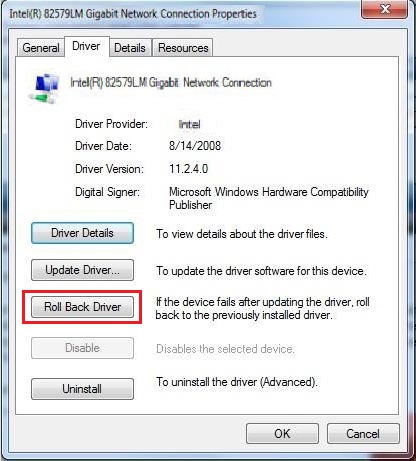 Note: If the rollback driver button is not available (disabled), it indicates that a previous version of the driver is not available on the computer. Uninstall the driver and install the latest version from the Dell Drivers & Downloads website.
 -
Restart the computer.
For more information, check out our Dell Driver Installation Guide.
How to Roll Back a Device Driver on Dell Windows Computers
Duration: 00:53
Closed captions: This video is available in multiple languages. Click the Closed Caption icon and select the language that you want.