NetWorker: vProxy: How to enable a VMware group with Dynamic Association and Rules
Summary: This KB provides an overview on how to configure dynamic rule-based VMware protection groups in NetWorker.
Instructions
NetWorker VMware protection groups can be configured to use dynamic rule-based tagging. Traditionally protection groups are configured using statically assigned Virtual Machines (VMs) by checking them in the protection group. Rules can be configured to protect VMs based on logical operators, for example "virtual machine Name Contains X." See the following recommendations when considering dynamic rule-based protection:
- The VMware Group can have a combination of Dynamic Association rule-based selections and manual virtual machine (VM) selections. It is suggested to separate the Dynamic Association rule-based selections and manual VM selections groups to prevent confusion.
- The NetWorker Management Console (NMC) or NetWorker Web User Interface (NWUI) can be used to create rules and assign rules to a group as these operations are not supported from the command line or the vCenter plug-in.
- If a VM is both manually selected and associated using the Dynamic Association rule, it protected if it is excluded in the "Preview All Virtual Machines" window.
- The "Preview All Virtual Machines" shows all Dynamic Association rule-based selections and manual VM machine selections, but there is no display differentiation in the Preview Virtual Machines window.
- The "Preview All Virtual Machines" may take some time to reflect changes in the vCenter inventory.
- When selecting the VMware Group in the NMC Protection tab, the Group details only shows the manually selected VMs.
- The VMware View will image, and table only shows manually selected VMs.
- The VMware Views
"VMs Protected"count only reflects the manually selected VMs. - The rules can be created as complex or simple to select the VMs from the vCenter inventory, but it is suggested to minimize confusion by creating them as simple as possible.
- The Rule definition values are case-sensitive.
Here is an example to create a new VMware Group and rule to dynamically select VMs contain the string RHEL.
1. Open the NMC and select the Protection tab.
2. In the left navigation pane, right click groups and select "New." The New Group option may also be accessed when creating a new Workflow.
3. In the "Create Group" window Identity section:
- Specify a name for the group, such as
"VMware_RHEL_Group." - In the Group Type dropdown, select "VMware."
- Select the "Dynamic Association" option.
- The remaining Identity section options do not impact the Dynamic Association, and any can be selected to best fit the environment.

- In the VMware Section:
- Select the appropriate vCenter from the drop-down or select the green plus option to add a new vCenter.
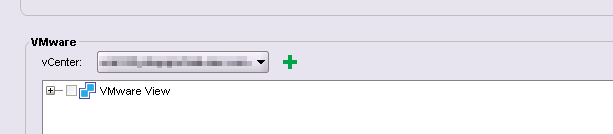
- Select the green plus option to add a new rule.

- In the "Create Rule" window:
- Specify a name for the rule, such as "RHEL_Name_Selection."
- Specify an appropriate "Match Type"
- ALL - This uses "AND" logic. Meaning that for a VMware object to be identified by the rule, it must meet the requirements of ALL of the rule definitions created. If a VMware object only meets some of the rule definitions, it is ignored by the rule. Essentially, "All or nothing."
- ANY - This uses "OR" logic. Meaning any VMware object that meets the specifications of any of the rule definitions is identified.
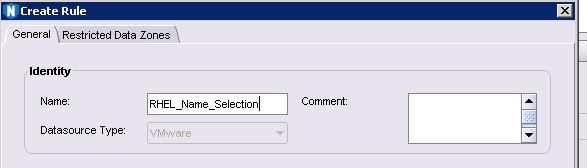
Figure 4: Dynamic rule creation wizard
- In the rule definition section, select the Add button. Then ensure that the rule definition includes the following:
- Type = Virtual Machine
- Property = Name
- Operator = Contains
- Value = RHEL
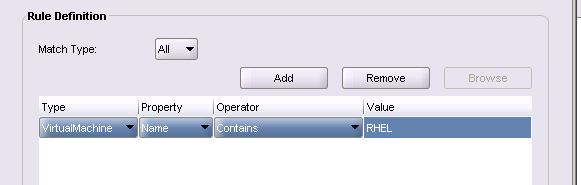
Figure 5: Rule definition creation in the NSR rule.
- Select OK in the "Create Rule" window.
4. The "RHEL_Name_Selection" rule should now be selected in the New Group window.
5. Select the "Preview All Virtual Machines" button to view the rule-based selected VMs. The window should show all the VMs that contain RHEL in the name.
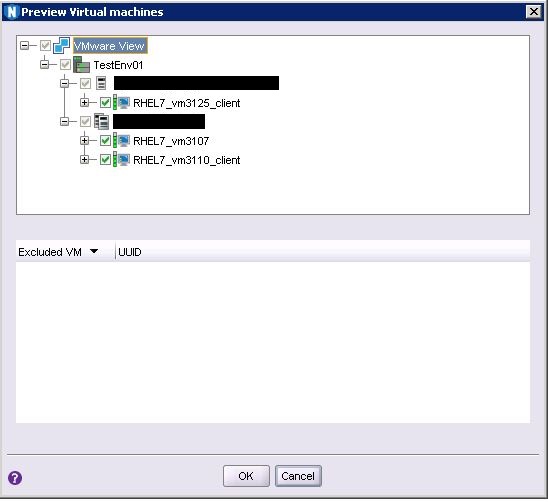
Figure 6: Preview Virtual Machines once NSR rule is applied in the NSR protection group.
Video: How to enable a VMware group with Dynamic Association and Rules.
Watch on YouTube

Additional Information
NVP vProxy: Category Tagging based VMware Protection
NVP vProxy: Troubleshooting Dynamic Rule Backups, VMs Missing From Selection
The following sections in the Dell NetWorker VMware Integration Guide contain further details about the feature:
- "Enabling a VMware group with Dynamic Association and applying rules in NMC"
- "Create a rule in NMC and associate the rule to a VMware group"