PowerProtect DP Series Appliances and IDPA: ACM Reports Failed Hypervisor Certificate Updates; Internal Backups Fail
Summary: This article describes the required steps to resolve vCenter certificate expiration issues for PowerProtect IDPA appliances. Users may also notice ACM alerts indicating "Failed to update certificates on Hypervisor Manager". It is recommended that users following the manual procedures in this document be familiar with VMware administration and Linux CLI management concepts. Contact technical support if issues with this procedure are encountered. ...
Symptoms
- Backups for internal appliance VMs (for example, DataProtection-ACM, DataProtection-VCSA, and so on) show as failed in the Avamar Activity Monitor.
- ACM UI shows an error message/alert stating
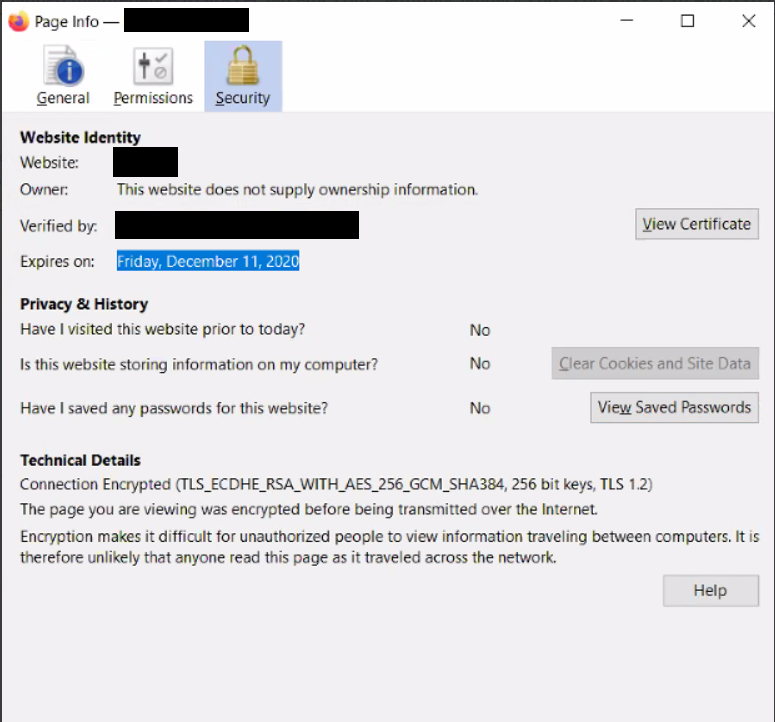
"Failed to update certificates on Hypervisor Manager" - The vCenter is inaccessible when connecting from a browser, and the application may show an expired certificate.
- Critical services are stopped on the vCenter.
root@dp4400vc [ ~ ]# service-control --status --all

Stopped:


     pschealth vmcam vmware-certificatemanagement vmware-content-library vmware-imagebuilder vmware-mbcs vmware-netdumper vmware-perfcharts vmware-pod vmware-rbd-watchdog vmware-sca vmware-sps vmware-topologysvc vmware-updatemgr vmware-vapi-endpoint vmware-vcha vmware-vpxd vmware-vpxd-svcs vmware-vsan-health vmware-vsm vsan-dps

Running:

applmgmt lwsmd vmafdd vmcad vmdird vmdnsd vmonapi vmware-analytics vmware-cis-license vmware-cm vmware-eam vmware-postgres-archiver vmware-rhttpproxy vmware-statsmonitor vmware-sts-idmd vmware-stsd vmware-vmon vmware-vpostgres vsphere-client vsphere-ui
- Expired certificates are found from the vCenter CLI.
root@dp4400vc [ ~ ]# for i in $(/usr/lib/vmware-vmafd/bin/vecs-cli store list); do echo STORE $i; /usr/lib/vmware-vmafd/bin/vecs-cli entry list --store $i --text | egrep "Alias|Not After"; done

STORE MACHINE_SSL_CERT

Alias : __MACHINE_CERT

Not After : Dec 12 03:53:38 2020 GMT

STORE TRUSTED_ROOTS

Alias : xxxxxxxxxxxxxxxxxxxxxxxxxxxxxxxxxxxxxxxx

Not After : Dec 6 15:53:38 2028 GMT

STORE TRUSTED_ROOT_CRLS

Alias : xxxxxxxxxxxxxxxxxxxxxxxxxxxxxxxxxxxxxxxx

STORE machine

Alias : machine

Not After : Dec 11 15:44:37 2020 GMT

STORE vsphere-webclient

Alias : vsphere-webclient

Not After : Dec 11 15:44:38 2020 GMT

STORE vpxd

Alias : vpxd

Not After : Dec 11 15:44:38 2020 GMT

STORE vpxd-extension

Alias : vpxd-extension

Not After : Dec 11 15:44:38 2020 GMT

STORE SMS

Alias : sms_self_signed

Not After : Dec 12 16:00:46 2028 GMT

STORE APPLMGMT_PASSWORD

STORE data-encipherment

Alias : data-encipherment

Not After : Nov 2 20:39:58 2022 GMT
- Expired Security Token Service (STS) certificates are found when running checksts.py from the vCenter CLI. See VMware article: Checking Expiration of STS Certificate on vCenter Server (79248)
for instructions on how to download and use this script.
root@dp4400vc [ /tmp ]# python checksts.py
1 VALID CERTS

================
LEAF CERTS:
None
ROOT CERTS:
[] Certificate XX:XX:XX:XX:XX:XX:XX:XX:XX:XX:XX:XX:XX:XX:XX:XX:XX:XX:XX:XX will expire in 2899 days (8 years).
1 EXPIRED CERTS

================
LEAF CERTS:
[] Certificate: XX:XX:XX:XX:XX:XX:XX:XX:XX:XX:XX:XX:XX:XX:XX:XX:XX:XX:XX:XX expired on 2020-12-11 15:43:56 GMT!
ROOT CERTS:
Cause
vCenter certificates are expired.
Resolution
Certificate Refresh Video Procedure.
Watch this video on checking vCenter certificate expiration dates:
Watch this video on renewing expired certificates:
For written instructions, please follow the rest of the Knowledge Article.
Automated Certificate Refresh Procedure.
An automated vc-certificate-refresher utility was produced to resolve this issue efficiently without the need for manual intervention to the ESXi host or vCenter. Start the automated utility by following the steps:
1. Log into ACM through SSH with root password
2. Create new directory under /tmp - mkdir vc-certificate-refresher
3. Download vc-certificate-refresher_csp_en_US_1.zip into this newly created directory (Using WinSCP)
4. cd /tmp/vc-certificate-refresher
5. Unzip vc-certificate-refresher_csp_en_US_1.zip > unzip vc-certificate-refresher_csp_en_US_1.zip
6. Run the command: java -jar vc-certificate-refresher-1.0.1.jar
If the above steps do not resolve the issue, or if the steps results in undesired behavior, please open a Support Request case ticket.
Manual Certificate Refresh Procedure
Prerequisites
-
Access to the "root" accounts of the IDPA vCenter and ESXi hosts is required.
-
Access to the
"administrator@vsphere.local"account of the IDPA vCenter is required. -
SSH access to the vCenter/VCSA is required.
-
A file transfer utility such as WinSCP is needed.
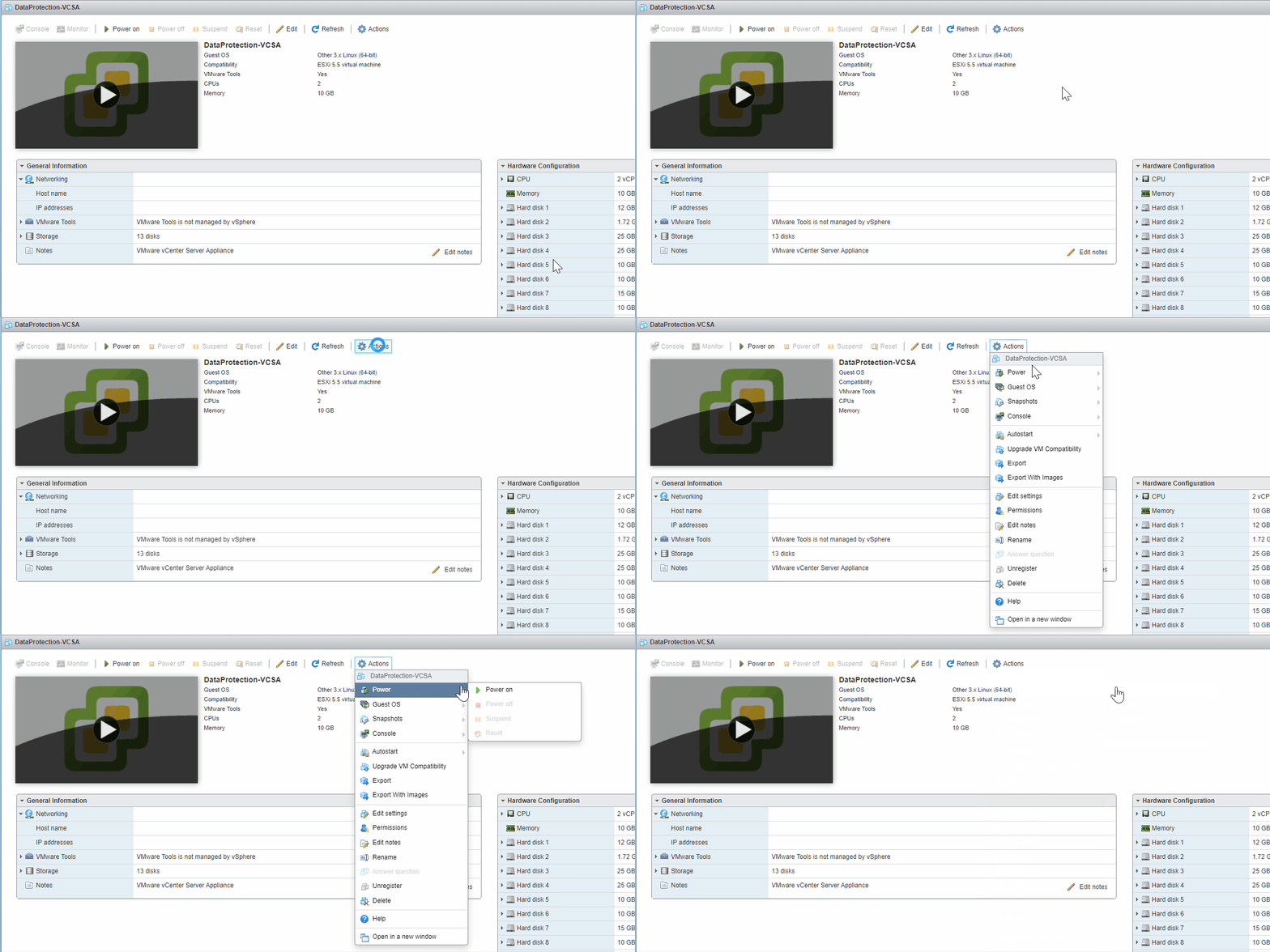
Create a Snapshot of the VCSA (vCenter) VM.
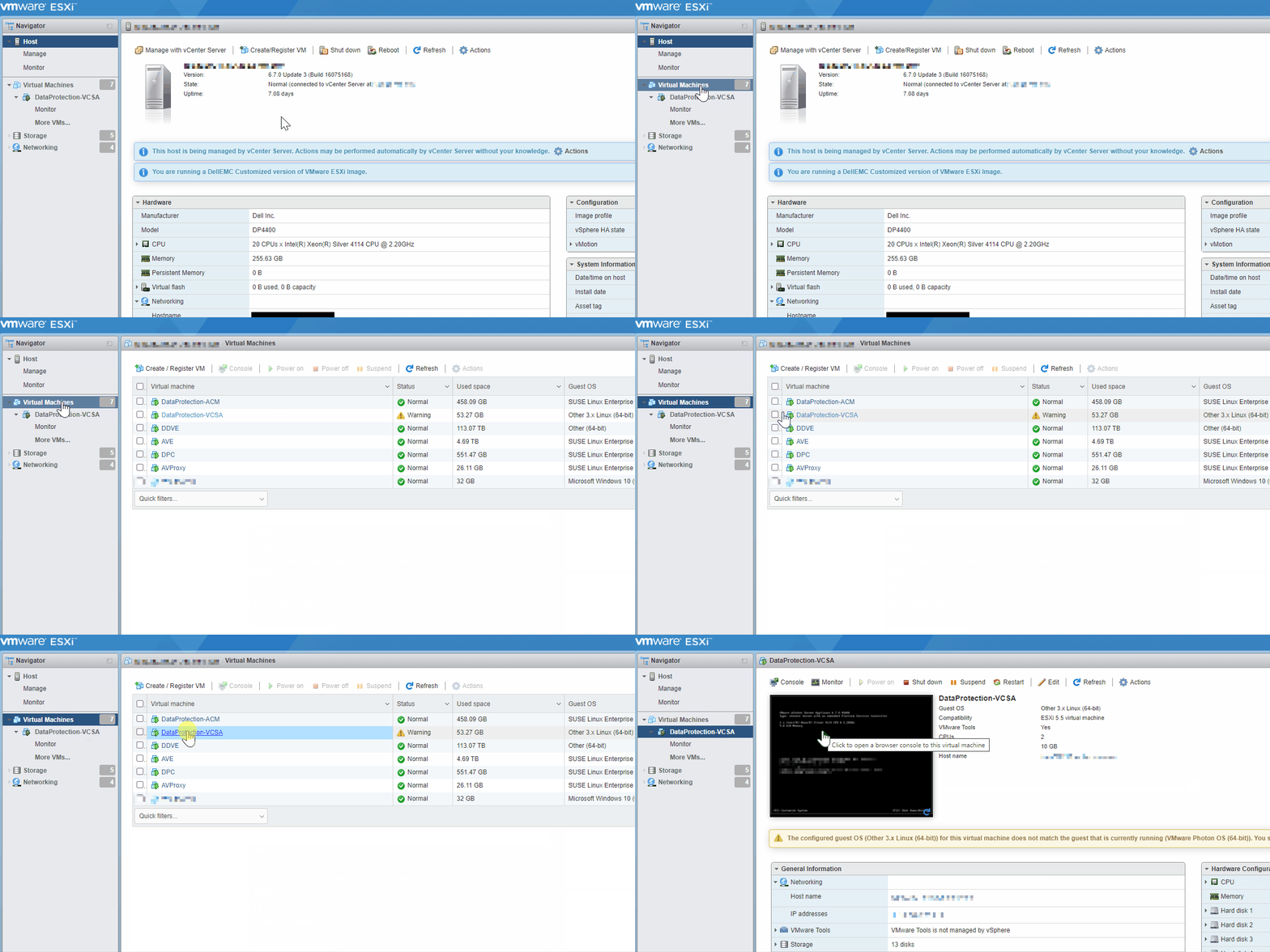
- Open the UI of the ESXi host on which the VCSA VM exists, then select the VCSA VM from the inventory.
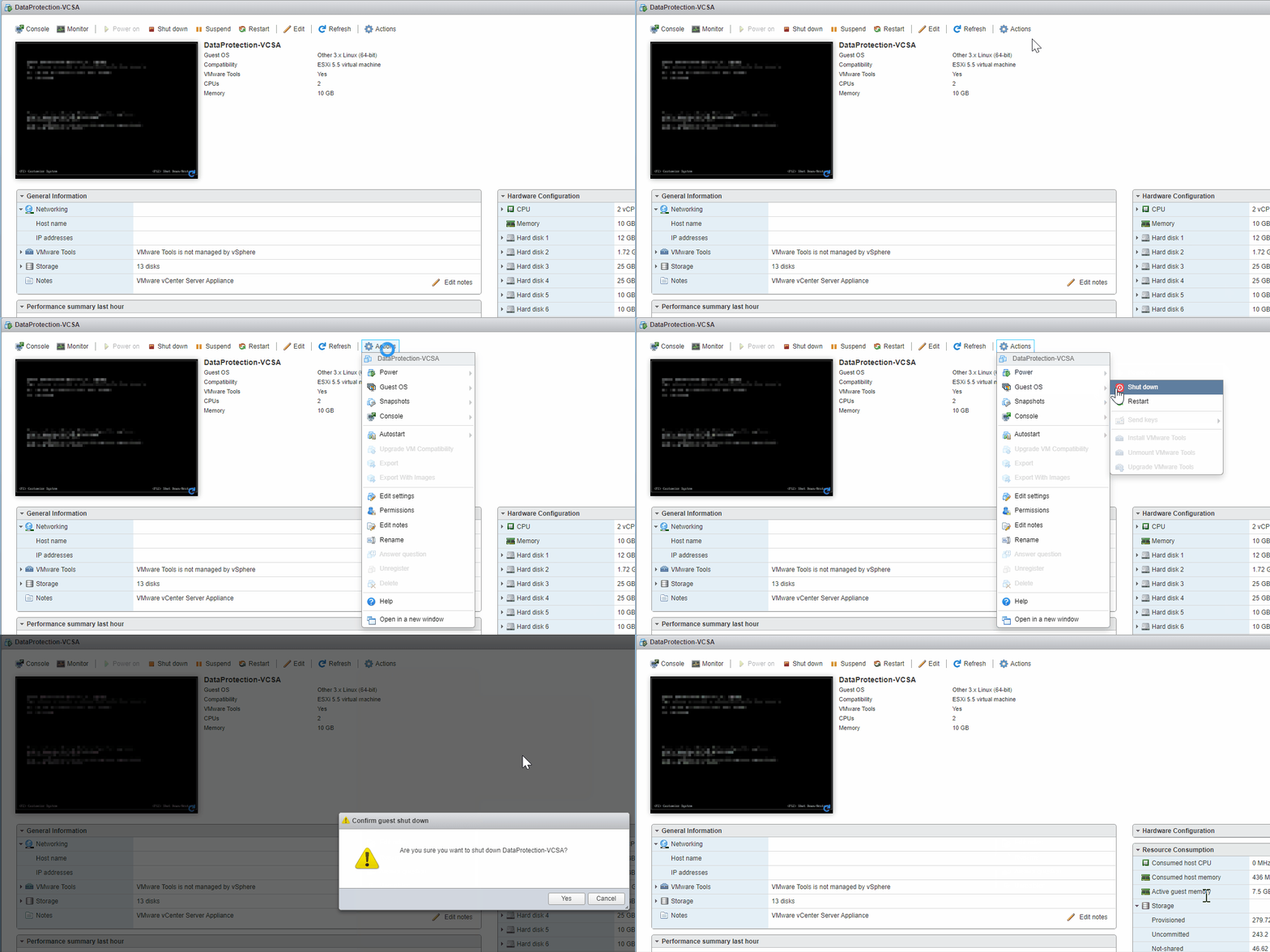
- Shut down the Guest operating system of the VCSA VM.
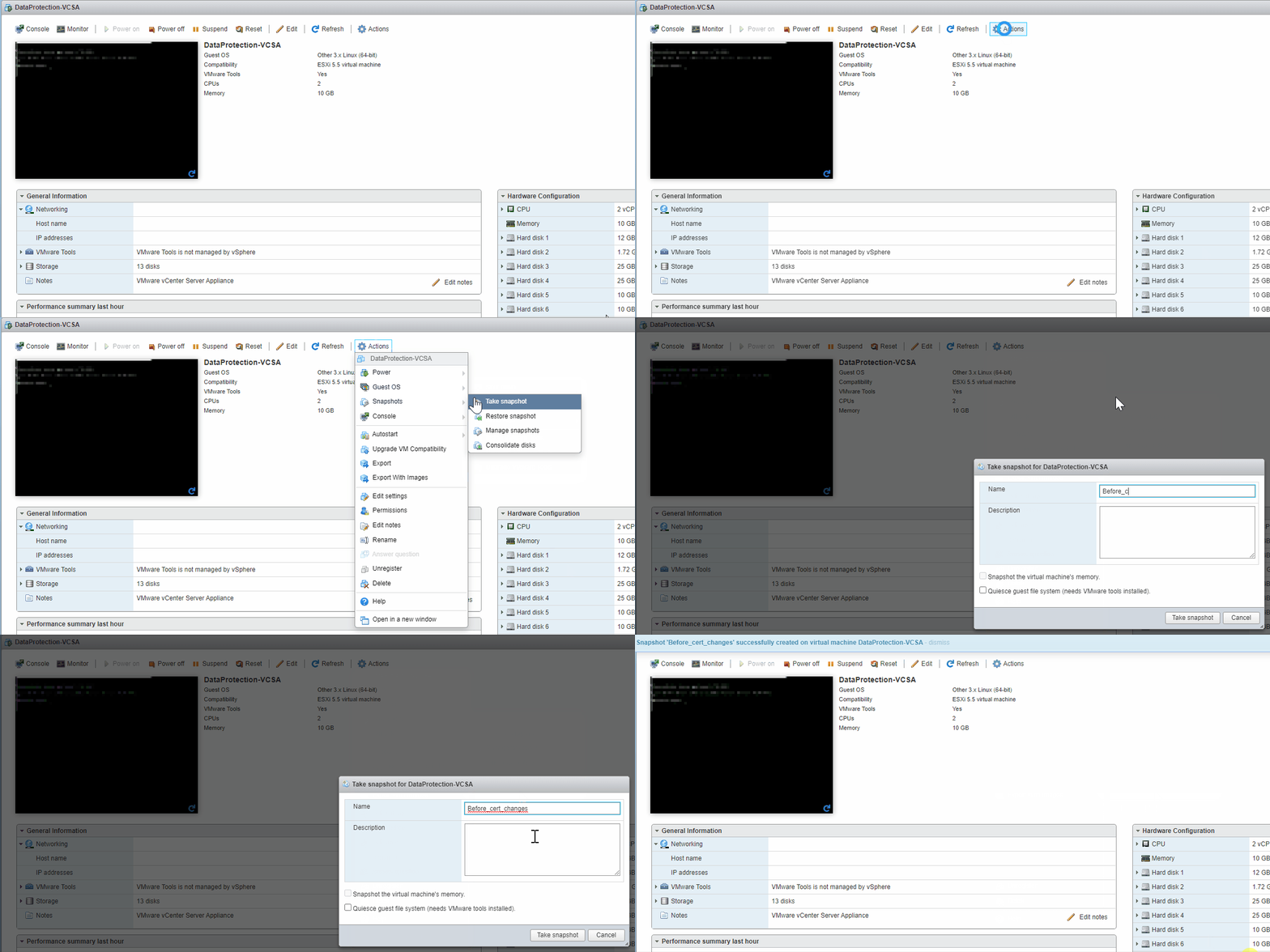
- Create a static snapshot of the VCSA VM (This allows returning to a previous state if later steps in the procedure fail).
- Right-click the VCSA VM in the ESXi UI.
- Select Take snapshot from the context menu.
- Power on the VCSA VM.
- Enable the Bash Shell for vCenter/VCSA. In order to copy files to the vCenter/VCSA, the default shell. See VMware article 2107727: must be changed to Bash.
- Open a PuTTY/SSH session to the vCenter as the "root" user.
- Run the command:
shell.set --enable True - Run the command: shell
- Run the command:
chsh -s /bin/bash root
- Refresh Security Token Service (STS) Certificates.
- Download the
"fixsts.sh"script from the VMware article: "Signing certificate is not valid" error in VCSA 6.5.x/6.7.x and vCenter Server 7.0.x (76719). - Move the
"fixsts.sh"script to the"/tmp"directory of the VCSA using a utility such as WinSCP. - Open an SSH/PuTTY session to the VCSA CLI as the "root" user and run the command shell to access the VCSA bash prompt.
- Run the command:
cd /tmp - Run the command:
chmod +x fixsts.sh - Run the command:
./fixsts.sh - Enter the administrator@vsphere.local password when prompted.
- The issue can be validated as resolved by running the
"checksts.py"script from VMware article: Checking Expiration of STS Certificate on vCenter Server (79248).
- Download the
- Refresh All Other Certificates.
- Run command:
/usr/lib/vmware-vmafd/bin/vmafd-cli get-pnid --server-name localhost - Record the FQDN of the VCSA.
- Run command:
/usr/lib/vmware-vmca/bin/certificate-manager - Select option 8.
- Enter the administrator@vsphere.local password when prompted.
- Use default values for all prompts except 'Hostname', and VMCA 'Name' (Use FQDN recorded earlier for both of these fields).
- Run command:
- Press Enter key to skip optional parameters or use Previous value.
Option [1 to 8]: 8
Do you wish to generate all certificates using configuration file : Option[Y/N] ? : Y

Please provide valid SSO and VC privileged user credential to perform certificate operations.

Enter username [Administrator@vsphere.local]:

Enter password:

certool.cfg file exists, Do you wish to reconfigure : Option[Y/N] ? : Y
Press Enter key to skip optional parameters or use Previous value.

Enter proper value for 'Country' [Previous value : US] :

Enter proper value for 'Name' [Previous value : CA] :

Enter proper value for 'Organization' [Previous value : VMware] :

Enter proper value for 'OrgUnit' [Previous value : VMware Engineering] :

Enter proper value for 'State' [Previous value : California] :

Enter proper value for 'Locality' [Previous value : Palo Alto] :

Enter proper value for 'IPAddress' (Provide comma separated values for multiple IP addresses) [optional] :

Enter proper value for 'Email' [Previous value : email@acme.com] :

Enter proper value for 'Hostname' (Provide comma separated values for multiple Hostname entries) [Enter valid Fully Qualified Domain Name(FQDN), For Example : example.domain.com] : <Recorded_FQDN>
Enter proper value for VMCA 'Name' :<Recorded_FQDN>

Continue operation : Option[Y/N] ? : Y
- Final Checks
- Open the management UI of the appliance vCenter to ensure that it is accessible and log in works.
- Open the Avamar UI. Test a manual backup of internal appliance VMs from the Avamar UI.
- From the vCenter CLI, run the command
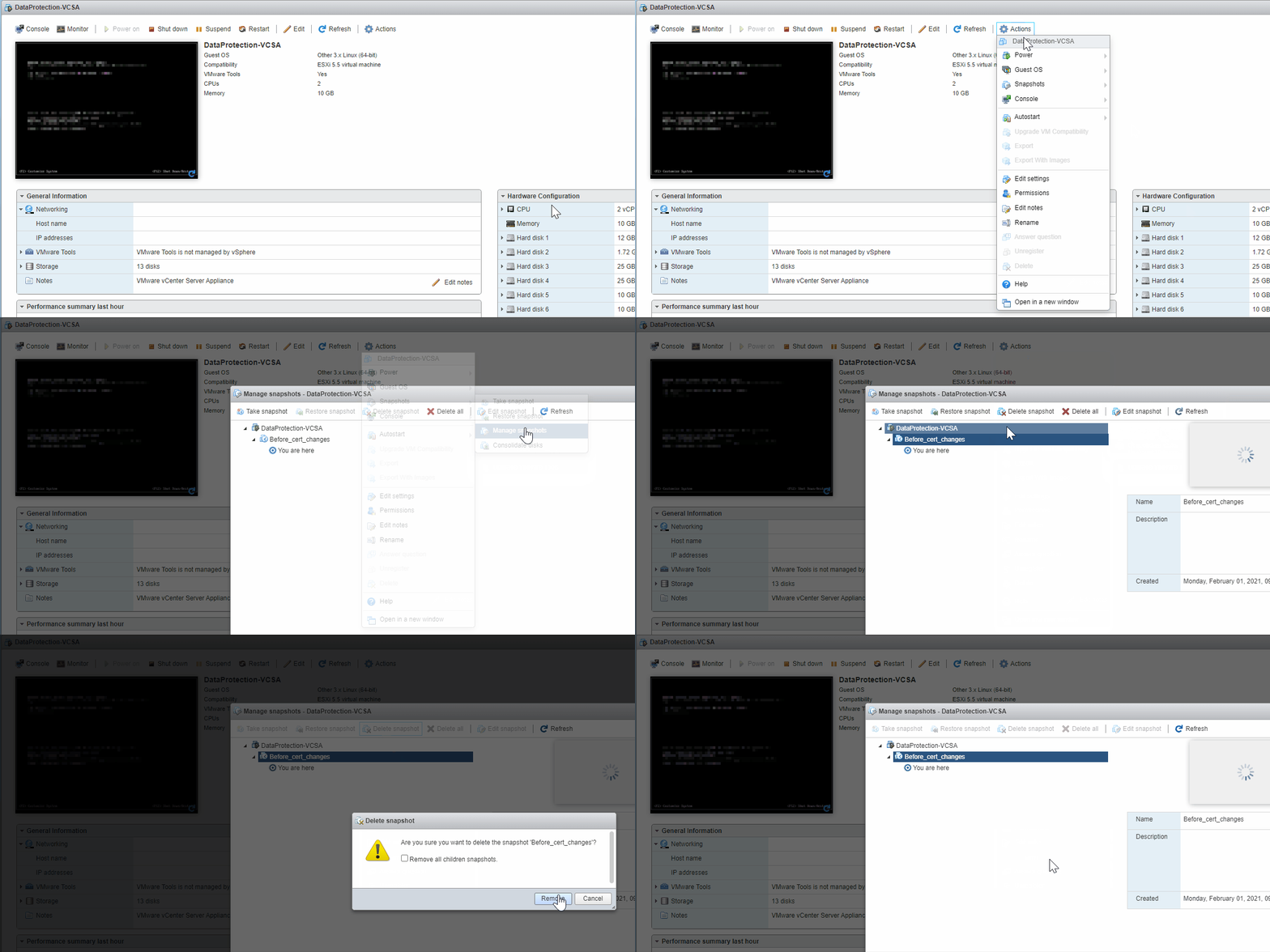
chsh -s /bin/appliancesh rootto restore the default shell. - Following confirmation of issue resolution, delete the previously created VCSA VM snapshot (See VMware article1025279: VMware recommends running on a snapshot for no more than 72 hours)
Additional Information
Documentation References
- Checking Expiration of STS Certificate on vCenter Server
- "Signing certificate is not valid" error in VCSA 6.5.x/6.7.x and vCenter Server 7.0.x.
- How to use vSphere Certificate Manager to Replace SSL Certificates
- Security Token Service STS
- Error when uploading files to vCenter Server Appliance using WinSCP
Notes
- This issue does not affect appliances that are deployed with IDPA version 2.5 or later. If the appliance was upgraded from a lower version, it is still impacted.
- The
"checksts.py"script may be downloaded directly from the VCSA CLI (Requires Internet access) by running the command:wget https://kb.vmware.com/sfc/servlet.shepherd/version/download/068f400000HW9InAAL -O checksts.py - The
"fixsts.sh"script may be downloaded directly from the VCSA CLI (Requires Internet access) by running the command:wget https://kb.vmware.com/sfc/servlet.shepherd/version/download/068f400000JAn50AAD -O fixsts.sh