CloudLink: CloudLink SSL Web certificate is Expiring
Summary: The CloudLink SSL Web certificate is expiring.
Symptoms
The CloudLink SSL Web certificate is expiring.
By default, CloudLink Center uses a self-signed certificate. When connecting to CloudLink Center, the web browser may display several security warnings. These warnings are displayed because self-signed certificates do not have the same level of trust as certificates issued and signed by a trusted certification authority (CA).
Cause
The SSL certificate date was set to expire.
To stop these warnings from being displayed, obtain and upload to CloudLink Center a certificate that has been signed for CloudLink by a trusted CA.
You can upload an externally generated certificate and private key, or generate a certificate signing request for a private key generated by CloudLink Center.
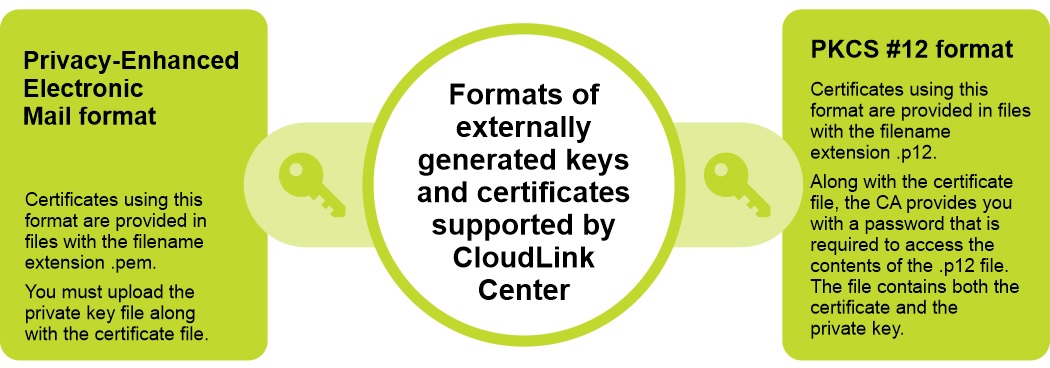
CloudLink supports two formats for externally generated keys and certificates:
Privacy-Enhanced Electronic Mail format and PKCS #12 format.
Resolution
Steps:
- Log in to CloudLink Center.
- Click Server > SSL > Upload. The Upload Web SSL Certificate is displayed.
- In the Upload Web SSL Certificate dialog box, enter the following information:
- From the Certificate Format list, select the required certificate format.
- In the Certificate box, click to select the certificate.
- In the Key box, click to select the key.
- Click Upload.