Dell 6-in-1 USB-C Multiport Adapter DA305 Usage and Troubleshooting Guide
Summary: The following article provides information about the Dell DA305 6-in-1 USB-C Multiport Adapter. You can reference each section to learn more about the features of the Dell DA305 6-in-1 USB-C Multiport Adapter and how to use it. ...
Instructions
Table of Contents:
- What is in the Dell DA305 6-in-1 USB-C Multiport Adapter box?
- 6-in-1 USB-C Multiport Adapter Features
- Setting up your 6-in-1 USB-C Multiport Adapter
- Troubleshooting
- Additional Information
Features a wide variety of ports. The compact 6-in-1 Dell USB-C Multiport Adapter offers video, network, data connectivity, and up to 90 W power pass-through for your laptop.

(Figure.1 Work faster and easier with the Dell DA305 6-in-1 USB-C Multiport Adapter)
What is in the Dell DA305 6-in-1 USB-C Multiport Adapter box?

(Figure.2 Dell DA305 6-in-1 USB-C Multiport Adapter Box Contents)
| 1 | 6-in-1 USB-C Multiport Adapter | 2 | Documents |
6-in-1 USB-C Multiport Adapter Features
Top View
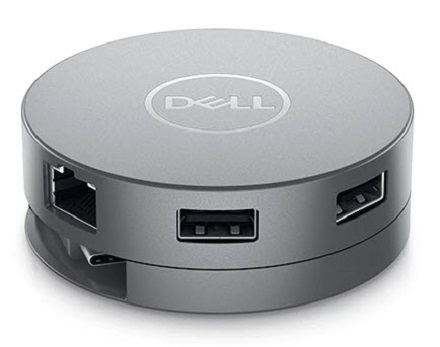
(Figure.3 Dell DA305 6-in-1 USB-C Multiport Adapter Top View)
Front View
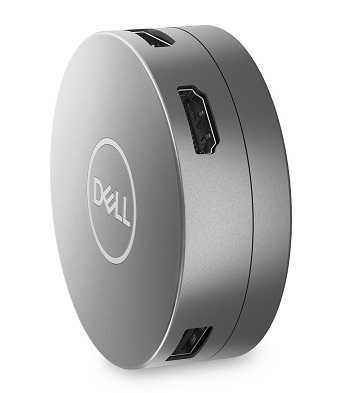
(Figure.4 Dell DA305 6-in-1 USB-C Multiport Adapter Front View)
Product Features
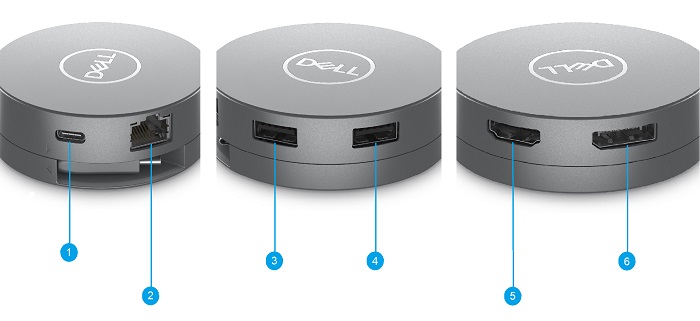
(Figure.5 Dell DA305 6-in-1 USB-C Multiport Adapter Product Features)
| 1 | USB Type-C 3.2 Gen2 Connector (Up to 90 W power pass through) | 2 | RJ-45 Ethernet Connector |
| 3 | USB Type-A 3.2 Gen2 Connector | 4 | USB Type-A 3.2 Gen2 Connector |
| 5 | HDMI 2.0 Connector | 6 | DisplayPort Connector |
6-in-1 USB-C Multiport Adapter Features
- Plug and Play Compliant
- Fast role swap
- 90 W power delivery
Setting up your 6-in-1 USB-C Multiport Adapter
Compatibility
Operating Systems:
-
Windows 11 64-bit, Windows 10 64-bit, Google Chrome, Red Hat Enterprise Linux, Ubuntu, and Apple macOS
Connecting the 6-in-1 USB-C Multiport Adapter
The Dell DA305 6-in-1 USB-C Multiport Adapter uses a 4.7 in integrated USB Type-C cable to connect to your Desktop or Laptop computer.
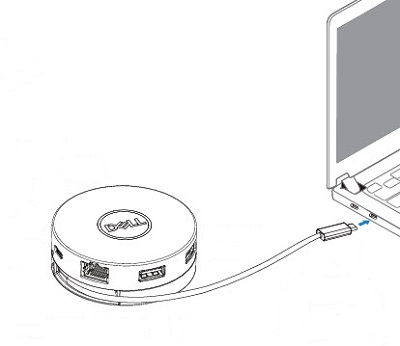
(Figure.6 USB Type-C Connector)
Using the Adapter
-
Using your fingertips, grip the bottom section of the adapter in one hand and grasp the top section in your other hand.
-
With the integrated USB Type-C cable facing you:
-
Turning it one way releases the integrated cable to be plugged to a computer.
-
Turning it the other way spools the integrated cable in and secures the cable when not in use.
-
Troubleshooting
| Problems | Possible solutions |
|---|---|
| Multiple displays are not working |
|
| Unable to read and write to an external SSD, HHD or Optical (CD, DVD, or Blu-Ray) drive when connected to the DA305 |
|
| Power Surge Message appears when a device is connected to the DA305 |
|
| Wake on LAN, PXE boot, and MAC address pass-through do not work on the DA305 |
|
| Resolution on monitor is lower than 4K 30 Hz when connected to the HDMI, DisplayPort, of the DA305 |
|
| Video and/or Audio performance issues |
|
| No Video on the monitor that is connected to the DA305 |
|
| Video is distorted or pixelated on the attached monitor |
|
| The DA305 is not charging your computer or is charging really slowly. You may see a yellow triangle with an exclamation mark on the battery status icon. |
|
Additional Information
Learn how to use and troubleshoot problems with the Multiport Adapter that you use with your computer. You can find information about Troubleshooting steps, How-To guides and relevant Support Videos for assistance on the Dell Support Site.
For the Dell DA305 6-in-1 USB-C Multiport Adapter User Guide, browse to the Dell DA305 6-in-1 USB-C Multiport Adapter Online Manual Page. Touch or click View PDF to the right of 6-in-1 USB-C Multiport Adapter User Guide. It is located in the Manuals and Documents section of the support page.
To troubleshoot wired network issues using the DA305 6-in-1 USB-C Multiport Adapter go to the following knowledge base article: Troubleshooting Ethernet Problems using the Dell DA305 and DA310 Multiport Adapters