EMSServiceHelper.exe does not automatically launch
Summary: Dell Data Protection | Encryption External Media Shield (EMS) user does not receive a password prompt when attempting to access data on an encrypted CD, DVD, or USB media.
Symptoms
Affected Products:
- Dell Data Protection | External Media Edition
- Dell Data Protection | Enterprise Edition
- Dell Data Protection | Personal Edition
Cause
This issue may occur when the EMSServiceHelper.exe does not load properly on an encrypted endpoint or C:\Windows\System32\EmsServicehelper.exe does not exist after an upgrade.
Resolution
The issue has been resolved in 8.7.
To work around this issue, uninstall the External Media Edition application.
- Uninstall Dell Data Protection | Encryption (through Add/Remove or Programs and Features if available) if you installed Dell Data Protection | Encryption using a script that you must uninstall it using the same install media as the version installed.
- To uninstall External Media Edition
- Run a command line similar to the following:
DDPE_XXbit_setup.exe /s /x /v"/qn /l c:\ddpe_uninstall.log"
- Run a command line similar to the following:
- Reinstall the External Media Edition application.
- Go to the EMSServiceHelper.exe found at C:\Windows\system32\EMSServiceHelper.exe.
- Right-click the file and choose:
- Properties
- Then click Details.
- Check the details tab for missing information such as:
- File version
- Product name
- Product version
- Copyright
- Language
- Right-click the file and choose:
Reference the figure below for an example is a corrupt EMSServiceHelper.exe file:
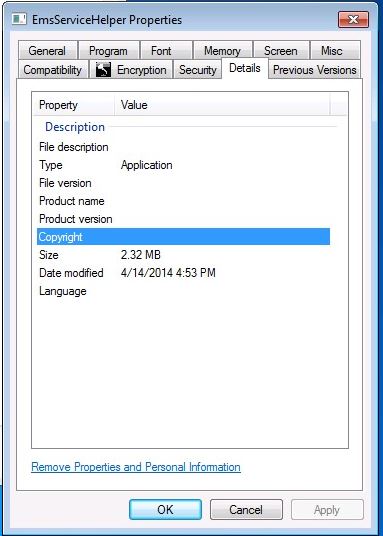
Figure 1: (English Only): Corrupt EMSServiceHelper.exe
Reference the figure below for an example of a working EMSServiceHelper.exe file:
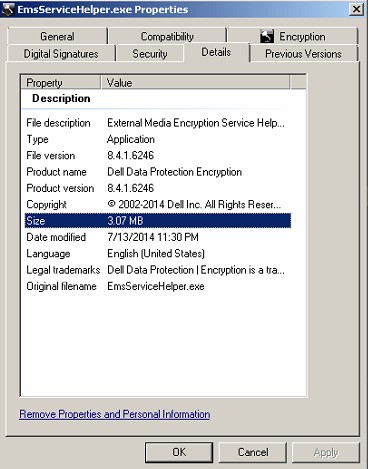
Figure 2: (English Only): Working EMSServiceHelper.exe
- Copy the EMSServiceHelper.exe file found at in
C:\Program Files\Dell\Dell Data Protection\Encryption\EMS\EMSServiceHelper.exe. - Paste it to C:\Windows\system32\EMSServiceHelper.exe to overwrite the file.
- Reboot the endpoint.
To contact support, reference Dell Data Security International Support Phone Numbers.
Go to TechDirect to generate a technical support request online.
For additional insights and resources, join the Dell Security Community Forum.