Dell Unity: How to Create Hidden Shares
Summary: This article shows how to create a hidden share in Dell Unity. A hidden share is a share that is not displayed in the network. Hidden shares have the same security permissions as normal shares. (User Correctable) Hidden shares may be useful if you want to share a file or folder but do not want it published for everyone to see. ...
This article applies to
This article does not apply to
This article is not tied to any specific product.
Not all product versions are identified in this article.
Instructions
Steps to create and access a hidden share:

In the Share Name field, add a

Choose any Options:

Verify the details and click Finish: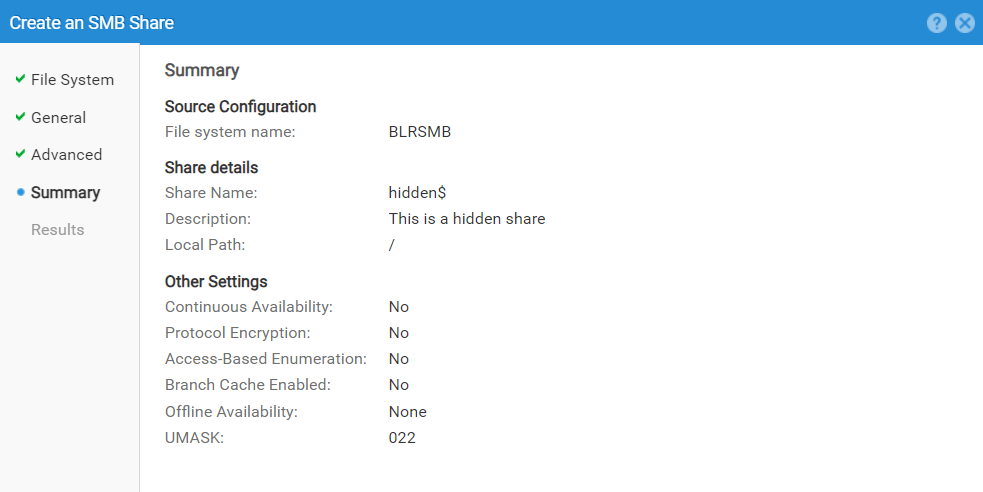
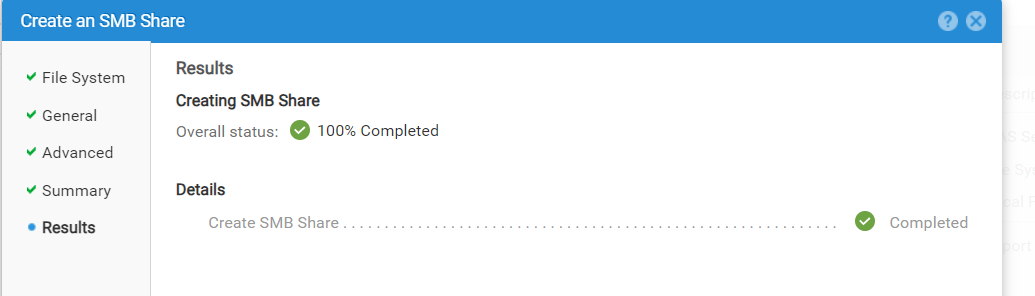
Hidden share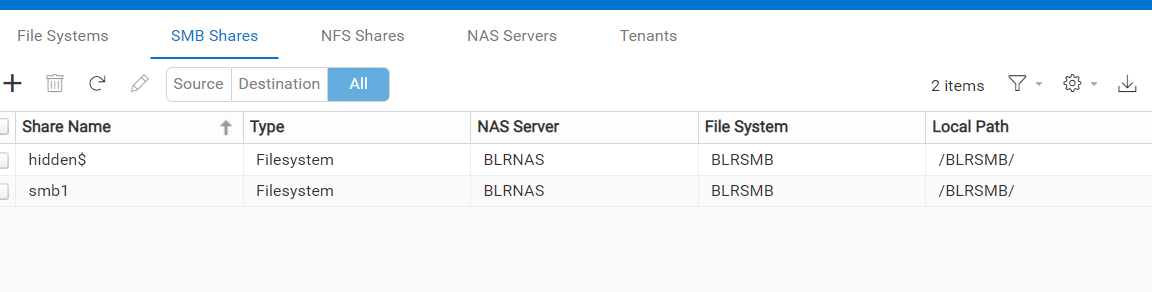
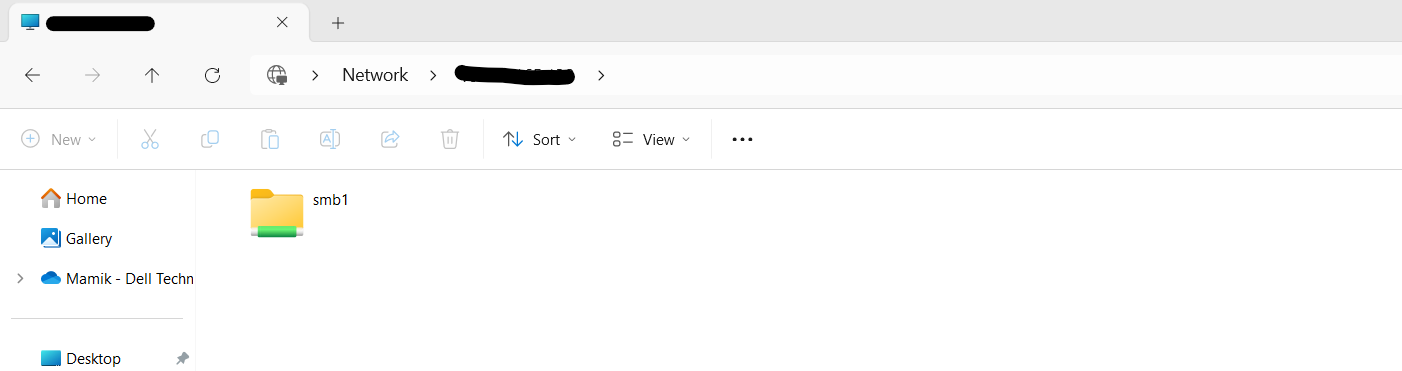
From the Host, we do NOT see the hidden share:

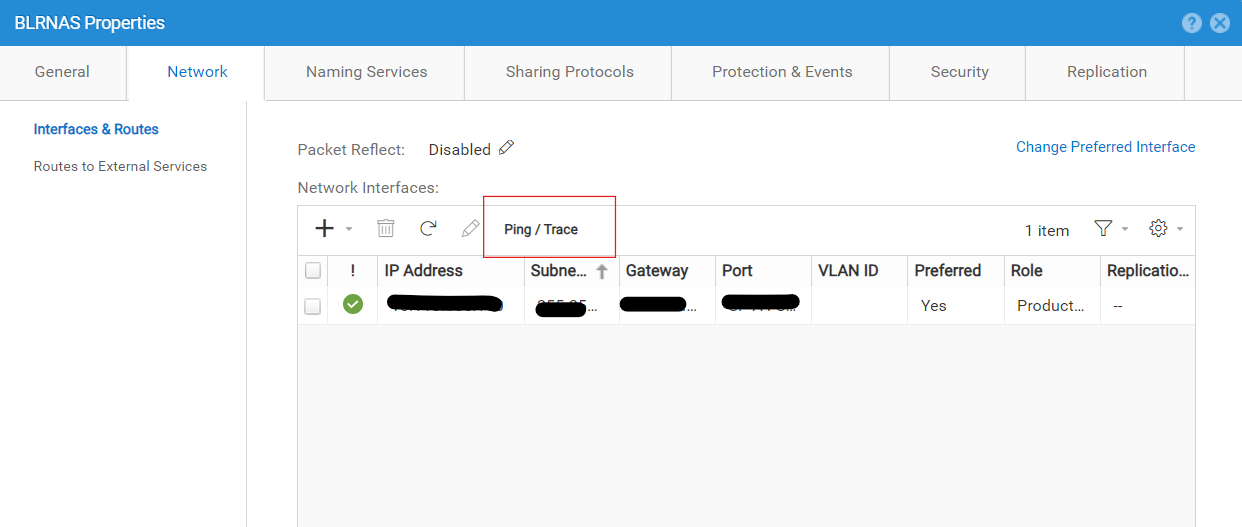
- Confirm the NAS Server to create the share and verify its protocols.
In this example, the NAS Server name is

BLRNAS.
BLRNAS is a standalone NAS Server with SMB and NFS protocols enabled:
- Confirm connectivity from the NAS Server to the host with pings:
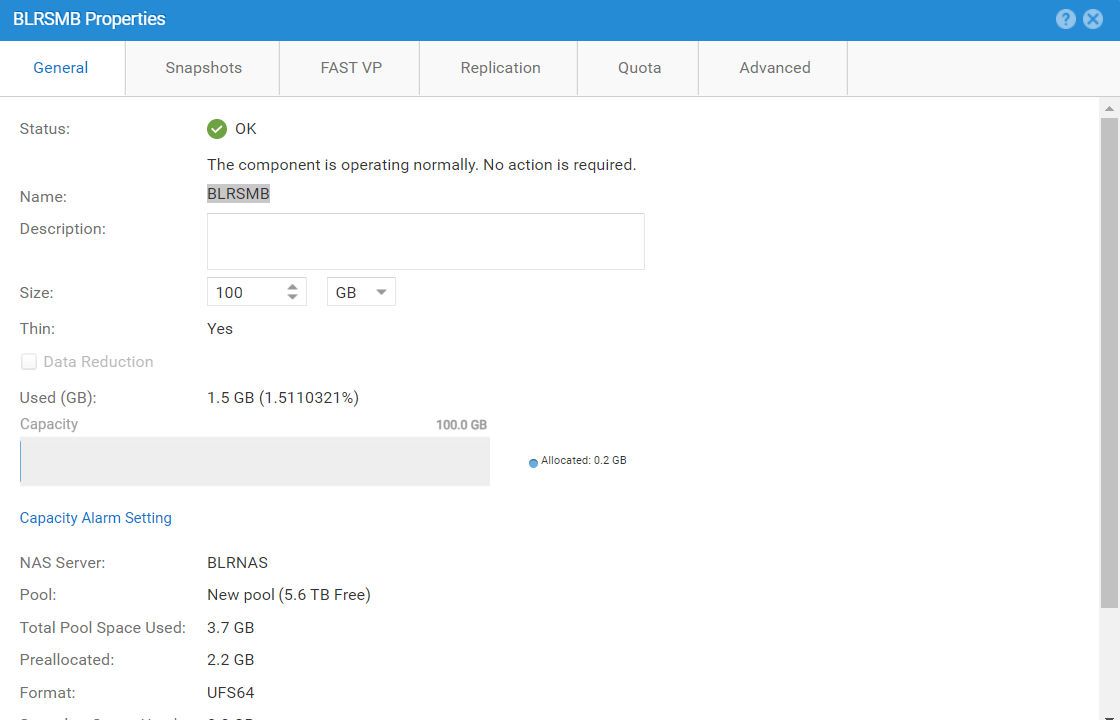
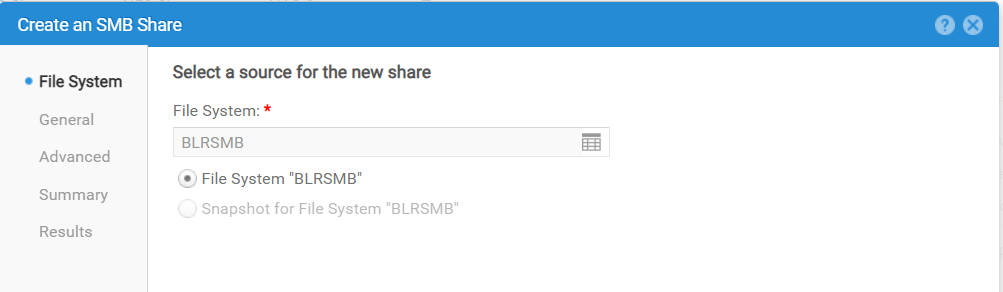
- Select the file system to create a hidden share.
In this example, the file system is BLRSMB:
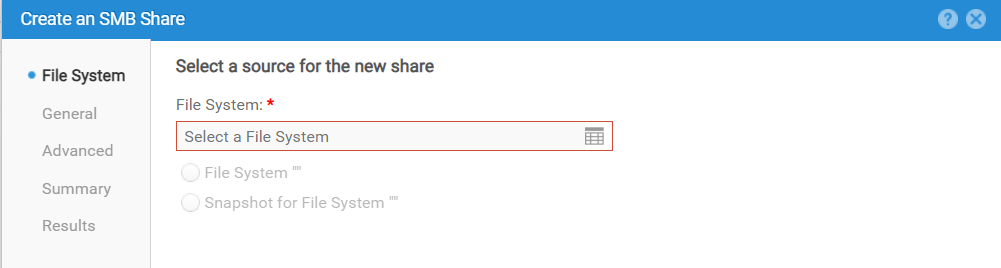
- Go to SMB Shares to create the hidden share:
In the Share Name field, add a
$ symbol at the end of the share name. In this example, the share name is hidden$ or <share_name>$.
Choose any Options:
Verify the details and click Finish:
Hidden share
hidden$ is created:
From the Host, we do NOT see the hidden share:
Specify the hidden share full path
\\<NAS_IP or NAME>\hidden$ to see the hidden share:
Affected Products
Dell EMC UnityArticle Properties
Article Number: 000228216
Article Type: How To
Last Modified: 11 Oct 2024
Version: 2
Find answers to your questions from other Dell users
Support Services
Check if your device is covered by Support Services.