PowerVault: TL2000 - TL4000 Tape Library - How to Upgrade the Firmware for the Tape Library and Tape Drives
Summary: This article provides information about how to upgrade the firmware for the Tape Library and Tape Drives for the PowerVault TL2000/TL4000 Tape Library.
Instructions
This article explains how to upgrade the firmware for the Tape Library and Tape Drives for the PowerVault TL2000/TL4000 Tape Library.
Information and where to download ITDT can be found on this article.
Table of content:
Tape Library Firmware Update
- First Method - Tape Library (Medium Changer) using the Remote Management Unit (RMU)
- Second Method - Tape Library (Medium Changer) using ITDT-DCR
Tape Drive Firmware Update
Preferred Method: Tape Library (Medium Changer) using the Remote Management Unit (RMU)
The following describes how-to upgrade or apply the TL2000/TL4000 tape library (medium changer) firmware using the RMU:
- If the RMU or Web Interface is not configured, use the following links to setup and configure the RMU:
- Using the IP Address configured to the web Interface, connect to it using a web browser like - Internet Explorer®, Firefox®, or Chrome®.
- Once in the web Interface, use the following menu path - Service Library > Upgrade Firmware
- Download the appropriate firmware from Dell's Support site.
- Ensure that the backup software services are stopped. If necessary, stop and disable these services, and restart or reboot the server.
- After the firmware has been downloaded and extracted, go back to the web Interface.
Note: Take note or remember the location of where the firmware files were downloaded and extracted.
- In the top center section of the page, you see "Upgrade Library Firmware" (Figure 1).
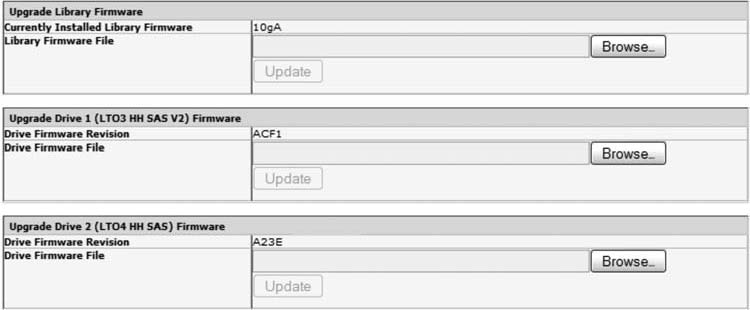
Figure 1: RMU Firmware Upgrade
- Select or click "Browse" and browse to the location where the Library Firmware file is located.
- Select the file, and once back to the Upgrade Firmware page, the "Update" button can be selected.
If the button is "grayed-out," the "Update" button cannot be selected, and this means that the Library Firmware was not selected. - After the firmware has been updated for the tape library and tape drives, it is recommended that the server is restarted.
- Once this is done, start the backup software services, and see how the backup software has engaged the tape library and tape drives.
- If the firmware for the tape library and tape drives is not seen as updated, engage the appropriate backup software vendor for technical support regarding this issue.
Alternate Method. Tape Library (Medium Changer) using ITDT-SE
Supported Java Runtime Environments (JREs) are :
- Java® 1.4.2_17 by Sun Microsystems and higher
- Java® 1.4.2 SR11 by IBM Corporation and higher
The following describes how-to upgrade or apply the TL2000/TL4000 tape library (medium changer) firmware using ITDT-DCR (Dell Customer Release):
- Download the appropriate firmware from Dell's Support site.
- Ensure that the backup software services are stopped. If necessary, stop and disable these services, and restart the server.
- After the firmware has been downloaded and extracted, go to or browse to the location where the files were extracted.
- Use the README_itdt_dcr.txt for the installation procedure for both Windows® and Linux®.
- Select the Scan button, once ITDT-DCR is running.
- Select the tape library that you would like to update with the firmware.
- Browse to the location where the firmware files were extracted.
- Choose the appropriate tape library firmware file and click Open.
- When the firmware update has been completed, ITDT-DCR should show a PASSED result next to the updated tape library (Figure 2).

Figure 2: ITDT-DCR Firmware Upgrade
- After the firmware has been upgraded for the tape library and tape drives, it is highly recommended that the server be restarted.
- Once this is done, start the backup software services, and see how the backup software has engaged the tape library and tape drives.
- If the firmware for the tape library and tape drives is not seen as updated, engage the appropriate backup software vendor for technical support regarding this issue.
Preferred Method: Tape Drives Using ITDT-DCR
Supported Java Runtime Environments (JREs) are:
- Java® 1.4.2_17 by Sun Microsystems and higher
- Java® 1.4.2 SR11 by IBM Corporation and higher
The following describes how-to upgrade or apply the TL2000/TL4000 tape drives firmware using ITDT-DCR (Dell Customer Release):
- Download the appropriate firmware from Dell's Support site.
- Ensure that the backup software services are stopped. If necessary, stop and disable these services, and restart the server.
- After the firmware has been downloaded and extracted, go to or browse to the location where the files were extracted.
- Use the README_itdt_dcr.txt for the installation procedure for both Windows® and Linux®.
- Select the Scan button, once ITDT-DCR is running.
- Select the drive that you would like to update with the firmware.
- Browse to the location where the firmware files were extracted.
- Choose the appropriate tape drive firmware file for that tape drive and click "Open."
- When the firmware update has been completed, ITDT-DCR should show a PASSED result next to the updated drive (Figure 2 - above).
- After the firmware has been upgraded for the tape library and tape drives, it is highly recommended that the server be restarted.
- Once this is done, start the backup software services, and see how the backup software has engaged the tape library and tape drives.
- If the firmware for the tape library and tape drives is not seen as updated, engage the appropriate backup software vendor for technical support regarding this issue.
Alternate Method. Tape Drives using the Remote Management Unit (RMU)
The following describes how-to upgrade or apply the TL2000 or TL4000 tape drives firmware:
- If the RMU or web Interface is not configured, use the following links to setup the RMU:
- Using the IP Address configured to the web Interface, connect to it using a web browser like - Internet Explorer®, Firefox®, or Chrome®.
- Once in the web Interface, use the following menu path - Service Library > Upgrade Firmware.
- Download the appropriate firmware from Dell's Support site.
- Ensure that the backup software services are stopped. If necessary, stop and disable these services, and restart the server.
- After the firmware has been downloaded and extracted, go back to the web Interface.
- In the top center section of the page, you see "Upgrade Drive" (Figure 1).

Figure 1: RMU Firmware Upgrade
- Select or click "Browse" and browse to the locate where the Library Firmware file is located.
- Select the file, and once back to the Upgrade Firmware page, the "Update" button can be selected.
If the button is "grayed-out," the "Update" button cannot selected, and this means that the Library Firmware was not selected. - After the firmware has been updated for the tape library and tape drives, it is recommended to restart the server.
- Once this is done, start the backup software services, and see how the backup software has engaged the tape library and tape drives.
- If the firmware for the tape library and tape drives is not seen as updated, engage the appropriate backup software vendor for technical support regarding this issue.