Dell Pro Keyboard and Mouse KM5221W Usage and Troubleshooting Guide
Summary: Unlock the full potential of the Dell Pro Keyboard and Mouse KM5221W with our usage and troubleshooting guide. Learn setup, features, and solutions to common issues.
Instructions
Table of Contents:
- What is in the Dell Pro Keyboard and Mouse KM5221W box
- Dell Pro Wireless Keyboard and Mouse Features
- Setting up your Dell Pro Wireless Keyboard and Mouse
- Troubleshooting
- Additional Information
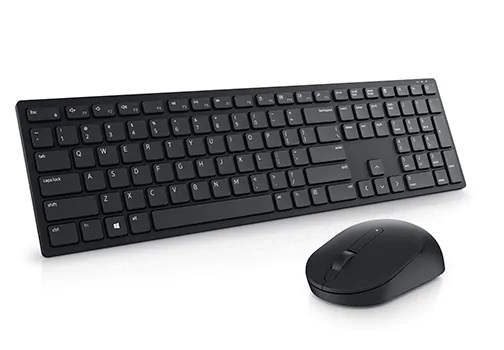
Figure 1: Work faster and smarter with the Dell Pro Keyboard and Mouse KM5221W.
Combining a discreetly powerful keyboard with an expertly designed mouse, the Dell Pro Wireless Keyboard and Mouse combo enhances your productivity. Powered by one of the industry's leading battery lives of up to 36 months, this combo is built to last.
What is in the Dell Pro Keyboard and Mouse KM5221W box
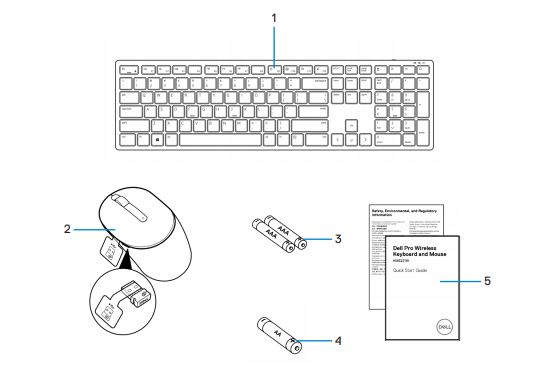
Figure 2: Dell Pro Keyboard and Mouse KM5221W Box Contents
| 1 | Keyboard | 2 | Mouse with USB receiver |
| 3 | AAA-type Batteries (for keyboard) | 4 | AA-type Battery (for mouse) |
| 5 | Documents |
Dell Pro Wireless Keyboard and Mouse Features
Top View
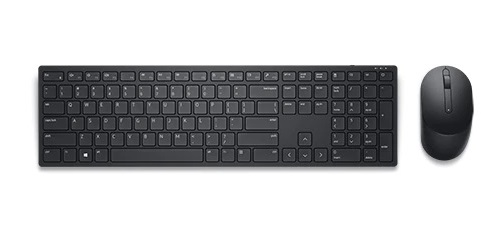
Figure 3: Dell Pro Keyboard and Mouse KM5221W Top View
Product Features

Figure 4: Dell Pro Keyboard and Mouse KM5221W Product Features
| 1 | Programmable keys | 2 | Dedicated keys |
| 3 | On and off switch | 4 | Caps lock. |
| 5 | Num lock | 6 | Battery life indicator |
| 7 | Scroll wheel (Programmable middle click button). | 8 | Battery indicator |
Setting up your Product Name
Compatibility
Wireless 2.4 GHz Connectivity:
- Windows 7, 8, 8.1 and 10, Mac, Linux (Red Hat and Ubuntu), Chrome, and Android operating system
Dell Peripheral Manager application:
- Windows 10 or later
Connecting the Dell Pro Wireless Keyboard and Mouse to your Computer
You can get step-by-step instructions in the following guides:
- Dell Peripheral Manager User's Guide
- Dell Pro Keyboard and Mouse KM5221W Quick Start Guide
- Dell Pro Keyboard and Mouse KM5221W User’s Guide
The guides are located on our support site:
Troubleshooting
| Problems | Possible solutions |
|---|---|
| The keyboard or mouse is not functioning. |
|
| Unable to pair the keyboard or mouse with your computer |
|
| The mouse pointer does not move Mouse left or right button does not work Keyboard buttons do not work Wireless connection is lost. |
|
| Troubleshooting a slow-moving cursor |
|
Additional Information
Dell Pro Keyboard and Mouse KM5221W Support Site
Learn how to use and troubleshoot problems with the Dell Pro Keyboard and Mouse KM5221W you use with your computer. You can find information about Troubleshooting steps, How-To guides, and relevant Support Videos for assistance.
For the Dell Pro Keyboard and Mouse KM5221W User Guide, browse to the Dell Pro Keyboard and Mouse KM5221W Online Manual Page. Select View PDF to the right of the Dell Pro Keyboard and Mouse KM5221W User Guide, located in the Manuals and Documents section.