Dell Pro Premium Compact Mouse MS7421W and Troubleshooting Guide
Summary: The following article provides information about the Dell Pro Premium Compact Mouse MS7421W. You can reference each section to learn more about the features of the Dell Pro Premium Compact Mouse MS7421W and how to use it. ...
This article applies to
This article does not apply to
This article is not tied to any specific product.
Not all product versions are identified in this article.
Instructions
Table of Contents:
- What is in the Dell Pro Premium Compact Mouse MS7421W box
- Premier Rechargeable Wireless Mouse Features
- Setting up your Premier Rechargeable Wireless Mouse
- Troubleshooting
- Additional Information
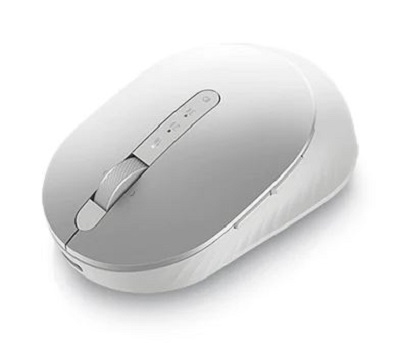
(Figure.1 Work faster and smarter with the Dell Pro Premium Compact Mouse MS7421W)
"You can get uninterrupted productivity with a rechargeable mouse that offers up to six months battery life on a full charge. Connect up to three devices and recharge in two minutes for a full day’s work."
What is in the Dell Pro Premium Compact Mouse MS7421W box

(Figure.2 Dell Pro Premium Compact Mouse MS7421W Box Contents)
| 1 | Premier Rechargeable Wireless Mouse | 2 | Documents |
| 3 | Dell Universal Dongle | 4 | USB Type-C Cable for Recharging |
Premier Rechargeable Wireless Mouse Features
Top View

(Figure.3 Dell Pro Premium Compact Mouse MS7421W Top View)
Left View

(Figure.4 Dell Pro Premium Compact Mouse MS7421W Left View)
Product Features

(Figure.5 Dell Pro Premium Compact Mouse MS7421W Product Features)
| 1 | Programmable Buttons | 2 | Connection Mode Button |
| 3 | Scroll Wheel (Programmable: Left Tilt, Click, Right Tilt) | 4 | Mode of Pairing: Bluetooth 5.0
|
| 5 | LED Indicator
|
Bottom View

(Figure.6 Bottom View)
| 6 | Optical Sensor | 7 | Power Switch |
Charging Connector

(Figure.7 Charging Connector View)
| 8 | USB-C Charging Connection |
Setting up your Premier Rechargeable Wireless Mouse
Compatibility
Operating Systems:
- Wireless 2.4 GHz Connectivity:
-
Windows 7, 8, 8.1, 10 and 11; Mac; Linux (Red Hat 8.0/Ubuntu 18.04); Chrome; and Android operating system
-
- Wireless Bluetooth 5.0 Connectivity:
-
Windows 8.1, 10 and 11; Mac; Linux (Red Hat 8.0/Ubuntu 18.04); Chrome; and Android operating system
-
Using the Dell Peripheral Manager application:
-
Windows 10 or later
Connecting the Premier Rechargeable Wireless Mouse to Charge
The Dell Pro Premium Compact Mouse MS7421W uses a USB Type-C to USB Type-C cable to connect to your Desktop, Laptop, or Tablet and charge.

(Figure.8 USB Type-C Cable)
Connecting the Premier Rechargeable Wireless Mouse to your Computer
You can get step-by-step instructions on the following guides:
- Dell Peripheral Manager User's Guide
- Dell Pro Premium Compact Mouse MS7421W Quick Start Guide
- Dell Pro Premium Compact Mouse MS7421W User’s Guide
The guides are located on our support site:
Troubleshooting
| Problems | Possible Causes | Possible Solutions |
|---|---|---|
| You are unable to use the wireless mouse. | The white LED indicator at the top of the wireless mouse does not light up when the wireless mouse is turned on. |
|
| You are unable to pair the wireless mouse to the computer using Bluetooth. | The Bluetooth icon on the computer does not light up when connecting the wireless mouse to the computer. |
|
| The mouse pointer does not move. | The wireless mouse pointer is not responding. |
|
| The left or right buttons do not work. | No response when the left or right mouse button is pressed. |
|
| You are unable to pair the wireless mouse with the computer. | A wireless pairing error message is received while pairing the wireless mouse with the computer. |
|
| The wireless connection is lost. | The mouse that was previously paired does not work on the computer now. |
|
Additional Information
Learn how to use and troubleshoot problems with the Mouse you use with your computer. You can find information about Troubleshooting steps, How-To guides, and relevant Support Videos for assistance.
To get the Dell Pro Premium Compact Mouse MS7421W User Guide:
- Browse to: Dell Pro Premium Compact Mouse MS7421W Documentation Page
- It is located under the Manuals and Documents section.
- You can touch or click View PDF or View Page on the right side of the screen across from the Mouse User Guide listing.
Affected Products
Dell Pro Premium Compact Mouse MS7421WArticle Properties
Article Number: 000182231
Article Type: How To
Last Modified: 18 Jul 2025
Version: 5
Find answers to your questions from other Dell users
Support Services
Check if your device is covered by Support Services.