Step-by-Step Guide to Install McAfee Premium from Dell
Summary: Secure your digital life with ease - learn how to install McAfee+ Premium for unparalleled online protection. Click for a step-by-step guide!
This article applies to
This article does not apply to
This article is not tied to any specific product.
Not all product versions are identified in this article.
Instructions
Affected Products:
- McAfee+ Premium
- McAfee Multi-Device Security
A thirty-day trial of McAfee+ Premium is provided automatically on select consumer and commercial Dell computers running Windows. Customers may purchase a McAfee+ Premium subscription:
- At the point of sale (POS) of a Dell computer
- After point of sale (APOS) of a Dell computer
Note: For information about changing your McAfee subscription, reference How to Cancel or Renew your McAfee Subscription Purchased at Dell.
For more information, click POS or APOS for McAfee+ Premium.
POS
- Click New Setup (choose this if the application is not installed on the computer)
Or, - Click Reinstall (choose this if the application is installed on the computer).
New Setup
Warning: These steps are intended for customers who have never activated McAfee+ Premium. Reference the Reinstall section if you previously registered an account with McAfee.
McAfee+ Premium is preinstalled on all commercial and consumer computers running Windows. On boot, McAfee+ Premium is available directly in the Windows system tray.
Note: If the computer was reimaged prior to activating McAfee+ Premium, contact Dell technical support and provide this KB article (000193010) to the agent.
To register the product:
- In the Windows Notification Area, click Show hidden files and then double-click the McAfee+ Premium system tray icon.

- Click Get started.

- Log in with a pre-existing McAfee account (go to step three) or click Register Now to create a new account.
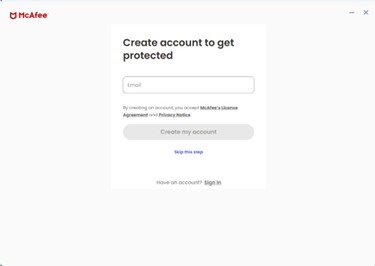
- Once the user clicks Register Now, they are prompted to create an account
- Enter an email address and click Create my Account Button
- Follow the prompts
Note:- A McAfee account is generated during the initial setup of a McAfee subscription.
- For issues accessing your McAfee account:
- Validate the email used to associate with the users McAfee subscription.
- To protect your privacy, Dell technical support is unable to validate the email used to setup the McAfee subscription. Contact the vendor directly for assistance at https://service.mcafee.com/
.
- Once the user clicks Register Now, they are prompted to create an account
- Click Account and click My Subscription to verify your subscription status
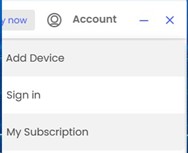 Note: For any discrepancies with the subscription duration and the purchase duration, reference How to Get Support for McAfee Products Sold at Dell.
Reinstall
Note: An active McAfee+ Premium subscription is required to install the product.
To install the product:
- Go to https://www.mcafee.com/
- In the upper right, click Login.
- Sign in using your McAfee account.
 Note:
Note:- A McAfee account is generated during the initial setup of a McAfee subscription.
- For issues accessing your McAfee account:
- Validate the email used is tied to a McAfee subscription.
- To protect your privacy, Dell technical support is unable to validate the email used to setup the McAfee subscription. Contact the vendor directly for assistance at https://service.mcafee.com/
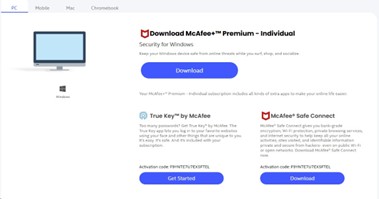
- Go to Device and click Download to more devices
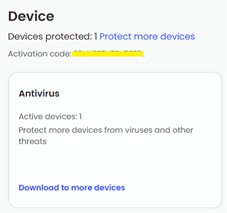
- Click Download on this Device we get Options to Download for PC, Mobile, Mac, Chrome Book Select and Download
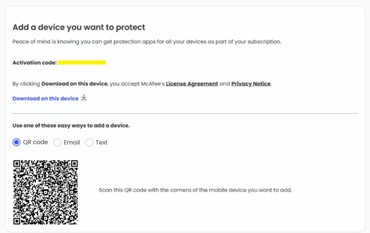
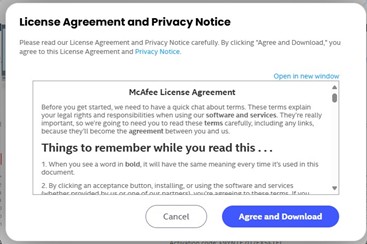
- Click Agree and Download.
- When the download is complete, double-click McAfee_Installer_[BUILDER NUMBER].exe.
Note: [BUILD NUMBER] = Serial Number
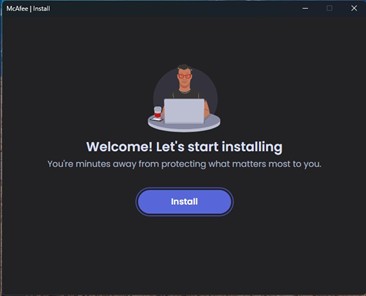
- In the installation wizard, click Install.
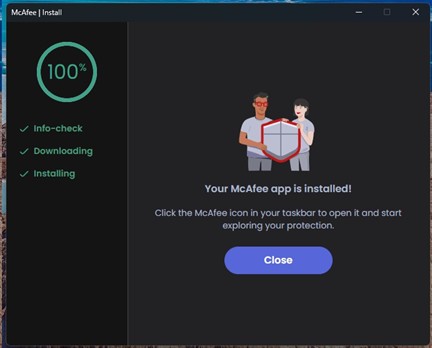
- When the installation is complete, click Close.
- McAfee+ Premium automatically launches. Click Get Started to view the protection status.

APOS
Click either New Purchase or Reinstall for the appropriate installation directions.
New Purchase
Warning: These steps are intended for customers who have never activated McAfee+ Premium. A redemption code (license key) from Dell can only be used once. Reference the Reinstall section if the redemption code was previously used.
To install the product:
- Go to https://www.dell.com/support/software.
- Click Sign In.
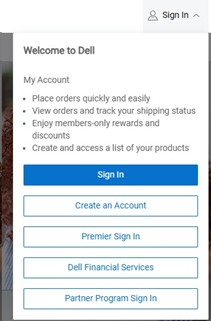
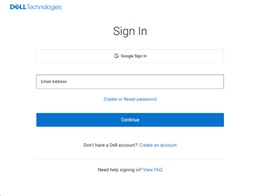
- Sign In to Dell Digital Locker or MyAccount using the email used to purchase McAfee+ Premium.
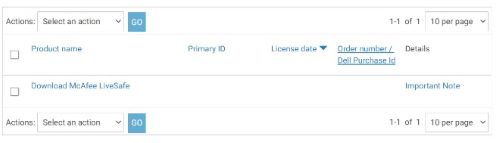
- Click Download McAfee+ Premium.
- Click Get Key.

- Document the License key.

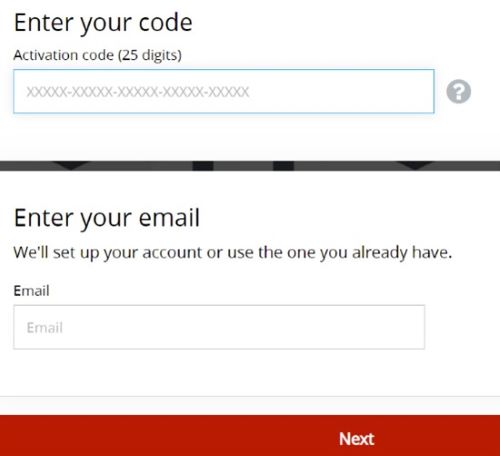
- Go to https://www.mcafee.com/activate
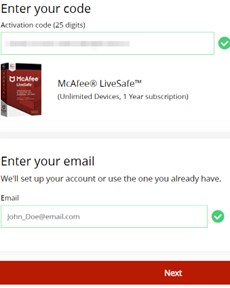
- Enter the License Key (step 6), Email, and then click Next.
 Warning:
- The License Key can only be redeemed once.
- On error You already redeemed that code, go to the Reinstall section.
- On successful redemption, click Next.
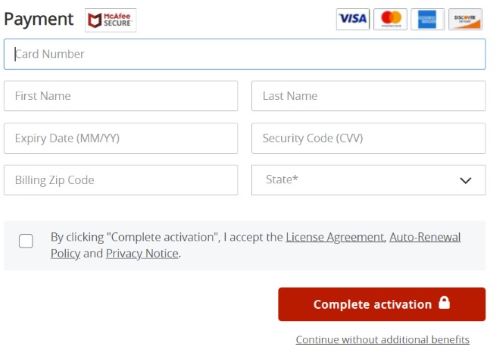
- Optionally setup a recurring subscription or click Continue without additional benefits.
- Click Download.
- When the download is complete, double-click McAfee_Installer_[BUILDER NUMBER].exe.
Note: [BUILD NUMBER] = Serial Number
- In the installation wizard, click Install.

- When the installation is complete, click Close.
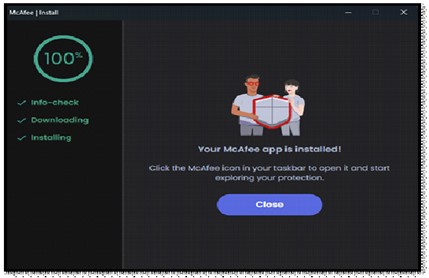
- McAfee+ Premium automatically launches. Click Get Started to view the protection status.
 Note: For any discrepancies with the subscription duration and the purchase duration, reference How to Get Support for McAfee Products Sold at Dell.
Reinstall
Note: An active McAfee+ Premium subscription is required to install the product.
To install the product:
- Go to https://www.mcafee.com/
- In the upper right, click Login.
- Sign in using your McAfee account.
 Note:
Note:- A McAfee account is generated during the initial setup of a McAfee subscription.
- For issues accessing your McAfee account:
- Validate the email used is tied to a McAfee subscription.
- To protect your privacy, Dell technical support is unable to validate the email used to setup the McAfee subscription. Contact the vendor directly for assistance at https://service.mcafee.com/
- Go to Device and click Download to more devices
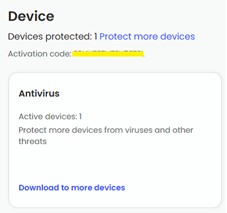
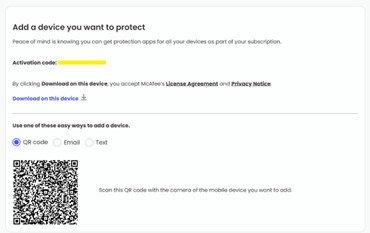
- Click Download on this Device we get Options to Download for PC, Mobile, Mac, Chrome Book Select and Download
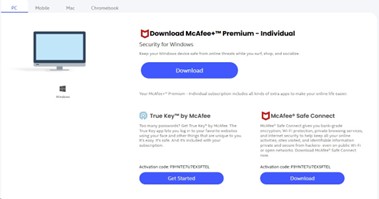
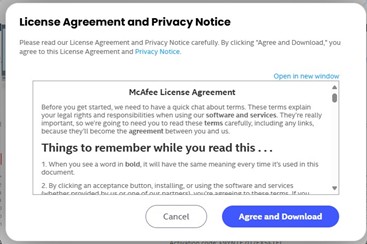
- Click Agree and Download.
- When the download is complete, double-click McAfee_Installer_[BUILDER NUMBER].exe.
Note: [BUILD NUMBER] = Serial Number
- In the installation wizard, click Install.
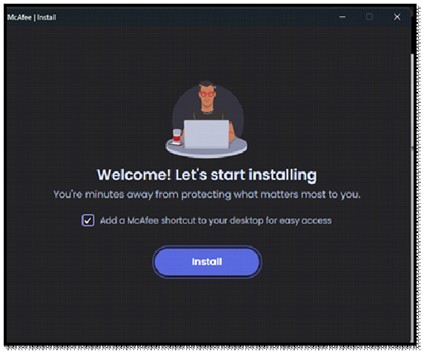
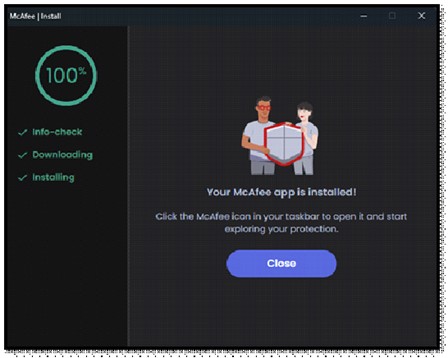
- When we installation is complete, click Close
- McAfee+ Premium automatically launches. Click Get Started to view the protection status.

Affected Products
Alienware, Dell All-in-One, Dell Pro All-in-One, Dell Pro Max Micro, Dell Pro Max Slim, Dell Pro Max Tower, Dell Pro Micro, Dell Pro Slim, Dell Pro Tower, Dell Slim, Dell Tower, Inspiron, Legacy Desktop Models, OptiPlex, Vostro, XPS, G Series
, G Series, Alienware, Dell Laptops, Dell Plus, Dell Pro, Dell Pro Max, Dell Pro Plus, Dell Pro Premium, Inspiron, Latitude, Dell Pro Rugged, Vostro, XPS, Legacy Laptop Models, Fixed Workstations, Mobile Workstations, Dell Pro Max Micro XE FCM2250
...
Article Properties
Article Number: 000222021
Article Type: How To
Last Modified: 02 Oct 2025
Version: 4
Find answers to your questions from other Dell users
Support Services
Check if your device is covered by Support Services.