VNX: VNX2: How to use Unisphere with Google Chrome (User Correctable)
Summary: Newer versions of Chrome does not allow java. As a work around, you can install a chrome extension to allow Unisphere or the VNX client to run within Chrome.
This article applies to
This article does not apply to
This article is not tied to any specific product.
Not all product versions are identified in this article.
Symptoms
Customer prefers or requires Chrome.
There is a need to run Unisphere within Google chrome.
There is a need to run Unisphere within Google chrome.
Cause
Java is no longer supported with Google Chrome.
Resolution
Installing the Google Chrome IE Tab extension allows chrome to emulate IE; which continues to support Java.
- Click the link below, bringing you to the Chrome store:
https://chrome.google.com/webstore/detail/ie-tab/hehijbfgiekmjfkfjpbkbammjbdenadd
- At the bottom of the page, there is a command button stating add to Chrome. Click the button.
- You see it download to the bottom left of the browser.
- Right click the file and select view in folder location. The file name is Ietabhelper.exe. Right click the file and select run as administrator.
- Once installed you should see an icon in the upper right as such

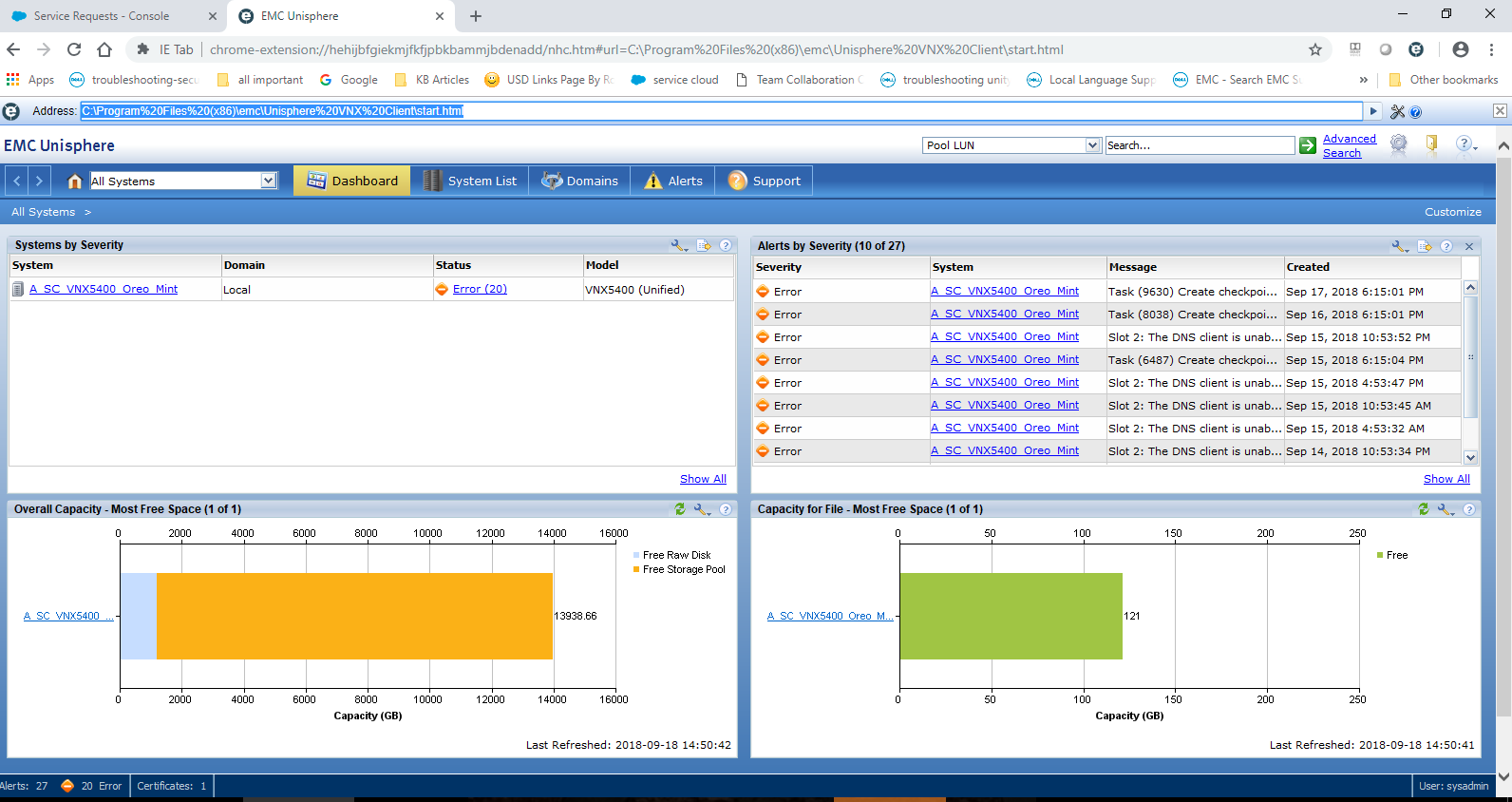
- Click the icon adds an additional URL address input. Here you can type the IP of the array or the path to the VNX Client locally. For example:
Affected Products
VNX/VNXeArticle Properties
Article Number: 000054856
Article Type: Solution
Last Modified: 29 Sept 2025
Version: 4
Find answers to your questions from other Dell users
Support Services
Check if your device is covered by Support Services.