OptiPlex 5090 Desktop System Guide
Summary: This is a guide to all articles that you should require to run one of the OptiPlex 5090 desktop form factors as it ships from Dell.
Instructions
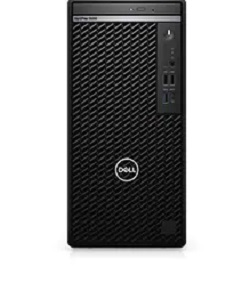
Dell OptiPlex 5090 System Guide: This guide contains Links to How-To Guides and Useful Information About Your System.
Expand Each Section Below for Information About Using Your Dell OptiPlex 5090.
Getting to know your computer:
A link to the System Manual can be found here:
This section provides links to information about locations of connectors and ports, figures of your system, and helps you to get started with your system.
- OptiPlex 5090: Visual Guide to your computer
- A Guide to External Ports and Connectors on Dell Systems
- How to connect a monitor to a Dell System?
Installation Options:
This section covers the supported Operating System (OS) reinstallation options for your system. See the tabs below to find out further information:
Microsoft Windows
For information about the various Windows OS versions click the following link:
Drivers:
This section gives information about drivers and the required order of installation for the various Windows Operating System versions supported on your Dell computer.
Driver Installation Order:
Installing Drivers with the Resource CD/DVD:
Ubuntu Linux
For information about Ubuntu Linux on your system, see the following link:
- Frequently Asked Questions about the Ubuntu Linux operating system on your Dell Computer
- How to Install Ubuntu Linux on your Dell Computer
- How to Install Ubuntu and Windows 8 Through Windows 11 as a Dual Boot on your Dell Computer
For more information, you can also see the Ubuntu Website:

System Backup and Recovery
This section provides information about the Backup and Recovery options for your system.
Unless you specified Recovery Media in your order, your Windows 10 system does not come with a recovery USB Flash Drive or Discs. For information about creating recovery media for your system if there is a catastrophic system failure, follow the link below:
- Create Windows 10 Recovery media for your Dell computer
- Create Windows Installation Media for Windows 8.1 and Windows 10 using the Media Creation Tool
Windows Recovery Environment (WinRE)
On factory installed Windows 10 systems, WinRE allows you to restore your system back to the original factory state. For more information, see the link below:
Dell Recovery Image of Microsoft Windows
You can also download a recovery image of the Microsoft Windows Operating System that is customized for your Dell product from the Dell support site.
Dell Backup and Recovery (DBAR)
For systems before Windows 10, DBAR is a flexible automated backup and recovery application which is designed to reliably protect your most important digital documents and memories in a few clicks.
Unless you specified Recovery Media in your order, your system does not come with a recovery USB Flash-Drive or Discs. You can also use the DBAR application to make recovery media for your system if there is a catastrophic system failure.
More information can be found out from the Dell Backup and Recovery Support page:
For information about systems that have been upgraded to Windows 10, see the following article:
Further general information about recovering Windows can be found in the following article:
Dell SupportAssist for PCs and Tablets:
SupportAssist previously called My Dell, provides system updates, detects issues, and sends you alerts based on your device which makes solving and preventing problems easier than ever. This application gives you access to everything you require to take the guesswork out of maintaining PCs and tablets. For more information and installation instructions, see the following link:
Diagnostics and Error Codes:
This section provides links to articles about diagnostics and the various error messages, beep codes, and Diagnostic LED codes. They can help to troubleshoot potential hardware and software issues on your system.
- Using the ePSA or PSA Diagnostics and a Guide to Error Codes
- A reference guide to the OptiPlex Diagnostic Indicators
- Understanding Beep Codes on a Dell Desktop personal computer
- Help with Troubleshooting System Lock Ups or Freezes
- Troubleshoot Slow Performance Issues on a Dell personal computer
- Identify and Troubleshoot Windows Crashes and Restarts caused by Blue Screen errors
You can also use the diagnostics that are on the Dell Support page, this requires Dell System Detect and SupportAssist are installed on your system. This is performed if you choose to run the diagnostics. You can get to those diagnostics by following the link below:
Hardware:
The section below provides links to articles that contain information about the different hardware on your system. They can help you to troubleshoot any problems that are identified by the above diagnostics. There are also general "How to" articles that can help with tasks, for example like updating the BIOS or upgrading a hard drive.
Audio
- Computer Making Noises? Troubleshoot Loud Fans, Hard Drive & More
- How to Troubleshoot No Sound on a Computer or Fix Computer Audio Problems
- How to fix problems with speakers emitting unwanted noise
- How to Troubleshoot and Resolve a No Audio issue with an OptiPlex personal computer
BIOS and Motherboard
- What is BIOS and How to Check and Update the System Setup or BIOS on Your Dell System
- How to Perform a BIOS or CMOS Reset or Clear the NVRAM on your Dell System
- How to Update BIOS: Install and Upgrade BIOS on Windows
Fan and Overheating Issues
- How to troubleshoot an Overheating, Shutdown or Thermal issue on a Dell personal computer
- Computer Making Noises? Troubleshoot Loud Fans, Hard Drive & More
Hard Drive Issues
- Links on How to resolve HDD (Hard drive) issues on your Dell computer
- How to Troubleshoot a RAID Hard Drive issue on a Dell Desktop personal computer
Input Devices Issues
- Keyboard Usage and Troubleshooting Guide
- Mouse Usage and Troubleshooting Guide
- A guide to Input Device Issues on an OptiPlex Desktop personal computer
Memory
- How to Troubleshoot and Resolve Memory issues with a Dell Desktop personal computer
- How to identify if your Dell personal computer supports the Memory DIMM Isolation diagnostics
Networking, Wi-Fi, Bluetooth
- Dell Networking and Wireless Support Center
- A list of various "How To" Network and Wi-Fi Troubleshooting articles for Dell computers
No POST, No Power
Optical Drive
Ports and Connections
- USB Ports Not Working on Windows: Solve Common USB Issues
- A Guide to the External Ports and Connectors on a Dell Computer
Video and Monitor Issues
Other Software, Security and Encryption, and anti-virus:
This section covers the Software that is supported on your system, it also has links to information about Security and Encryption and anti-virus.
See the tabs below to find out further information:
Software
Your system is shipped with some preinstalled applications and software which are designed to make your life easier. This section contains links to information about these.
To access the Dell Download Center, click the following link:
To access the Dell Application and Software Page click the following link:
Software sold with your system:
This section provides information about some of the software preinstalled and sold with your system.
Some of the software that is sold at the time of purchase has to be downloaded once you receive your system.
This is achieved by using Dell Digital Delivery, for more info see the links below:
Adobe
Creative
Dell
- Dell Capture
- Face Aware
- How to Install the Fingerprint Reader Driver and Enroll or Remove Your Fingerprint in Windows Hello
Microsoft
Skype

Security and Encryption
This section contains links to information about Security and Encryption on your Dell system.
Dell Data Protection | Access (DDPA)
Anti-virus
To access the Dell Security and Virus Support Page click the following link:
Your system may be preinstalled with an anti-virus program, for more information, follow the link below:
For further information about Viruses, Spyware and Malware more information can be found by following the links below:
- What are the different types of Viruses, Spyware and Malware that can infect my computer
- Protect your computer or remove virus, spyware, or other malware in Microsoft Windows
- How to Identify and Repair Malware or Virus Infected Systems