NetWorker: How To Clear Java Cache, enable Java Console and Debugging (Oracle Java)
Summary: This describes the procedure to enable Java UI debugging within the NMC user interface.
This article applies to
This article does not apply to
This article is not tied to any specific product.
Not all product versions are identified in this article.
Instructions
This KB covers how to enable Java debugging when Oracle Java Runtime Environment (JRE) is used. Enabling Java console and debugging may be required when facing issues with the NetWorker Management Console (NMC). These steps are to be carried out on the NMC client (the host where the user interface is launched from).
If you are using NetWorker Runtime Environment (NRE) instead of Oracle Java, follow this article instead: NRE: How to clear Java Cache, enable Java Console and Debugging.
Clear the Java cache
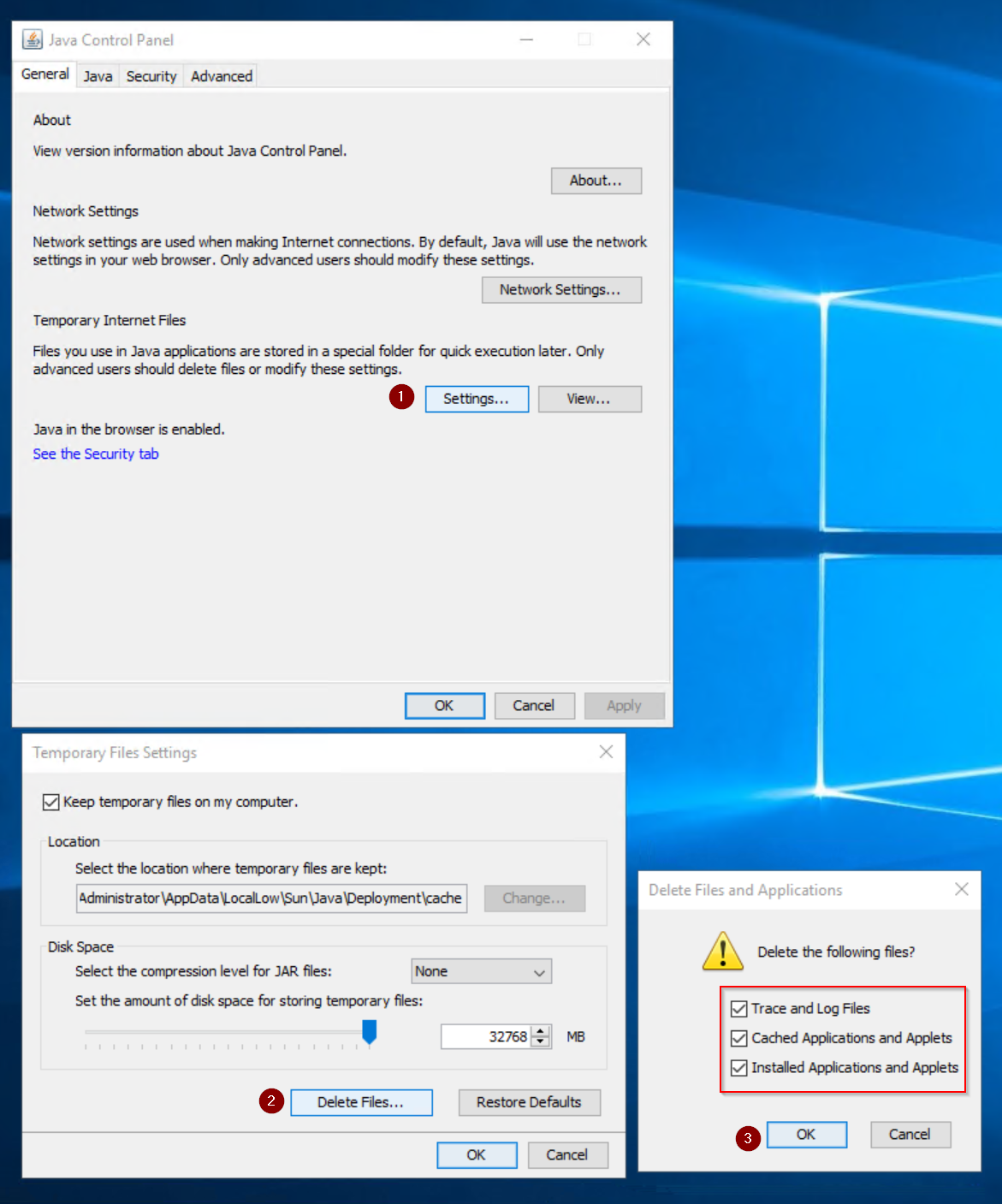
From the system Control Panel, open the Java Control Panel.
- From Java Control Panel, open Settings under Temporary Internet Files in the General tab.
- From the Temporary File Settings, click Delete Files.
- Select each of the boxes, then click OK.
Enable Java Console
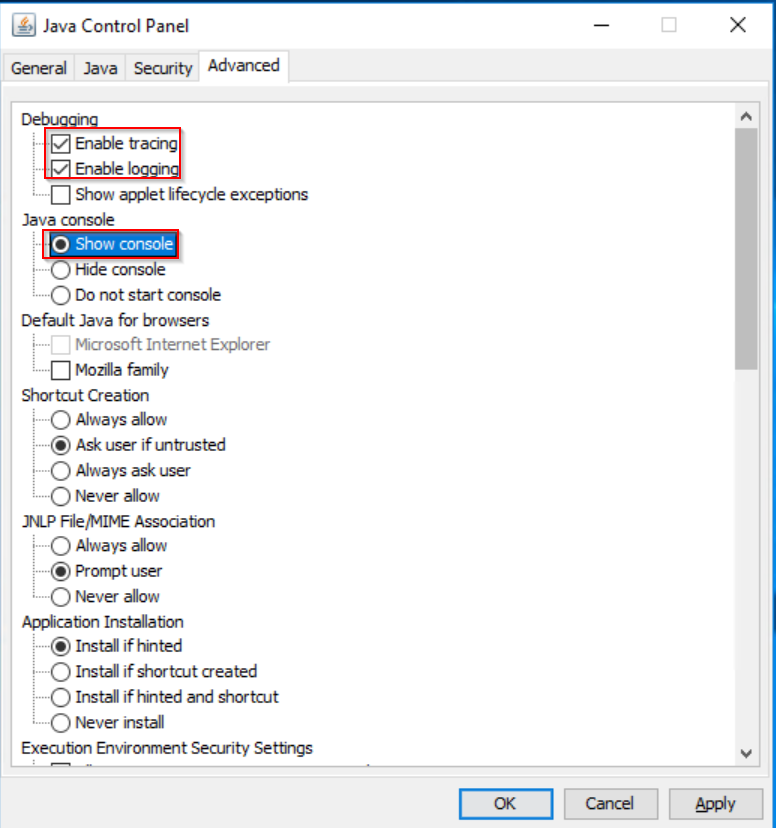
From the system Control Panel, open the Java Control Panel.
- In the Java Control Panel, open the Advanced tab.
- Under Debugging, select Enable Tracing and Enable Logging
- Under Java Console, select Show console.
- Click Apply, then click OK.
- Launch the NetWorker Management Console (NMC). The Java console appears once the NMC is launched:
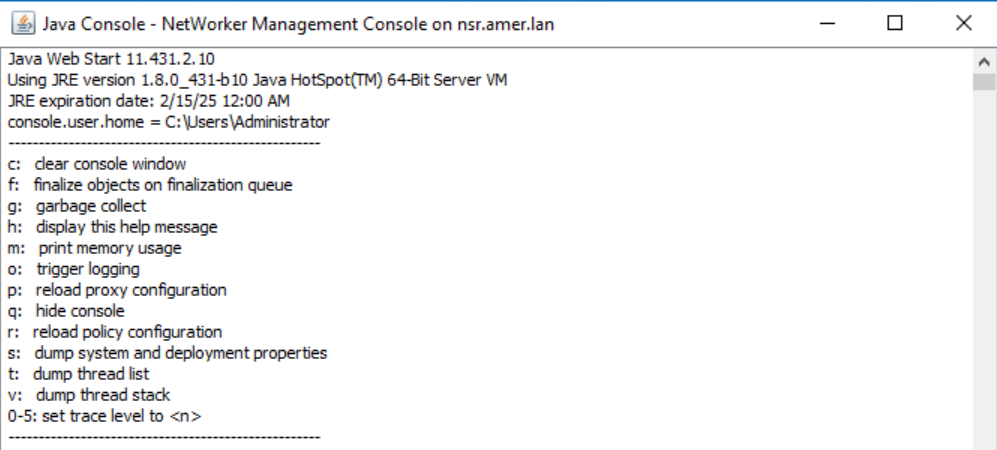
NOTE: Scroll to the top of the console to see the available options. The options used vary depending on the issue and troubleshooting approach.
Enable NMC service Debug:
After logging in to the NMC go to Setup, then open the Setup menu and click System Options. Set the Debug level to 9.

With NMC (gstd) service debug enabled, additional messages are logged in the gstd.raw:
Linux: /opt/lgtonmc/logs/gstd.raw
Windows: C:\Program Files\EMC NetWorker\Management\GST\logs\gstd.raw
NetWorker: How to use nsr_render_log to render .raw log files
WARNING: Depending on the NMC server activity, enabling debug could lead to significant log growth. Debug should only be enabled while troubleshooting an issue. Once troubleshooting has concluded, disable debug. Monitor file system usage of the NetWorker install path, ensuring adequate disk space is available.
Enable NMC Java Debug:
With the Java Console enabled, log in to the NMC as administrator.
- Bring up the Java debug menu by pressing the CTRL+SHIFT+right mouse button in the Enterprise window.
- Set Debug Level to 7.
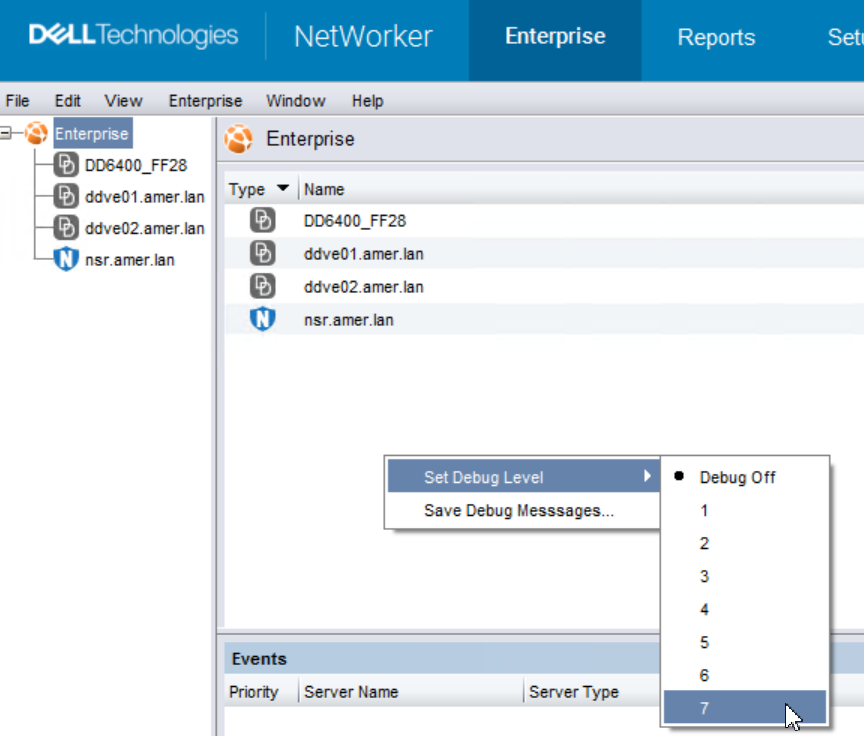
NOTE: The Java console reports "Setting Debug level to X" for the debug level selected.
- Reproduce the problem.
- CTRL+SHIFT+right mouse button again and click Save Debug Messages

Also, Copy the output from the Java Console Window, and save it to a .txt file.
Disabling Debug:
To disable the debug settings, revert the changes applied in this KB. No service restart is required.
Additional Information
Affected Products
NetWorker, NetWorker Management ConsoleProducts
NetWorker Family, NetWorker Series, NetWorker Management ConsoleArticle Properties
Article Number: 000019783
Article Type: How To
Last Modified: 14 Aug 2025
Version: 5
Find answers to your questions from other Dell users
Support Services
Check if your device is covered by Support Services.