Microphone Intermittently Drops on Dell Peripherals Connected to Computers Using the TGL CPU
Summary: The following article provides information about an intermittent microphone dropping out issue. Dell Peripherals such as the Pro Stereo Headset WH3022, Dell Pro Desktop Speakerphone SP3022, and the SB552A Soundbar, report this problem with computers using the Intel Tiger Lake CPU. ...
This article applies to
This article does not apply to
This article is not tied to any specific product.
Not all product versions are identified in this article.
Symptoms
Microphone intermittently drops in Windows
Owners of Dell computers using the Intel Tiger Lake Central Processing Unit (CPU) may experience an intermittent microphone drop. This can be seen after the computer resumes from hibernation, Sleep, or after a restart.
Other symptoms include:
- The Microphone intermittently is not working.
- No sound is intermittently coming from the speaker or headphones.
- The peripheral is missing from the selection list for audio devices in conference applications.
This problem can be seen when using a peripheral with an integrated microphone such as the:
- Alienware Pro Wireless Gaming Headset
- Alienware Tri-Mode Wireless Gaming Headset AW725H
- Alienware Tri-Mode Wireless Gaming Headset AW920H
- Alienware Wired Gaming Headset AW520H
- Alienware Wireless Gaming Headset AW720H
- Dell Pro Stereo Headset WH3022
- Dell Pro Desktop Speakerphone SP3022
- Dell Soundbar SB522A
Cause
The Intel Smart Sound Technology (ISST) driver is installed on computers with a Tiger Lake CPU.
ISST is an integrated audio Digital Signal Processor (DSP) that is built to handle audio, voice, and speech interactions. The ISST enables the audio USB to offload from the CPU to the Intel DSP.
In a computer running a different CPU, a Microsoft inbox driver is installed. You do not see this issue with the MSFT driver.
Intel reports that this issue is seen when the Intel USB audio driver gets stuck on an 8 KHz recording path. (Although the default recording bit rate should be 16 kHz.)
Resolution
The following steps take you through resolving this issue on those computers using the Tiger Lake CPU and the Intel Smart Sound Technology:
-
Open the Device Manager application:
-
Press the Windows Key + X together to open the Power menu and press M to open the device manager.
-
Right click the start menu logo and click device manager from the menu that appears.
-
Press Ctrl + R to open a run box. Type
devmgmnt.mscand press the Enter key.
-
-
Identify your version of the Intel Smart Sound Technology driver and follow the appropriate instructions:
-
You can disable the ISST OED driver in the Device manager. Open System Devices and right click the driver to open its properties box. Click the Driver tab and click disable driver. (See figure.1)
-
You can clear the checkbox next to Enable audio enhancement in the Headphones/Microphones Advanced properties tab. Right click the device in Playback in the Sounds application and select Properties. (See figure.1)

(Figure.1 Configuration Screens)
-
You can disable the ISST for USB audio driver in the Device manager. Open Sound, video and game controllers and right click the driver to open its menu. Click disable the device. (See figure.2)
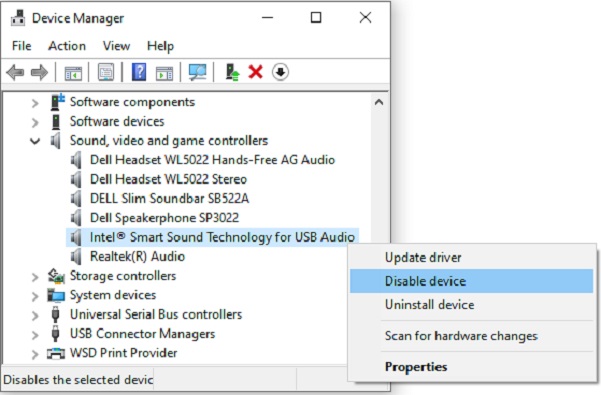
(Figure.2 Device Manager Configuration)
-
You can clear the Hardware Acceleration and the Signal Enhancements check boxes in the Headphones/Microphone Advanced properties tab. Right click the device in Playback in the Sounds application and select Properties. (See figure.3)
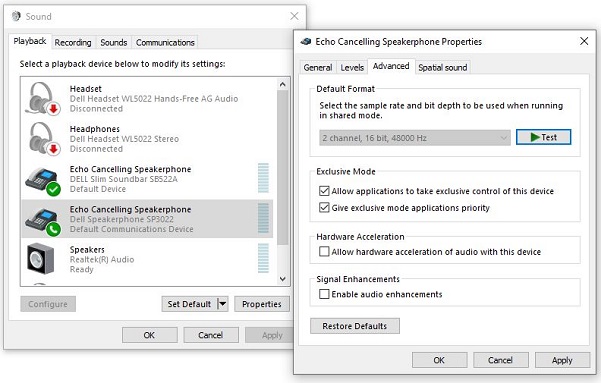
(Figure.3 Sound Device Properties)
Note: Local Administrator Rights are required to alter settings in the Device Manager application.
Affected Products
Alienware Pro Wireless Gaming Headset, Alienware Tri-Mode Wireless Gaming Headset AW725H, Alienware Tri-Mode Wireless Gaming Headset AW920H, Alienware Wired Gaming Headset AW520H, Alienware Dual Mode Wireless Gaming Headset AW720H
, Dell Slim Conferencing Soundbar - SB522A, Dell Pro Desktop Speakerphone SP3022, Dell Pro Stereo Headset - WH3022
...
Article Properties
Article Number: 000185480
Article Type: Solution
Last Modified: 01 Jul 2025
Version: 10
Find answers to your questions from other Dell users
Support Services
Check if your device is covered by Support Services.