Camera Video Flickers in Office Environments on Dell Monitors
Summary: This article discusses camera flicker in mixed light conditions and in office environments when the lights are turned on.
This article applies to
This article does not apply to
This article is not tied to any specific product.
Not all product versions are identified in this article.
Symptoms
Affected Products:
- Dell P3424WEB Monitor
- Dell P2424HEB Monitor
- Dell P2724DEB Monitor
- Dell U3223QZ Monitor
- Dell U3234KB Monitor
- Dell 24 Video Conferencing Monitor I C2422HE
- Dell 27 Video Conferencing Monitor I C2722DE
- Dell 34 Video Conferencing Curved Monitor I C3422WE

Conditions that have been re-created:
- Office light on, curtains closed: Flickering occurs at 50 Hz.
- Office light on, curtains open: Flickering occurs at 50 Hz and 60 Hz
- Curtains open, no lights: Flickering occurs at 50 Hz
Note: The issue is resolved with other USB camera vendors after switching to 50 hz.
Cause
Different regions have different power frequencies (50 HZ or 60 HZ), webcam flicker is because the power frequency is not sync with the webcam frame rate.
The major factor for the flicker comes from two items:
- Image sensor pixel size: The bigger the light collection means better performance
- Lens aperture: Same, the bigger the aperture the better the low light performance
In terms of video flicking, a combination of factors may be contributing to the issue:
- Customer lighting environment which is a high brightness environment by artificial light
- The AC power frequency
This is a common problem for cameras that have a high sensitivity for light collection. And it relates to a region of AC power frequency as well.
Other high-sensitivity cameras (which means better performance in low light conditions) like the iPhone, can have a flicker issue too. Only those with poorer low light performance may have less of a chance to see the flicker.
Indoor light is with 60Hz frequency, and camera sensor exposure time should be a multiple of 1/120 second (8.3ms) to prevent the image flicker.
In order to support wide dynamic Range (WDR) and have more background detail, when in strong backlight condition for getting more detail. Camera sensor exposure time is less than 8.3ms.
Camera sensor exposure time and lighting source frequency timing mismatch to cause flicker.
Resolution
To resolve the webcam flicker:
For Dell monitors
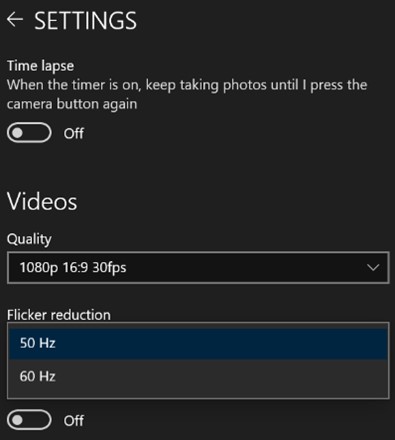
Change the webcam frame rate in webcam setting as following, to ensure that the power frequency is synced with the webcam frame rate (do one of the following):
- If the power frequency is 50 Hz, then select 50 Hz for flicker reduction in the webcam setting.
- If the power frequency is 60 Hz, then select 60 Hz for flicker reduction in the webcam setting.
- If both 50 HZ and 60 HZ for flicker reduction cannot resolve the webcam flicker issue during a multiple light source environment, use pure indoor light or outdoor light for one single light source.
Affected Products
Dell 24 Video Conferencing Monitor C2422HE, Dell 27 Video Conferencing Monitor C2722DE, Dell 34 Video Conferencing Curved Monitor C3422WE, Dell P2424HEB, Dell P2724DEB, Dell P3424WEB, Dell U3223QZ, Dell U3224KBArticle Properties
Article Number: 000227355
Article Type: Solution
Last Modified: 15 Sept 2025
Version: 7
Find answers to your questions from other Dell users
Support Services
Check if your device is covered by Support Services.