How to Install Adobe Creative Cloud, Adobe Express Premium, and Adobe Lightroom
Summary: This article discusses how to download and install Adobe Creative Cloud, Adobe Express Premium, or Adobe Lightroom purchased with a Dell computer.
This article applies to
This article does not apply to
This article is not tied to any specific product.
Not all product versions are identified in this article.
Instructions
Affected Product:
- Adobe Creative Cloud
- Adobe Express Premium
- Adobe Lightroom
Affected Platforms:
- Windows
Adobe Creative Cloud is a subscription offer that provides a series of video and photo-editing apps. Both Adobe Lightroom and Adobe Express Premium can be installed after completing installation of Adobe Creative Cloud (reference Step 8 of the New Setup process).
Adobe Creative Cloud can be purchased:
- At the time of select consumer and commercial Dell computers running Windows
- Software is available in Dell Digital Delivery.
- Alternatively, through https://www.dell.com
- Software is available through Dell Digital Locker.
Warning: These steps cover only Adobe Creative Cloud that is purchased at the time of the Dell hardware.
Click either New Setup or Reinstall for the appropriate installation directions.
Note: Before downloading and installing Adobe Creative Cloud:
- Log in to Windows with an account with administrator privileges.
- Download and install Dell Digital Delivery.
- For more information, reference Dell Digital Delivery and Alienware Digital Delivery End of Life Announcement.
- In the Windows Start Menu, search and then click Dell Digital Delivery.
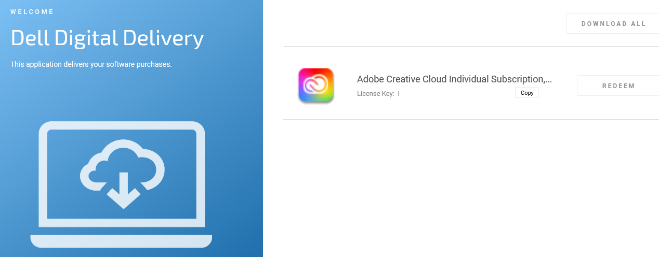
- In the user interface (UI), click Redeem and then click Copy License Key.
 Note:
Note:- The 16-digit alphanumeric license key has been omitted from the above screenshot.
- Adobe references the license key as a redemption code.
- The Dell Digital Delivery UI reflects the latest version. The user experience of Dell Digital Delivery may differ in legacy versions.
- To download the latest version, reference Dell Digital Delivery and Alienware Digital Delivery End of Life Announcement.
- The 16-digit alphanumeric license key has been omitted from the above screenshot.
- Click Redeem to automatically go to https://redeem.licenses.adobe.com/getserial/
.
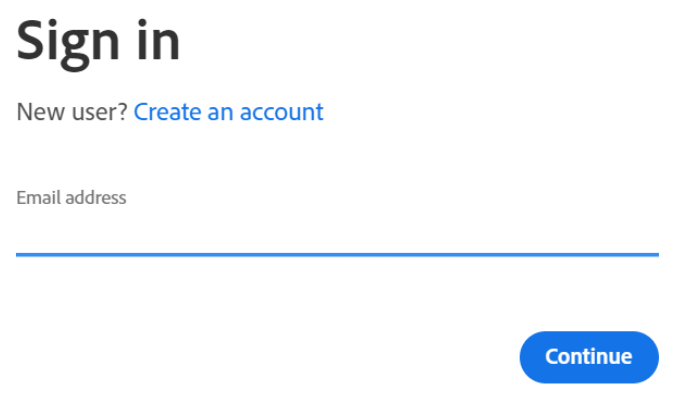
- Type your Adobe ID or associated Email Address and then click Continue.
 Note:
Note:- For account help, reference Solve Adobe Account Sign-in Issues
- If this is the first time using an Adobe product, click Create an account.
- Dell is unable to assist with third-party (Adobe) account issues. Contact the vendor for further assistance.
- For account help, reference Solve Adobe Account Sign-in Issues
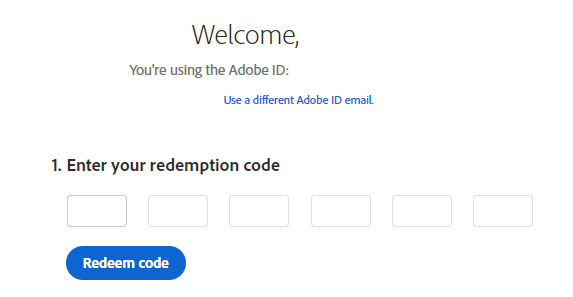
- Enter your redemption code (Step 2) and then click Redeem code.
 Warning: The redemption code (Step 2) can only be used once.Note:
- The username and license key were removed from the above screenshot.
- If error This code has already been redeemed occurs, then reference Adobe Product Code Has Already Been Redeemed for steps on resolution.
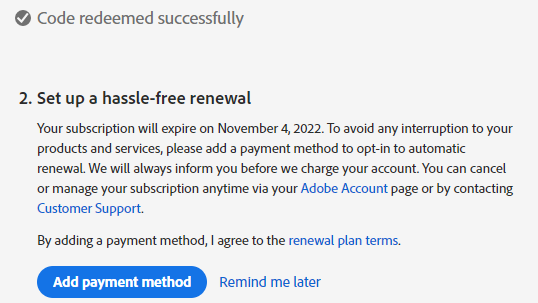
- On successful redemption, optionally Add payment method or click Remind me later.
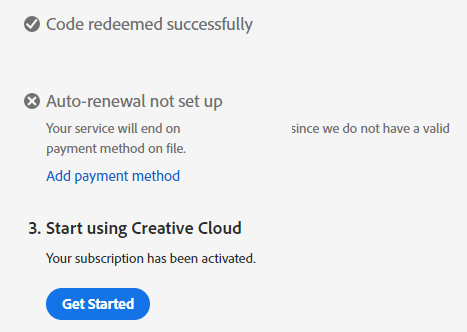
- Click Get Started.
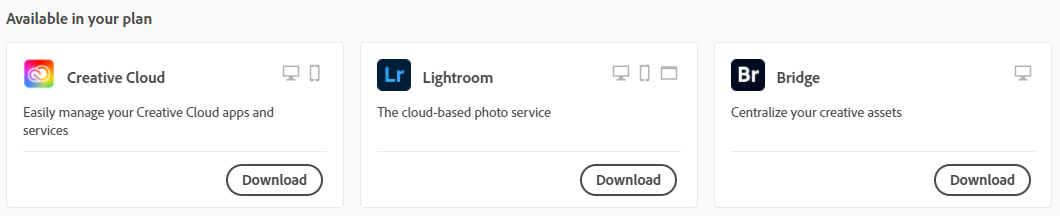
- Download the appropriate application.
 Note:
Note:- The applications that are listed in the screenshot may differ from your subscription offer.
- The Adobe Creative Cloud app is required to use any other suite app.
Note:
- An active Adobe Creative Cloud subscription is required to install the product.
- Subscriptions must be renewed with Adobe directly.
- Go to https://www.adobe.com
- In the upper right, click Sign In.

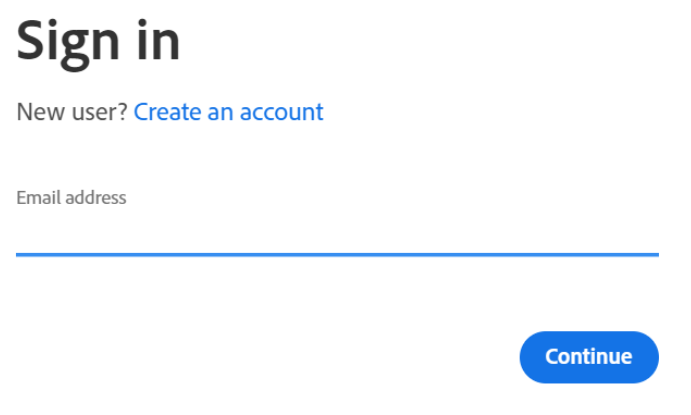
- Type your Adobe ID or associated Email Address and then click Continue.
 Note:
Note:- For issues accessing your Adobe account:
- Validate the email that was used to setup the Adobe subscription.
- Dell technical support is unable to validate the email that was associated to the subscription, to protect your privacy.
- For account help, reference Solve Adobe Account Sign-in Issues
- For issues accessing your Adobe account:
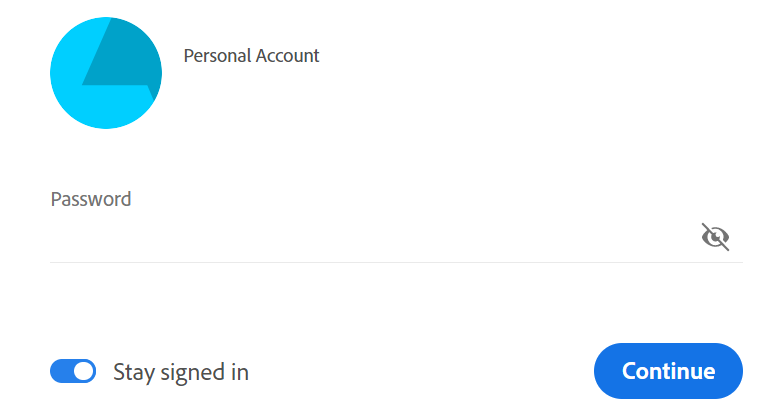
- Type your Password and then click Continue.
- In the upper right corner, select your user icon and then click View Account.
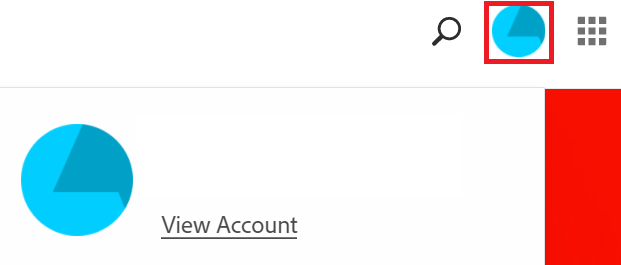 Note: The user icon may differ on your profile.
 - Click Access your apps and services.

- Download the appropriate application.
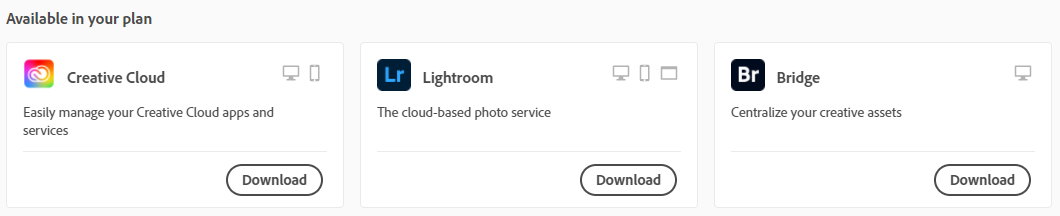 Note:
Note:- The applications that are listed in the screenshot may differ from your subscription offer.
- The Adobe Creative Cloud app is required to use any other suite app.
Article Properties
Article Number: 000193849
Article Type: How To
Last Modified: 12 May 2026
Version: 13
Find answers to your questions from other Dell users
Support Services
Check if your device is covered by Support Services.