DSU: Windows Serverオペレーティング システムでDELL EMC System Update(DSU)を使用してドライバーとファームウェアをインストールする方法
Summary: 次の記事では、DELL EMC System Updateを使用してWindows Serverにドライバーおよびファームウェアをインストールする方法について説明します。
This article applies to
This article does not apply to
This article is not tied to any specific product.
Not all product versions are identified in this article.
Instructions
Warning: iDRACを除き、その他すべてのファームウェアではサーバーを再起動する必要があるため、このプロセスはサーバーのダウンタイムが発生したときに実行する必要があります。
Dell Technologies System Updateをダウンロードします。
- [https://www.dell.com/support/home?app=drivers]に移動して、サーバー モデルを入力するか、サービス タグを入力します。
- [ドライバーおよびダウンロード]タブをクリックします。
- オペレーティング システムを選択します。
- [キーワード]に「DSU」と入力します
- 表示されたDELL EMC System Updateファイルをダウンロードします
ダウンロードしたファイルを実行し、クリックしてインストールします。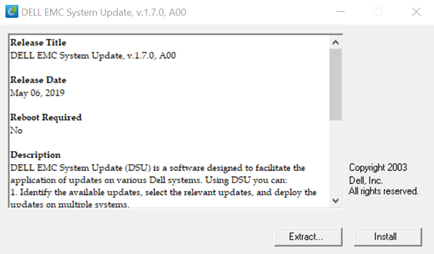
はいをクリックして インストールを開始します。
OKをクリックして インストールを完了します。
管理者権限でPowerShellを開きます。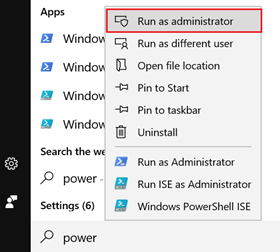
コマンド:
PS C:\Windows\system32> DSU

システム インベントリーが収集されると、見つかったすべてのドライバーとファームウェアが以下に一覧表示されます。「[ ]」の付いているものはインストール可能なドライバー/ファームウェアです。
インストールするファームウェアに対応する番号を入力し、 Enter キーを押します。
DSU出力とオプション:
[ ] Represents components which are not selected
[*] Represents components which are selected
[- ] Represents component already at repository version (cannot be selected).
Choose: "q" to Quit without update
Choose: "c" to Commit and apply updates
Choose: "to" Select/Deselect updates
Choose: "a" to Select All
Choose: "n" to Select None
「number」 を入力するか、 Enter を押すか、「a」 を使用してすべて適用します。
インストールを開始するには、文字 C + Enterを押します。
注:インストールを開始すると、サーバーが自動的に再起動し、Lifecycle Controllerが入力されます。


追加情報とヘルプについては、 DSU / h 使用可能なコマンドのガイドが表示されます。
関連文書:
Affected Products
Dell System UpdateArticle Properties
Article Number: 000116751
Article Type: How To
Last Modified: 03 Dec 2024
Version: 6
Find answers to your questions from other Dell users
Support Services
Check if your device is covered by Support Services.