DSU: Windows Server 운영 체제에서 DSU(Dell EMC System Update)를 사용하여 드라이버 및 펌웨어를 설치하는 방법
Summary: 다음 문서에서는 Windows Server에서 Dell EMC System Update를 사용하여 드라이버와 펌웨어를 설치하는 방법에 대해 설명합니다.
This article applies to
This article does not apply to
This article is not tied to any specific product.
Not all product versions are identified in this article.
Instructions
경고: iDRAC를 제외하고 다른 모든 펌웨어의 경우 서버를 재시작해야 하므로 이 프로세스는 서버 다운타임이 있을 때 수행해야 합니다.
Dell Technologies System Update를 다운로드합니다.
- https://www.dell.com/support/home?app=drivers 로 이동하여 서버 모델 또는 서비스 태그를 입력합니다.
- 드라이버 및 다운로드를 클릭합니다.
- Operating System를 선택합니다.
- 키워드 유형 - DSU
- 제공된 DELL EMC System Update 파일을 다운로드합니다.
다운로드한 파일을 실행하고 클릭하여 설치합니다.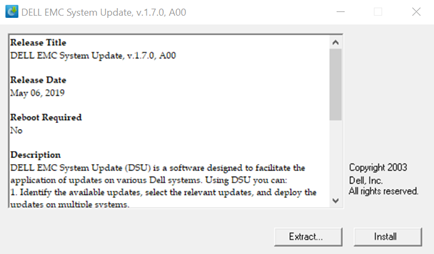
예를 클릭하여 설치를 시작합니다.
Ok를 클릭하여 설치를 완료합니다.
관리자 권한으로 Powershell을 엽니다.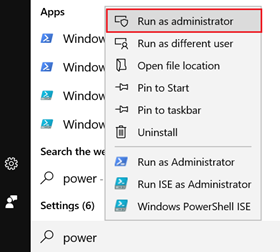
명령:
PS C:\Windows\system32> DSU

시스템 인벤토리가 수집되면 아래에 나열된 모든 드라이버 및 펌웨어를 확인할 수 있습니다. "[ ]"가 있는 것은 설치 가능한 드라이버/펌웨어입니다.
설치하려는 펌웨어에 해당하는 번호를 입력하고 Enter 키를 누릅니다.
DSU 출력 및 옵션:
[ ] Represents components which are not selected
[*] Represents components which are selected
[- ] Represents component already at repository version (cannot be selected).
Choose: "q" to Quit without update
Choose: "c" to Commit and apply updates
Choose: "to" Select/Deselect updates
Choose: "a" to Select All
Choose: "n" to Select None
"숫자" 를 입력하거나 Enter 키를 누르거나 모두 적용하려면 "a" 를 사용합니다.
설치를 시작하려면 문자 C + Enter를 누릅니다.
참고: 설치를 시작하면 서버가 자동으로 재시작되고 Lifecycle Controller로 들어갑니다.
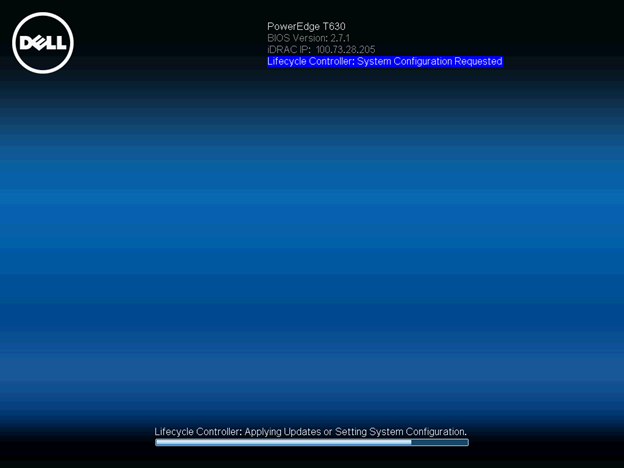
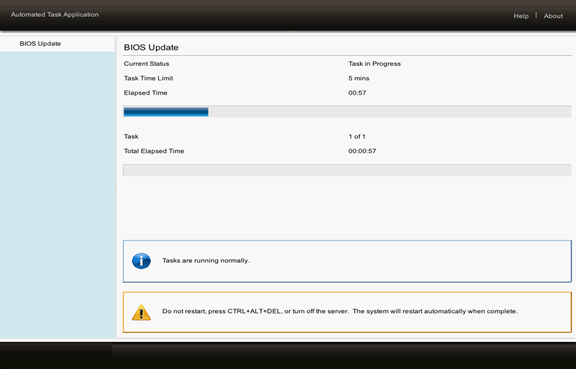
추가 정보 및 도움말: DSU / h 사용 가능한 명령에 대한 안내가 표시됩니다.
관련 문서:
Affected Products
Dell System UpdateArticle Properties
Article Number: 000116751
Article Type: How To
Last Modified: 03 Dec 2024
Version: 6
Find answers to your questions from other Dell users
Support Services
Check if your device is covered by Support Services.