DSU: Drivers en firmware installeren met behulp van DELL EMC System Update (DSU) in het Windows Server-besturingssysteem
Summary: Het volgende artikel bevat informatie over hoe u drivers en firmware kunt installeren met behulp van DELL EMC System Update op Windows Server.
This article applies to
This article does not apply to
This article is not tied to any specific product.
Not all product versions are identified in this article.
Instructions
Waarschuwing: Met uitzondering van IDRAC moet u voor alle andere firmware de server opnieuw opstarten, dus dit proces moet worden uitgevoerd wanneer downtime van de server beschikbaar is.
Download de Dell Technologies systeemupdate.
- Ga naar https://www.dell.com/support/home?app=drivers, voer uw servermodel of servicetag in.
- Klik op het tabblad Drivers en downloads
- Selecteer uw Besturingssysteem
- Typ het trefwoord DSU
- Download het aangeboden DELL EMC System Update-bestand
Voer het gedownloade bestand uit en klik om het te installeren.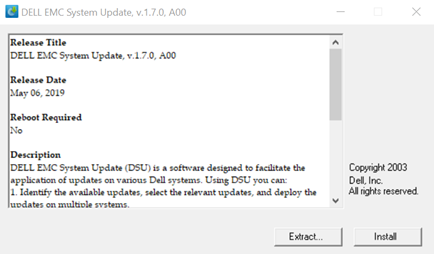
Klik op Ja om de installatie te starten.
Klik op Ok om de installatie te voltooien.
Open Powershell met administratorbevoegdheden.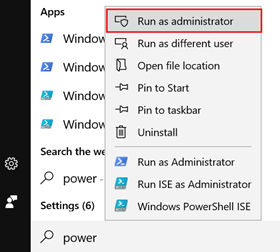
Opdrachten:
PS C:\Windows\system32> DSU
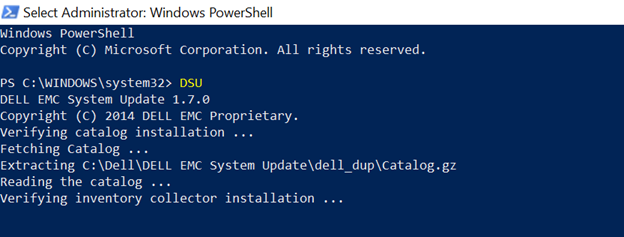
Zodra de systeeminventaris is verzameld, worden hieronder alle gevonden drivers en firmware vermeld, die met "[ ]" zijn drivers/firmware die beschikbaar zijn voor installatie.
Voer het nummer in dat overeenkomt met de firmware die u wilt installeren en druk op Enter.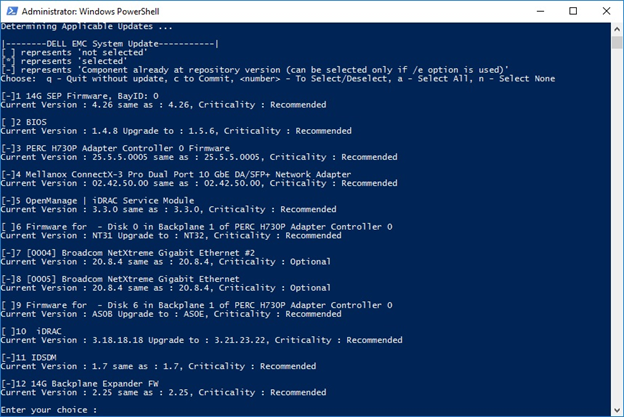
DSU-uitgangen en opties:
[ ] Represents components which are not selected
[*] Represents components which are selected
[- ] Represents component already at repository version (cannot be selected).
Choose: "q" to Quit without update
Choose: "c" to Commit and apply updates
Choose: "to" Select/Deselect updates
Choose: "a" to Select All
Choose: "n" to Select None
Typ het "number" of druk op Enter of gebruik "a" om alles toe te passen.
Om de installatie te starten, drukt u vervolgens op de letter C + Enter.
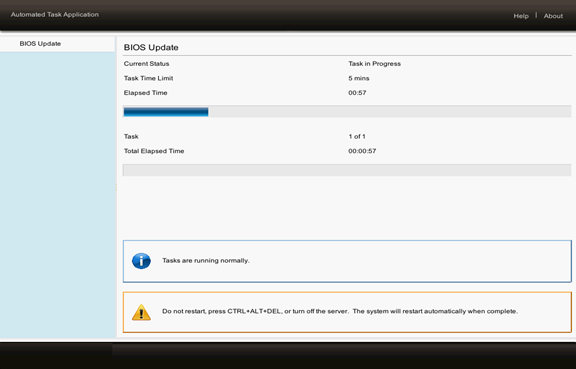
Opmerking: De installatie wordt gestart, de server start automatisch opnieuw op en opent de Lifecycle Controller.

Voor meer informatie en hulp - DSU / h U krijgt een handleiding met beschikbare opdrachten te zien.
Gerelateerde artikelen:
Affected Products
Dell System UpdateArticle Properties
Article Number: 000116751
Article Type: How To
Last Modified: 03 Dec 2024
Version: 6
Find answers to your questions from other Dell users
Support Services
Check if your device is covered by Support Services.